
PDFエクスポート機能の強化:
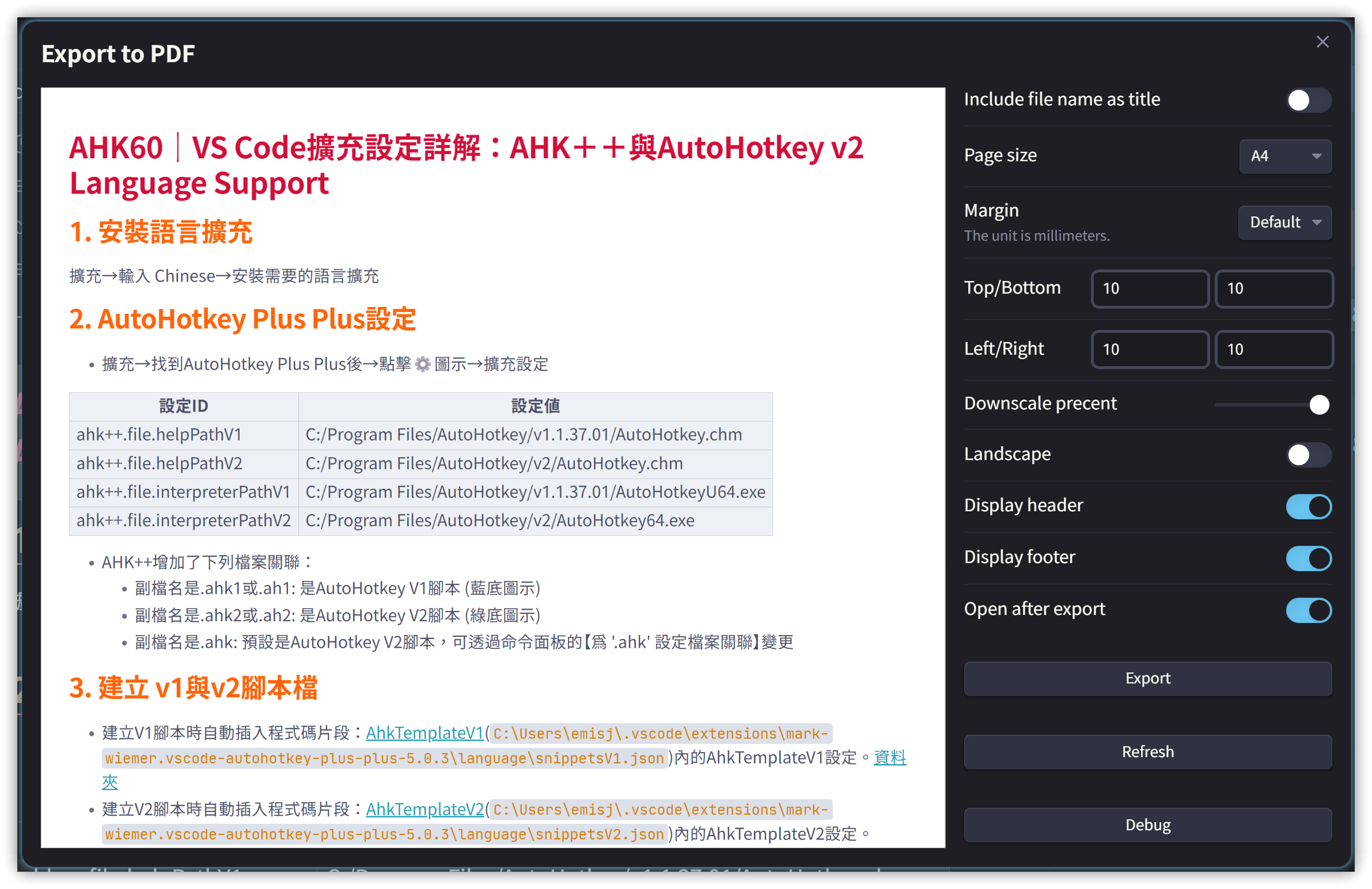
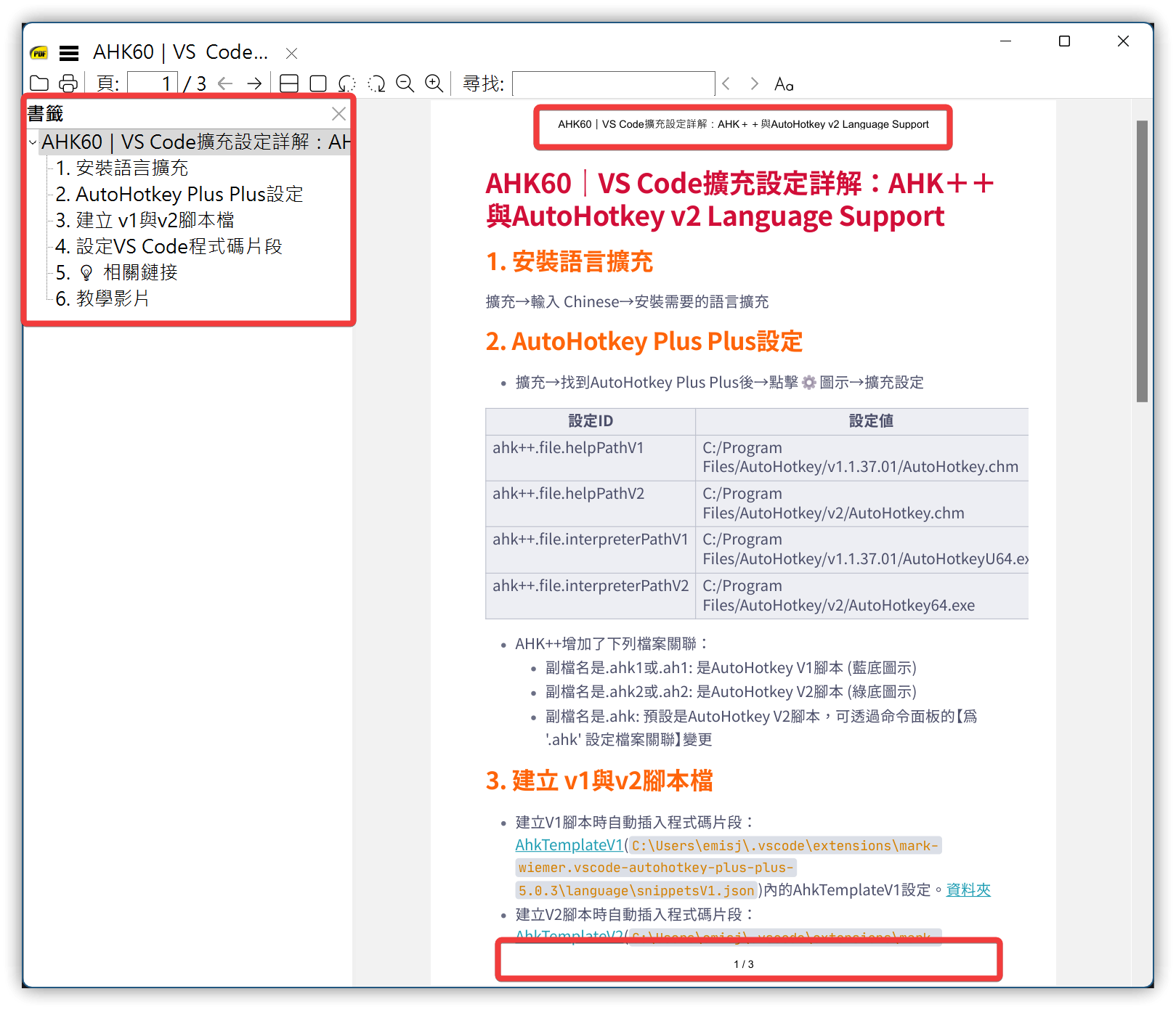
- ヘッダー(ページヘッダー)とフッター(ページ番号/総ページ数)の追加
- [[#^e5003e|Dynamic TOC]]プラグインとの連携 → ドキュメント内リンクのジャンプ機能を保持
- PDFアウトライン(ブックマーク)の生成
- 生成前のプレビューダイアログ
Dynamic TOCの作者はメンテナンスを終了しています。手動でAidurber/obsidian-plugin-dynamic-toc: An Obsidian plugin for creating Tables of Contents that stay updated with your documentをインストールする必要があります
^e5003e
1.1. Commanderとの連携
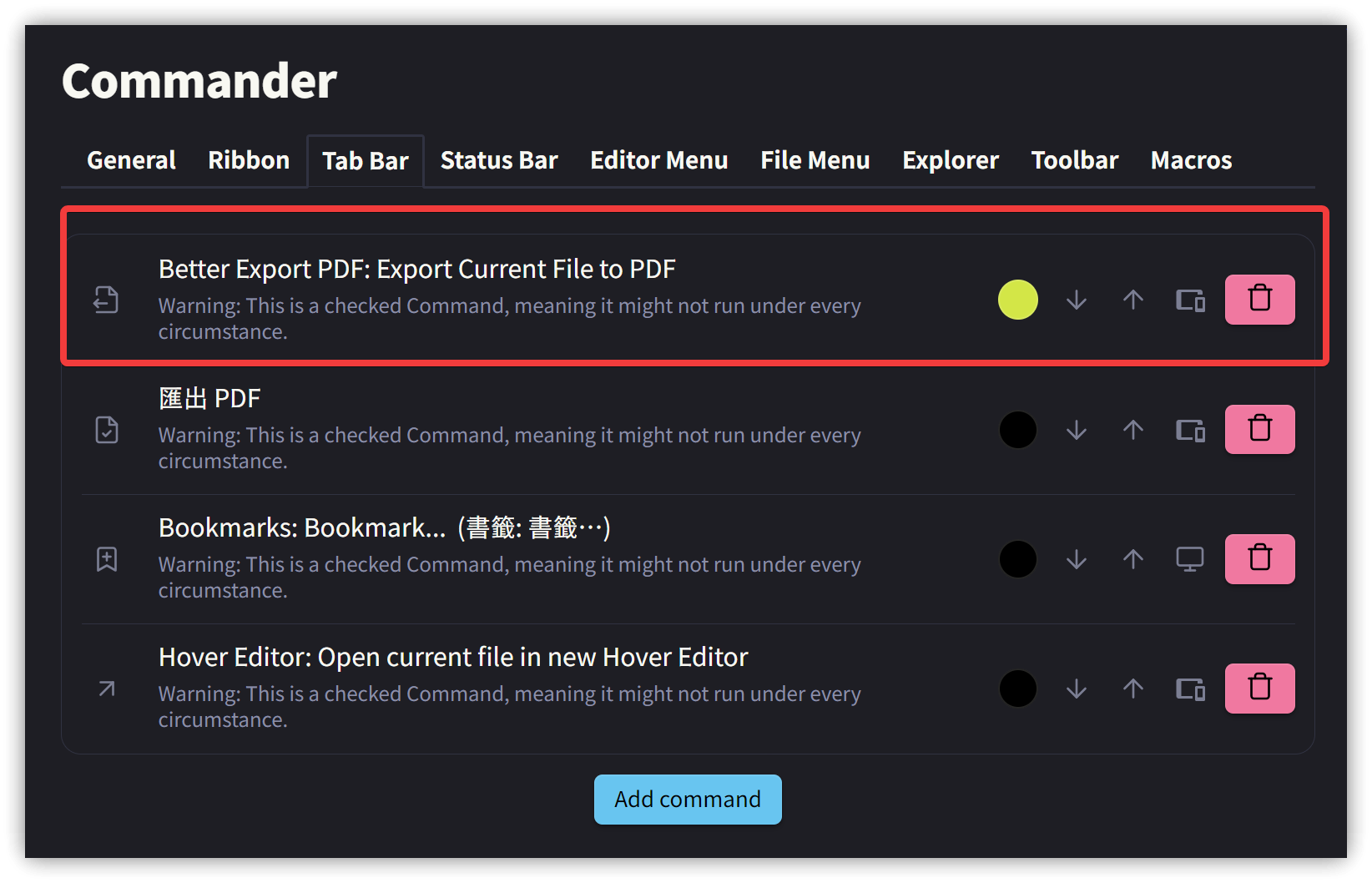
- タブバーに【Better Export PDF: Export Current File to PDF】ボタンを追加し、PDFエクスポート操作を容易にします
1.2. ヘッダー(ページヘッダー)
<div style="width: 100vw;font-size:10px;text-align:center;"><span class="title"></span></div>
1.3. フッター
▼ 元のコンテンツ:
<div style="width: 100vw;font-size:10px;text-align:center;"><span class="pageNumber"></span> / <span class="totalPages"></span></div>
ファイル名とページ番号をフッターに配置(ファイル名がウィンドウ幅の80%、ページ番号が20%を占める):
<div style="width: 80vw;font-size:10px;margin-left:20px;float:left;"><span class="title"></span></div>
<div style="width: 20vw;font-size:10px;text-align:right;margin-right: 20px"><span class="pageNumber"></span> / <span class="totalPages"></span></div>
- 2024/04/08
<div style="width:95vw;font-size:10px;border-top:3px solid #622423;margin-left:20px;">
<div style="margin-top:1.5px; margin-bottom:3px; width:95vw;font-size:10px;border-top:1px solid #622423;margin-left:0px;margin-right:20px;"></div>
  <span style="width: 80%;font-size:10px;text-align:left;">
    <span class="title"></span>.md
  </span>
  <span style="width: 20%;font-size:10px;float:right;text-align:right;margin-right:0px;">
    Seite <span class="pageNumber"></span> von <span class="totalPages"> Seiten</span>
  </span>
</div>
</div>

1.4. AnuPpuccinテーマの変更
デフォルトのAnuPpuccinテーマで生成されるPDFページは背景色が灰色ですが、以下のCSSを使用して白色に変更できます:
@media print {
  .anp-print .print, body.anp-print, .anp-print .markdown-rendered, :root:has(.anp-print), :root {
    background-color: white;  /*rgb(var(--ctp-base));*/
  }
}
1.5. 2024/02/21 v1.5.4
Better Export PDF v1.5.4では、ノートのYAMLセクションにあるheaderTemplateおよびfooterTemplateフィールドを使用して、そのノートのヘッダーとフッターのテンプレートを個別に制御する機能が追加されました。YAMLセクションにフィールドを追加し、HTMLコンテンツを記述するだけで、指定したスタイルで生成できます。
ヘッダーとフッターでは以下のデータのみ利用可能です。<span class="利用データ"></span>という形式のタグを使用する必要があります:
- title: ノートのファイル名
- date: PDF生成日時
- url: ドキュメントの場所
- pageNumber: 現在のページ番号
- totalPages: 総ページ数
フッターの上に横線を追加する書き方:
<div style="width:100vw;font-size:10px;border-top:1px solid red;margin-left:20px;margin-right:20px;">
  <span style="width: 80%;font-size:10px;text-align:left;">
    <span class="title"></span>
  </span>
  <span style="width: 20%;font-size:10px;float:right;text-align:right">
    <span class="pageNumber"></span> / <span class="totalPages"></span>
  </span>
</div>
Reference: https://www.electronjs.org/docs/latest/api/webview-tag#webviewprinttopdfoptions
- headerTemplate string (optional) - HTML template for the print header. Should be valid HTML markup with following classes used to inject printing values into them: date (formatted print date), title (document title), url (document location), pageNumber (current page number) and totalPages (total pages in the document). For example,
<span class=title></span>would generate span containing the title. - footerTemplate string (optional) - HTML template for the print footer. Should use the same format as the headerTemplate.
2. PDF++ プラグイン
PDF++はObsidian組み込みのPDFビューアーの機能を拡張するプラグインです。
PDF++は手動でインストールするか、BRATを使用してインストールする必要があります。
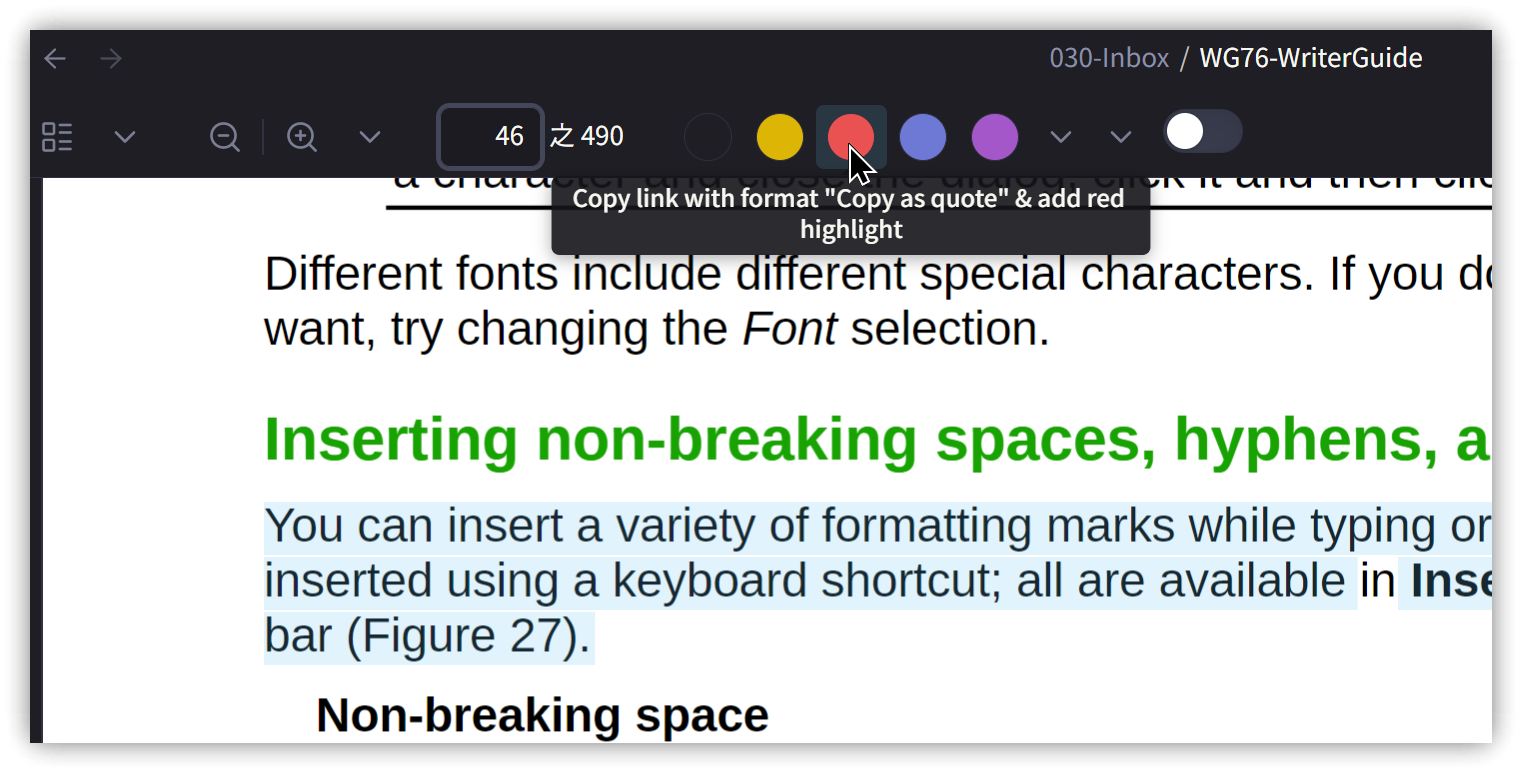
テキストを選択し、上部にあるハイライトボタンをクリックすると、選択した内容がクリップボードにコピーされます。ノートに移動して<span class='keybs'>Ctrl+V</span>で貼り付けると、PDF内でその部分がハイライト表示されます。
2.1. Calloutの使用
PDF++には独自のCallout外観も用意されており、設定で有効にすると使用できます:

コピーしたハイライトの内容をCallout構文に変更します:
> [!PDF|red] Title
> The Styles menu on the Menu bar (Figure 189) provides the most commonly used paragraph, character, and list styles, plus quick links to create and edit styles. To

[[WG76-WriterGuide.pdf#page=188&selection=137,0,142,74&color=red|p.188]]

3. 関連リンク
✅ Better Export PDF: https://github.com/l1xnan/obsidian-better-export-pdf
✅ PDF++: https://github.com/RyotaUshio/obsidian-pdf-plus
✅ Obsidian Annotator: https://github.com/elias-sundqvist/obsidian-annotator
✅ Dynamic TOC: https://github.com/Aidurber/obsidian-plugin-dynamic-toc
✅ Obsidian commander: https://github.com/phibr0/obsidian-commander