
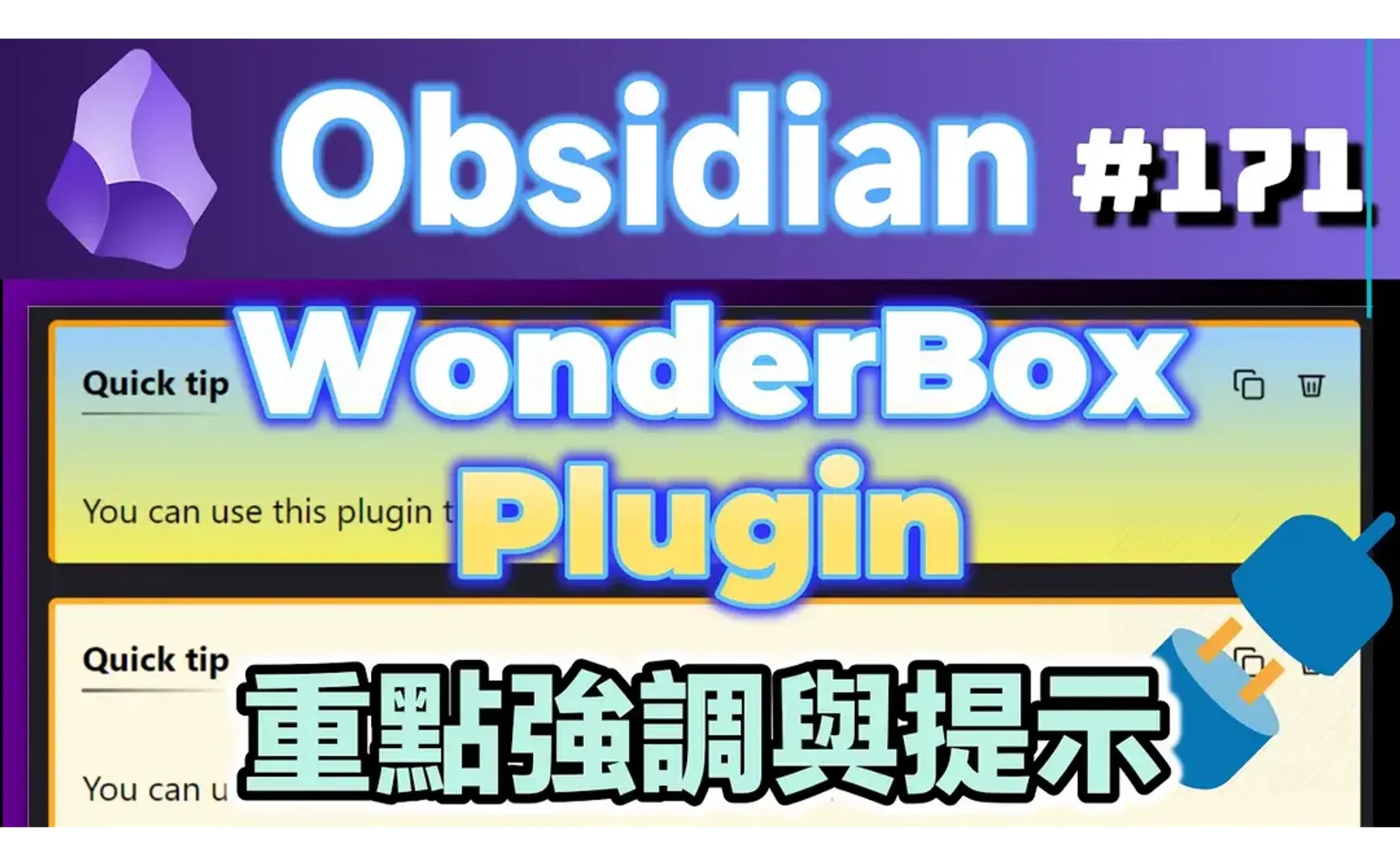

WonderBox外掛提供了類似Callouts外觀的美化區塊,據有內容強調與重點提示功能。目前WondweBox在閱讀模式才能正常顯示。
目前v1.1.2顯示狀態...
- 閱讀模式下,在程式碼區塊裡的WonderBox仍會渲染
- 預覽模式下,在Callouts裡的WonderBox仍會渲染
WonderBox的語法格式類似Pandoc的fenced divs,但不是完全相同:
::: {.callout data-callout="note" title="Note Title"}

Note content

:::
1. WonderBox語法
要顯示的區塊開頭與結尾是三個冒號,開頭冒號後面接顯示格式,後面中括號裡是顯示標題。
WonderBox語法
[標題]
內容
:::
顯示格式有下列幾種:
- tip
- info
- note
- warning
- danger
- success
- error
- critical
- debug
- update
- question
- announcement
- progress
- highlight
2. 範例
:::highlight[Quick tip]
You can use this plugin to organize your notes efficiently!
:::

:::debug[🪲 除錯]
tp.system.**prompt**("Input content:", clip, false, true)
 $$\sum_{i=0}^n i^2 = \frac{(n^2+n)(2n+1)}{6}$$
:::
- 有LaTex運算式時有小錯誤
預覽模式下,Callout裡可能顯示WonderBox
tip]
You can use this plugin to organize your notes efficiently!
除錯]
tp.system.prompt("Input content:", clip, false, true)
$$\sum_{i=0}^n i^2 = \frac{(n^2+n)(2n+1)}{6}$$
3. Templater腳本+快捷鍵以快速輸入
- 在Templater設定資料夾裡新增 Cmd-WonderBox.md
<%*
let lstWonderBoxes = {
  "🔥 tip" : "tip,技巧",
  "ℹ️ info" : "info,資訊",
  "✏️ note" : "note,筆記",
  "⚠️ Warning" : "warning,警告",
  "⚡ Danger" : "danger,危險",
  "✅ Success" : "success,成功",
  "❌ Error" : "error,錯誤",
  "⛔ Critical" : "critical,嚴重錯誤",
  "🪲 Debug" : "debug,除錯",
  "🛠️ Update" : "update,更新",
  "❓ Question" : "question,問題",
  "📋 Announcement" : "announcement,問題",
  "📊 Progress" : "progress,進度",
  "💡 Highlight" : "highlight,重點"
 };
let keys = Object.keys(lstWonderBoxes);
// from = await tp.system.suggester(Object.keys(froms), Object.values(froms),false,'請選擇')
key = await tp.system.suggester(keys, keys, false, "Please select one");
if (!key) return;
let clip = await navigator.clipboard.readText();
// tp.system.prompt("輸入內容:", default_value, throw_exception, multi-line)
let body = await tp.system.prompt("輸入內容:", clip, false, true);

let symbol = key.substring(0,2);
let value = lstWonderBoxes[key];
let index = value.indexOf(",");
let text = value.substring(index+1);
value = value.substring(0, index);
if (key) return `:::${value}[${symbol} ${text}]\n${body}\n:::\n`;
%>
- 在Templater外掛選項 Template Hotkeys 裡將Cmd-WonderBox.md設定Hotkey

- 在快捷鍵設定裡將Templater: Insert Cmd-WonderBox.md 指定快捷鍵,下例設定為<span class='keybs'>Alt+W</span>

重點]
You can use this plugin to organize your notes efficiently!
4. Pandoc
data-callout="note" title="Note Title"}
Note content
> [!NOTE]- Note Title
>
> Note content
Pandoc:
::: {.callout data-callout="note" title="Note Title"}

Note content

:::
- 將含有Obsidian callouts格式的.md檔轉換成 Pandoc fenced-div 格式的.md檔
pandoc -t markdown --lua-filter obsidian-callouts.lua your_file.md
- obsidian-callouts.lua
local stringify = (require "pandoc.utils").stringify

function BlockQuote (el)
    start = el.content[1]
    if (start.t == "Para" and start.content[1].t == "Str" and
        start.content[1].text:match("^%[!%w+%][-+]?$")) then
        _, _, ctype = start.content[1].text:find("%[!(%w+)%]")
        el.content:remove(1)
        start.content:remove(1)
        div = pandoc.Div(el.content, {class = "callout"})
        div.attributes["data-callout"] = ctype:lower()
        div.attributes["title"] = stringify(start.content):gsub("^ ", "")
        return div
    else
        return el
    end
end
5. 💡 相關鏈接
💡 解說文章: https://jdev.tw/blog/8633/
✅Chrstn67/WonderBox
✅ https://pandoc.org/MANUAL.html#divs-and-spans
✅ 參考: Rendering callouts similarly in Pandoc - Help - Obsidian Forum
6. 教學影片
##