
先前在Obs143|分頁式介面的應用:HTML Tabs外掛;增加Obsidian呈現的便利性介紹過以HTML Tabs外掛在筆記裡呈現分頁式的片段,今天介紹的是功能更多的obsidian-tabs外掛與相對簡單的Tab-Panels。
1. Tabs
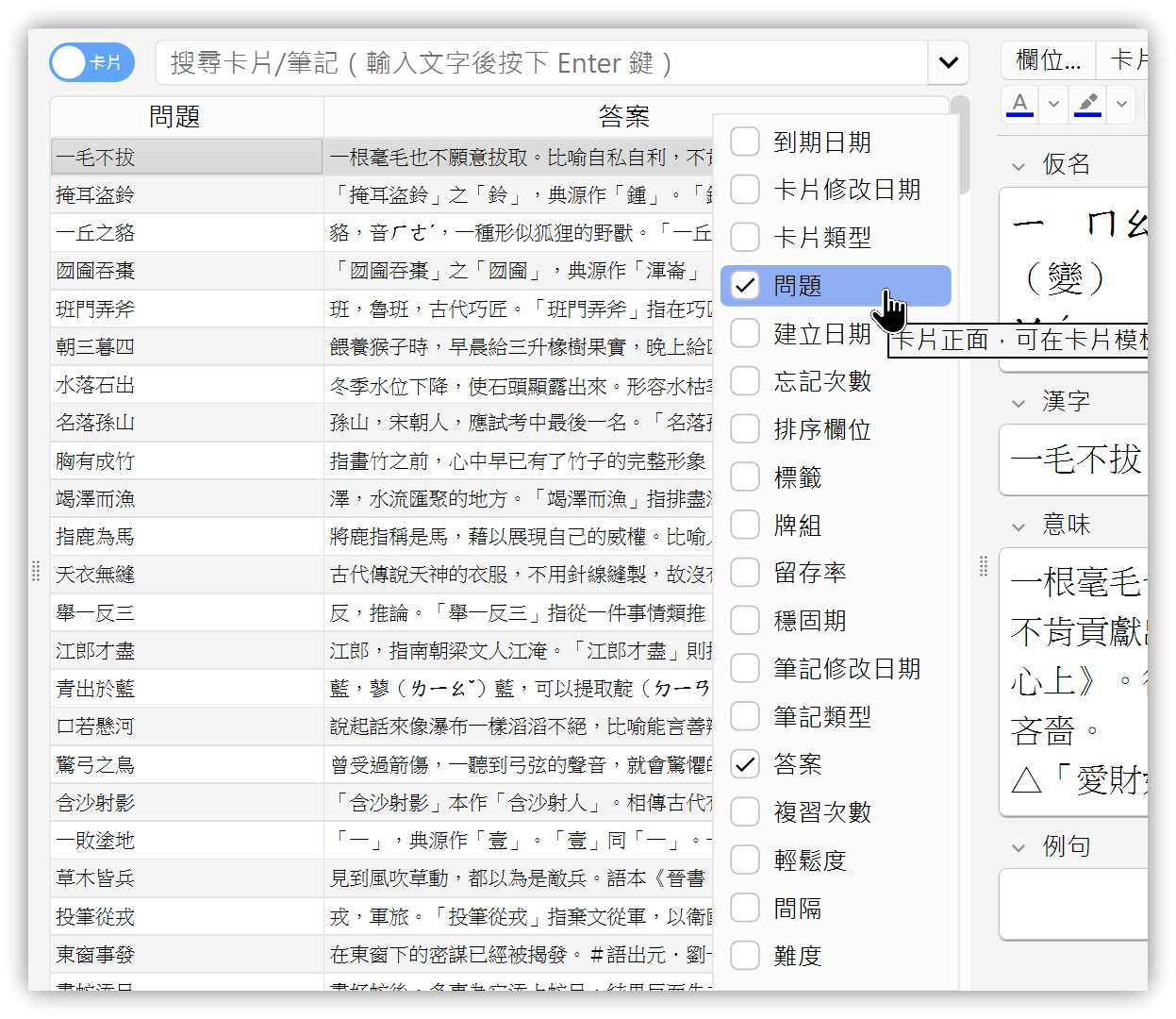
- 以程式碼區塊,語言使用tabs,即 ```tabs
- 第一行可指定顯示樣式
- 頁籤位置:top, bottom, left, right
- 頁籤行數:one, multi
- 雙擊分頁內容可開啟編輯視窗以編輯分頁內容
- 有「Convert selected text to tabs」命令
top, multi
tab: 🔢LaTex 數學式
公式示範
$$
\begin{cases}
a_1x+b_1y+c_1z=d_1\\
a_2x+b_2y+c_2z=d_2\\
a_3x+b_3y+c_3z=d_3\\
\end{cases}
$$
tab: 🖼️圖片<br>第二行描述
嵌入圖片
tab: HTML
```HTML
<html>
<head>
<script src="test.js"></script>
<link rel="stylesheet" href="mystyle.css">
</head>
<body>
<div class="note">
My Note
</div>
</body>
<script>
test();
</script>
</html>
```
tab: CSS
```css
body {
color: red;
background-color: lightYellow;
}
```
tab: 分頁Tab5
分頁5
tab: 分頁Tab6
分頁6
tab: 分頁Tab7
分頁7
tab: 分頁Tab8
分頁8
tab: 分頁Tab9
分頁9
tab: 分頁Tab10
分頁10
tab: 分頁Tab11
分頁11
tab: 分頁Tab12
分頁12
1.1. 與HTML Tabs的差異
---tab JavaScript改成tab: JavaScript- Tabs: 最開頭的
~~~tabs仍可使用或改成 ````tabs`
tab: 🛜HTML
```html file:test.html ln:true
<html>
<head>
<script src="test.js"></script>
<link rel="stylesheet" href="mystyle.css">
</head>
<body>
<div class="note">
My Note
</div>
</body>
<script>
test();
</script>
</html>
```
tab: 🖼️CSS
```css file:mystyle.css ln:true
body {
color: red;
background-color: lightYellow;
}
```
tab: 🧑💻JavaScript
```js file:test.js ln:true
<script>
function test() {
alert("Hello!");
}
</script>
```
Codeblock Customizer整合
記得將 tabs 加入【Basic】→【Exclude languages】清單裡
2. Tab Panels
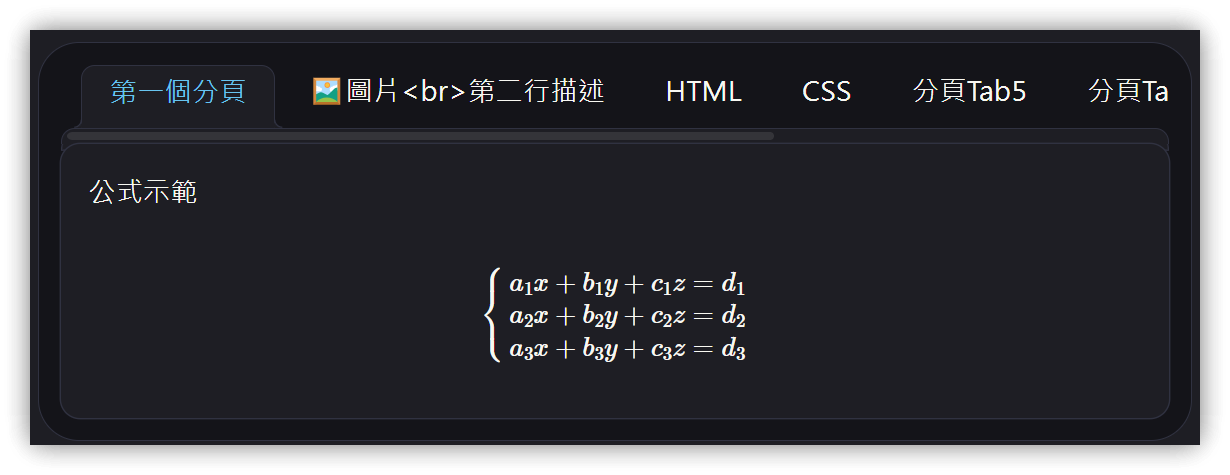
- 以程式碼區塊,語言使用tab-panels,即 ```tab-panels
- 每個分頁格式:
--- 頁籤 - 頁籤標題不能加HTML標籤
--- 第一個分頁
公式示範
$$
\begin{cases}
a_1x+b_1y+c_1z=d_1\\
a_2x+b_2y+c_2z=d_2\\
a_3x+b_3y+c_3z=d_3\\
\end{cases}
$$
--- 🖼️圖片<br>第二行描述
嵌入圖片

--- HTML
```html
<html>
<head>
<script src="test.js"></script>
<link rel="stylesheet" href="mystyle.css">
</head>
<body>
<div class="note">
My Note
</div>
</body>
<script>
test();
</script>
</html>
```
--- CSS
```css
body {
color: red;
background-color: lightYellow;
}
```
--- 分頁Tab5
分頁5
--- 分頁Tab5
分頁5
--- 分頁Tab6
分頁6
--- 分頁Tab7
分頁7
--- 分頁Tab8
分頁8
Codeblock Customizer整合
記得將 tab-panels 加入【Basic】→【Exclude languages】清單裡
3. Tab Panels
- 以程式碼區塊,語言使用tab-panels,即 ```tab-panels
- 每個分頁格式:
--- 頁籤 - 頁籤標題不能加HTML標籤
--- 第一個分頁
公式示範
$$
\begin{cases}
a_1x+b_1y+c_1z=d_1\\
a_2x+b_2y+c_2z=d_2\\
a_3x+b_3y+c_3z=d_3\\
\end{cases}
$$
--- 🖼️圖片<br>第二行描述
嵌入圖片

--- HTML
```html
<html>
<head>
<script src="test.js"></script>
<link rel="stylesheet" href="mystyle.css">
</head>
<body>
<div class="note">
My Note
</div>
</body>
<script>
test();
</script>
</html>
```
--- CSS
```css
body {
color: red;
background-color: lightYellow;
}
```
--- 分頁Tab5
分頁5
--- 分頁Tab5
分頁5
--- 分頁Tab6
分頁6
--- 分頁Tab7
分頁7
--- 分頁Tab8
分頁8
Codeblock Customizer整合
記得將 tab-panels 加入【Basic】→【Exclude languages】清單裡
4. 💡 相關鏈接
💡 解說文章: https://jdev.tw/blog/8592/
✅ obsidian-tab-panels: https://github.com/GnoxNahte/obsidian-tab-panels
✅ obsidian-tabs: https://github.com/xhuajin/obsidian-tabs
✅ obsidian-html-tabs: https://github.com/ptournet/obsidian-html-tabs
5. 教學影片
##