

继上次写了 《手把手教你 | MAC本地部署Stable-Diffusion》 的文章,收到大量的收藏和好评,非常开森,但是也有不少小伙伴反馈说,自己的MAC电脑配置确实不高,不能很好的体验Stable-Diffusion,所以这次,我又尝试了云端部署,下面是MAC云端部署的步骤,非常简单,一看就会~!直接上干货!
第一步:注册登录
1、注册登录AutoDL平台,选择微信登录即可。
👇直接点击下方链接注册登录
链接:https://www.autodl.com/home


第二步:充值
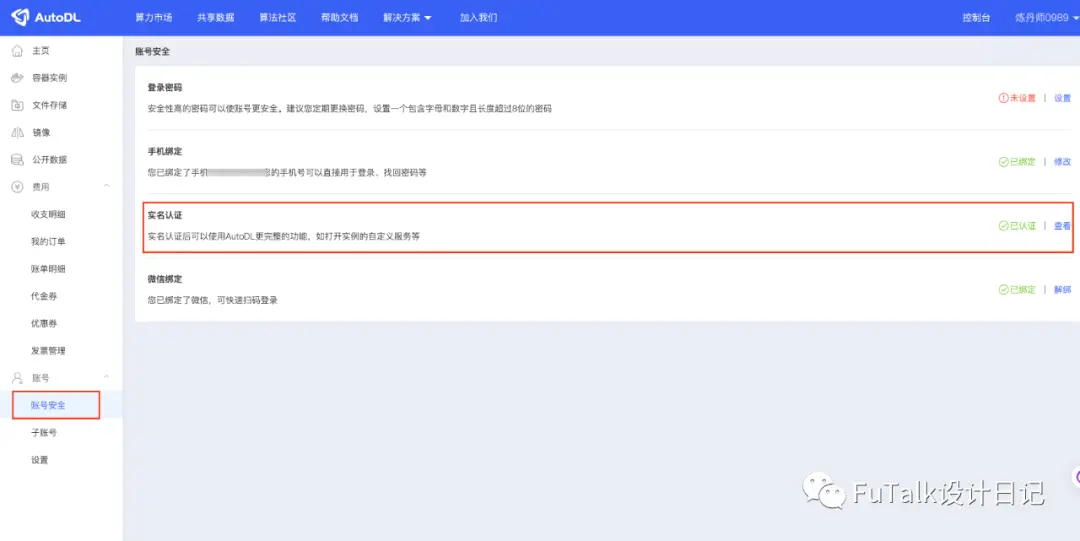
1、先去进行【实名认证】
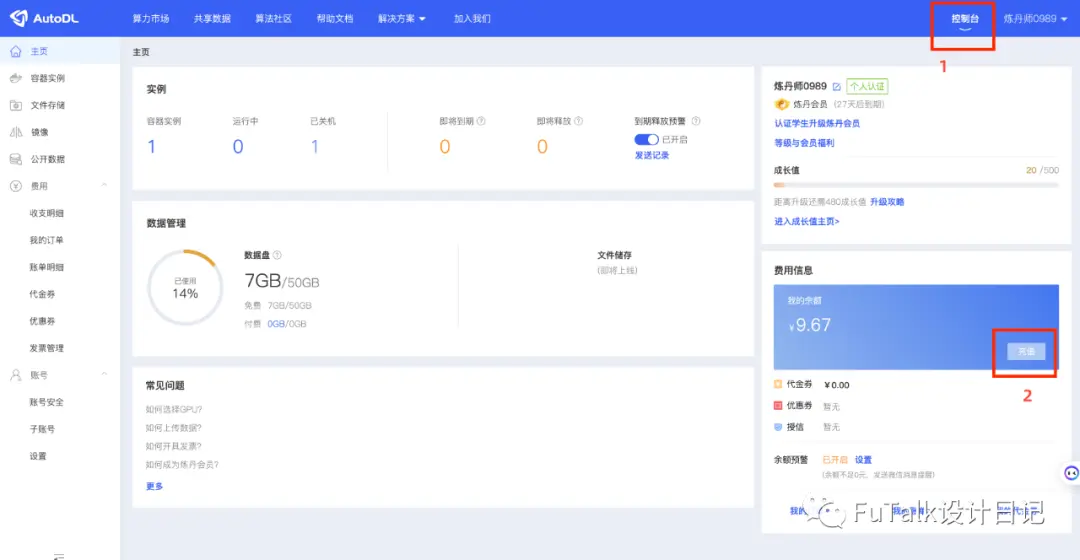
2、点击【控制台】进入充值页面,点击【充值】进入充值页面(可以先冲个3-5块左右尝试下)

第三步:选择服务器
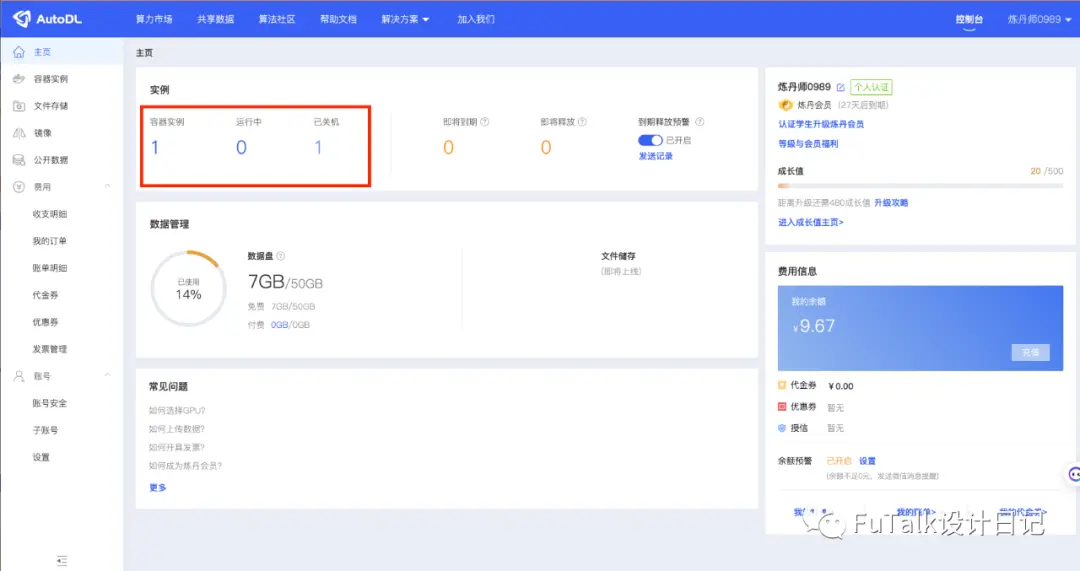
1、点击【控制台】,点击实例中的【数字】
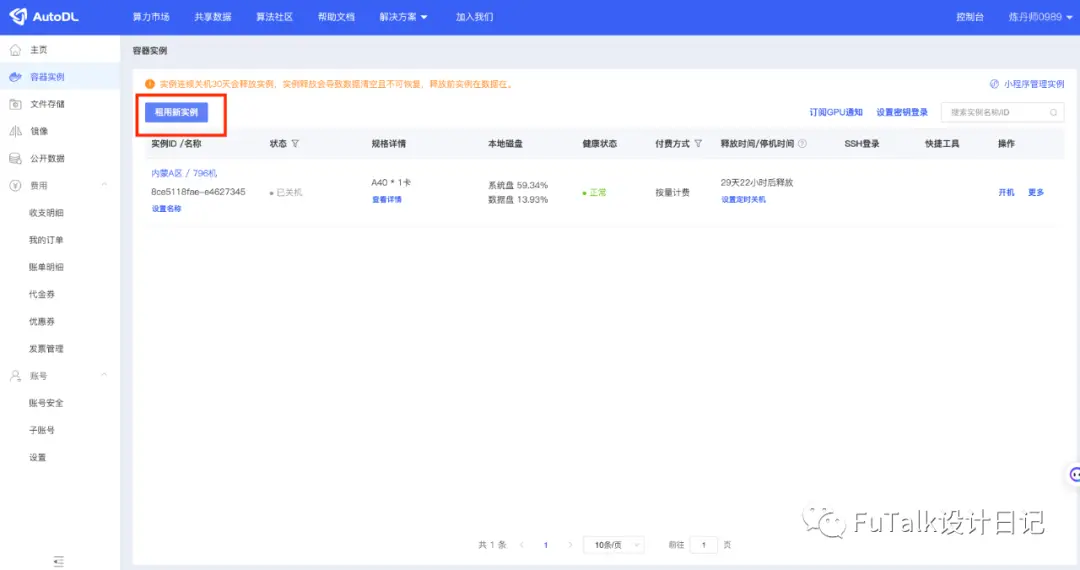
2、点击【租用新实例】
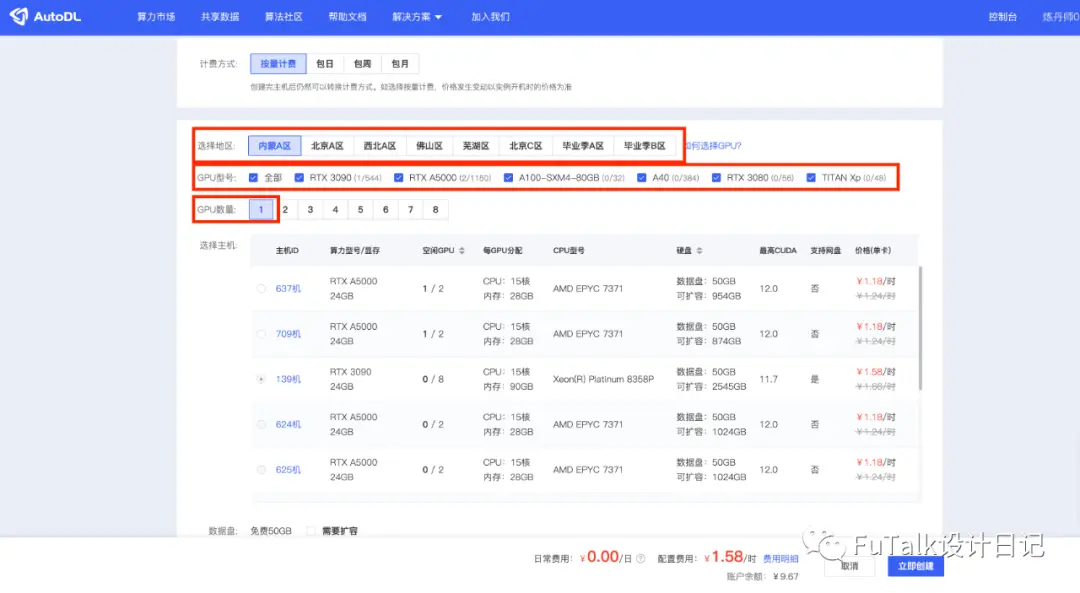
3、实例选择
地区:都可以选择 GPU型号:全选 GPU数量:选【1】
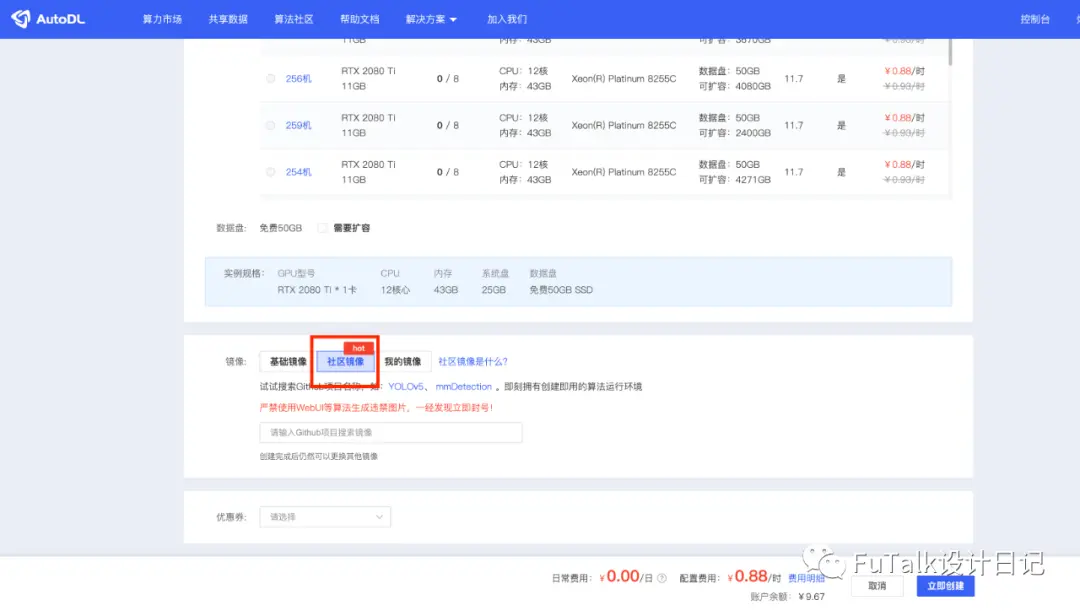
镜像:选择【社区镜像】
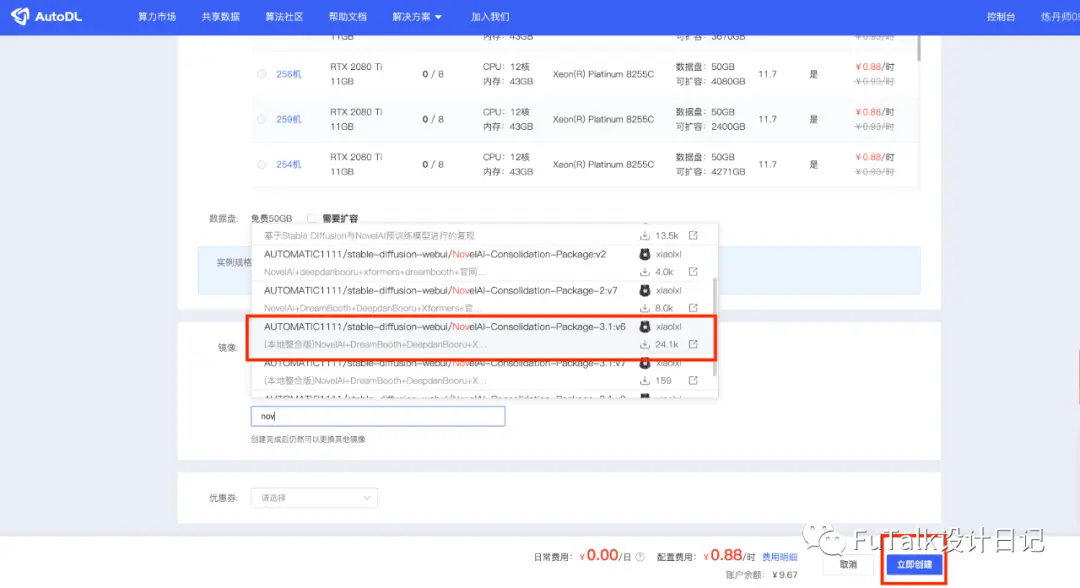
在搜索框中输入【nov】找到选项中V6,点击【立即创建】
4、创建完成
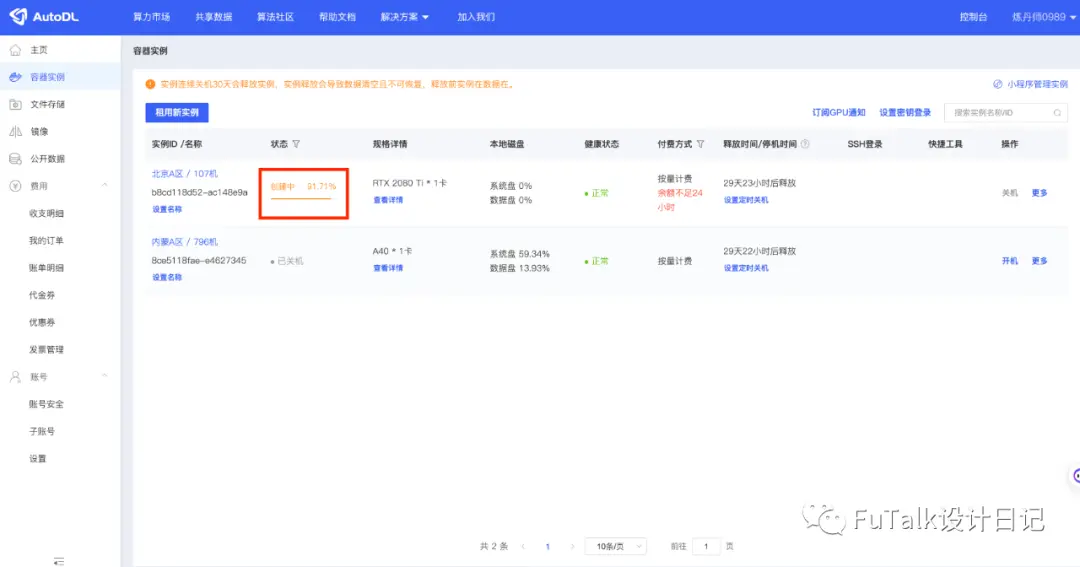
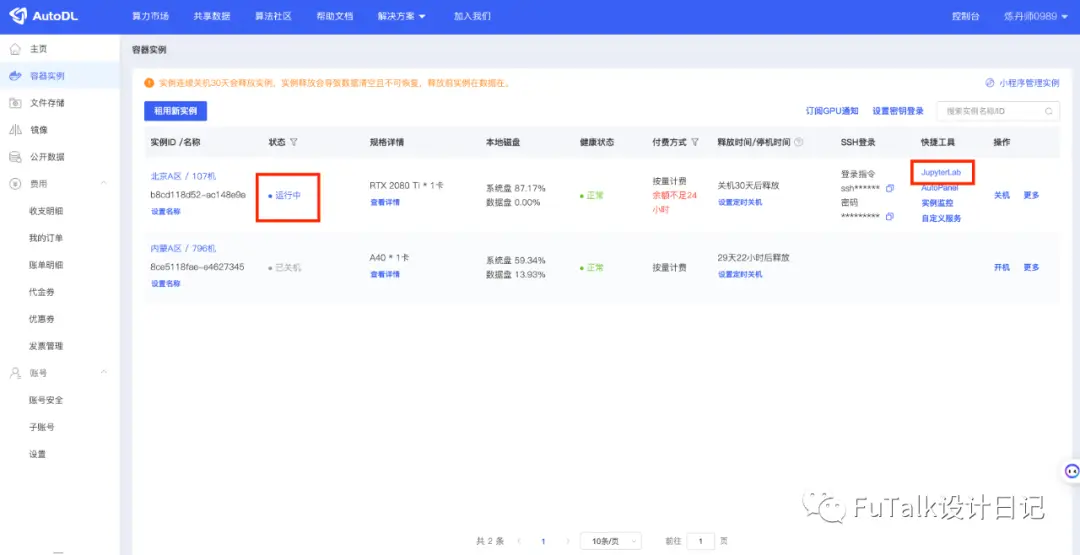
等待创建完成,当显示【运行中】后,点击【JupyterLab】
第四步:设置代码页面,运行web-ui
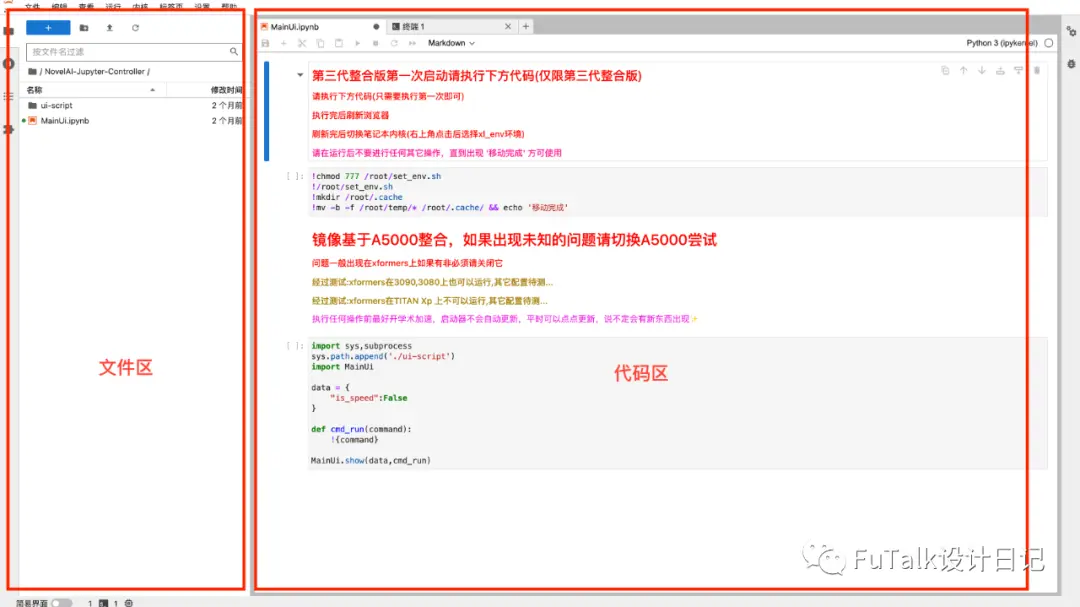
1、进入新页面,左边为【文件区】右边为【代码区】。原页面不要关闭。
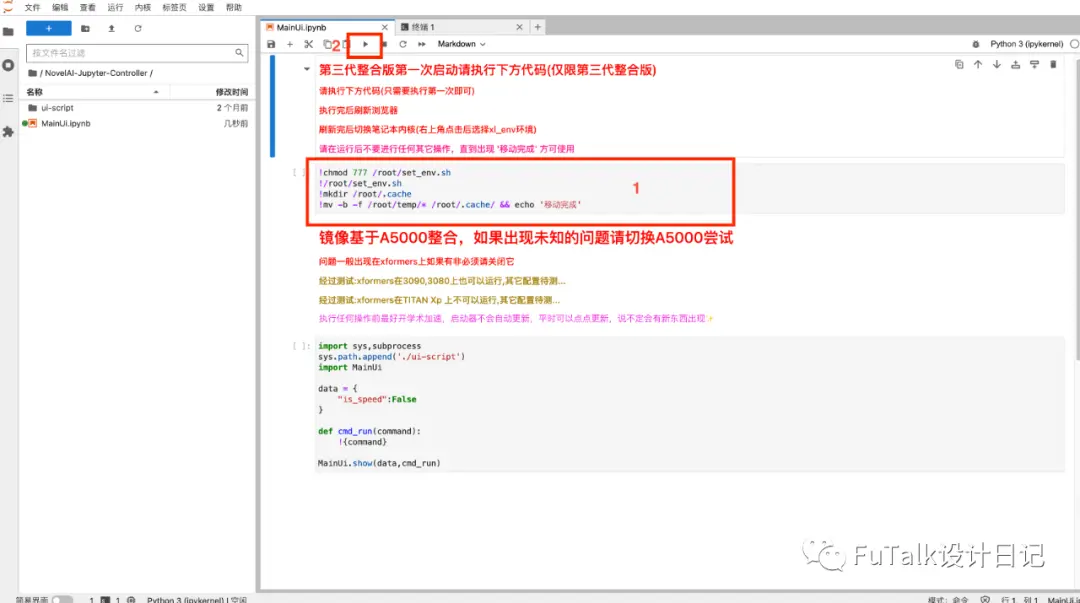
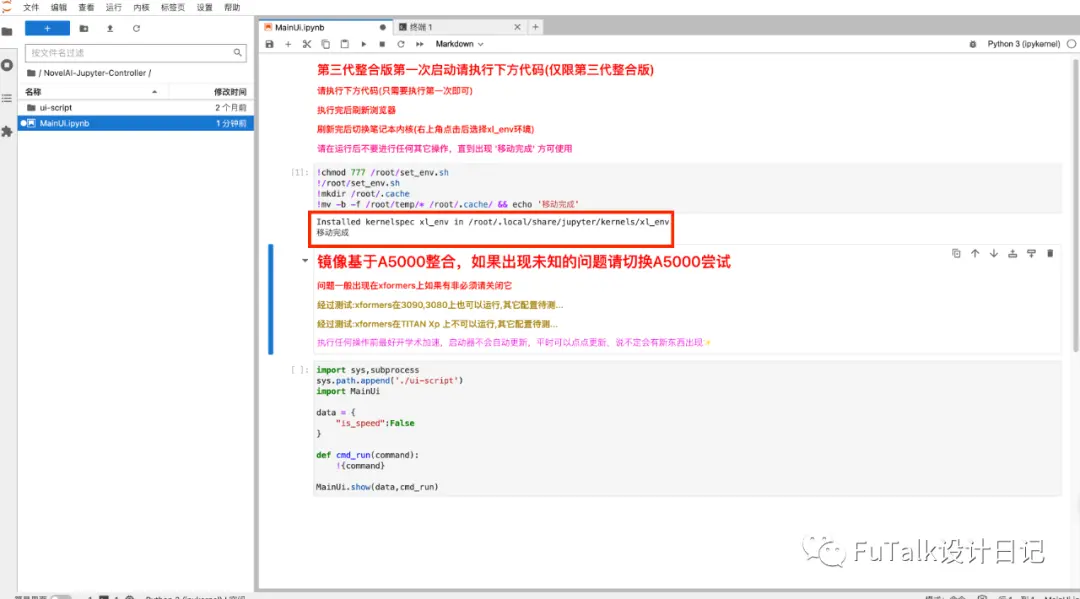
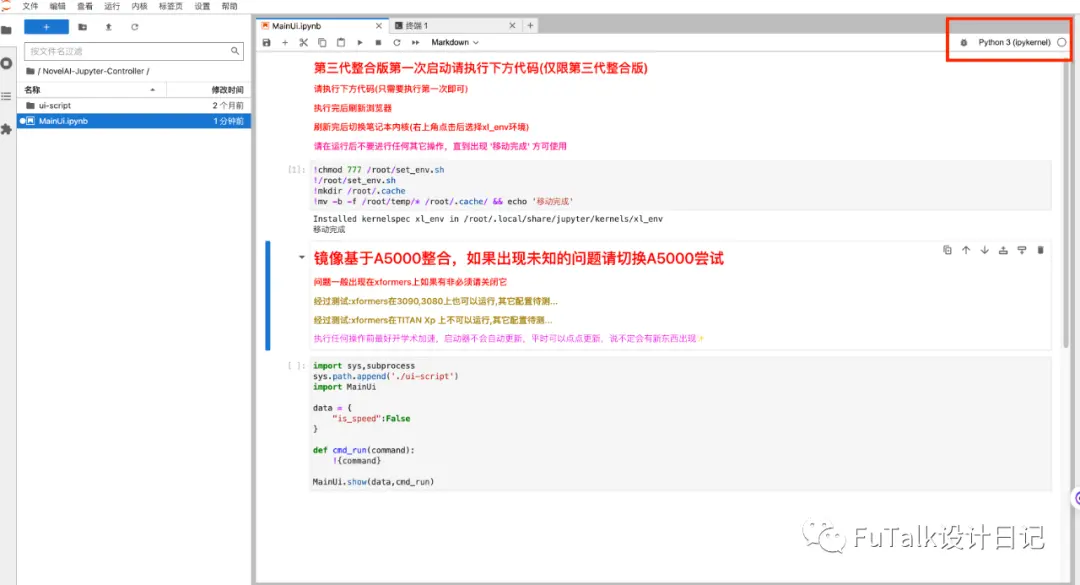
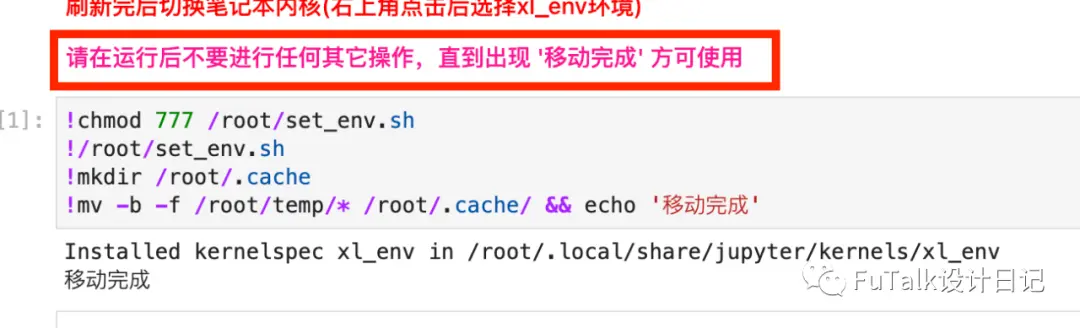
将鼠标点击代码区的【1】区域后,点击上方【运行】按钮,出现【移动完成】(⚠️一定要出现黑色的移动完成,在再进行后续操作!!!)
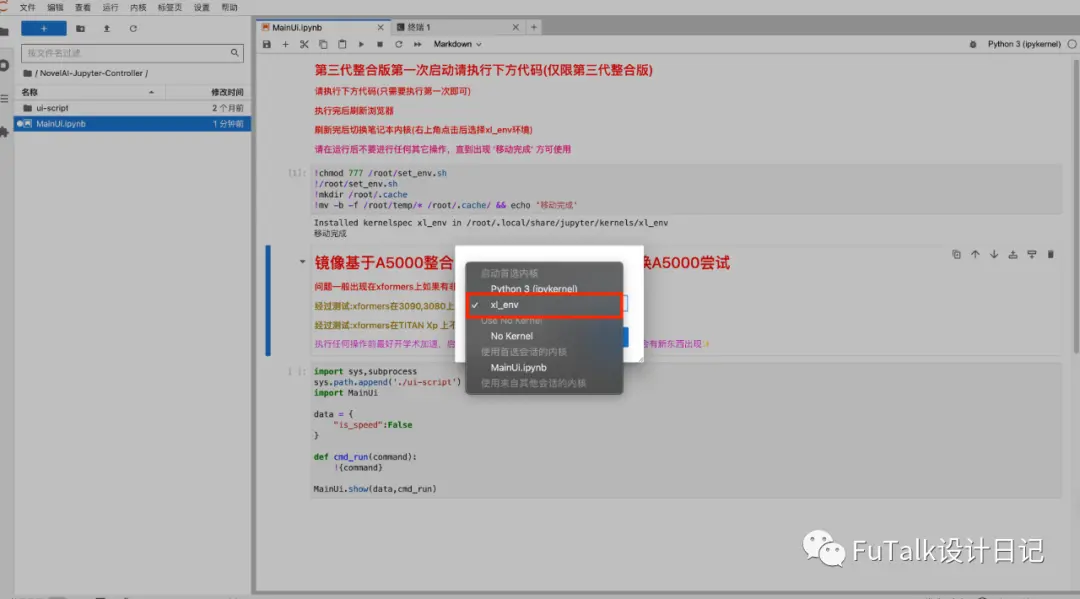
2、点击右上角【pythop3】,弹窗中选择【xl_env】
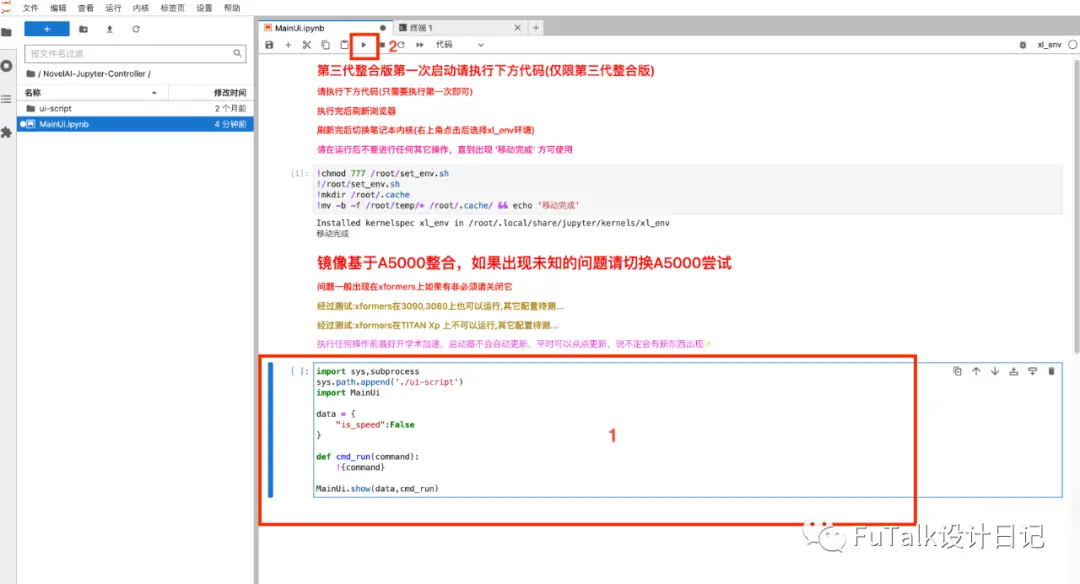
3、选择完成后,点击【1】代码,再点击2的【运行】
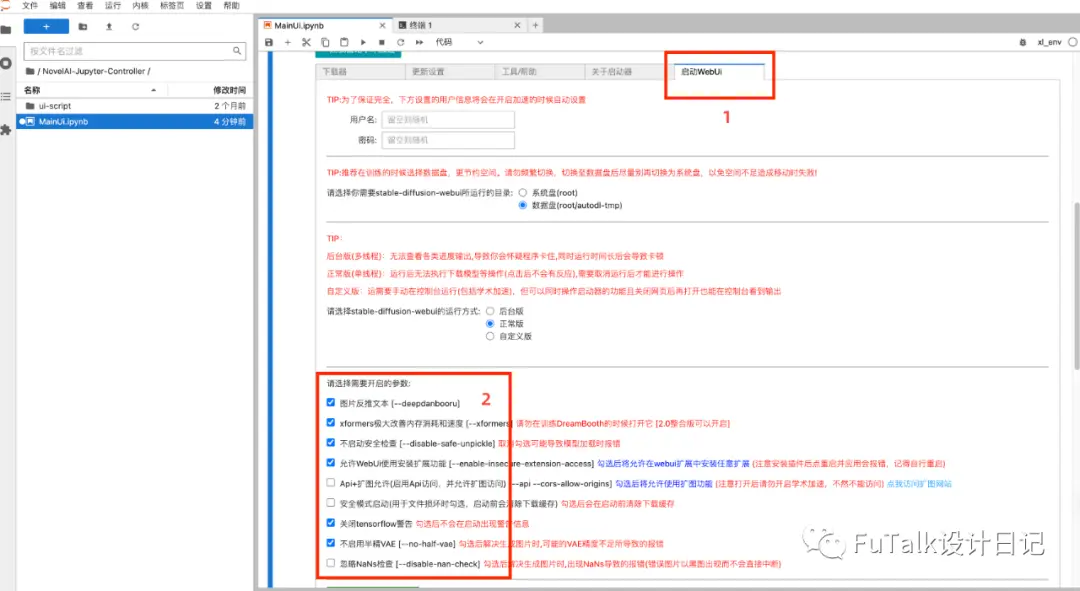
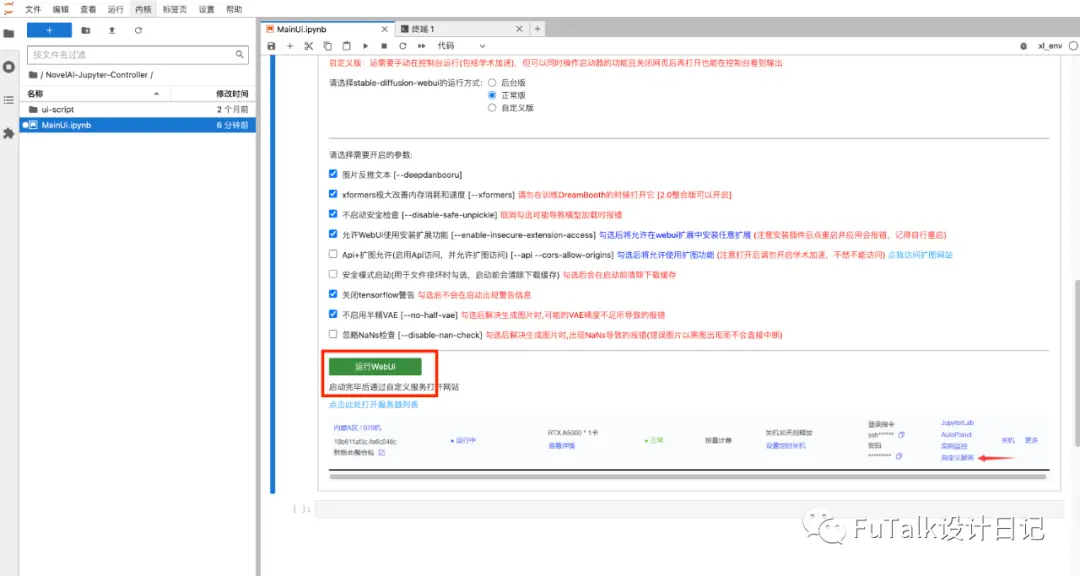
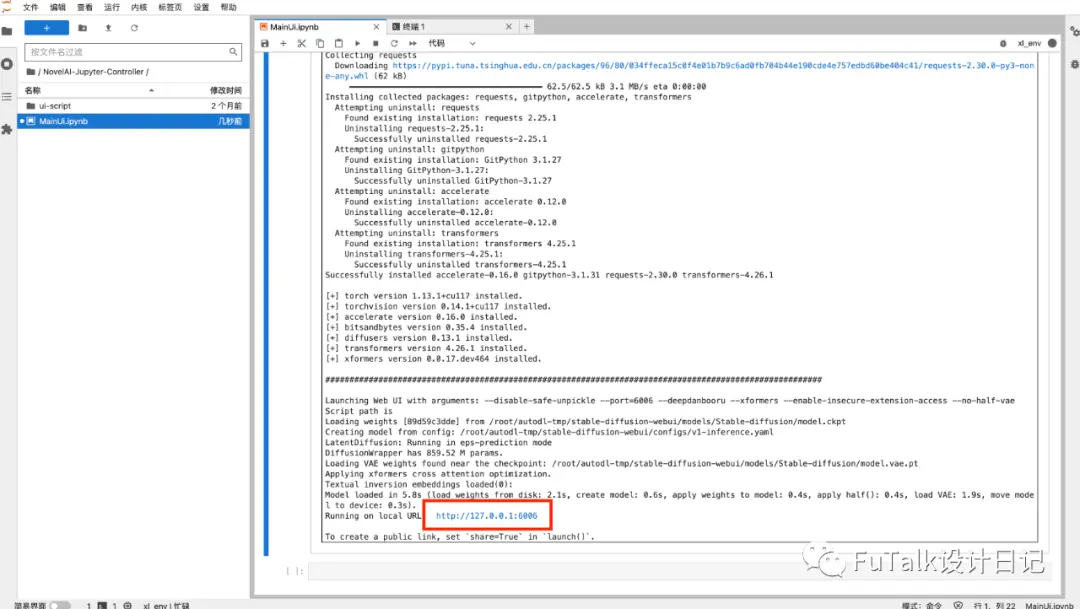
4、出内容后,点击【启动WebUi】,勾选下方几个选项,点击运行【WebUi】,等待大概一分钟,等到有这个蓝色网址出现,就是成功了。
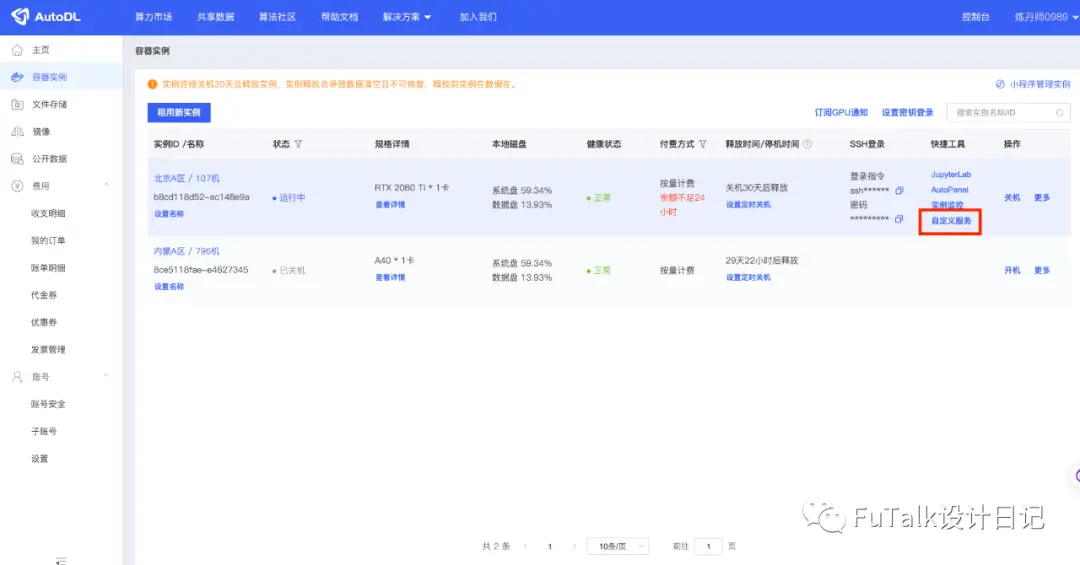
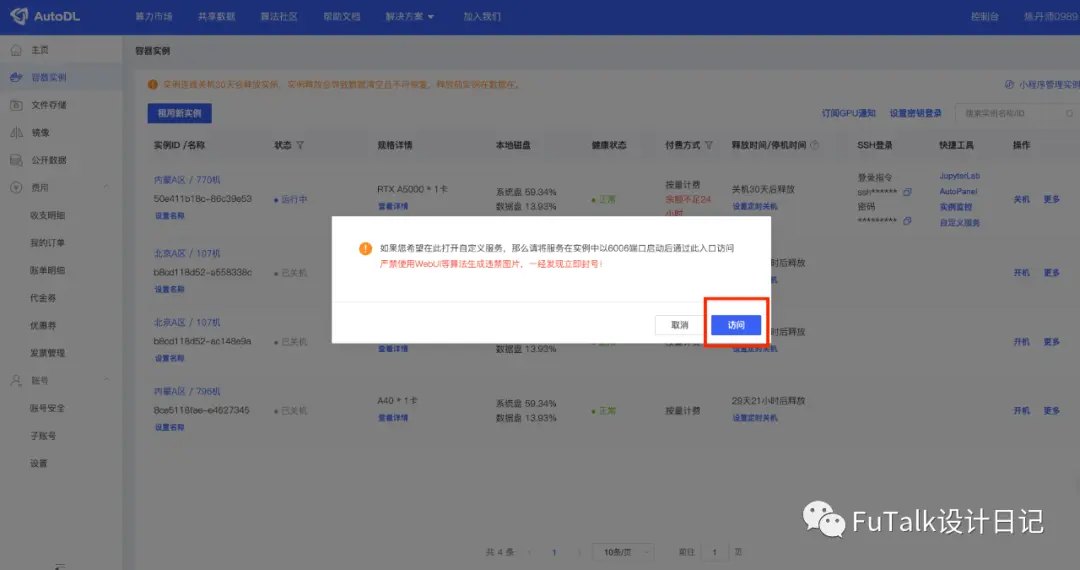
5、回到租用平台页面,⚠️不要关闭代码页面,选择【自定义服务】,点击【访问】后,就可以跳转到Stable-Diffusion的页面了~
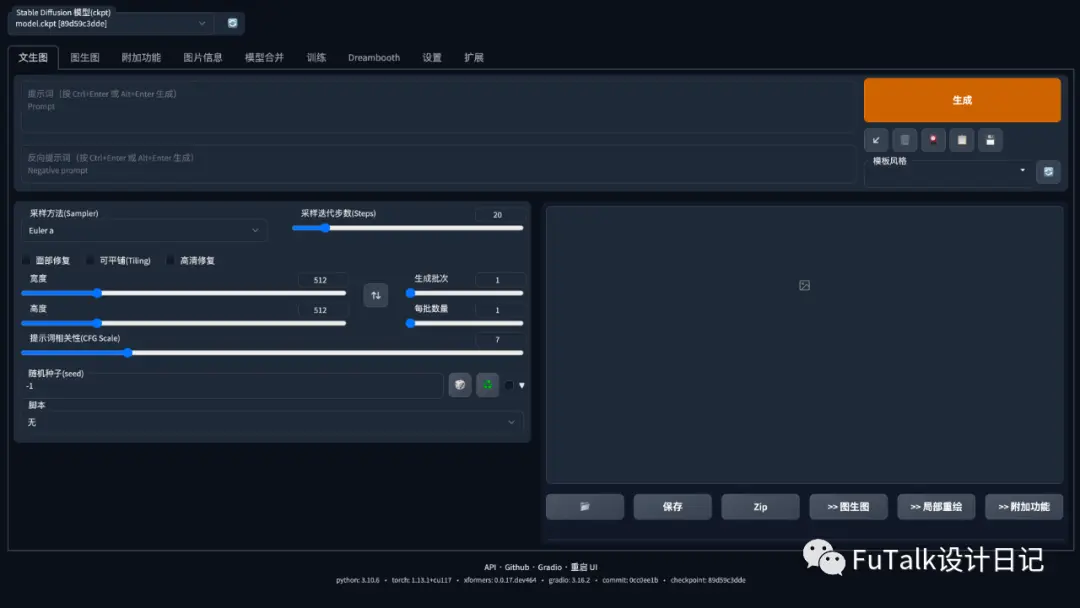
🤔️常见问题:
1、选择什么样的显卡?
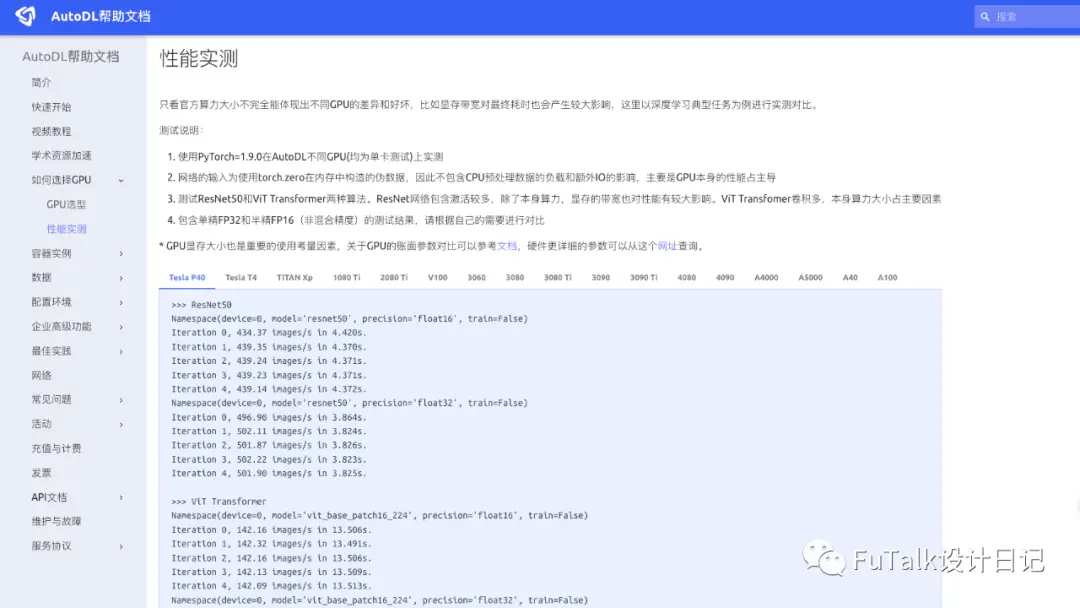
👇AutoDL帮助文档-性能实测,可以看下。
最低能运行SD的显卡是1050,但是如果想要能够基本跑得动和炼丹的话还是需要3060(现存12G)起步。
链接:https://www.autodl.com/docs/gpu_perf/
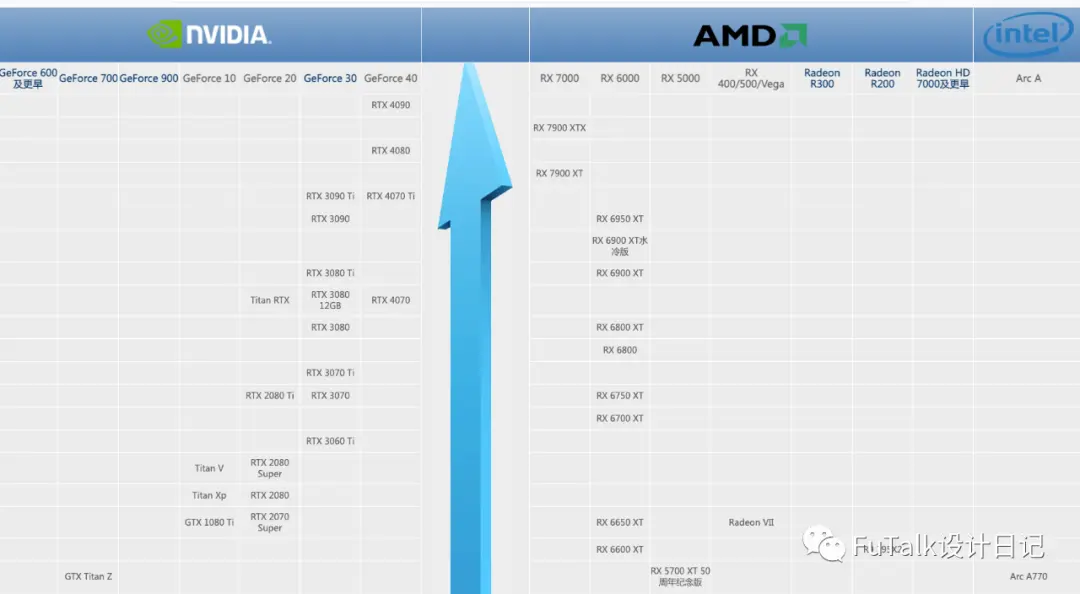
👇也可以看看这个显卡天梯图,当然越靠上就越牛
链接:https://www.mydrivers.com/zhuanti/tianti/g
2、为什么弹窗中没有【xl_env】选项?
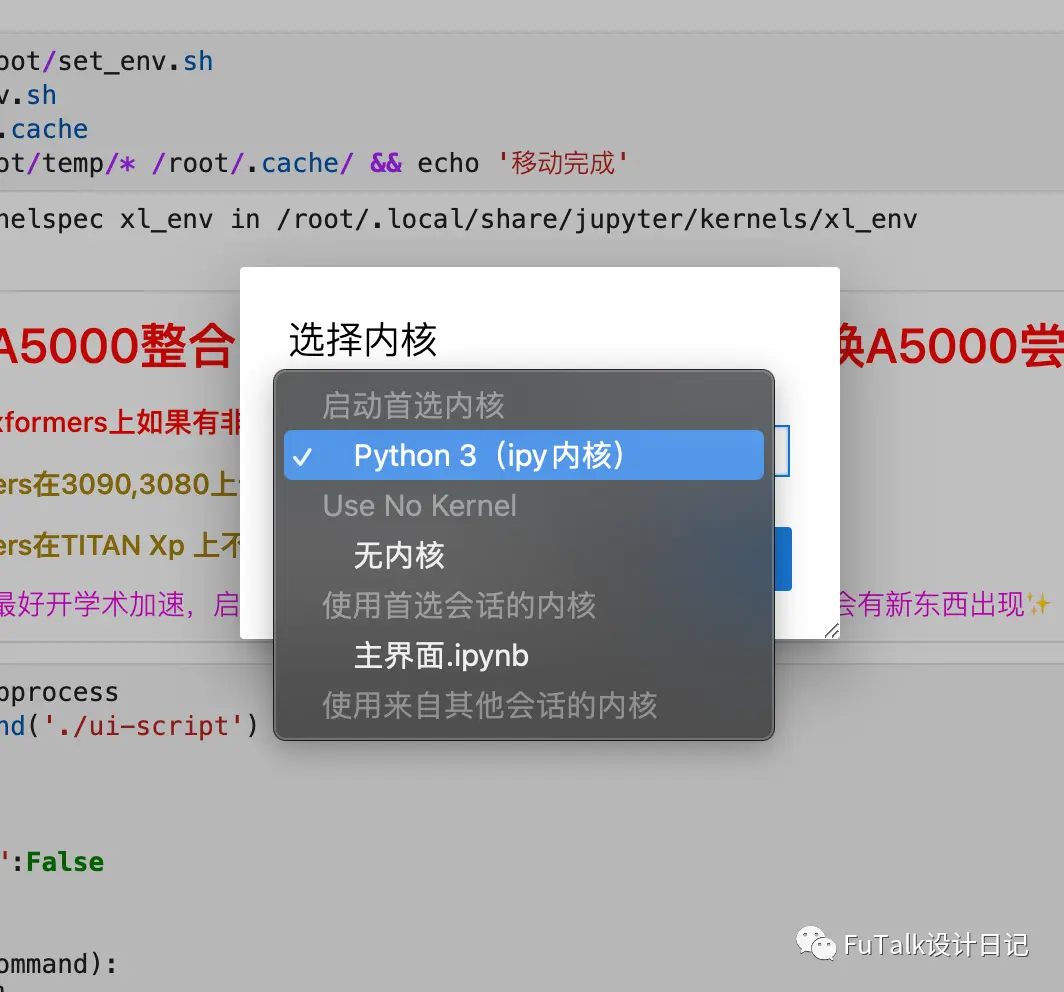
是在执行第一步运行时,没有等待出现“移动完成”的黑色字体。
⚠️注意事项❗️❗️
👇不⽤的时候⼀定要点击关机!不然会⼀直跑,直到花光你充的钱!!~