
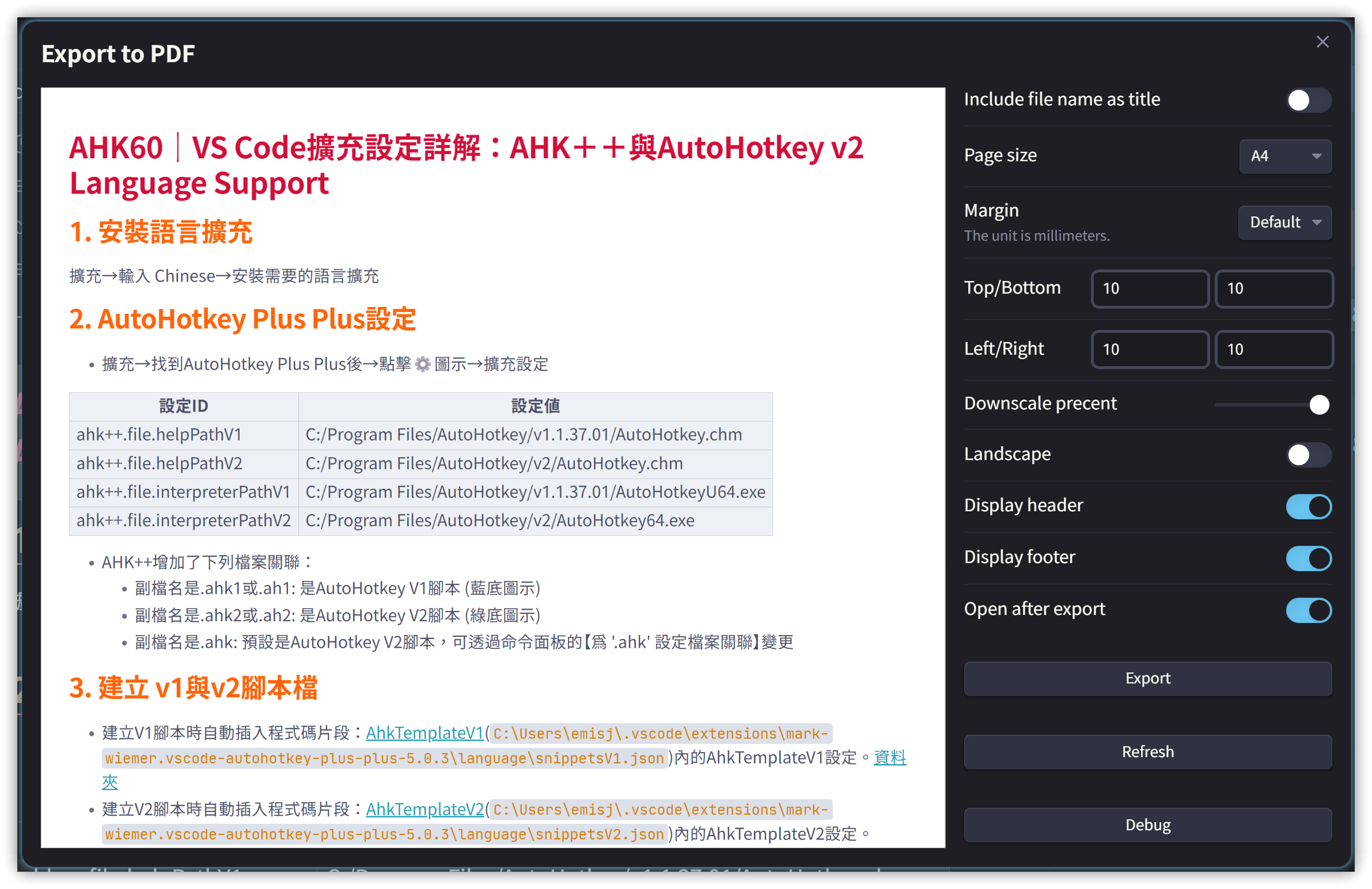
Enhanced PDF Export Features:
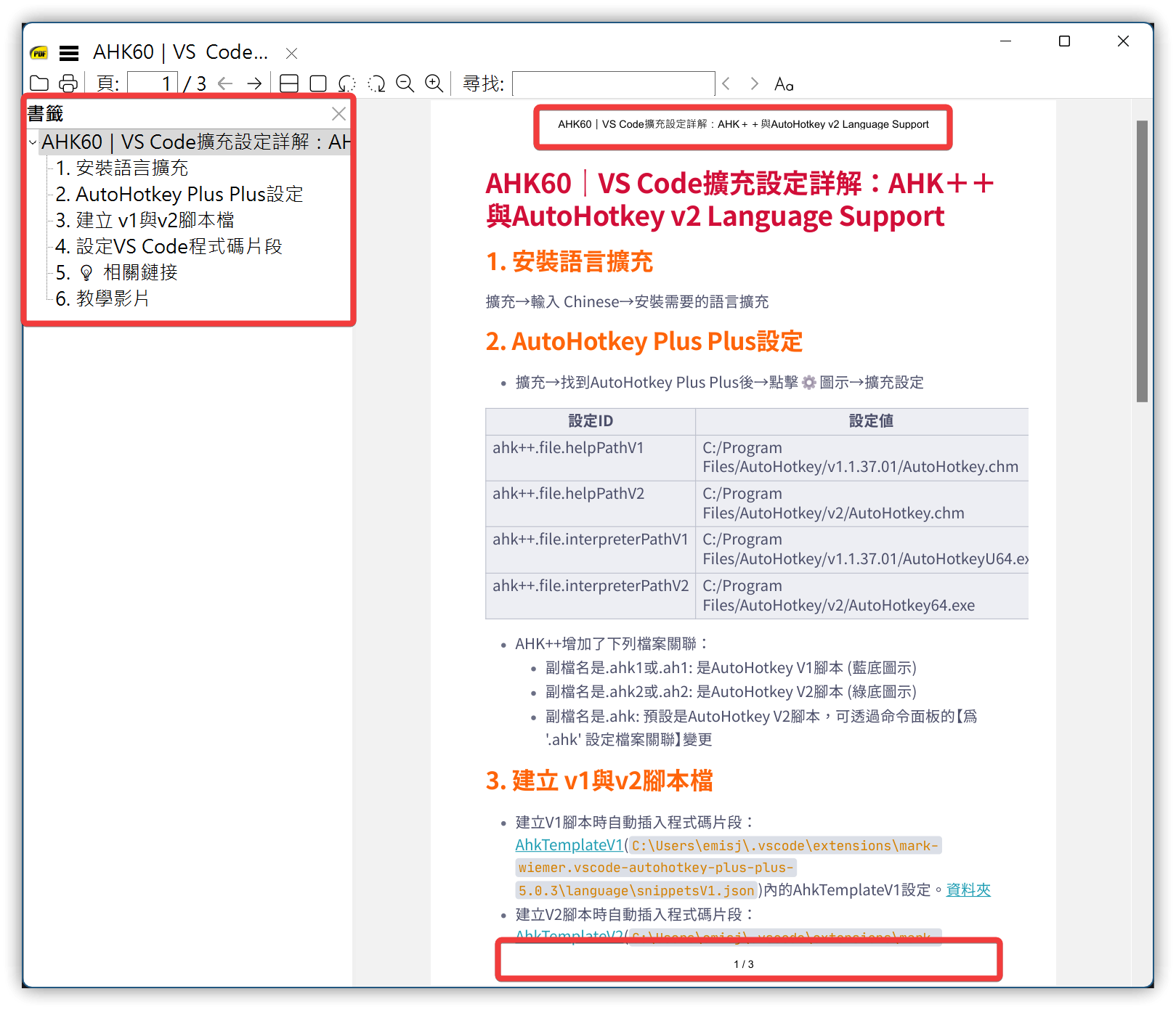
- Add header and footer (page number/total pages)
- Integrates with the [[#^e5003e|Dynamic TOC]] plugin → preserves internal link navigation
- Generate PDF outline bookmarks
- Preview dialog before generation
The author of Dynamic TOC is no longer maintaining it. You must install it manually Aidurber/obsidian-plugin-dynamic-toc: An Obsidian plugin for creating Tables of Contents that stay updated with your document
^e5003e
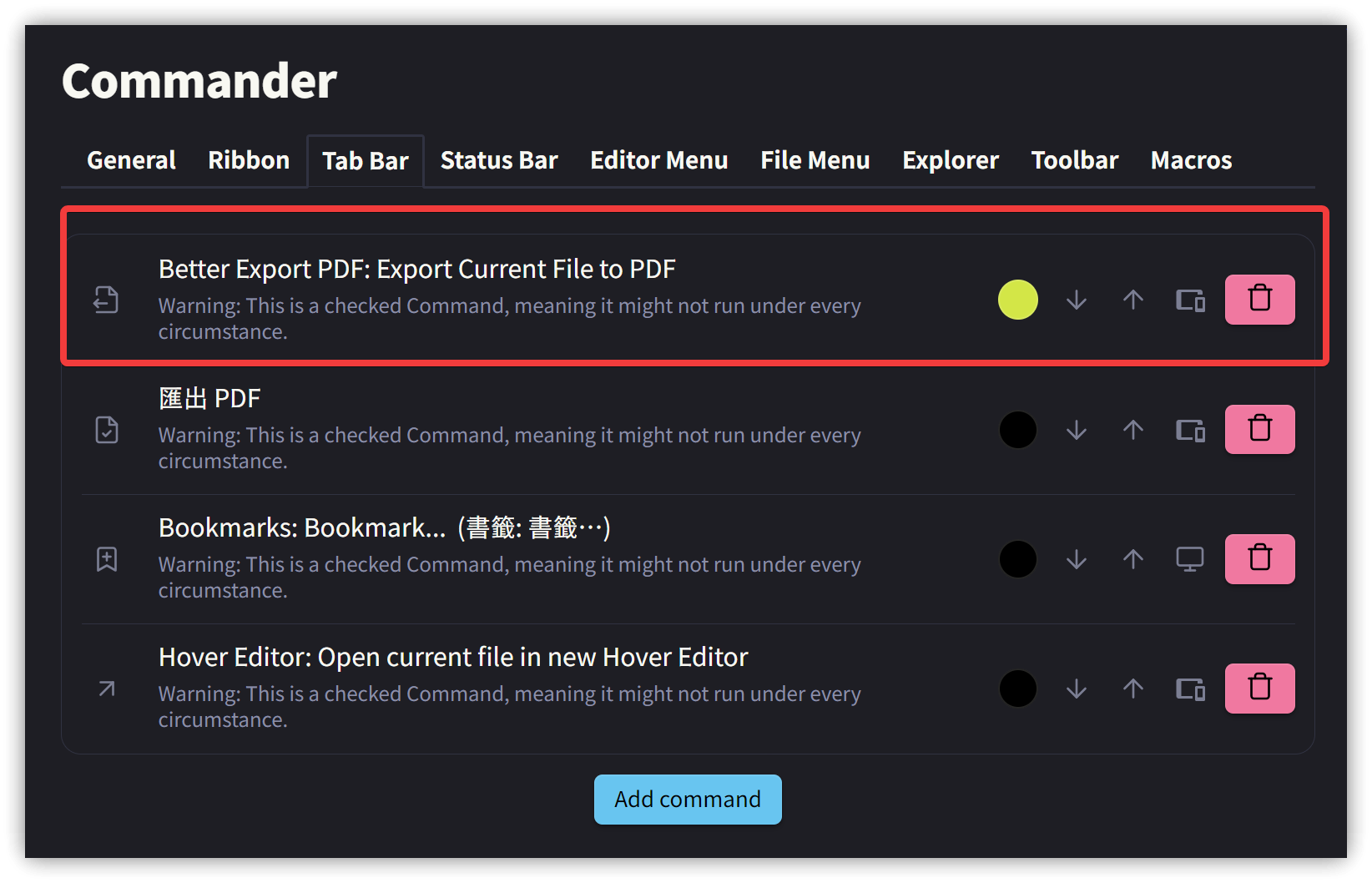
1.1. Integration with Commander
- Add a 【Better Export PDF: Export Current File to PDF】 button to the Tab Bar for easy PDF export operations.
1.2. Header
<div style="width: 100vw;font-size:10px;text-align:center;"><span class="title"></span></div>
1.3. Footer
▼ Original content:
<div style="width: 100vw;font-size:10px;text-align:center;"><span class="pageNumber"></span> / <span class="totalPages"></span></div>
Place the filename and page number in the footer (filename takes 80% of the window width, page number takes 20%):
<div style="width: 80vw;font-size:10px;margin-left:20px;float:left;"><span class="title"></span></div>
<div style="width: 20vw;font-size:10px;text-align:right;margin-right: 20px"><span class="pageNumber"></span> / <span class="totalPages"></span></div>
- 2024/04/08
<div style="width:95vw;font-size:10px;border-top:3px solid #622423;margin-left:20px;">
<div style="margin-top:1.5px; margin-bottom:3px; width:95vw;font-size:10px;border-top:1px solid #622423;margin-left:0px;margin-right:20px;"></div>
  <span style="width: 80%;font-size:10px;text-align:left;">
    <span class="title"></span>.md
  </span>
  <span style="width: 20%;font-size:10px;float:right;text-align:right;margin-right:0px;">
    Page <span class="pageNumber"></span> of <span class="totalPages"></span>
  </span>
</div>
</div>

1.4. AnuPpuccin Theme Modification
By default, the AnuPpuccin theme generates PDF pages with a gray background color. You can use the following CSS to change the background color to white:
@media print {
  .anp-print .print, body.anp-print, .anp-print .markdown-rendered, :root:has(.anp-print), :root {
    background-color: white;  /*rgb(var(--ctp-base));*/
  }
}
1.5. 2024/02/21 v1.5.4
Better Export PDF v1.5.4 added the functionality to control the header and footer templates for individual notes using the headerTemplate and footerTemplate fields in the note's YAML frontmatter. Simply add these fields to the YAML section along with HTML content to generate the specified styles.
Only the following data can be used in the header and footer, and must be written using the <span class="data_name"></span> tag format:
- title: Note filename
- date: Time the PDF was generated
- url: Document location
- pageNumber: Current page number
- totalPages: Total number of pages
To add a horizontal line above the footer:
<div style="width:100vw;font-size:10px;border-top:1px solid red;margin-left:20px;margin-right:20px;">
  <span style="width: 80%;font-size:10px;text-align:left;">
    <span class="title"></span>
  </span>
  <span style="width: 20%;font-size:10px;float:right;text-align:right">
    <span class="pageNumber"></span> / <span class="totalPages"></span>
  </span>
</div>
Reference: https://www.electronjs.org/docs/latest/api/webview-tag#webviewprinttopdfoptions
- headerTemplate string (optional) - HTML template for the print header. Should be valid HTML markup with following classes used to inject printing values into them: date (formatted print date), title (document title), url (document location), pageNumber (current page number) and totalPages (total pages in the document). For example,
<span class=title></span>would generate span containing the title.- footerTemplate string (optional) - HTML template for the print footer. Should use the same format as the headerTemplate.
2. PDF++ Plugin
PDF++ enhances the functionality of Obsidian's built-in PDF viewer.
PDF++ must be installed manually or using BRAT.
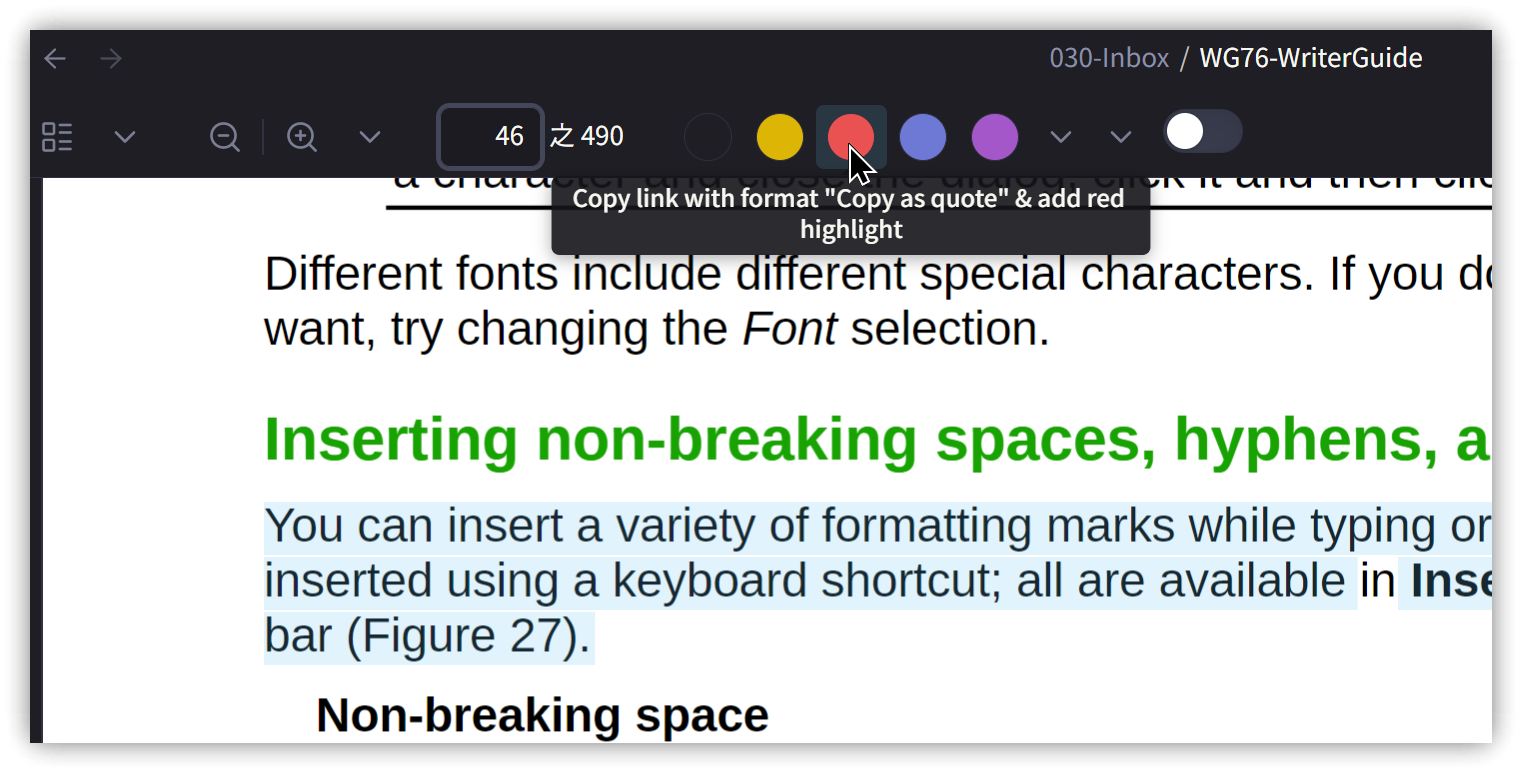
After selecting a block of text in the PDF, click the highlight button above. The highlighted content will be copied to the clipboard. Paste it into your note using <span class='keybs'>Ctrl+V</span>, and the PDF will show the highlighted background color.
2.1. Using Callouts
PDF++ also provides its own Callout appearance. Enable it in the settings to use it:

Then change the copied highlight content into Callout syntax:
> [!PDF|red] Title
> The Styles menu on the Menu bar (Figure 189) provides the most commonly used paragraph, character, and list styles, plus quick links to create and edit styles. To

[[WG76-WriterGuide.pdf#page=188&selection=137,0,142,74&color=red|p.188]]

3. Related Links
✅ Better Export PDF: https://github.com/l1xnan/obsidian-better-export-pdf
✅ PDF++: https://github.com/RyotaUshio/obsidian-pdf-plus
✅ Obsidian Annotator: https://github.com/elias-sundqvist/obsidian-annotator
✅ Dynamic TOC: https://github.com/Aidurber/obsidian-plugin-dynamic-toc
✅ Obsidian commander: https://github.com/phibr0/obsidian-commander
4. Tutorial Video
##