
Key points for using From Template:
- Template files must be stored in the designated folder.
- After creating a new template file, you must run 【Re-Index Templates】 to allow the From Template system to re-index.
- After indexing, a command is automatically created for each template file, allowing each template to be assigned a different hotkey for quick operation.
However, as the number of template files increases, it becomes impractical to memorize the hotkey for each one. This guide demonstrates how to use Templater Hotkeys to create a From Template menu script and assign a single hotkey to it, which should be much more convenient.
1. Find the command for the From Template template
Method 2 (DevTools) is recommended as it's simpler.
1.1. Using Dataviewjs
Please refer to the introduction in Obs127-Simplify Obsidian Automation Scripts with Templater Hotkeys.
1.2. Using DevTools 👍
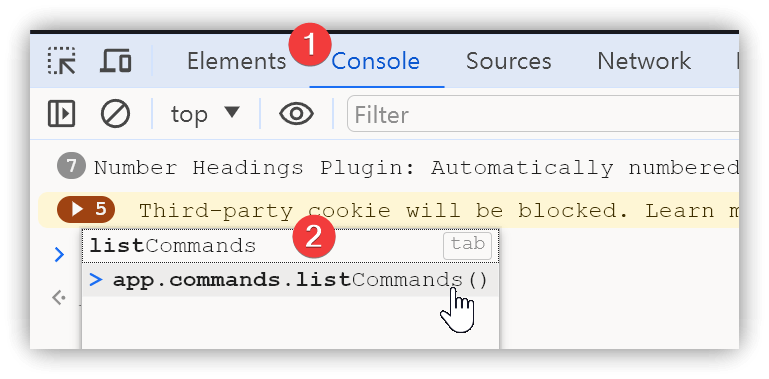
- Press <span class='keybs'> Ctrl+Shift+I</span> in Obsidian to open Developer Tools (DevTools).
- Click the Console tab.
- In the
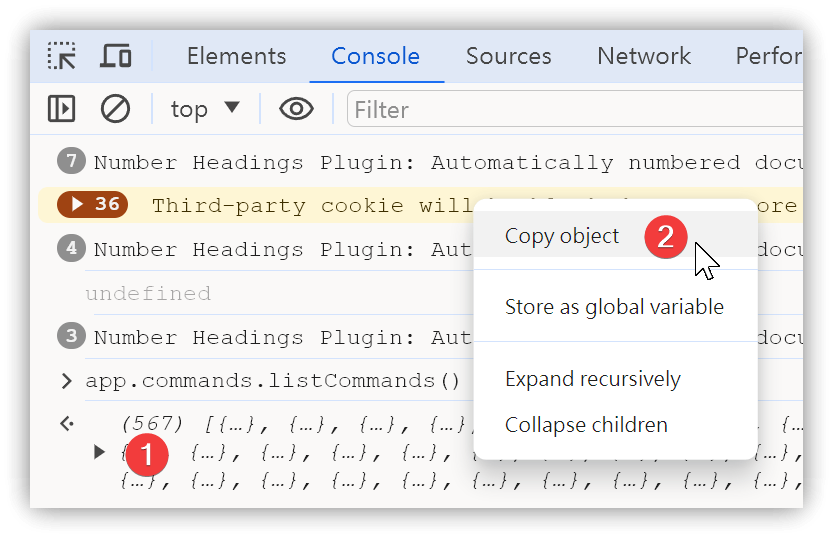
>prompt, type the command:app.commands.listCommands(), and press <span class='keybs'> Enter</span> to execute. - Right-click on the output → Copy object.
- Paste the content from the system clipboard into a text editor to retrieve all commands.
2. Write the Templater script
- The space in the first line
< %*must be removed for it to execute correctly. - Find the template file's command from Step 1. The command should be
obsidian-notes-from-template:lowercase_filename. - If the template filenames don't follow a fixed format, the script should determine the
typeand provide the corresponding command.
< %*
// Run From-Template, Hotkey: Alt+V
let aTypes = ["1. Note", "2. Book2", "3. Anki", "4. Anki-reversed"];
let type = await tp.system.suggester(aTypes, aTypes, false, "Select From Template template");
if (!type) return;
type = type.substring(3).toLowerCase();
app.commands.executeCommandById("obsidian-notes-from-template:from-template-" + type);
-%>
3. Register Hotkeys in Templater Options
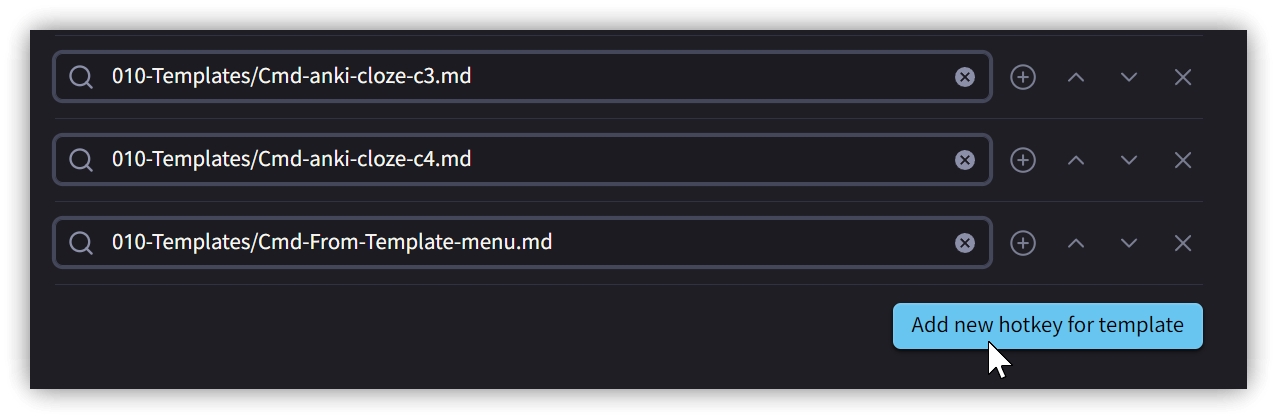
- Community Plugins → Find Templater options → Templater hotkeys → Add new hotkey for template → Select the newly written script file.
4. Assign a Hotkey
- Open the hotkeys settings window, find the Templater script file, and assign a hotkey.
- Test if the hotkey works correctly.
5. 💡 Related Links
💡 Explanation article: https://jdev.tw/blog/8520/
✅ Obsidian Note From Template: https://github.com/mo-seph/obsidian-note-from-template
✅ [Obs#71] Versatile Templating Plugin for Beginners: From Template: https://youtu.be/pzA66MwozsY
✅ Obs072-Step-by-Step Example of Creating Notes with From Template: https://youtu.be/CdxABcKYdts
✅ Obs127-Simplify Obsidian Automation Scripts with Templater Hotkeys: https://youtu.be/U8HDmoQAwts