
我在Obs097 | Highlightr外掛-豐富Obsidian筆記的外觀介紹了插入HTML Mark標準以形成顯著樣式的Highlightr外掛,今天要介紹的是提供了更多設定功能的Painter,想要換個新外掛(Painter與Fast Text Color)的朋友們可以試用看看。
1. Painter:使用<mark>標籤
1.1. 設定要點
- Menu mode: minimal、normal
- Choose highlight method: css-classes、inline-style
插入的<mark>標籤是使用CSS樣式類別或style屬性
- Choose highlight style:<mark style="background-color:#b48ead">6個</mark>樣式供選擇

- Choose highlight colors:選擇顏色和透明度
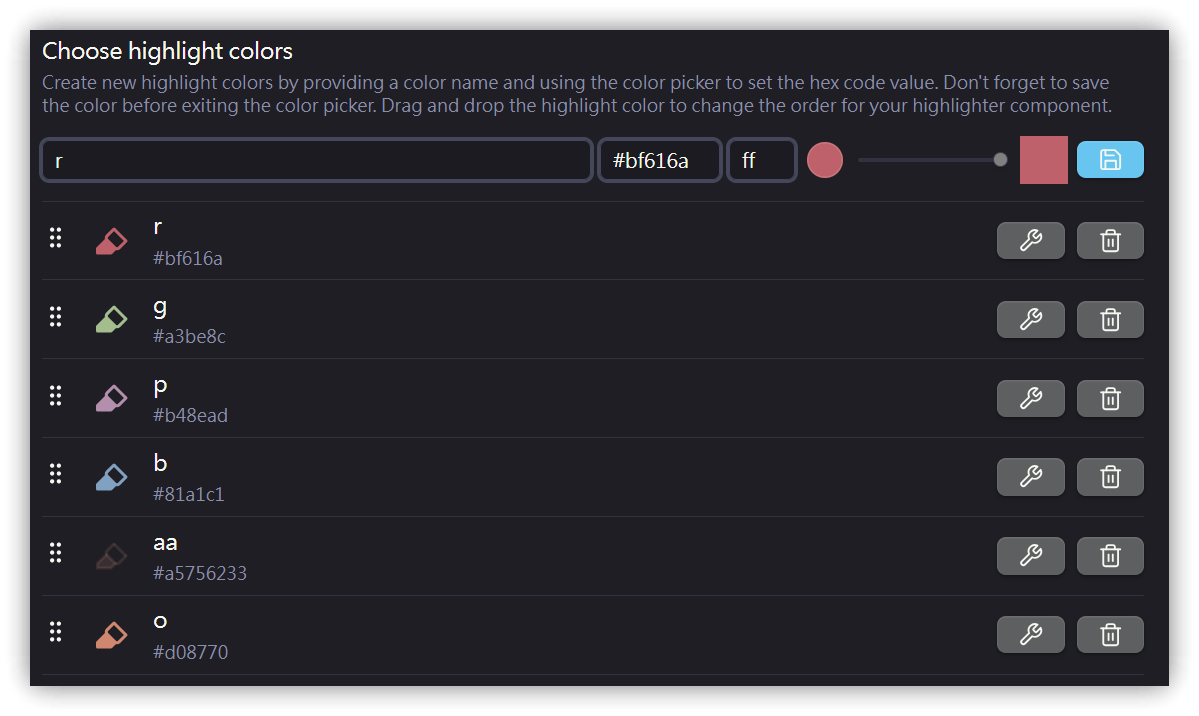
每個顏色都會被設定成命令,可以透過<mark style="background-color:#a3be8c">命令面板</mark>或設置快捷鍵以快速插入。
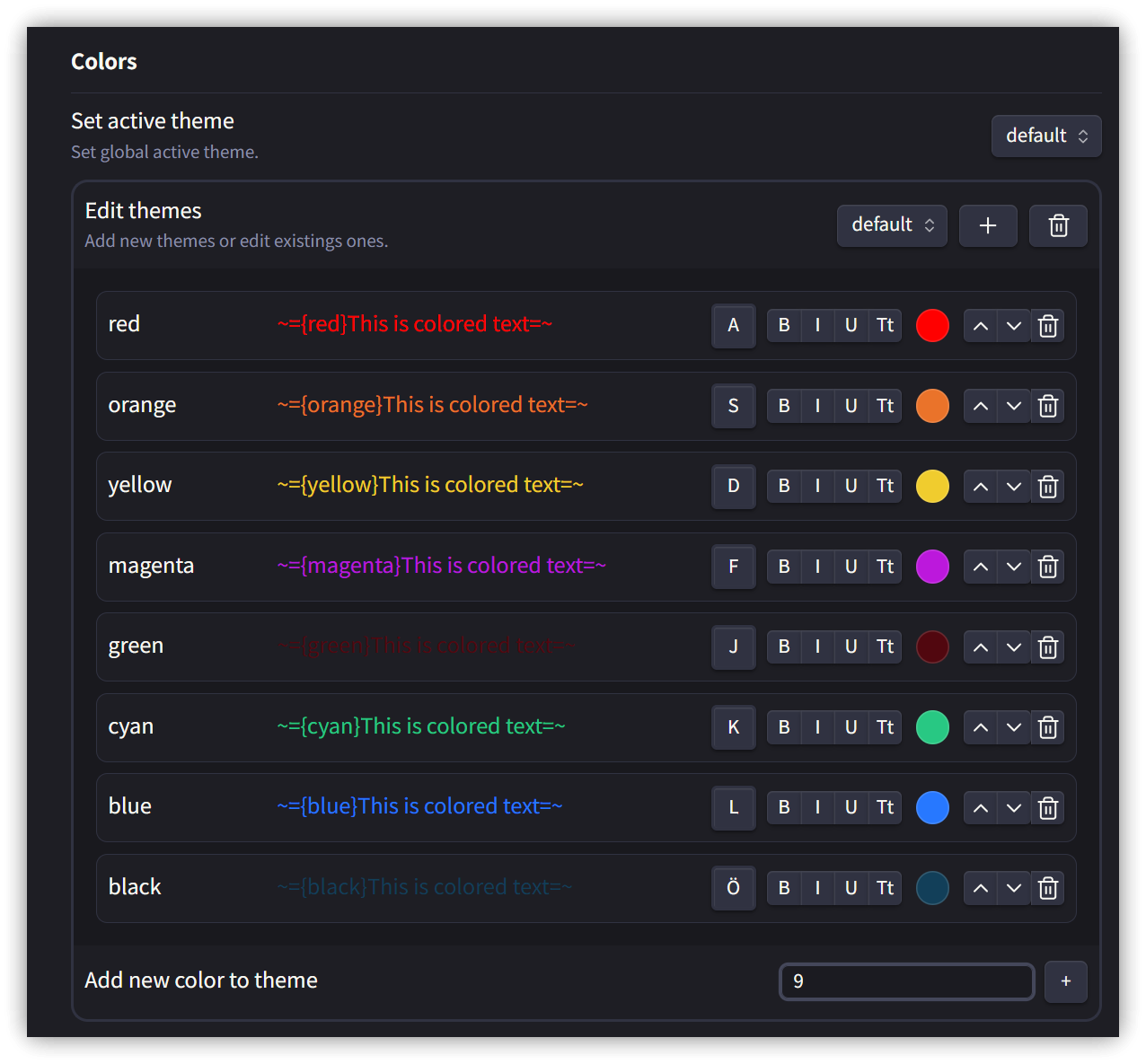
2. Fast Text Color:使用~=、 =~標記
以自訂的Markdown標記來指定顯示的文字前景顏色。
<code>={顏色代碼}要顯示的文字=</code>
2.1. 使用範例
={red}RED text= ={blue}BLUE text= ={orange}Yellow=
游標進入代碼區時會彈出選單。
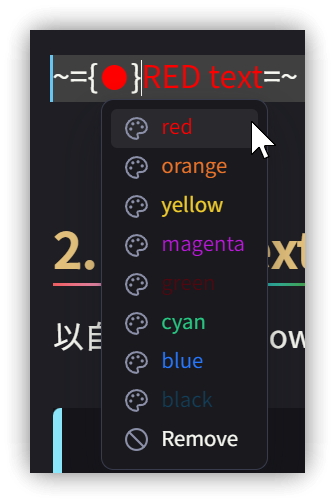
執行Change Text Color命令時會彈出顏色選單,選好後會插入標記。
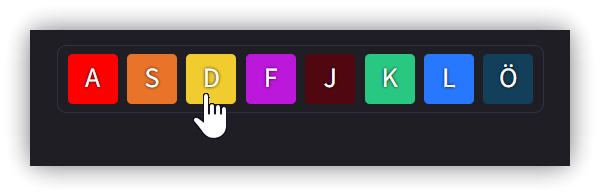
2.2. 設定
3. 💡 相關鏈接
💡 解說文章: https://jdev.tw/blog/8466/
💡Explanation article(English): https://quaily.com/jdevtw-en/p/obs161-obsidian-highlighting-text-options-painter-fast-text-color
💡解説記事(日本語): https://quaily.com/jdevtw-jp/p/obs161-obsidian-highlighting-text-options-painter-fast-text-color
✅GitHub - KraXen72/obsidian-painter: paint text different colors
✅ GitHub - Superschnizel/obisdian-fast-text-color: Obsidian plugin to enable colored text with a custom syntax.
- Obs097 | Highlightr外掛-豐富Obsidian筆記的外觀: https://yiutu.be/-kr9t-iw1MM
4. 教學影片
##