
In Obs097 | Highlightr Plugin-Enrich the Appearance of Obsidian Notes, I introduced the Highlightr plugin, which uses standard HTML <mark> tags to create prominent styles. Today, I'll introduce Painter, which offers more configuration options. Those looking to try a new plugin (Painter and Fast Text Color) might want to check these out.
1. Painter: Using the <mark> tag
1.1. Key Settings
- Menu mode: minimal, normal
-
Choose highlight method: css-classes, inline-style
The inserted<mark>tag uses either CSS classes or the inline style attribute. -
Choose highlight style: <mark style="background-color:#b48ead">6</mark> styles available

-
Choose highlight colors: Select colors and transparency
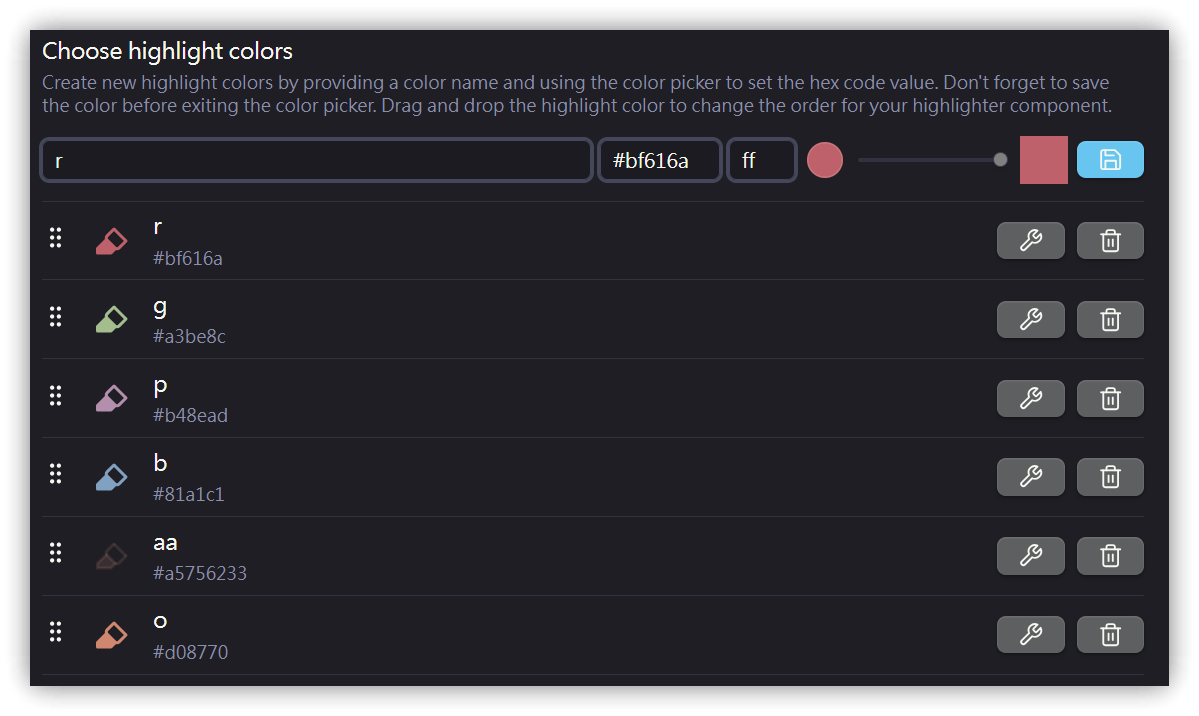
Each color is configured as a command, allowing quick insertion via the <mark style="background-color:#a3be8c">Command Palette</mark> or assigned hotkeys.
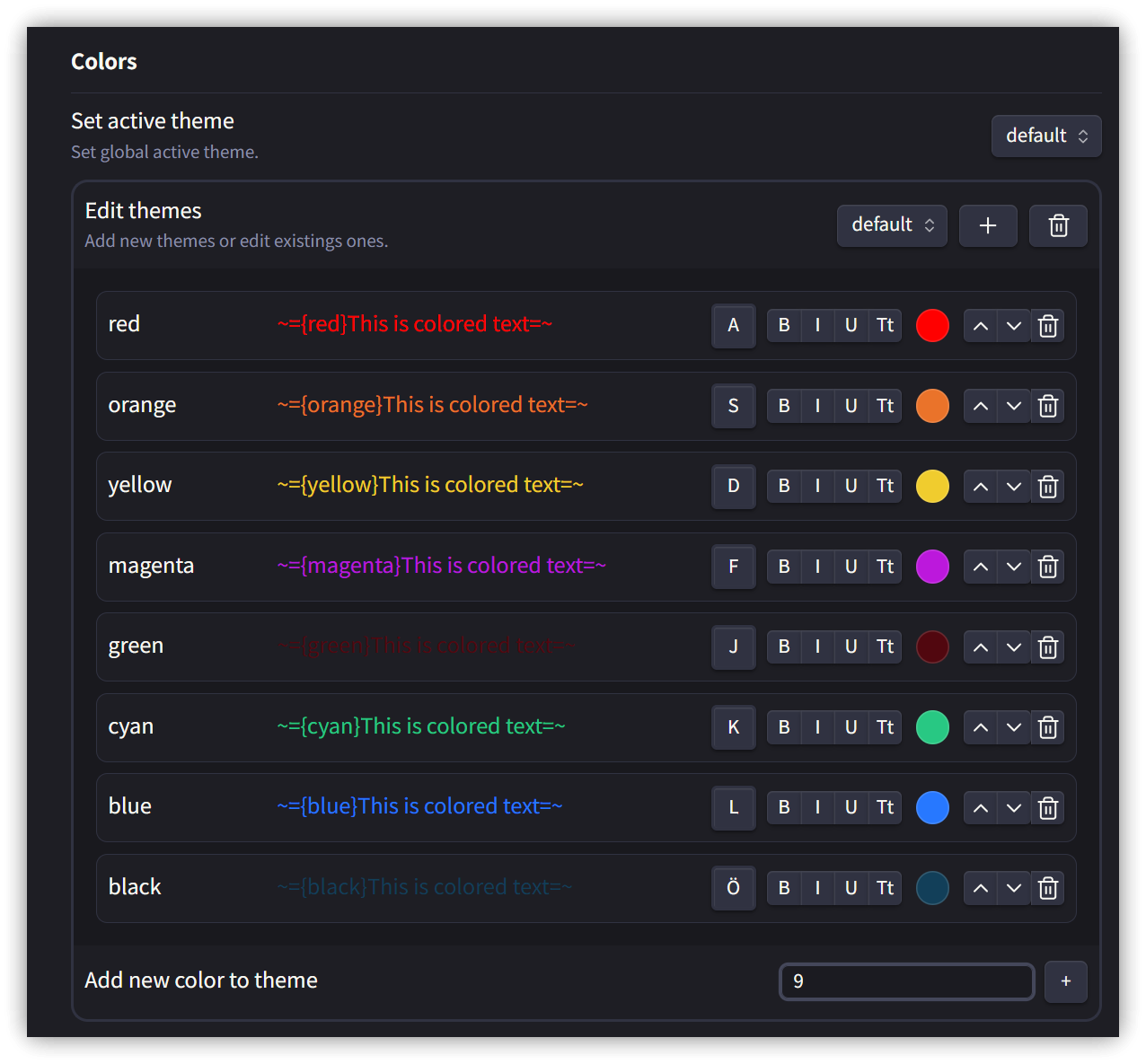
2. Fast Text Color: Using ~= and =~ Markers
Uses custom Markdown syntax to specify the foreground color of text.
<code>={color_code}Text to display=</code>
2.1. Usage Example
={red}RED text= ={blue}BLUE text= ={orange}Yellow=
A menu pops up when the cursor enters the code syntax.
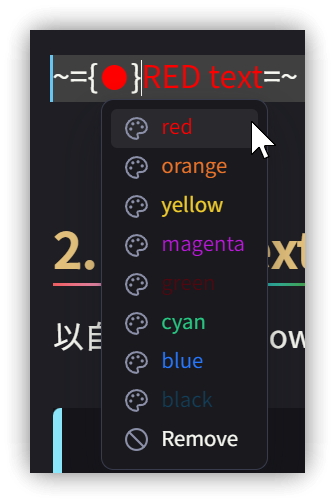
Executing the Change Text Color command opens a color menu. Selecting a color inserts the corresponding syntax.
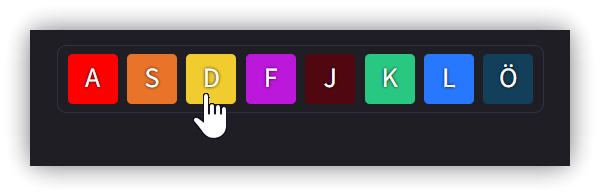
2.2. Settings
3. 💡 Related Links
💡 Explanatory article: https://jdev.tw/blog/8466/
💡Explanation article(English): https://quaily.com/jdevtw-en/p/obs161-obsidian-highlighting-text-options-painter-fast-text-color
💡解説記事(日本語): https://quaily.com/jdevtw-jp/p/obs161-obsidian-highlighting-text-options-painter-fast-text-color
✅GitHub - KraXen72/obsidian-painter: paint text different colors
✅ GitHub - Superschnizel/obisdian-fast-text-color: Obsidian plugin to enable colored text with a custom syntax.
- Obs097 | Highlightr Plugin-Enrich the Appearance of Obsidian Notes: https://youtu.be/-kr9t-iw1MM