



When frequently operating Windows commands via the Windows Command Prompt (cmd.exe), you can install clink to extend command editing features, achieving the same operational methods as Linux BASH. However, because clink uses a method of "injecting into cmd.exe" to achieve its extension goals, it installs some DLLs into the system and modifies the registry, which is why I don't particularly like using it.
Recently, I discovered nyagos from Japan. Not only does it offer similar functionality, but it also doesn't require installing DLLs or touching the registry. It also allows using Lua to extend custom functions, making it very convenient to use. Furthermore, existing internal commands and batch files can continue to be used. If you are accustomed to command-line operations, I highly recommend trying nyagos.
- nyagos is an acronym for Nihongo Yet Another GOing Shell
- "NYAGOS - The hybrid Commandline Shell between UNIX & DOS"
- The earliest release date is 2014/09/27, the current version is 4.4.15_0
- Versions 1.0 to 3.x were written in C++ (NAYOS, pronounced "nya-oh-su"), starting from 4.0 it's written in Go (NYAGOS, with an added G)
1. Installation
- Download the .zip file from https://github.com/nyaosorg/nyagos/releases and extract it.
- Execute
InstallationFolder\makeicon.cmd. This will use PowerShell to create a shortcut on the desktop and set the activation hotkey to <span class='keybs'>Ctrl+Alt+N</span>. - Default configuration file:
C:\Users\YourUsername\.nyagos, which is a Lua script file. - It's recommended to remove
C:\Users\YourUsername\.nyagosand directly use the .nyagos file within the installation folder. Back up before modifying (for portability considerations).
1.1. Startup Execution Order
InstallationFolder\.nyagos(lua-script)InstallationFolder\nyagos.d\*.lua(lua-script)%USERPROFILE%\.nyagos(lua-script)%APPDATA%\NYAOS_ORG\nyagos.d\*.lua(lua-script)
2. Usage Examples
2.1. ls (list)
- Reference: ls--option-files
ls test*
ls -a -ltr
c:\util\npp\notepad++ $(ls test*)
c:\util\npp\notepad++ `ls test*`
emeditor $(ls test* | fzf -m)
cd `ls -d | box`
lsandllare defined inInstallationFolder\nyagos\nyagos.d\aliases.lua.- If you haven't written Lua before, you can read
InstallationFolder\nyagos\nyagos.d\*.luato get a feel for it. boxis a built-in command in nyagos that can create a selection menu.
2.2. Custom Aliases
- Create a script file
InstallationFolder\nyagos\nyagos.d\my_aliases.luawith the following content:
nyagos.alias.cat="type"
nyagos.alias["cd.."]="cd .."
nyagos.alias["cd..."]="cd ../.."
nyagos.alias["cd2"]="cd ../.."
nyagos.alias["cd3"]="cd ../../.."
nyagos.alias["cd?"]="cd ?"

if nyagos.env.OS == "Windows_NT" then
  -- Sort from oldest to newest
  nyagos.alias.ll="__ls__ -olFh -ltr $*"
end
2.3. Change Prompt String
- Create a script file
InstallationFolder\nyagos\nyagos.d\my_prompt.luawith the following content. - If it's a Git working directory, it will also output the branch name.
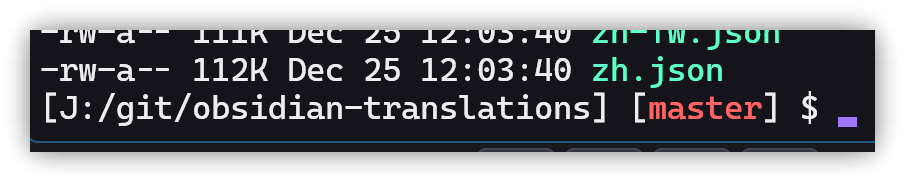
▼ my_prompt.lua
-- Source: https://qiita.com/suisui/items/b6469ce91f01a83b599b
-- Reference: [【NYAGOS】プロンプトで使える特殊文字と ANSI エスケープシーケンスを Lua でラップする - Tumbling Dice](https://outofmem.hatenablog.com/entry/2016/01/27/014920)
share.org_prompter = nyagos.prompt
nyagos.prompt = function(this)
  local oPrompt = share.prompt
  local oEsc = share.escape_sequence

  -- add dir name (with drive letter)
  -- bg.default (=49) だけでいい気もしますが、追加で bg.trans (=60) も足してます
  local sEscStart = oEsc.create_sequence(oEsc.bg.default, oEsc.bg.trans)
  local sEscEnd = oEsc.create_sequence(oEsc.fg.white, oEsc.bg.trans)
  --print("sEscStart=" .. sEscStart)
  --print("sEscEnd=" .. sEscEnd)
  local prompt_message = string.format('%s[%s]%s', sEscStart, oPrompt.path, sEscEnd)

  -- check git branch
  local sGitBranchName = nyagos.eval('git rev-parse --abbrev-ref HEAD 2>nul')
  --print("branch=" .. sGitBranchName)

  if (sGitBranchName ~= '') then
    -- add git branch name
    sEscStart = oEsc.create_sequence(oEsc.fg.red, oEsc.bg.trans)
    sEscEnd = oEsc.create_sequence(oEsc.fg.default, oEsc.bg.trans)
    --print("sEscStart=" .. sEscStart)
    --print("sEscEnd=" .. sEscEnd)

    prompt_message = string.format(prompt_message .. ' [%s%s%s]', sEscStart, sGitBranchName, sEscEnd)
  end

  -- add line break
  prompt_message = prompt_message .. " "  -- oPrompt.crlf

  -- add dollar
  prompt_message = prompt_message .. oPrompt.dollar .. ' '

  return share.org_prompter(prompt_message)
end

share.prompt = {
  eq = '$q', -- equal '='
  dollar = '$$', -- dollar '$'
  time = '$t', -- current time
  date = '$d', -- current date
  path = '$p', -- current path (with drive letter)
  ver = '$v', -- windows version
  drive = '$n', -- current drive letter
  gt = '$g', -- greater than '>'
  lt = '$l', -- less than '<'
  pipe = '$b', -- pipe '|'
  crlf = '$_', -- line break
  esc = '$e', -- escape
  bs = '$h', -- backspace
  amp = '$a', -- ampersand '&'
  l_par = '$c', -- left parenthesis '('
  r_par = '$f', -- right parenthesis ')'
  space = '$s' -- space
}

share.escape_sequence = {
  -- attribute
  attr = {
    off = '0',
    bold = '1',
    bold_off = '21',
    underline = '4',
    underline_off = '24',
    blink = '5',
    blink_off = '25'
  },

  -- foreground
  fg = {
    black = '30',
    red = '31',
    green = '32',
    yellow = '33',
    blue = '34',
    magenta = '35',
    cyan = '36',
    white = '37',
    default = '39',
    -- prefix 'l' is 'Light'
    l_gray = '90',
    l_red = '91',
    l_green = '92',
    l_yellow = '93',
    l_blue = '94',
    l_magenta = '95',
    l_cyan = '96',
    l_white = '97'
  },

  -- background
  bg = {
    black = '40',
    red = '41',
    green = '42',
    yellow = '43',
    blue = '44',
    magenta = '45',
    cyan = '46',
    white = '47',
    default = '49',
    trans = '60',
    -- prefix 'l' is 'Light'
    l_gray = '100',
    l_red = '101',
    l_green = '102',
    l_yellow = '103',
    l_blue = '104',
    l_magenta = '105',
    l_cyan = '106',
    l_white = '107'
  },

  -- create_sequence(fg, bg, attr) Parameter order does not need to be fixed
  create_sequence = function(...)
    local prompt = share.prompt
    local attrs = {...}
    local joined_attrs = ''

    for n, v in pairs(attrs) do
      local val = tostring(v)
      if val ~= nil then
        joined_attrs = joined_attrs ~= '' and joined_attrs .. ';' .. val or val
      end
    end
    return string.format('%s[%sm', prompt.esc, joined_attrs)
  end
}
2.4. Quick Directory Switching
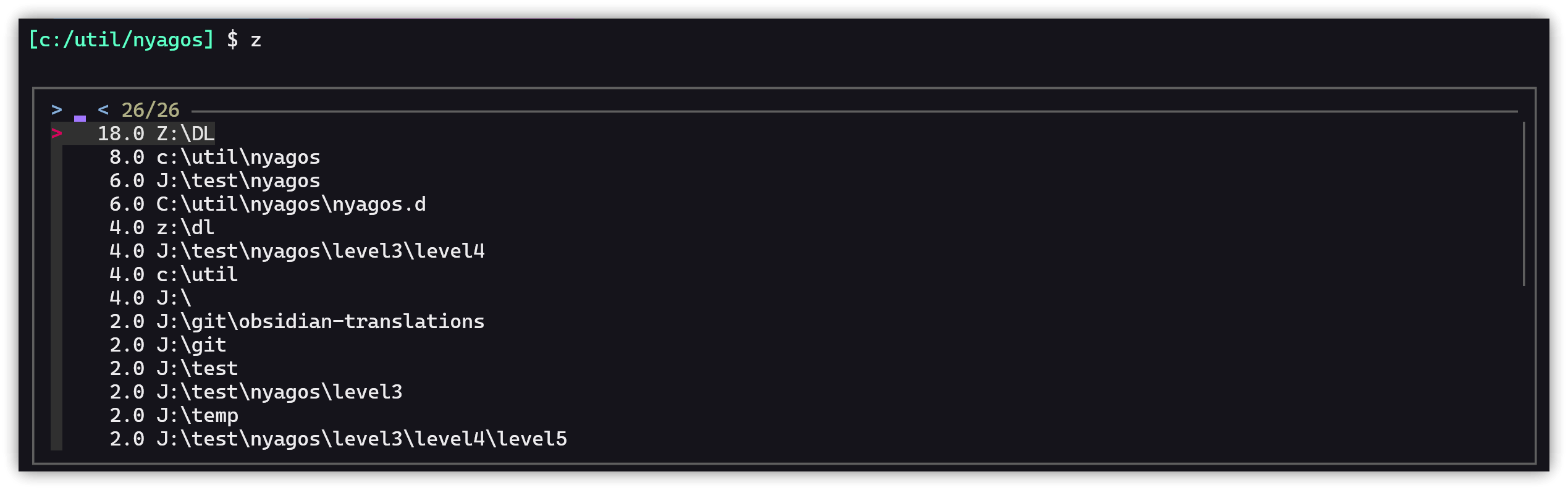
- Quickly switch directories (jump) using
z <partial_folder_string>. - Install zoxide.
- Directory change history is written by calling zoxide via
nyagos.postexechook()when thecdcommand is executed. Then, a newzalias is added to query and quickly switch. - Create a script file
InstallationFolder\nyagos\nyagos.d\my_z.luawith the following content:
-- source: [nyagos增加zoxide的支持 – wentao's blog](https://wentao.org/post/2023-04-27-zoxide-with-nyagos/)
-- 2024/04/09 Jerry modified no args handling.
-- [ajeetdsouza/zoxide: A smarter cd command. Supports all major shells.](https://github.com/ajeetdsouza/zoxide)
nyagos.alias.z = function (args)
  local path
  if (#args >= 1) then
    local rest = args[1]
    path = rest
    path = nyagos.eval("zoxide query --exclude '".. (nyagos.getwd()) .."' -- " .. rest)
  else
    path = nyagos.eval("zoxide query -i")
  end
  nyagos.chdir(path)
end
nyagos.alias.zi=function(args)
  if (#args == 0) then
    print("zi need a path.")
    return
  end

  local rest = args[1]
  path = nyagos.eval("zoxide query -- " .. rest .. "| fzf" )
  nyagos.chdir(path)
end

-- Using the postexechook feature to automatically update zoxide data.
-- There is also nyagos.preexechook
nyagos.postexechook = function(args)
  if "cd" == args[1] then
      nyagos.eval("zoxide add -- " .. nyagos.getwd())
  end
end
▼ Example using z
rem z displays directory history menu, use arrow keys to navigate, or type to filter
z
z test
2.5. Execute Command History
rem Display the last 10 commands by default
history
rem Execute the 123rd command
!123
Modify the script file InstallationFolder\nyagos\nyagos.d\my_aliases.lua to add a custom alias hist. Without arguments, it defaults to displaying 20 entries:
nyagos.alias.hist=function(args)
  if (#args <= 0) then
    iCount = 20
  else
    -- print("args=" .. args[1])
    iCount = args[1]
  end
  nyagos.exec("history " .. iCount)
end
2.6. Auto-completion
- Copy
InstallationFolder\nyagos\nyagos.d\catalog\git.luatoInstallationFolder\nyagos\nyagos.d\ - Copy
InstallationFolder\nyagos\nyagos.d\catalog\subcomplete.luatoInstallationFolder\nyagos\ - In the command line, type
git reand press <span class='keybs'> Tab</span>. Git commands starting with 're' will appear.
2.7. Menu Hotkeys
InstallationFolder\nyagos\nyagos.d\box.luaprovides the following hotkeys:
| Key | Function |
|---|---|
| Ctrl+O | File menu for the current folder |
| Ctrl+X | r: Command history menu<br>h: cd history menu<br>g: Git log menu |
| Alt+R | Command history menu. Commands with spaces will be quoted |
| Alt+H | cd history menu |
| Alt+G | Git log menu |
| Alt+O | Retrieve the original path of a .lnk shortcut |
- Create a shortcut
lnk <directory_or_filepath> <target_.lnk_file>
lnk c:/util/nyagos\nyagos.d j:/test/nyad.lnk
cd j:/test/nyad.lnk
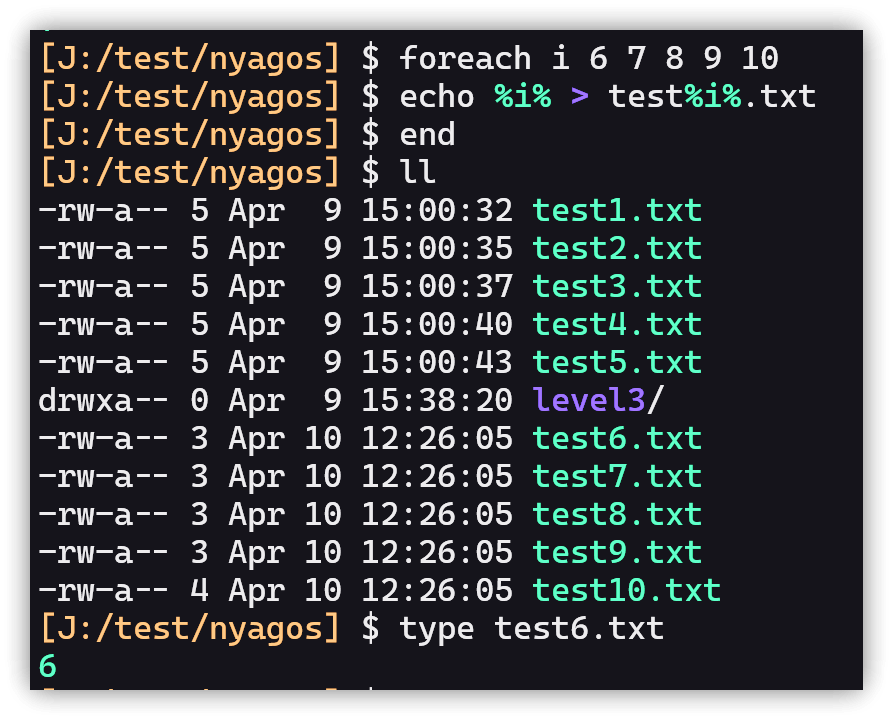
2.8. foreach
cd /d j:/test/nyagos
foreach f *.txt ; echo move %f% %f:txt=ttt% ; end
3. Issues
3.1. bindkey
Tried to set <span class='keybs'>Ctrl+End</span> to delete text to the right of the cursor (like <span class='keybs'>Ctrl+K</span>), but it seems unachievable.
3.2. Control Panel Files
Control Panel files like main.cpl, ncpa.cpl, etc., cannot be opened with open or start. Solved using a batch file:
@echo off
if "%1"=="net" ncpa.cpl
if "%1"=="fire" Firewall.cpl
if not "%1"=="" %1.cpl
if "%1"=="" dir /w c:\windows\system32\*.cpl
3.2.1. 2025/03/07
Can also be solved using cmd.exe:
nyagos.alias["appwiz.cpl"]="cmd /c appwiz.cpl"
3.3. Microsoft Configuration (.msc)
Files like services.msc cannot be started directly; they require open services.msc or start services.msc to run.
.msc files are actually Windows executables. They can be run directly without the .msc extension, but nyagos cannot start them when the .msc extension is included.
Add the following aliases to mimic cmd.exe's execution behavior:
nyagos.alias.svc="start services.msc"
nyagos.alias["appwiz.cpl"]="cpl appwiz"
nyagos.alias["services.msc"]="start services.msc"
Alternatively, modify InstallationFolder\nyagos\nyagos.d\suffix.lua to let nyagos know how to execute .msc files:
for key,val in pairs{
    awk={"gawk","-f"},
    js={"cscript","//nologo"},
    lua={"nyagos.exe","--norc","--lua-file"},
    pl={"perl"},
    ps1={"powershell","-ExecutionPolicy","RemoteSigned","-file"},
    rb={"ruby"},
    vbs={"cscript","//nologo"},
    wsf={"cscript","//nologo"},
    py={"python"},
    msc={"open"},
} do
    share._setsuffix( key , val )
end
4. 💡 Related Links
💡 Explanation Article (Chinese): https://jdev.tw/blog/8420/
✅ nyaosorg/nyagos: NYAGOS - The hybrid Commandline Shell between UNIX & DOS
✅ zoxide Manual: zoxide man | Linux Command Library
✅ Reference clink: Enhance cmd.exe with Powerful Bash Readline Command Line Editing Features – Jeffrey's Pithy Notes (Chinese)
✅ Reference 【NYAGOS】Wrapping Special Prompt Characters and ANSI Escape Sequences in Lua - Tumbling Dice (Japanese)
✅ Reference: Adding zoxide support to nyagos – wentao's blog (Chinese)