
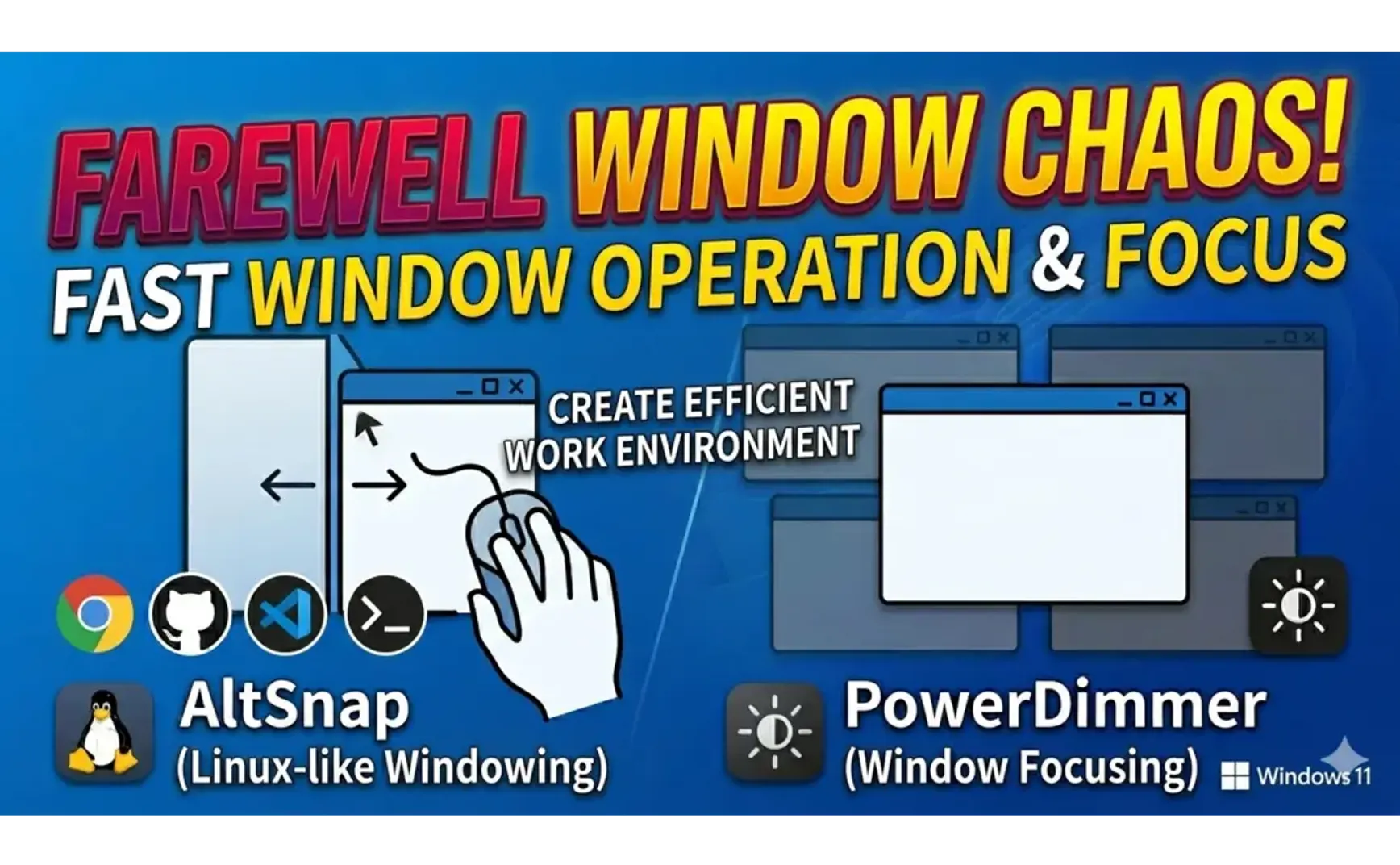
1. Window Operations
AltSnap is a free and open-source tool designed to simplify window operations in Windows, primarily by emulating Linux window behavior. AltSnap is the successor to AltDrag, and both can be found on GitHub.
The last version of AltDrag was released in 2015, while AltSnap is its fork and successor, inheriting all of AltDrag's functionalities and adding new features.
AltSnap's main features are as follows:
1.1. Moving Window Position
- The default Windows method for moving windows requires placing the cursor on the title bar, holding the left mouse button, and dragging to the desired position before releasing.
- With AltSnap enabled, you can hold Alt+Left Mouse Button anywhere on the window and drag it to the desired position.

1.2. Resizing Windows
- The default method for resizing windows requires precisely clicking and dragging the window edges.
- With AltSnap, hold Alt+Right Mouse Button anywhere on the window and drag to resize from any corner or edge.
1.3. Maximizing and Restoring Window Size
- The default method to toggle window maximization is double-clicking the title bar.
- With AltSnap, Alt+Double Left Click anywhere on the window toggles maximization.
1.4. Quick Window Snapping
- With AltSnap, Alt+Double Right Click anywhere on the window snaps it to the corresponding edge based on where you click.
1.5. Window Transparency
- AltSnap allows you to change window transparency using Alt+Mouse Wheel.
1.6. AltSnap Menu
Alt+Click Mouse Wheel opens the AltSnap function menu.
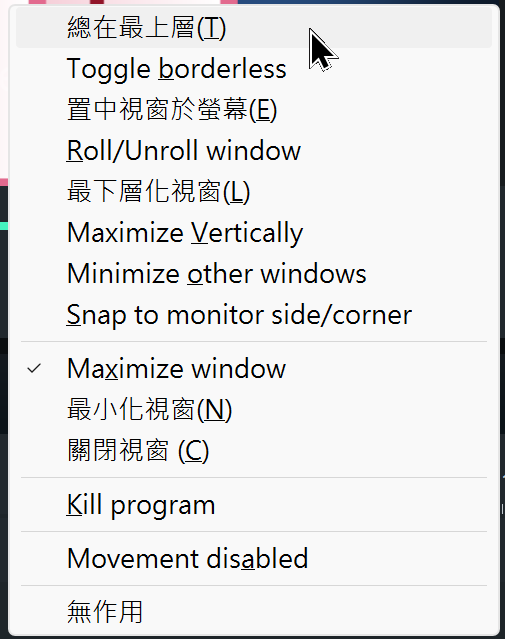
1.7. Settings
Right-click the system tray icon to open the settings window with numerous options.
Try the keyboard settings, following these steps:
- Select an action from the "Shortcut for action" menu, e.g., "Always on Top"
- Click "Pick keys" and press the desired key to get its virtual key code (vKey), e.g., pressing T fills in 54
- Click on modifier keys like Shift, Alt
- Check "Apply to the pointed window"
- Click "OK"
Now, pressing Alt+Shift+T will make the current window stay on top.

2. Window Focus Tool
I previously introduced LeDimmer in Useful tools for using large (32-inch 4K) monitors with Windows, a tool that dims areas outside the current working window. As LeDimmer is closed-source and hasn't been updated for a while, PowerDimmer now offers more features and convenience.
PowerDimmer has three options, switchable from its system tray right-click menu:
- Dimming active? Enables/disables dimming for the current window
- Dim Taskbar? Dims the taskbar
- Active on launch? Automatically brightens the focused window when switching
2.1. .NET Installation
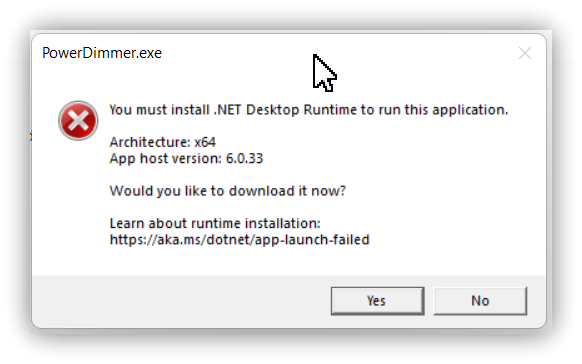
If you encounter the following error when running, you need to download and install .NET Runtime 6.0.
Clicking Yes will automatically open a webpage to download the file. After downloading, run the installer in your Downloads folder.
3. 💡 Related Links
💡 Explanatory article: https://jdev.tw/blog/8615/
✅ English: https://quaily.com/jdevtw-en/p/enhancing-windows-window-management-tools-altsnap-and-powerdimmer
✅ Japanese: https://quaily.com/jdevtw-jp/p/enhancing-windows-window-management-tools-altsnap-and-powerdimmer
✅ AltSnap official website: https://github.com/RamonUnch/AltSnap/
✅ Chinese instructions: https://github.com/RamonUnch/AltSnap/blob/main/README_zh-CN.md
✅ PowerDimmer: https://github.com/shayne/PowerDimmer
✅ LeDimmer official website: https://sites.google.com/site/llemarie/ledimmer
✅ LeDimmer direct download: https://sites.google.com/site/llemarie/LeDimmer.zip