

「✦ Convenient Operations
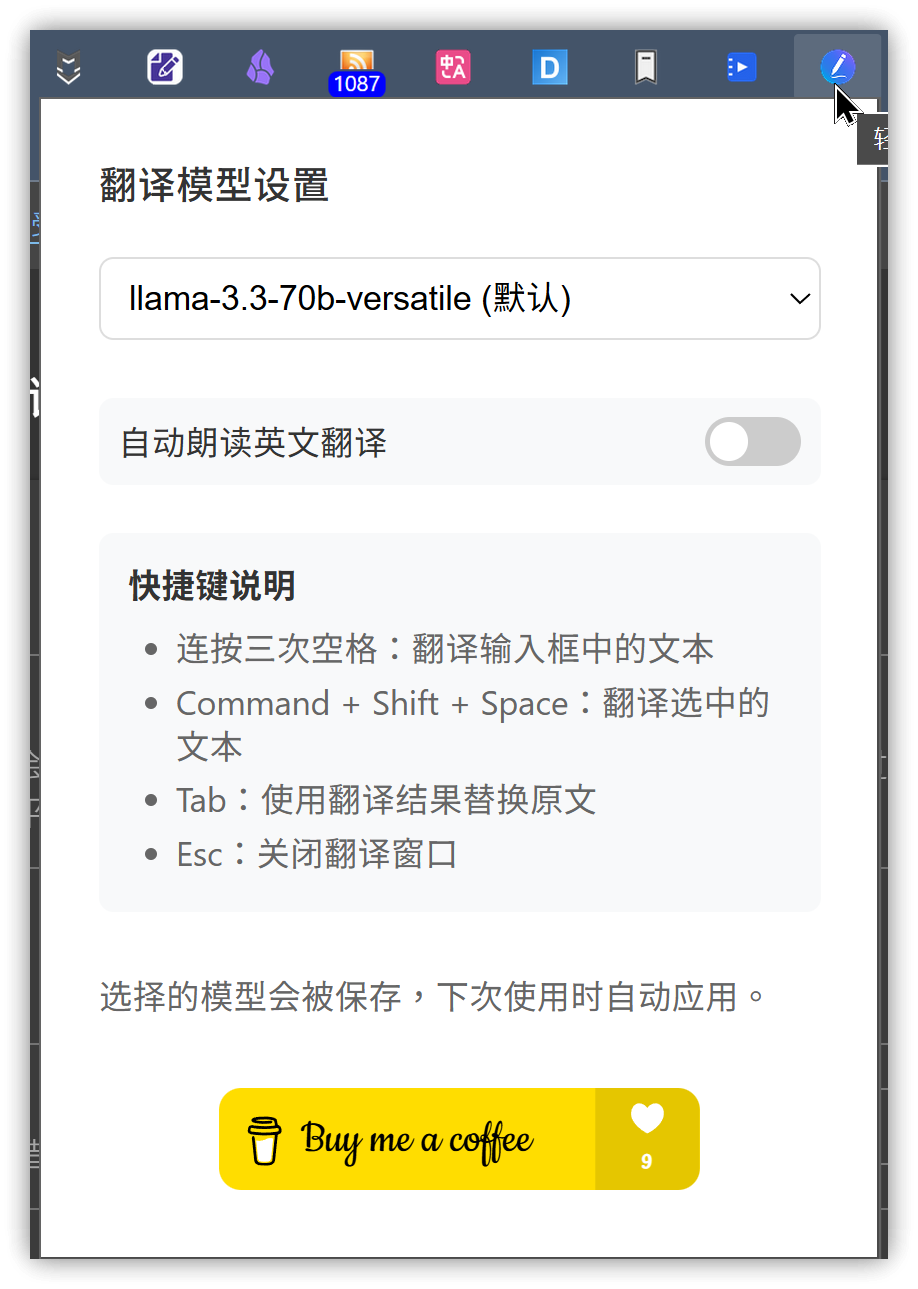
- Triple-tap Space: Quickly get English expressions
- Command+Shift+Space: Translate selected text
- Tab key: Replace with English expression with one click
- Esc key: Close the prompt window
✦ Intelligent Engine
- Supports multiple AI models
- Continuously optimizes translation quality
- Ensures expressions are idiomatic and accurate」
1. Feature Description
The "Easy Write English" extension provides an in-place translation feature. You no longer need to copy and paste text into Google Translate or DeepL for translation. Simply triple-tap the spacebar in any input box to translate instantly. This is very convenient for those who frequently input English but worry about expressing themselves clearly or accurately, or for situations requiring Chinese-to-English or English-to-Chinese translation.
It can be used in any input box, including those on X, YouTube, etc.
2. Settings
First, select a model. You can also configure whether to automatically read the text aloud.
3. Key Operations
After installing this extension, type text into an input box on a webpage. When translation is needed, just triple-tap the spacebar, and the extension's dialog window will pop up:
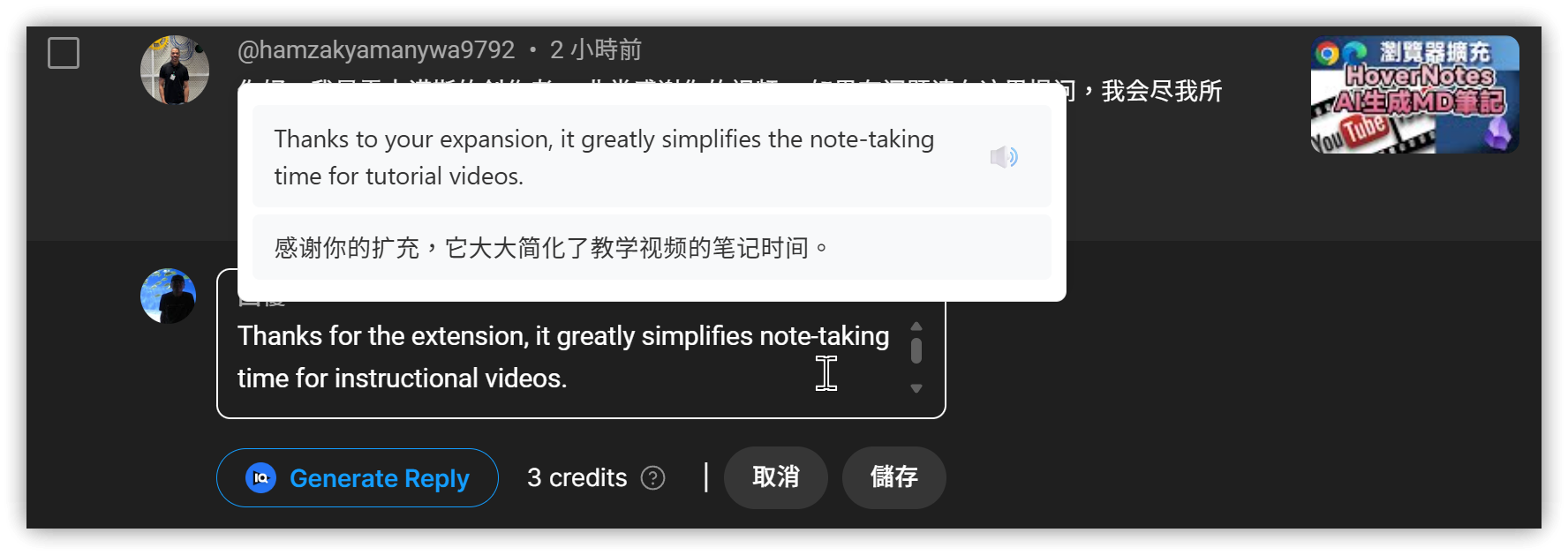
At this point, you can click on the text before or after translation to automatically insert it into the input box. Unfortunately, Traditional Chinese will be replaced with Simplified Chinese.
Press the Esc key to close the pop-up dialog window.
The triple-tap spacebar shortcut conflicts with Immersive Translate - Webpage & PDF Translator. Please be aware of this and resolve the conflict when using it.
4. 💡 Related Links
💡 Explanation article (Traditional Chinese): https://jdev.tw/blog/8774/
💡 Explanation article (English):
💡 Explanation article (Japanese):
✅ Chrome Store: https://chromewebstore.google.com/detail/easy-write-english/jnpfhodfnkmiclcabkjmoplolpmcbkkf?authuser=1&hl=en