
![[Reference] Ironclad Rules for Safely Managing Obsidian Version Differences with Git](https://images.quaily.com/jN6d04Y3eX-0huU0BMrjNlbCq4A_cCbVp38vM7fye4M/rs:fill:868:536:1:0/f:webp/dpr:2/plain/https://static.quail.ink/media/0myvyhlgl2.webp)
At first, I used Dropbox to synchronize my Obsidian vault. However, as I added more devices, the number exceeded Dropbox’s connection limit. Eventually, I uploaded my vault to GitHub in private mode and used Git for synchronization. It’s been about six months since then (see: Adding Version Control to Obsidian Notes). The results have met my expectations, and the additional Git Changelog plugin provides detailed daily change logs for the repository and the revision history of each note, which is very helpful when I need reference information.
On mobile devices, GitSync offers convenient Git synchronization for both Android and iOS. I recommend installing it if you want to use Obsidian on your phone or tablet. Yes, GitSync also has an iOS version, so you no longer need to use Working Copy.
This article, Iron Rules for Safely Managing Obsidian Version Differences with Git, explains the causes of and solutions to file conflicts that Git beginners might encounter. It should be useful for Obsidian users without an IT background. I used Gemini 2.5 Pro to translate it into Chinese for reference.
Iron Rules for Safely Managing Obsidian Version Differences with Git
Original (Japanese): https://note.com/pc_article/n/n465b627c4b94
Author: Nabekinfactory (Used PC Store)

Hello, everyone! We are the tech support and technical writers at Nabekinfactory, a used computer and office equipment store in Sakai City, Osaka. We bring you practical tips for solving “tricky” on-site problems.
When we talk about “Obsidian,” it’s a tool for cultivating knowledge and creativity—a “second brain.” Many advanced users use the powerful version control tool “Git” to back up and synchronize their invaluable data. However, did you know that if you’re not careful, you might face a nightmare known as “merge conflicts (Conflict)”?
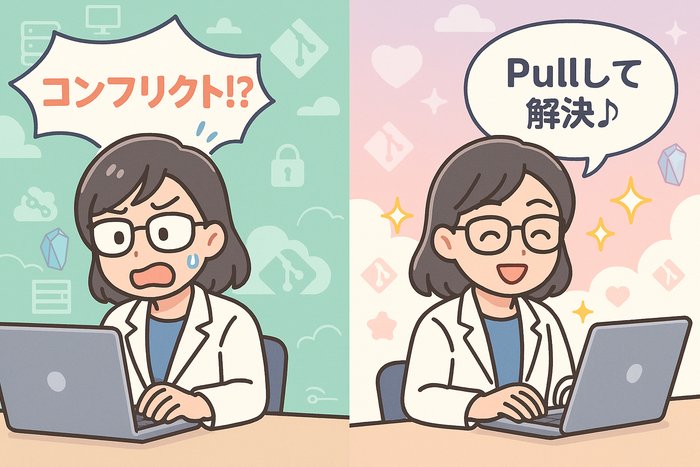
By the end of this article, you’ll clearly understand the truth behind the most feared problem in Git management—data conflicts and learn five iron rules to keep your “second brain” safe and sound.
Causes and Overview
In Git-based management of Obsidian, the main cause of trouble is editing the same note simultaneously on multiple computers or smartphones, which leaves Git confused: “I can’t tell which change is the correct one!”
▼ What is a merge conflict?
Think of your Obsidian vault like a giant bank vault.
- You (on your computer) and another you (on your phone) each take a copy of the same “important document (note)” from the vault in the morning.
- During the day, the computer-you adds “Content A” to the document, while the phone-you adds “Content B” to the same document.
- In the evening, when both of you try to put the document back into the vault, the vault manager (Git) is puzzled: “You both wrote different things on the same document! Which one should I keep?”
This “sweet dilemma” of Git is the true nature of a merge conflict. No data is actually lost—Git is simply asking you to make the final decision.
Act Now! The Five Iron Rules for Safe Git Operation
Here are five iron rules to prevent such “accidents” and deal with them calmly if they occur.
Rule 1: Manual operations cause mistakes! Install the Obsidian Git plugin
- Estimated time: 5 minutes
- Required item: Obsidian
Are you still typing git pull or git push manually in a terminal window? That’s a recipe for accidents. Install the community Obsidian Git plugin. It can automatically sync at set intervals or when Obsidian starts or closes, eliminating problems caused by forgetting to sync manually.
Rule 2: Keep “garbage” out of the vault! Perfectly configure .gitignore
- Estimated time: 3 minutes
- Required item: Text editor
Obsidian automatically generates unnecessary “garbage” files in the .obsidian folder, such as cache files, that don’t need to be synchronized. If these files are tracked by Git, they can cause unnecessary conflicts. Create a .gitignore file in your repository’s root directory and add:
# Obsidian cache files
.obsidian/cache

# Device-specific workspace layouts
.obsidian/workspace.json
.obsidian/workspaces.json

# Settings you may want to keep separate between desktop and mobile
# .obsidian/community-plugins.json
# .obsidian/core-plugin-settings.json
Tip: Ignoring
workspace.jsonallows you to keep a 3-pane view on desktop and a single-pane view on mobile for optimal layouts.
Rule 3: “Pull before you write!”—Strictly follow Pull Before Write
- Estimated time: 10 seconds (until it becomes a habit)
- Required item: Determination
This is the most powerful spell to prevent conflicts. After opening Obsidian, always pull the latest changes from the remote repository before writing anything. If you have the Obsidian Git plugin, set it to auto-pull on startup. Make this pause an ingrained habit.
Rule 4: Understand the .obsidian folder and decide what to sync
As mentioned in Rule 2, we’ve excluded some files, but the .obsidian folder also contains useful files to synchronize between devices, such as hotkeys.json (keyboard shortcuts) and appearance.json (theme settings). Review its contents and decide: “Do I want this setting to be the same on both my computer and phone, or separate?”
Rule 5: Conflicts aren’t “accidents”! Stay calm and resolve them
- Estimated time: 3 minutes
- Required item: A calm mind
Even if you strictly follow Rule 3, you can’t prevent conflicts 100% of the time. If they occur, stay calm and follow these steps:
- Open the conflicted note. You’ll see unfamiliar markers:
<<<<<<< HEAD
Content written on the computer.
=======
Content written on the phone.
>>>>>>> remote/main
- This means Git is asking: “The computer version says this, the phone version says that—which should I keep?”
- Choose which content to keep, delete the unwanted content, and remove the conflict markers (
<<<<<<<,=======,>>>>>>>). - Save the file, then run
git add,git commit, andgit pushagain to finish resolving the conflict.
Detailed Guide & Extra Tips
● Recommended automation settings for the Obsidian Git plugin
In the plugin settings, I strongly suggest enabling:
- Vault backup interval (minutes): Set a number (e.g., 10) to auto-commit & push every 10 minutes.
- Auto Pull on startup: Automatically pulls on Obsidian startup—making Rule 3 automatic.
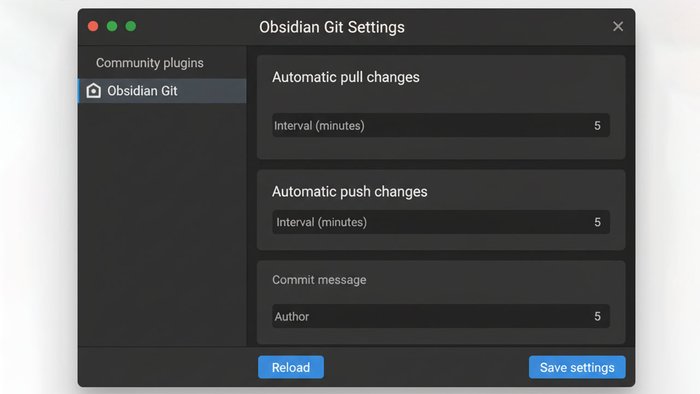
Obsidian Git plugin settings screen, setting the pull/push intervals.
Summary
- Key point 1: The first step to safe Git management for Obsidian is automating with the Obsidian Git plugin and excluding unnecessary files like cache via
.gitignore. - Key point 2: Strictly following the golden rule “Pull before writing” is the best defense against conflicts.
- Key point 3: A conflict doesn’t mean “lost data.” It’s Git saying, “I can’t decide.” Don’t panic—manually fix it by choosing what to keep.
- Prevention tip: Especially after editing offline on mobile devices, push changes as soon as you’re online. Leaving unsynced changes between devices for long periods is the biggest cause of conflicts.
Appendix: About Nabekinfactory
Your “second brain”—Obsidian—slows down as notes and plugins increase, depending on your computer’s performance.
At Nabekinfactory, a used PC and office equipment store, we offer second-hand computers and laptops with high-speed SSDs, ensuring Obsidian and Git run smoothly. Feel free to check us out if you’re interested.
#OfficeEquipment
#Obsidian
#Git
#Nabekinfactory
💡 Related links
✅ Explanation article (Traditional Chinese)
✅ Explanation article (English)
✅ Explanation article (Japanese)