
This guide demonstrates the steps to create Anki flashcards from an English article by splitting each sentence to create a note with a reverse card, and then syncing them to Anki using the Yanki plugin. The plugins used are:
- Copilot: Calls ChatGPT to perform English-to-Traditional Chinese translation and generate the card format.
- Note Splitter: Splits a single note into multiple notes based on a specified delimiter.
- Yanki: Syncs the generated multiple notes to the Anki system.
1. Generate the Required Note Content
Use the following prompt to generate the required content:
Split the English text between %BEGIN% and %END% into sentences using "." as the delimiter. Format each sentence according to the specified 7-line structure:
Line 1: The original English sentence
Line 2: Blank line
Line 3: Three hyphens
Line 4: Three hyphens
Line 5: Blank line
Line 6: The Traditional Chinese translation of the English sentence
Line 7: Three hash symbols

%BEGIN%
Paste the article here
%END%
If you only want to generate the basic type (Yanki - Basic) without a reverse card, simply delete line 3 and adjust the line numbering accordingly.
▼ Example
Split the English text between %BEGIN% and %END% into sentences using "." as the delimiter. Format each sentence according to the specified 7-line structure:
Line 1: The original English sentence
Line 2: Blank line
Line 3: Three hyphens
Line 4: Three hyphens
Line 5: Blank line
Line 6: The Traditional Chinese translation of the English sentence
Line 7: Three hash symbols

%BEGIN%
In the small town of Greenfield, there was a popular animal show every year. This year, the main point of attraction was a picture gallery of various animals. There was a picture of a lion chasing a zebra, a monkey trying to catch a bee, and even a goose standing next to a hippo. The children loved it.

Tommy's favorite was the picture of the elephant. He said, "It's so strong and big, yet it has such gentle eyes." His sister, Lucy, liked the picture of the frog. "It's green and looks so clean," she said. But their cousin, Jake, was more interested in the footprint section. He loved studying the different footprints animals left behind.
%END%
- Copy the prepared prompt into the Copilot input box and press 【Send】. After ChatGPT responds, copy the entire output.
- Paste the copied content into a new note or click 【Save as a Note】 in Copilot.
2. Split the Notes Using Note Splitter
Part of the result generated by ChatGPT is shown below:
In the small town of Greenfield, there was a popular animal show every year.

---

---

在Greenfield的小鎮上,每年都有一個受歡迎的動物展。

###

This year, the main point of attraction was a picture gallery of various animals.

---

---

今年,主要的吸引點是各種動物的圖片畫廊。

###
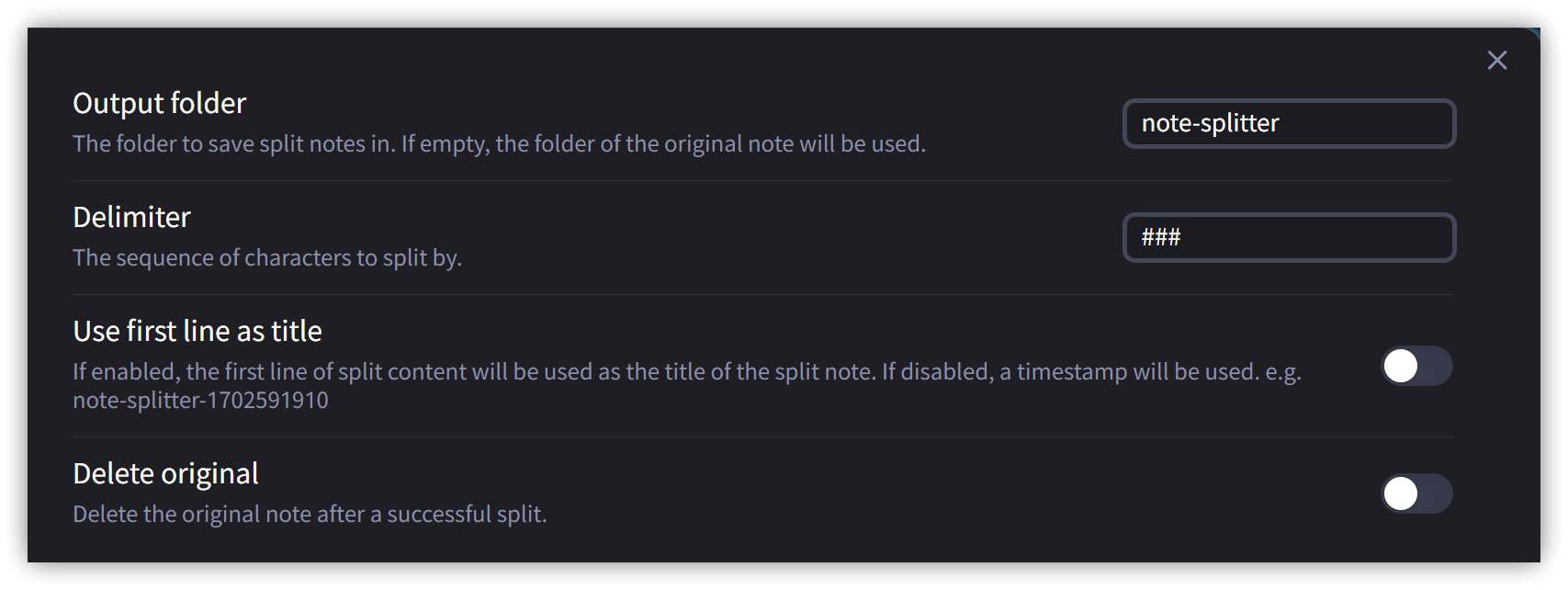
- Go to Settings → Community Plugins, find Note Splitter, and change the Delimiter to
###. - Optionally, consider setting the Output folder to your designated Yanki sync folder.
- The 'Use first line as title' option can turn the first line of each split section into the filename and title. However, this is not recommended, as the first line might contain special characters (like colons, double quotes, etc.) that can cause errors when creating files.
- In the note containing the ChatGPT output, press <span class='keybs'>Ctrl/Cmd+P</span > to open the command palette and execute 【Split note by delimiter - Note Splitter】.
- Check if the files have been correctly generated in the specified output folder.
- Move the files generated in the note-splitter output folder to your specific Yanki sync folder (e.g.,
/060-Anki/English-7/English-7A-1-sentences/). - Delete the original note containing the combined ChatGPT output.
3. Sync to Anki Using Yanki
- Ensure the Anki application is running.
- Press <span class='keybs'>Ctrl/Cmd+P</span > to open the command palette and execute 【Yanki: Sync flashcard notes to Anki】.
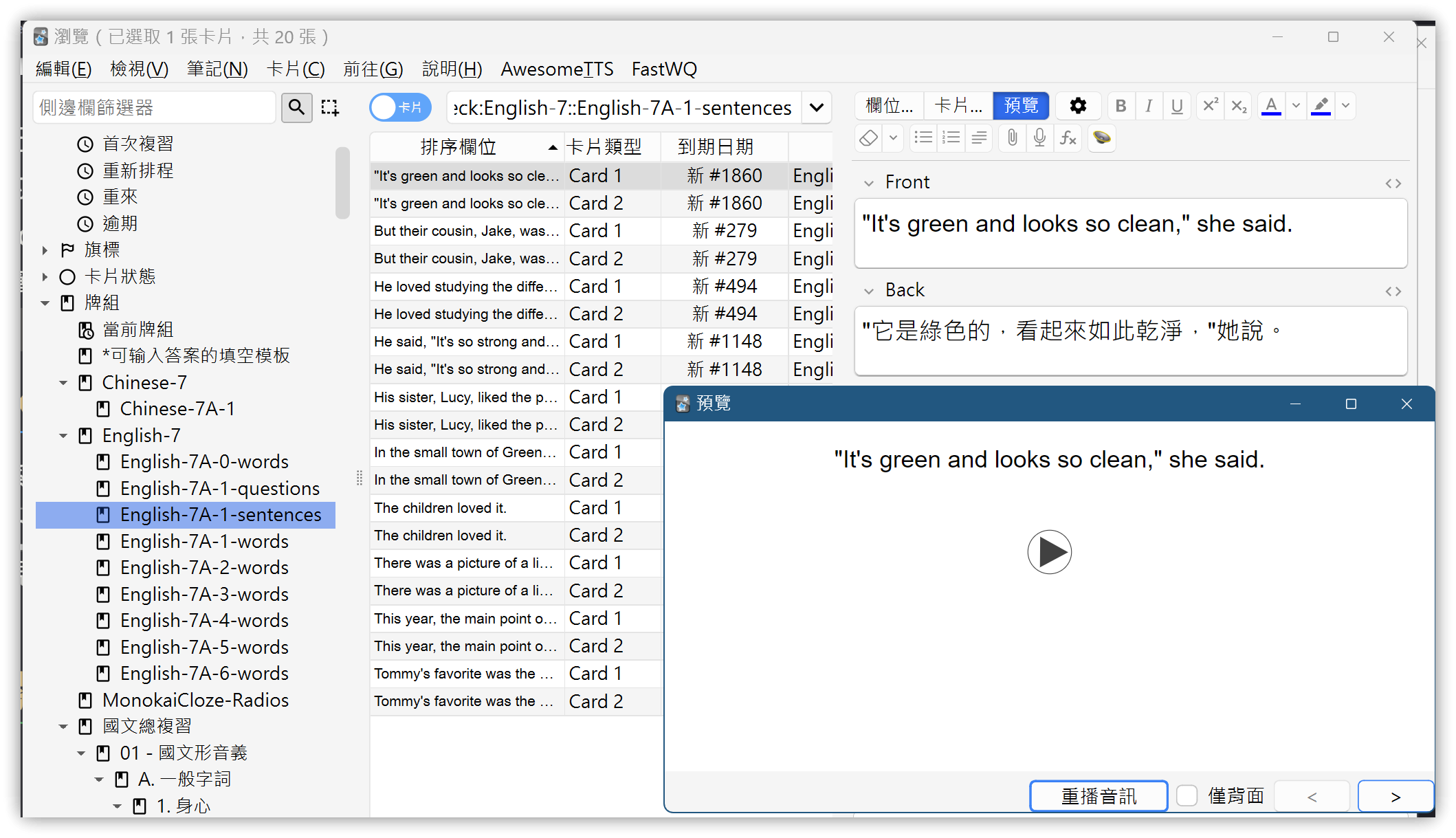
- Open the Anki window and check if the corresponding cards have been generated in the deck. If you have previously configured the AwesomeTTS add-on for the note type, the front of the card should also have audio playback.
4. 💡 Related Links
💡 Explanatory Article: https://jdev.tw/blog/8488/
✅Copilot: https://github.com/logancyang/obsidian-copilot
✅Note Splitter plugin: https://github.com/decaf-dev/obsidian-note-splitter
✅Yanki plugin: https://github.com/kitschpatrol/yanki-obsidian