
This article introduces the Yanki plugin, which uses Markdown syntax to generate Anki cards. One Obsidian note creates one Anki note, which in turn generates one or two Anki cards depending on the note type.
Yanki's advantage is its simplicity. It's easy to create the desired <mark style="background-color:#bf616a">decks (study scope)</mark> using <mark style="background-color:#a3be8c">folders + note files</mark>. For example, if you have decks for English Unit 1, English Unit 2, ..., English Unit 6, each unit can be studied independently. Before the first midterm exam, you could create a new "English Unit 1-3" folder, copy the notes from the English Unit 1, English Unit 2, and English Unit 3 folders into the "English Unit 1-3" folder, and then sync to Anki. This creates study cards containing these three units. After the exam, the "English Unit 1-3" folder can be deleted.
First, we'll introduce the key aspects of using Yanki. Then, we'll demonstrate the steps to sync 7th-grade English vocabulary as <mark style="background-color:#a3be8c">Basic (and reversed card)</mark> notes, using the following two Anki add-ons:
- AnkiConnect (Code: 2055492159)
- AwesomeTTS (Code: 1436550454)
1. Yanki Note Creation Essentials
-
One Obsidian note = one Anki note
One note file generates one Anki note. -
Folders become decks
-
Only supports 4 note types: Basic, Basic (and reversed card), Basic (type in the answer), and Cloze.
1.1. Basic
- Use
---to separate the front and back.
Front
---
Back
1.2. Basic (and reversed card)
- Use <mark style="background-color:#bf616a">two</mark>
---to separate the front and back.
Front
---
---
Back
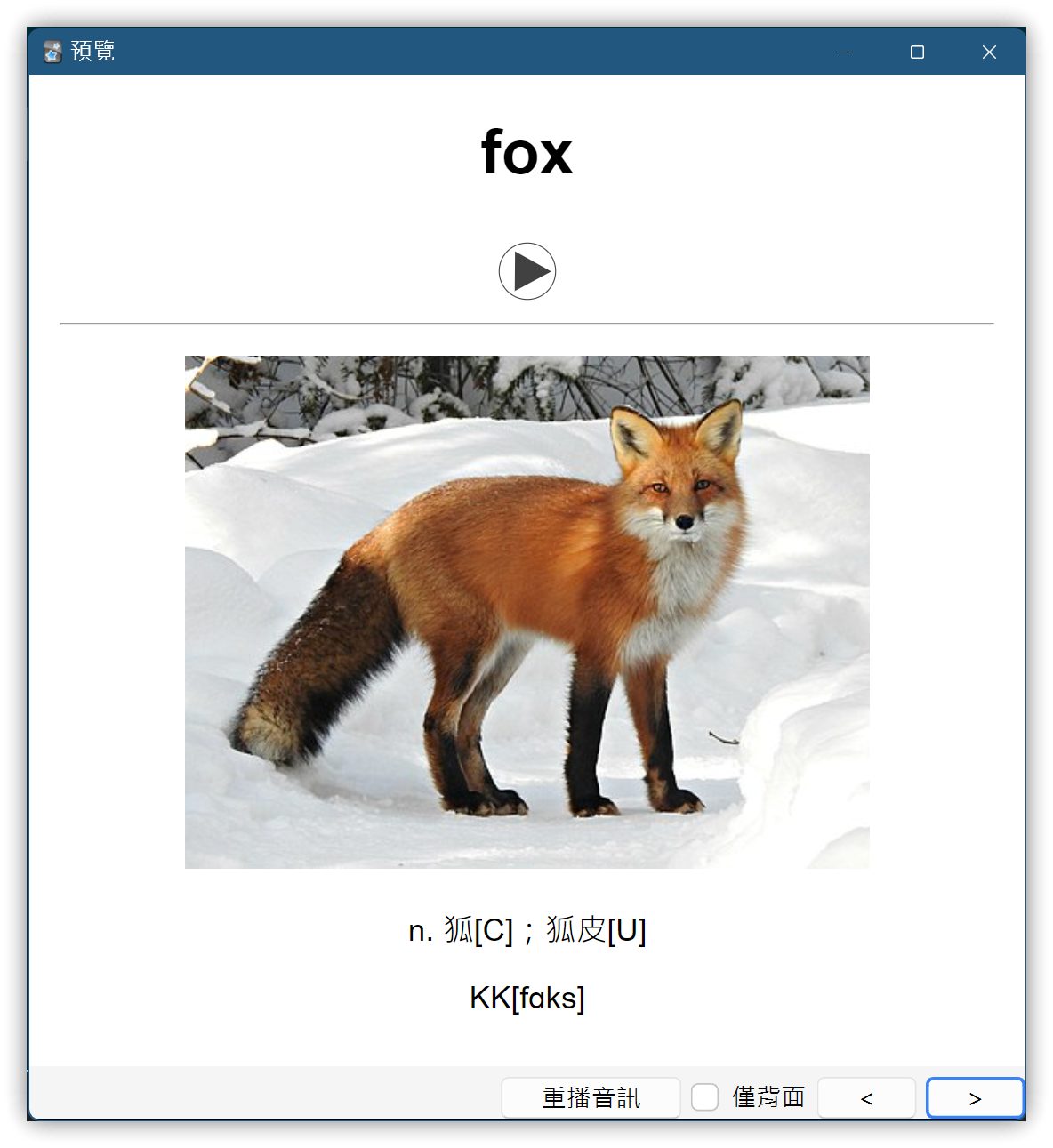
▼ Example
# fox
---
---

n. 狐[C]; 狐皮[U]
KK[fɑks]
1.3. Basic (type in the answer)
- Surround the answer to be typed with underscores (
_).
The English word for 黑曜石 is _obsidian_.
1.4. Cloze
- Surround the text to be blanked out with
~~. - Surround hint text with underscores (
_). - You can also add
---to create a reversed card.
2. Yanki Plugin Settings
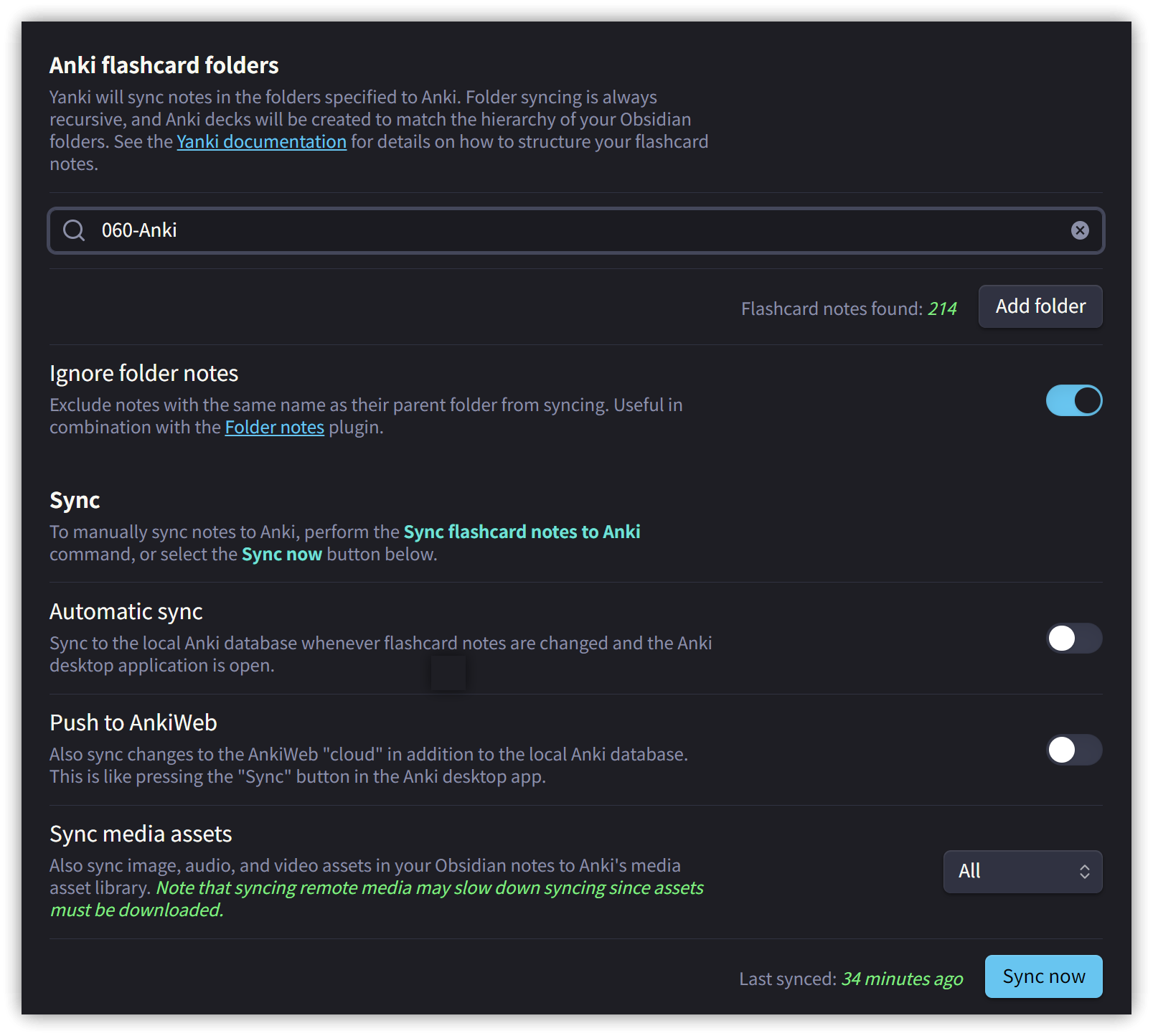
- Yanki scans specific folders to sync notes to Anki, so you must specify the folder where Anki notes are stored.
- It is recommended to use <mark style="background-color:#bf616a">multi-level folders</mark> based on subjects, units, etc. This allows flexible configuration to sync the content of specific folders when needed.
3. Anki Operations
- It is recommended to use the latest version of Anki to avoid incompatibility issues with add-ons.
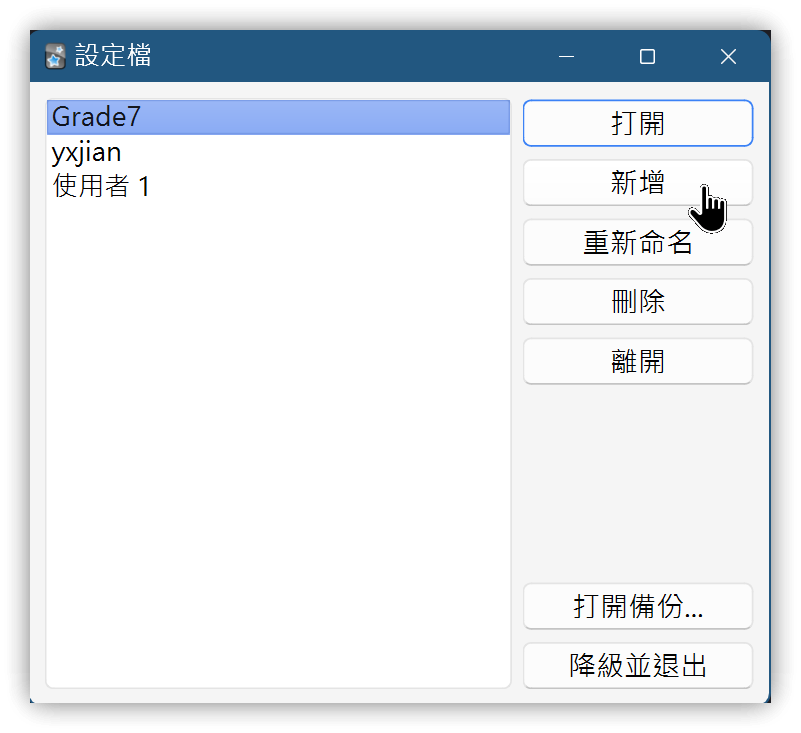
- Create a new profile to avoid mixing data with your existing setup.
-
Go to the menu 【File】→【Switch Profile】 to create a new profile, for example, "Grade7" to store 7th-grade study materials. Different profiles maintain independent work environments.
-
Install the AnkiConnect add-on: Go to the menu Tools→Add-ons→Get Add-ons...
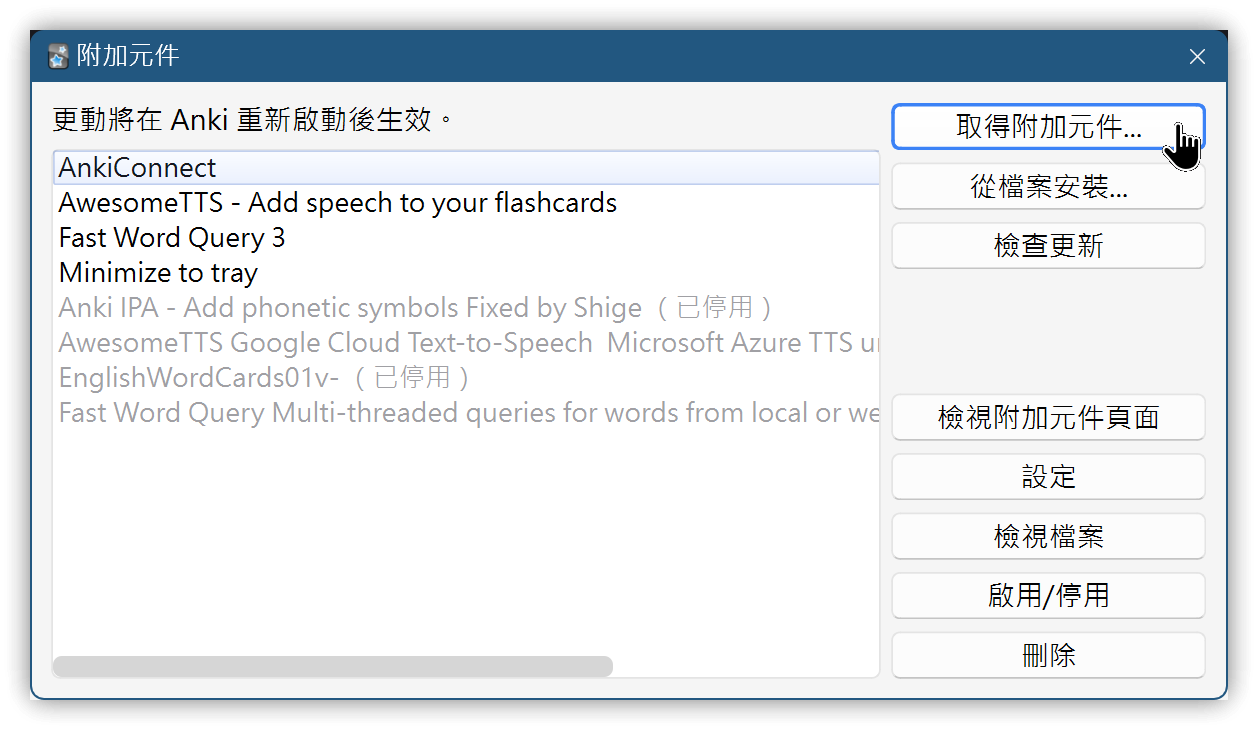
▼ Enter the add-on code: <mark style="background-color:#eff15fff">2055492159</mark>, then press 【OK】.
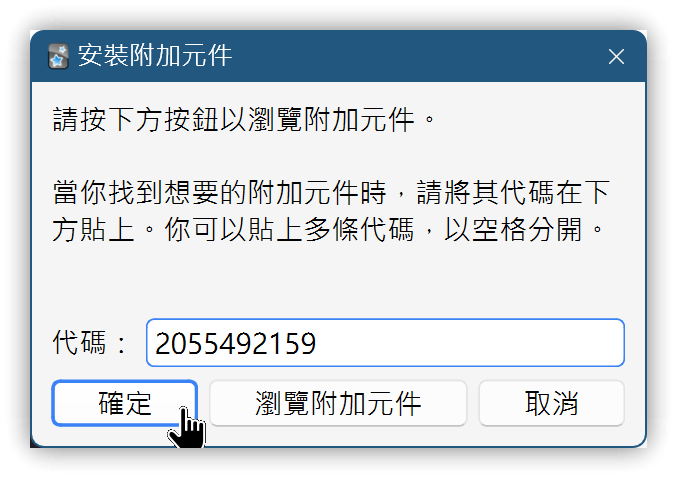
- Follow similar steps to install the AwesomeTTS add-on, code: <mark style="background-color:#eff15fff">1436550454</mark>.
- Restart Anki after installing the add-ons to load them.
- In Obsidian, press <span class='keybs'> Ctrl/Cmd+P</span>, type
yanki, and execute 【Sync flashcard notes to Anki】.- Yanki will automatically create the note type in Anki: Yanki - Basic (and reversed card).
- The Obsidian folder name will become the Anki deck name.
- Check the corresponding deck in Anki to ensure cards have been generated correctly. One note should produce two cards for this type.
3.1. Adding Text-to-Speech
The AwesomeTTS add-on can automatically insert audio files onto the front or back of cards, allowing Anki to play sound automatically when displaying the card.
-
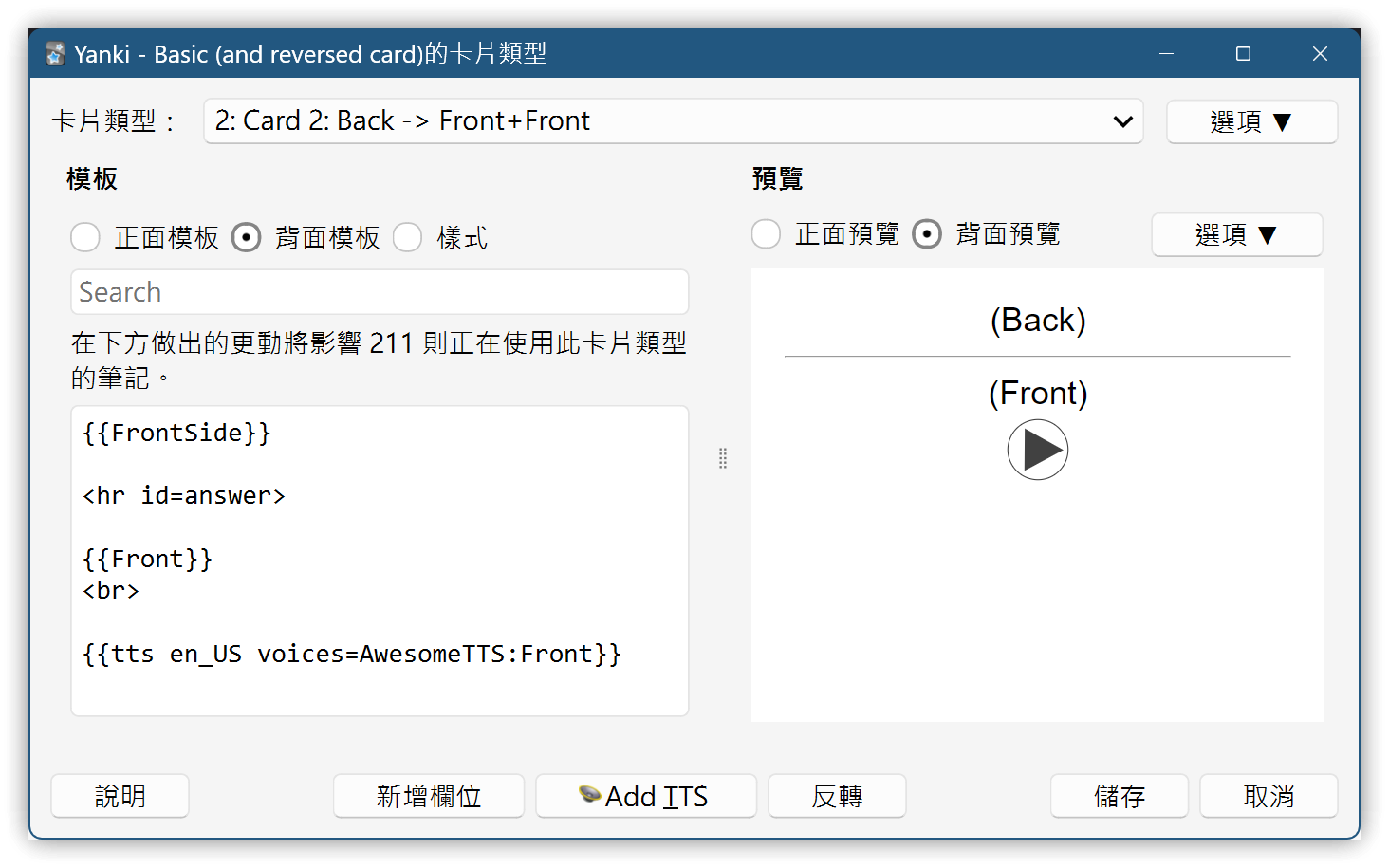
Go to the menu 【Tools】→【Manage Note Types】→ Select 【Yanki - Basic (and reversed card)】→ Click 〔Cards...〕.
-
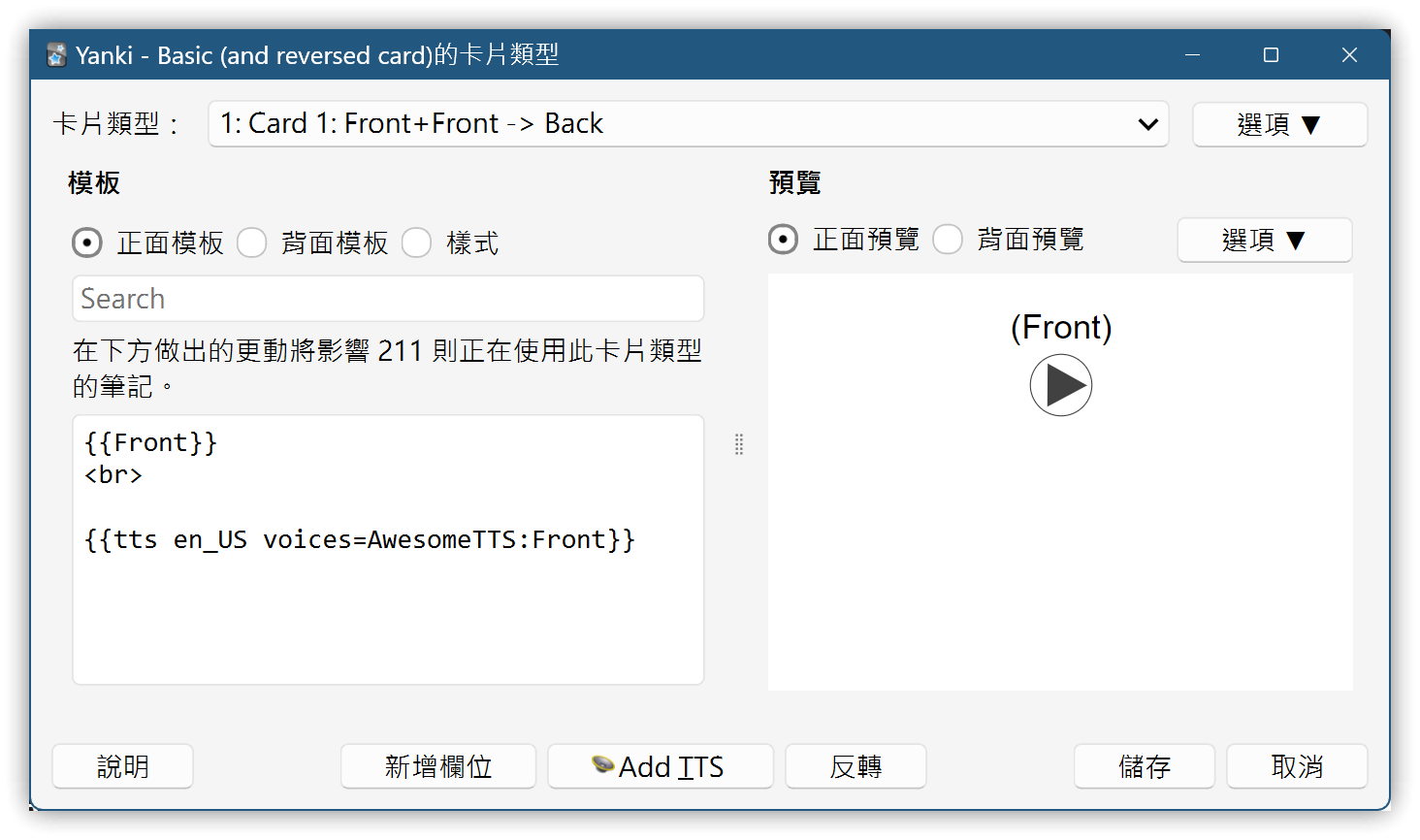
First, configure the Front Template for Card 1. Insert the AwesomeTTS field value into the template:
{{tts en_US voices=AwesomeTTS:Front}}.
-
Switch the card type to Card 2. Insert
{{tts en_US voices=AwesomeTTS:Front}}into the Back Template.
-
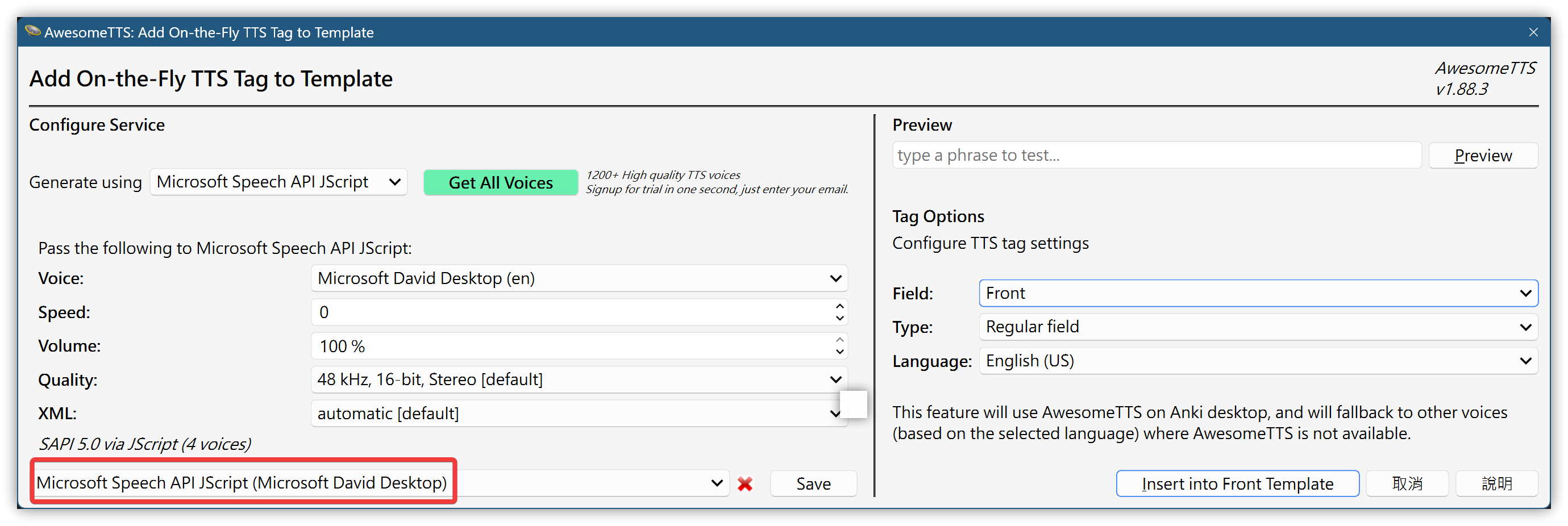
The first time you click 'Add TTS' below the card type, you must first press 'Save' on the left to establish the voice engine source (e.g., Microsoft Speech API JScript (Microsoft David Desktop)). You can change the voice engine source later.
4. 💡 Related Links
💡 Explanation Article: https://jdev.tw/blog/8473/
✅Yanki: https://github.com/kitschpatrol/yanki-obsidian