
After generating multiple English Anki flashcards, this time we'll generate Chinese Zhuyin flashcards. The plugins used are:
- Copilot: Calls ChatGPT to generate the card format and Zhuyin.
- Note Splitter: Splits one note into multiple notes based on a specified delimiter.
- Yanki: Synchronizes the generated notes to the Anki system.
1. Generate Notes with Copilot
- The
Extrafield is used for audio. The「and」characters on the front template can cause pronunciation errors.
Generate each line of text between %BEGIN% and %END% into the specified 11-line format, defined as follows:
Line 1: Full text, but convert the first double quote to 「 and the second double quote to 」(e.g., "釐"清 should be converted to 「釐」清)
Line 2: Blank line
Line 3: Three hyphens
Line 4: Three hyphens
Line 5: Blank line
Line 6: Generate Zhuyin for the text enclosed in double quotes. Do not generate Zhuyin for text without double quotes, but include the original text (e.g., "清"楚 should generate ㄑㄧㄥ楚). Do not omit tone marks.
Line 7: Blank line
- Lines 7-9 indicate the content below belongs to the Extra field.
Line 8: Three hyphens
Line 9: Blank line
Line 10: Full text, but remove all double quotes.
Line 11: 3 hash symbols

%BEGIN%
"釐"清
傳"誦"
"謀"財害命
浪"費"
"遲"到
"逛"
%END%
Generated result:
「釐」清

---

---

ㄌㄧˊ清

---

釐清
###

「傳」誦

---

---

ㄔㄨㄢˋ誦

---

傳誦
###

「謀」財害命

---

---

ㄇㄡˊ財害命

---

謀財害命
###

「浪」費

---

---

ㄌㄤˋ費

---

浪費
###

「遲」到

---

---

ㄔˊ到

---

遲到
###

「逛」

---

---

ㄍㄨㄤˋ

---

逛
###
2. Split Files with Note Splitter
- Set the Note Splitter Delimiter to
###. - Press
Ctrl/Cmd+Pand execute theSplit by delimitercommand. - Move the files from the
/note-splitterfolder to the corresponding location in Yanki's scan folder.
3. Sync to Anki System with Yanki
- Press
Ctrl/Cmd+Pand execute theSync flashcard notes to Ankicommand.
4. Adjust Anki System Note Type
Operate within the Anki system:
- Go to Manage Note Types → Find
Yanki - Basic (and reversed card with extra)→ ClickCards...on the right side. - The Front Template contains a TTS playback button; hide it using JavaScript.
- Anki system templates can be treated like web pages; the
{{Front}}field is like an expression tag in PHP (<?= ?>), ASP (<%= %>), or JSP (<%= %>).
- Anki system templates can be treated like web pages; the
- Use the system field
{{Deck}}to check if the deck name starts with "Chinese". If it does, hide the TTS button.
▼ Front Template
{{Front}}
<br>

{{#Extra}}
<div id="EXTRA">
{{tts en_US voices=Microsoft_Mark:Extra}}
</div>
{{/Extra}}

{{^Extra}}
<div id="FRONT">
{{tts en_US voices=Microsoft_Mark:Front}}
</div>
{{/Extra}}

<script>
  var sDeck = "{{Deck}}";

  if (sDeck.indexOf("Chinese") >= 0) {
    elem = document.getElementById("FRONT");
    if (elem) {
      elem.style.display = "none";
    }
    elem = document.getElementById("EXTRA");
    if (elem) {
      elem.style.display = "none";
    }
  }
</script>
The Anki system's {{tts}} field is parsed statically. If {{tts}} is present, it cannot be disabled using JavaScript. Including {{tts}} would cause unwanted playback even on the English back template, so it cannot be used in the Back Template.
5. Use Audio Files Directly in the Template
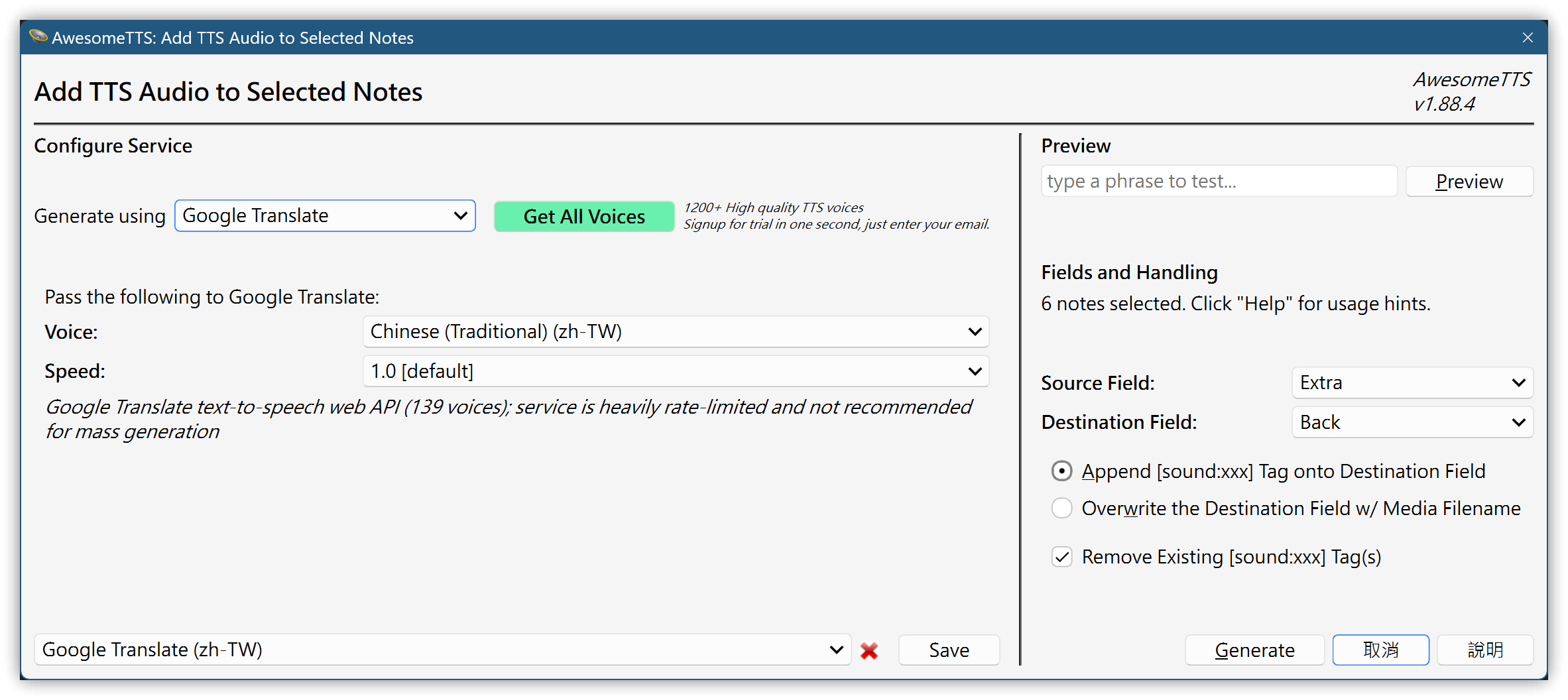
For Chinese flashcard back audio playback, the final solution uses AwesomeTTS to generate static audio files.
- Browse to find the cards to process.
- Select all cards → Menu: AwesomeTTS →
Add Audio to Selected.... - Use Microsoft Speech API JScript or Google Translate. On the right, select the
Extrafield as the Source Field, and configure it to insert audio into the Back side of the card. - Press Generate to create mp3 files. The mp3 files will be generated in
C:\Users\YourUsername\AppData\Roaming\Anki2\YourProfileName\collection.media.
6. 💡 Related Links
💡 Explanation article: https://jdev.tw/blog/8494/
✅Copilot: https://github.com/logancyang/obsidian-copilot
✅Note Splitter plugin: https://github.com/decaf-dev/obsidian-note-splitter
✅Yanki plugin: https://github.com/kitschpatrol/yanki-obsidian
✅ Template example: https://gist.github.com/emisjerry/eaada7ec56f8ceba24f74490049e645f