

Obsidian Web Clipper is a browser extension that captures web content and sends it to Obsidian (by default, adding it to the Clippings folder). [NetClip], on the other hand, works as an Obsidian plugin. It allows you to browse websites within Obsidian, capture content, convert it to Markdown, and integrate AI functionality to process and save the content into a specified Obsidian vault. The AI prompts can be customized with variables to achieve dynamic conditions, making it very convenient for reading foreign language websites.
1. Feature Demonstration
The following demonstration uses the All Things Zettelkasten | Writing by Bob Doto website to showcase the functionality.
2. Settings
After installing and enabling NetClip, go to the settings to configure it.
2.1. Clipper Tab
- Change folder name: The default folder for clipped content, set to Netclips by default
- Domain-Specific Save Locations: Categorized locations, with three default categories: Articles, Research, and Tech, each creating corresponding subfolders under the Netclips folder. You can add and modify these as needed.
2.2. AI Prompts
- Enable AI Processing to use this feature
- Gemini API Key: Obtain a Gemini API key from Google AI Studio and enter it in this field
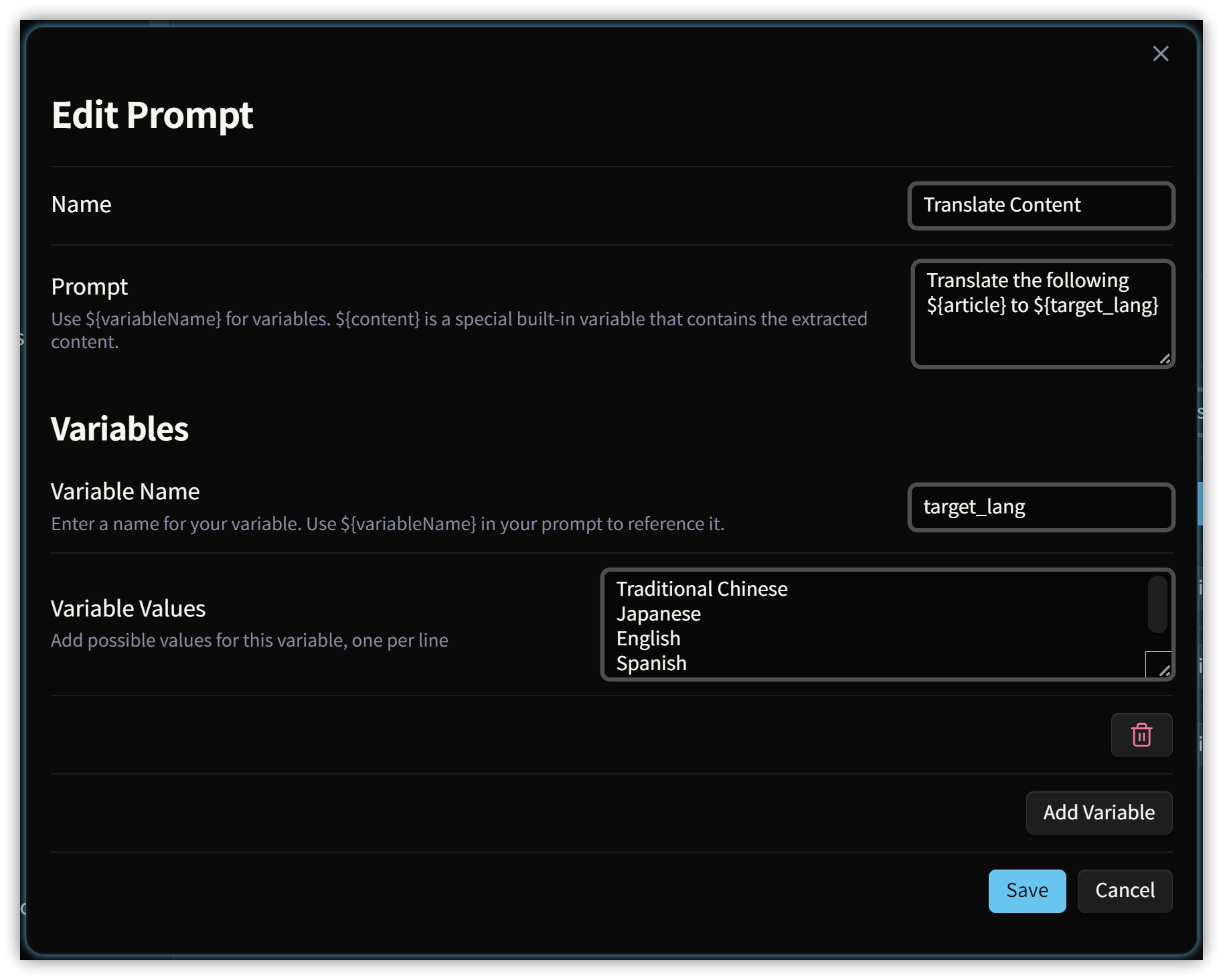
- AI Prompts: Maintain your frequently used prompt texts. The image below shows the setup for Translate Content:
- Prompt: The actual prompt text
- ${article} is a default variable representing the captured web content
- Use ${custom variable name} to add menus and fill in the selected content
- Variables: Define variables used in the prompt text
- Variable Name: Access variable values in the prompt text using ${variable name}
- Variable Values: One value per line, with the most commonly used options at the top
- Prompt: The actual prompt text
3. Adding a New Clip
-
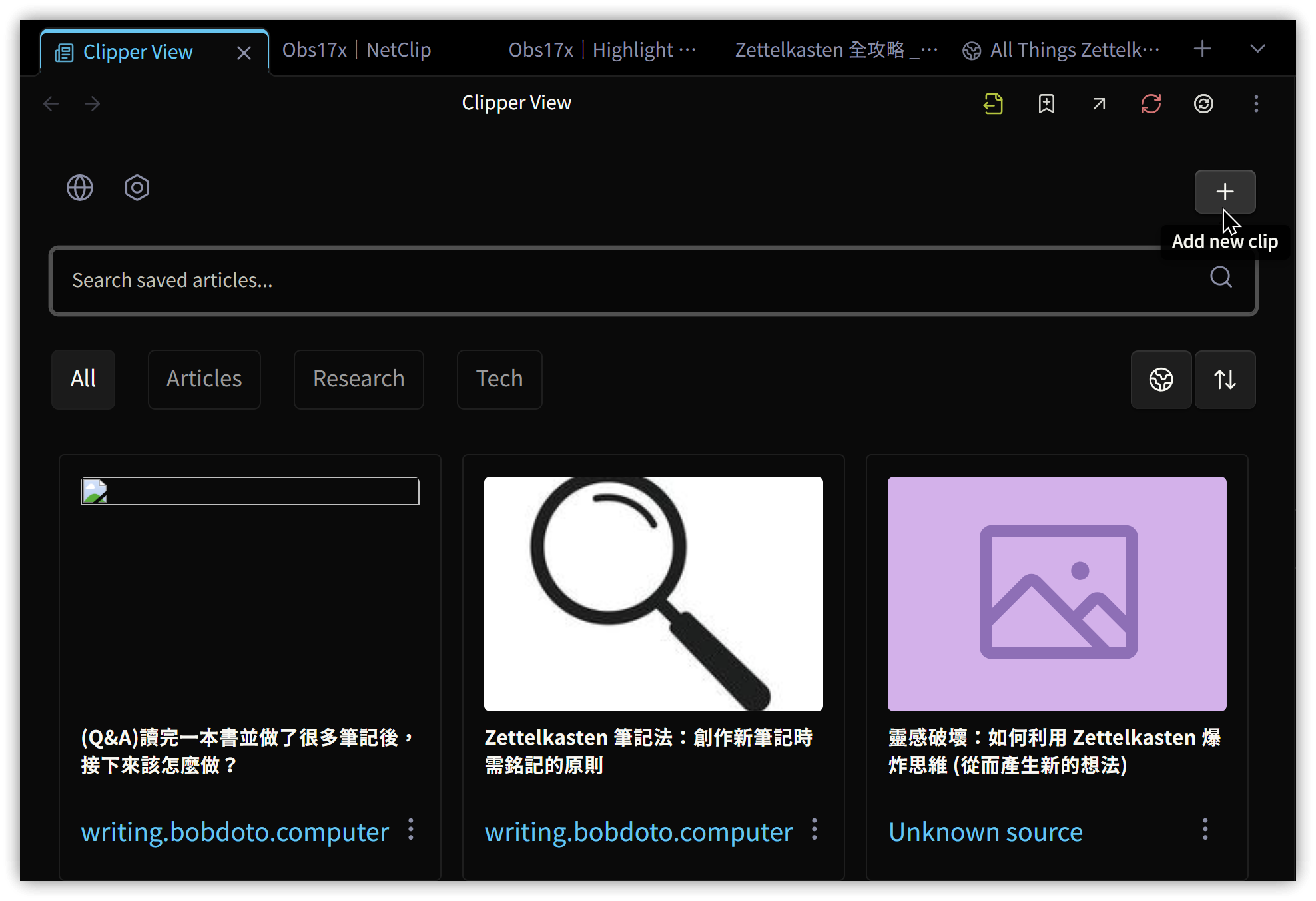
After installing and enabling NetClip, a NetClip icon will appear in the left sidebar. Click it to open the Clipper View panel, then click the + icon
-
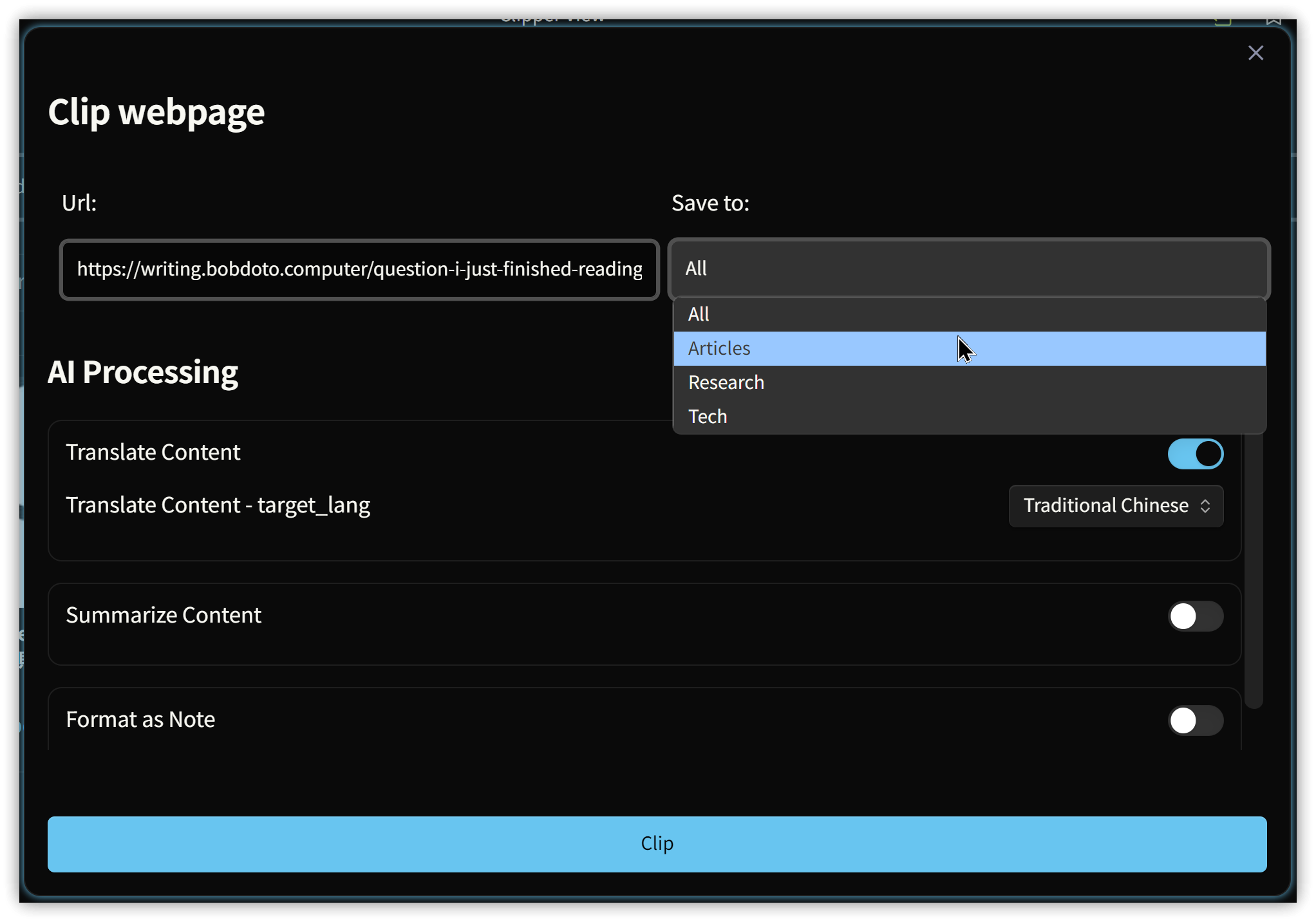
Specify the category
-
Select AI processing options by checking one
-
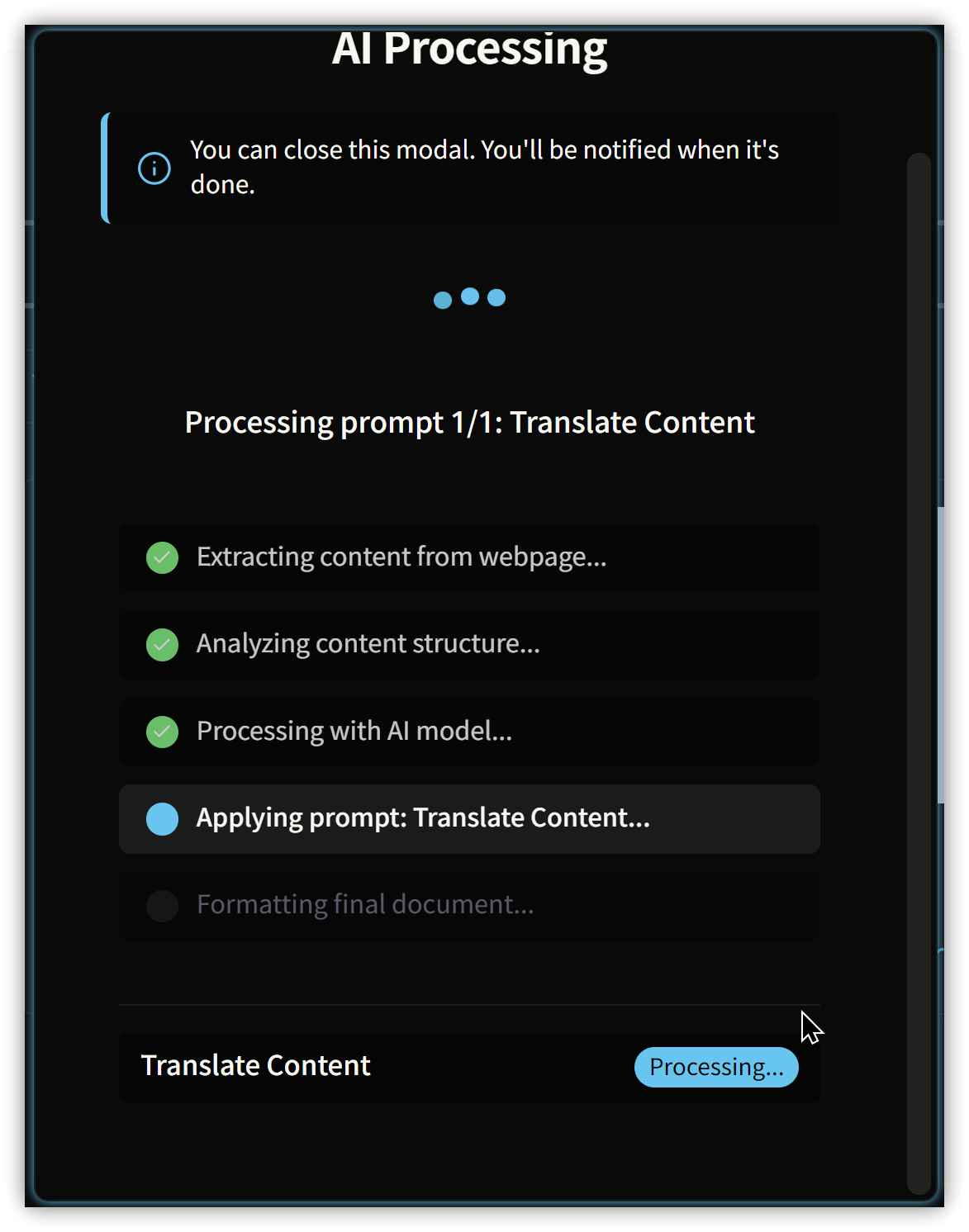
Click [Clip] at the bottom to start capturing and AI processing
-
The processed note is saved in the specified category folder
4. 💡 Related Links
💡 Explanatory article: https://jdev.tw/blog/8694/
✅ Obsidian-NetClip GitHub: https://github.com/Elhary/Obsidian-NetClip