
Recently, I've been creating Anki notes and needed to extract text from PDFs. Here's a summary of the methods I've used.
The following examples use a 7th-grade Chinese exam paper from the National Academy for Educational Research - National Elementary and Secondary School Question Bank.
1. Google Docs, LibreOffice
Upload the PDF file to Google Drive and open it with Google Docs.
For complex or lengthy content, it often converts to images.
LibreOffice Writer can also open simple PDFs but converts them to LibreOffice Draw.
2. Windows Snipping Tool
If you're using Windows 11 version 23H2, the built-in Snipping Tool (SnippingTool.exe) has a "Text Actions" button that performs text recognition with decent accuracy. Press <span class='keybs'>Win+Shift+S</span> to start capturing.
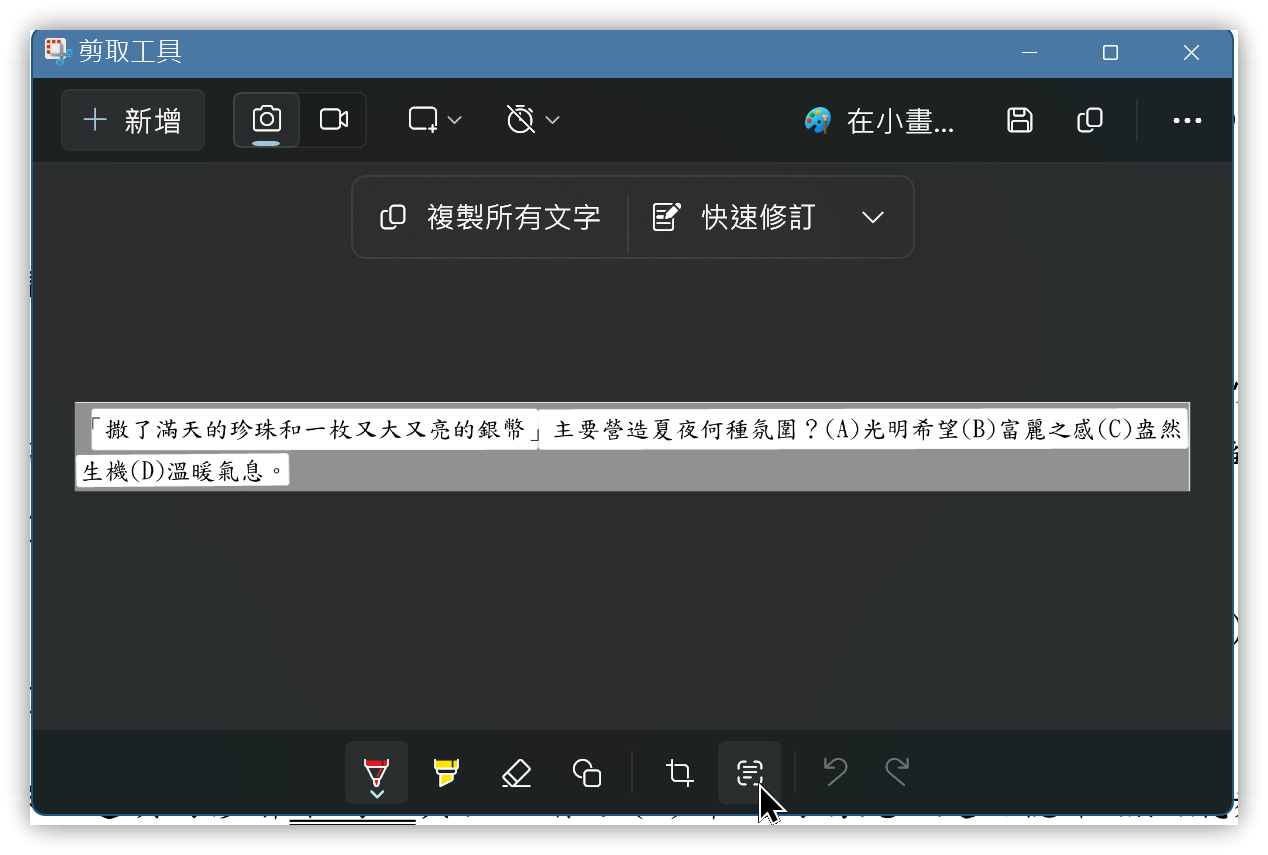
▼ Copied text, order is incorrect but all words are recognized correctly
撒了滿天的珍珠和一枚又大又亮的銀幣」
生機(D)溫暖氣息。

主要營造夏夜何種氛圍?(A)光明希望(B)富麗之感(C)盎然
3. CapCap
I tested a capture tool from Japan that meets the goals of being simple and easy to use.
- Before use, ensure Windows has the corresponding languages installed, such as Japanese and English
- Different languages require different settings, e.g., source language is English, target language is Chinese
▼ Both source and target languages are Traditional Chinese.
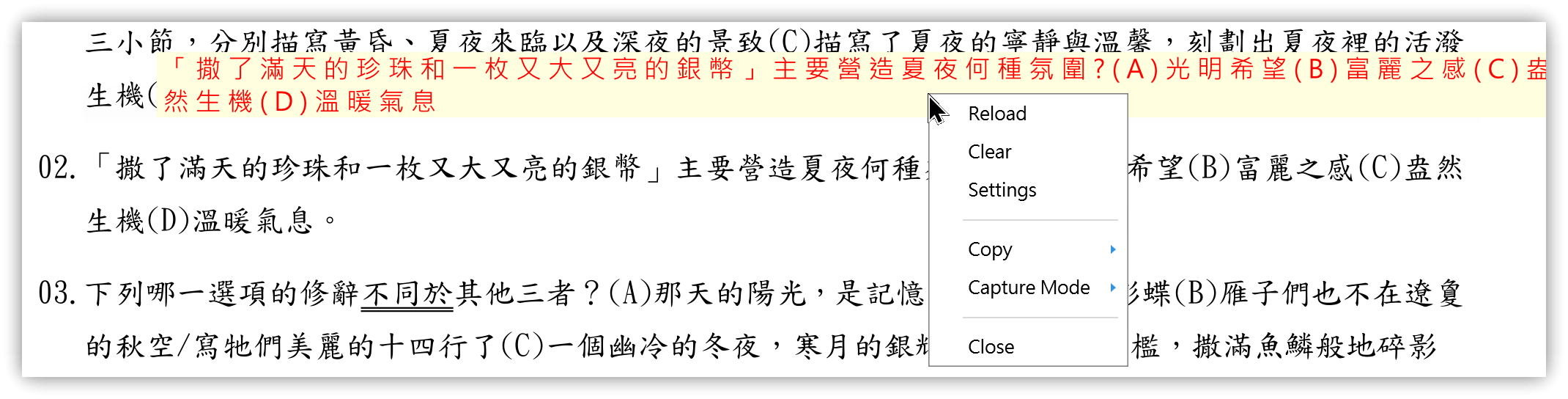
▼ Content after "Copy original", with extra spaces
「 撒 了 滿 天 的 珍 珠 和 一 枚 又 大 又 亮 的 銀 幣 」 主 要 營 造 夏 夜 何 種 氛 圍 ? ( A ) 光 明 希 望 ( B ) 富 麗 之 感 ( C ) 盎 然 生 機 ( D ) 溫 暖 乿 息
- Each capture generates a "sticker" that can be dragged anywhere on the screen. Right-click to copy, translate, or hide. Finally, use "Close" to end.
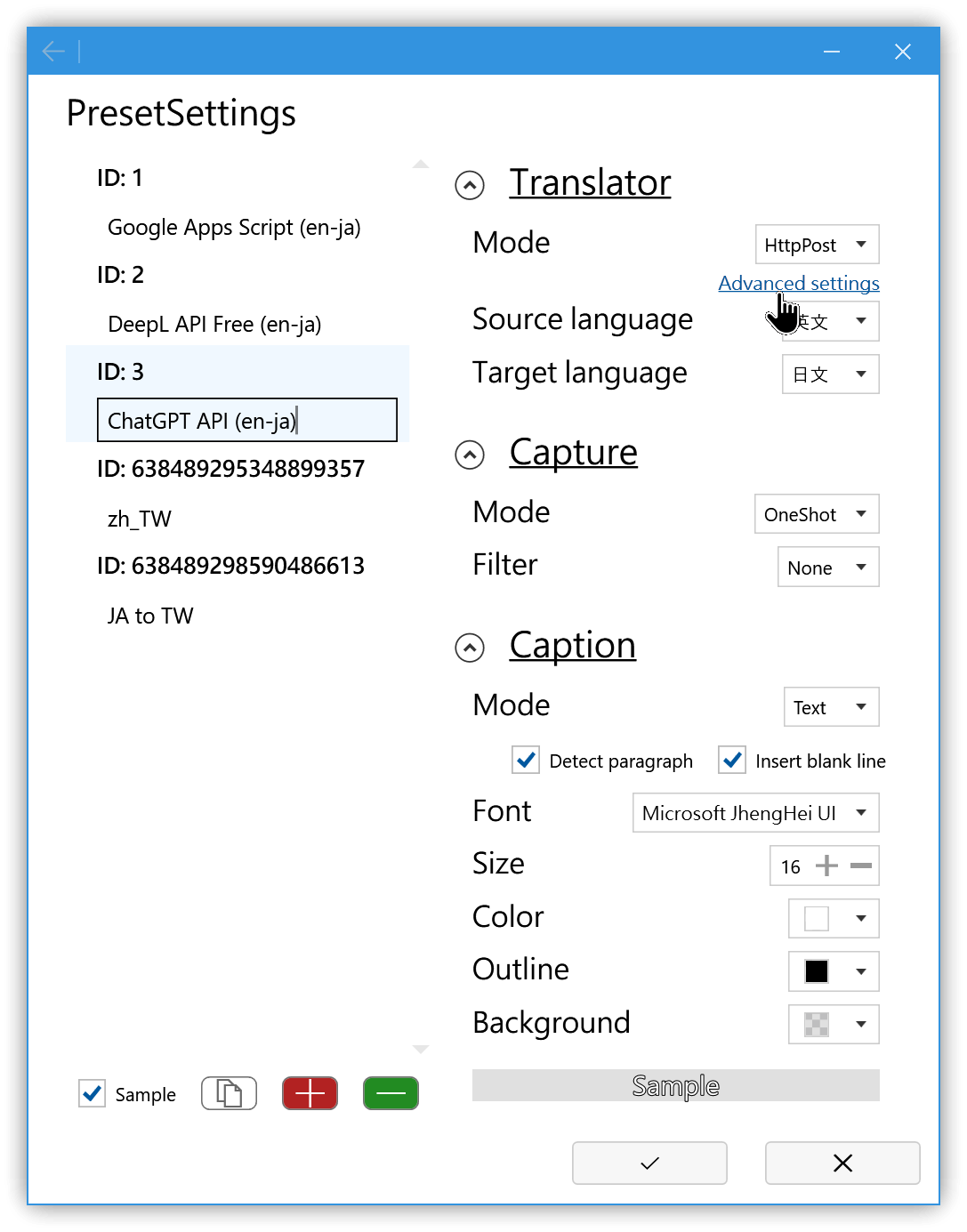
3.1. Default Settings
When "Sample" is checked in the bottom right corner, three default settings appear: ID 1, 2, and 3 for Google Apps Script, DeepL API Free, and ChatGPT API. Click "Advanced settings" on the right to enter connection URLs and other data for real-time translation.
Default settings are for reference. To use them, click the copy icon next to "Sample" and modify in the generated personal settings.
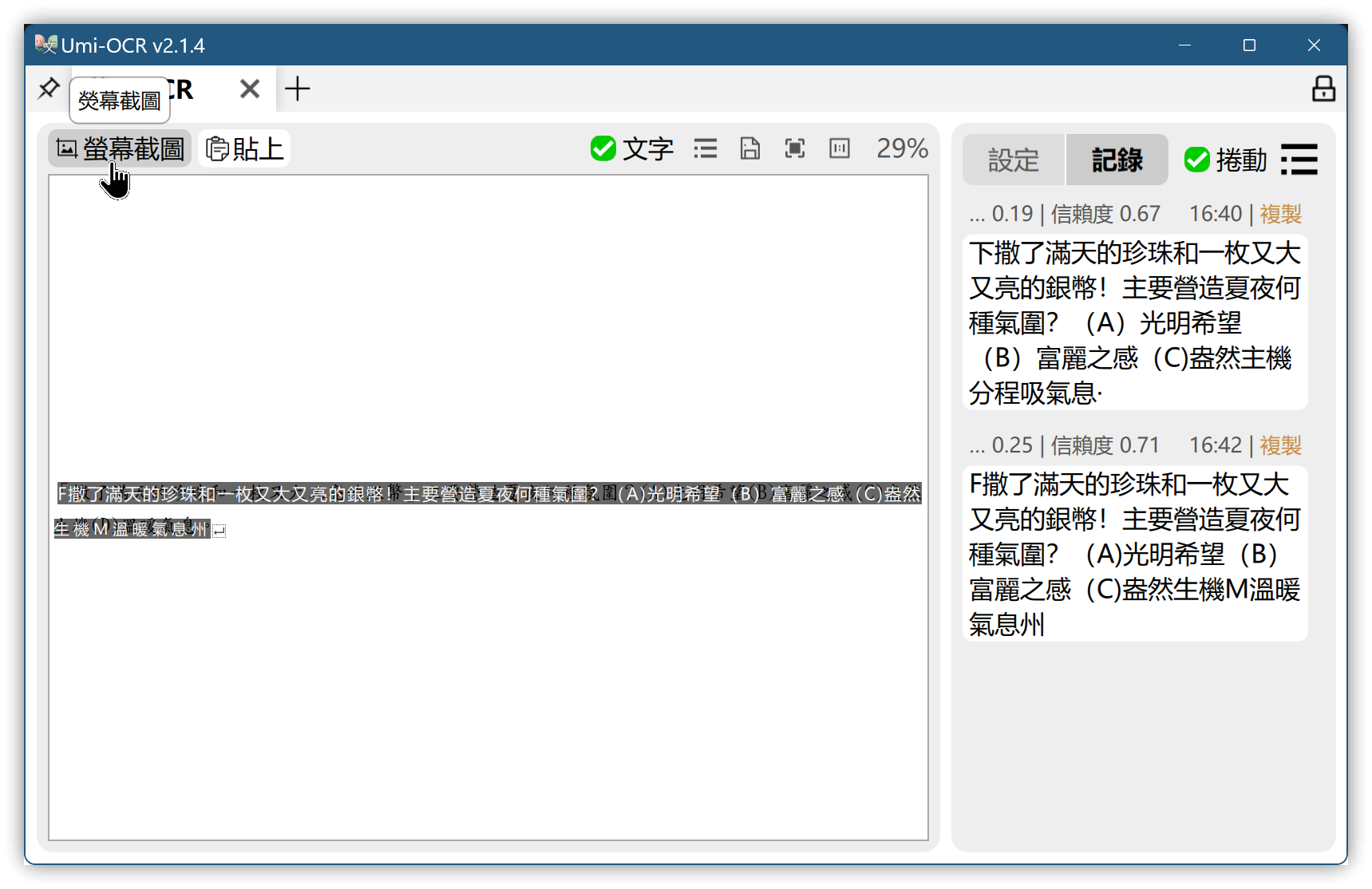
4. Umi-OCR
- Compatible with Windows and Linux
- Has Chinese interface
5. Text-Grab
- Created by the author of PowerToys' Power Text Extractor tool
- Windows compatible
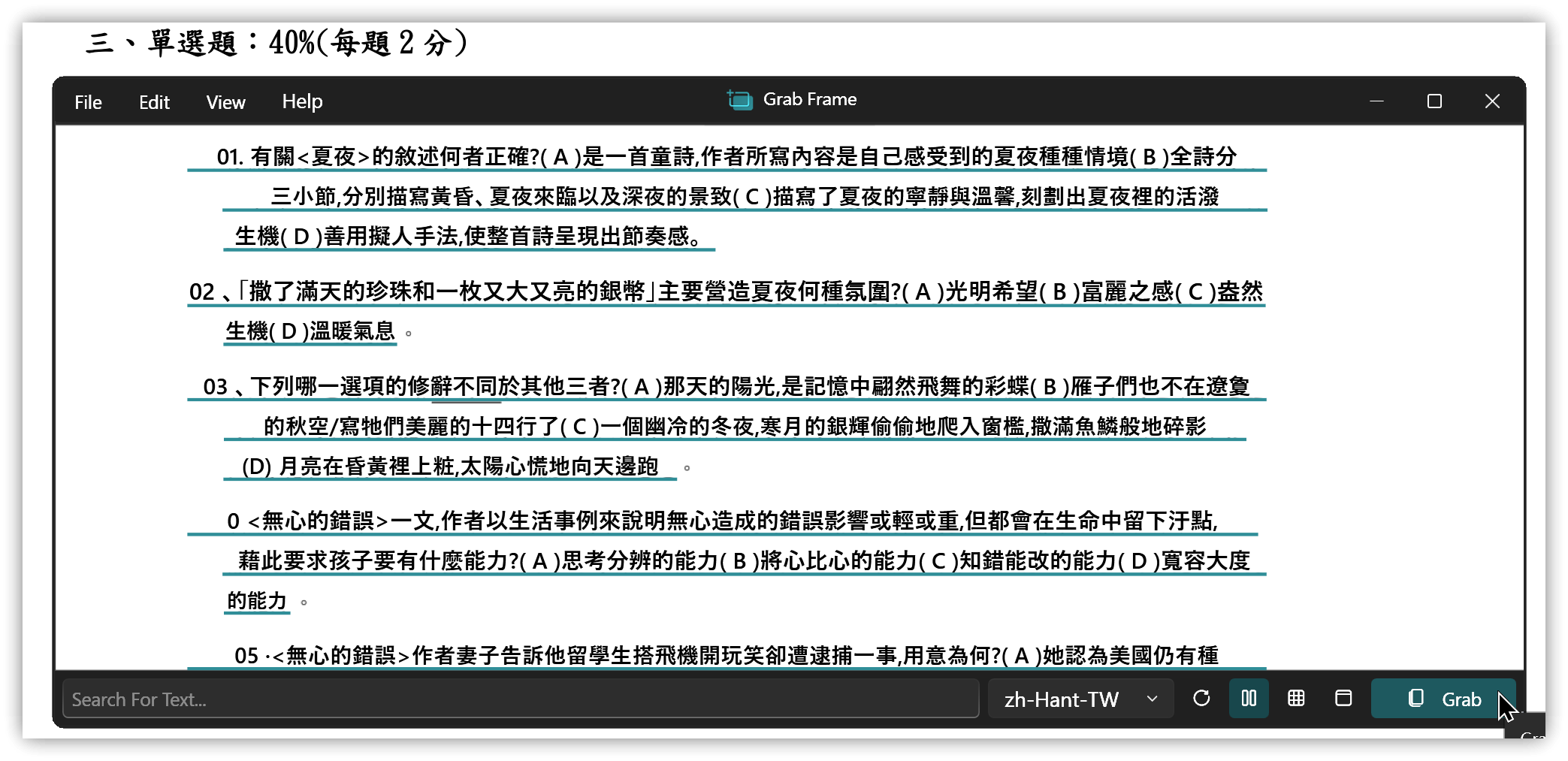
- Default <span class='keybs'>Win+Shift+F</span> for full-screen area selection and capture, <span class='keybs'>Win+Shift+G</span> for a draggable, resizable area window. Press Grab to capture text within the area.
▼ Area window capture
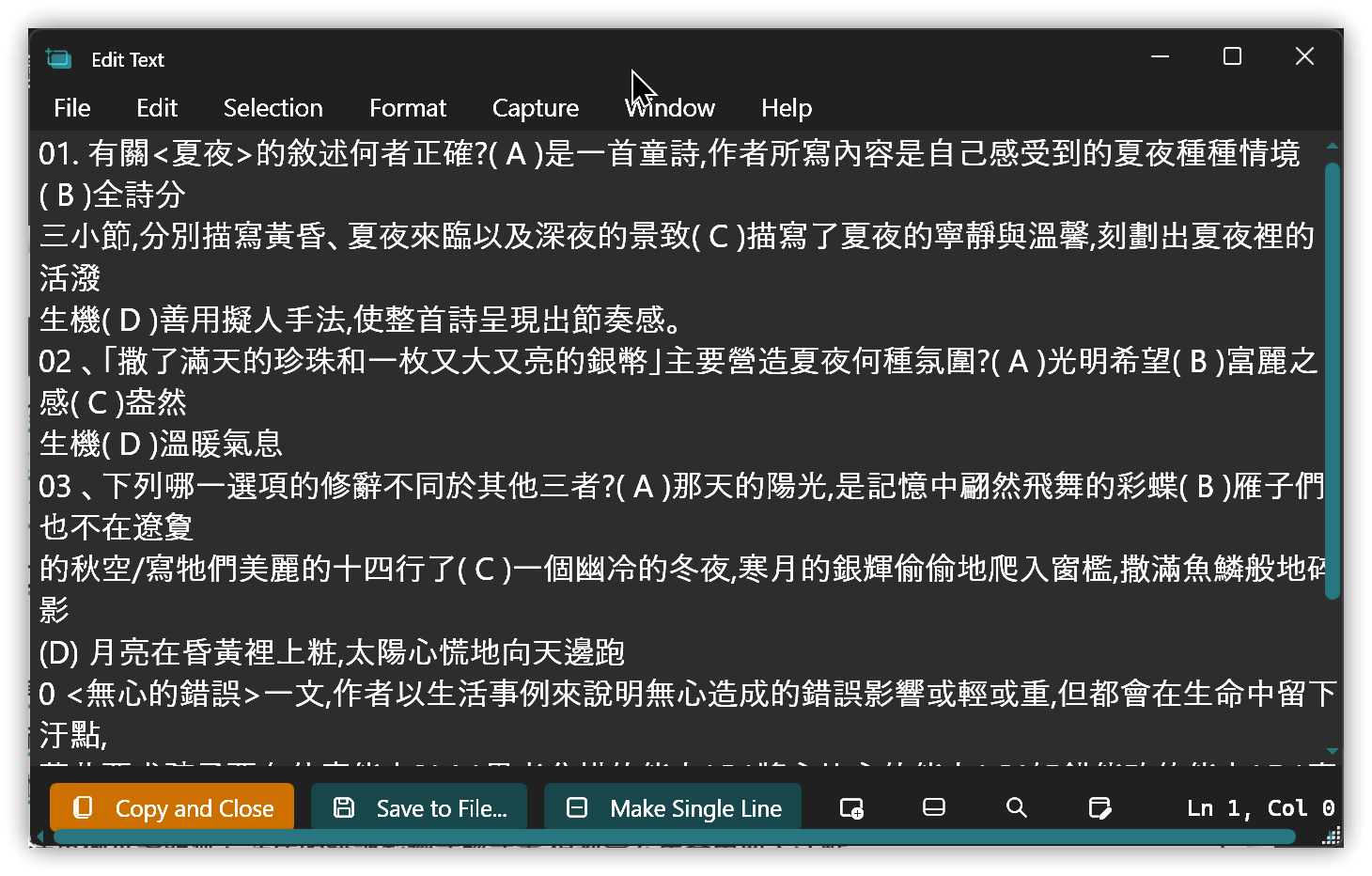
▼ Double-click the Grab content window to open an editing window
6. 💡 Related Links
💡 Explanatory article: https://jdev.tw/blog/8530/
✅CapCap (More convenient for overseas game subtitles): https://mecha-uma.blogspot.com/p/capcap.html
✅ Umi-OCR: https://github.com/hiroi-sora/Umi-OCR
✅ Text-Grab: https://github.com/TheJoeFin/Text-Grab