
![90% of People Don't Know These Hidden OpenCode Shortcuts—The Complete Guide to OpenCode TUI Input Efficiency, UI Layout + Full Keybind Categories [OpenCode 001]](https://images.quaily.com/1IlDLLvyDPXRu5GKbsefSxrcbfC88tKu5Kg-v29u2_4/rs:fill:868:536:1:0/f:webp/dpr:2/plain/https://static.quaily.com/media/wn050u09v3.webp)
1. Introduction
OpenCode is an open-source AI agent on GitHub that helps you write code in the terminal, IDE, or desktop. It even has a web mode (just launch it with opencode web).
OpenCode's TUI (Text User Interface) is one of its most powerful ways to use it. But many people open it and only type + Enter, unaware that there's a complete shortcut key system hidden inside. This article starts with the screen layout, then categorizes all input area keys by "operational mindset" so you can get up to speed in the shortest time.
The shortcut information in this article is based on the OpenCode Official Keybinds Documentation (last updated: April 24, 2026), combined with personal tui.json custom settings.
2. TUI Screen Layout
The OpenCode TUI main screen is divided into the following main areas:
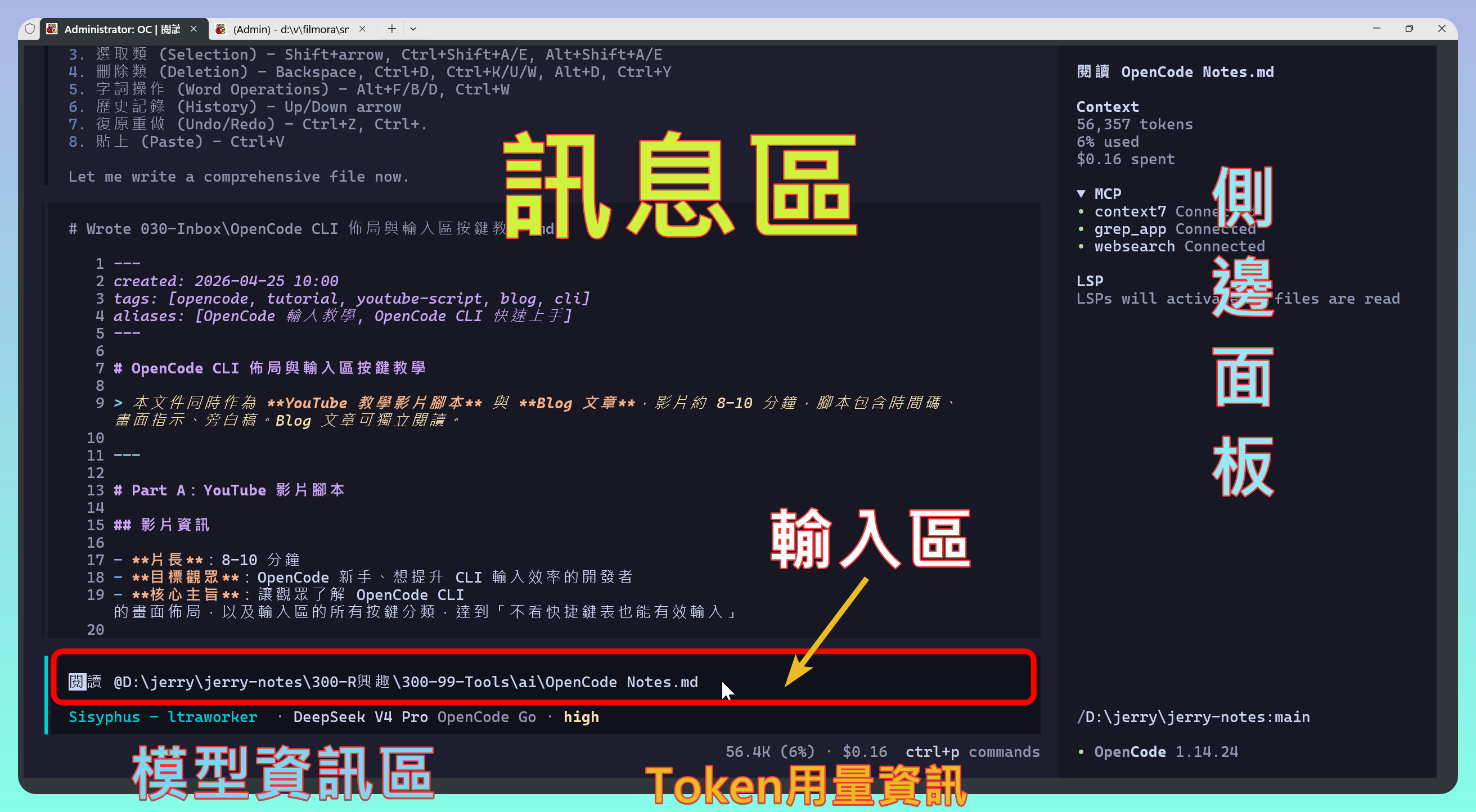
- Message Area: Accumulates your input prompts, AI responses, tool outputs, and other conversation content
- Input Area: Multi-line input box supporting full Readline/Emacs-style shortcuts
- Status Bar: Displays current session name, model, agent mode, and other information
- Sidebar (optional): Right panel showing file explorer, tool list, etc.
3. Custom Keybinds
The TUI configuration file is tui.json, located in the OpenCode config directory:
- Windows:
%USERPROFILE%/.config/opencode/tui.json - macOS/Linux:
~/.config/opencode/tui.json
You can customize all shortcuts by modifying the keybinds section. Setting an action to "none" disables that shortcut.
3.1. My tui.json Configuration
The following keys have been modified by me. For default keys, see the Official Keybinds Documentation
{
  "$schema": "https://opencode.ai/tui.json",
  "theme": "catppuccin",
  "keybinds": {
    "leader": "ctrl+x",
    "app_exit": "ctrl+c,<leader>q",
    "editor_open": "<leader>e",
    "theme_list": "<leader>t",
    "sidebar_toggle": "<leader>b",
    "scrollbar_toggle": "none",
    "username_toggle": "none",
    "status_view": "<leader>s",
    "tool_details": "none",
    "session_export": "<leader>x",
    "session_new": "<leader>n",
    "session_list": "<leader>l",
    "session_timeline": "<leader>g",
    "session_fork": "none",
    "session_rename": "none",
    "session_share": "none",
    "session_unshare": "none",
    "session_interrupt": "escape",
    "session_compact": "<leader>c",
    "session_child_first": "<leader>down",
    "session_child_cycle": "<leader>right",
    "session_child_cycle_reverse": "<leader>left",
    "session_parent": "<leader>up",
    "messages_page_up": "pageup,ctrl+alt+b",
    "messages_page_down": "pagedown,ctrl+alt+f",
    "messages_line_up": "up",
    "messages_line_down": "down",
    "messages_half_page_up": "alt+pageup",
    "messages_half_page_down": "alt+pgdown",
    "messages_first": "ctrl+home",
    "messages_last": "ctrl+end",
    "messages_next": "alt+down",
    "messages_previous": "alt+up",
    "messages_copy": "<leader>y",
    "messages_undo": "<leader>u",
    "messages_redo": "<leader>r",
    "messages_last_user": "none",
    "messages_toggle_conceal": "<leader>h",
    "model_list": "<leader>m",
    "model_cycle_recent": "f2",
    "model_cycle_recent_reverse": "shift+f2",
    "model_cycle_favorite": "none",
    "model_cycle_favorite_reverse": "none",
    "variant_cycle": "ctrl+t",
    "variant_list": "none",
    "command_list": "ctrl+p",
    "agent_list": "<leader>a",
    "agent_cycle": "tab",
    "agent_cycle_reverse": "shift+tab",
    "input_clear": "ctrl+c",
    "input_paste": "ctrl+v",
    "input_submit": "return",
    "input_newline": "ctrl+return,shift+return,ctrl+j",
    "input_move_left": "left,ctrl+b",
    "input_move_right": "right,ctrl+f",
    "input_move_up": "ctrl+1",
    "input_move_down": "ctrl+2",
    "input_select_left": "shift+left",
    "input_select_right": "shift+right",
    "input_select_up": "shift+up",
    "input_select_down": "shift+down",
    "input_line_home": "ctrl+a",
    "input_line_end": "ctrl+e",
    "input_select_line_home": "ctrl+shift+a",
    "input_select_line_end": "ctrl+shift+e",
    "input_visual_line_home": "alt+a",
    "input_visual_line_end": "alt+e",
    "input_select_visual_line_home": "alt+shift+a",
    "input_select_visual_line_end": "alt+shift+e",
    "input_buffer_home": "home",
    "input_buffer_end": "end",
    "input_select_buffer_home": "shift+home",
    "input_select_buffer_end": "shift+end",
    "input_delete_line": "ctrl+y",
    "input_delete_to_line_end": "ctrl+k",
    "input_delete_to_line_start": "ctrl+u",
    "input_backspace": "backspace,shift+backspace",
    "input_delete": "delete,shift+delete",
    "input_undo": "ctrl+z",
    "input_redo": "ctrl+.,super+shift+z",
    "input_word_forward": "alt+f,alt+right,ctrl+right",
    "input_word_backward": "alt+b,alt+left,ctrl+left",
    "input_select_word_forward": "alt+shift+f,alt+shift+right",
    "input_select_word_backward": "alt+shift+b,alt+shift+left",
    "input_delete_word_forward": "alt+d,alt+delete,ctrl+delete",
    "input_delete_word_backward": "ctrl+w,ctrl+backspace,alt+backspace",
    "history_previous": "ctrl+up",
    "history_next": "ctrl+down",
    "terminal_suspend": "",
    "terminal_title_toggle": "none",
    "tips_toggle": "<leader>h",
    "display_thinking": "none"
  },
  "scroll_speed": 3,
  "scroll_acceleration": {
    "enabled": true
  },
  "diff_style": "auto",
  "mouse": true,
  "plugin": [],
  "plugin_enabled": {}
}
3.2. Leader Key
Most OpenCode shortcuts use a Leader Key, which defaults to Ctrl+X. This avoids conflicts with other terminal shortcuts. The operation is: press the leader key first, then press the corresponding shortcut. For example, to create a new session: press Ctrl+X, release it, then press N.
| Key Combination | Function | Corresponding Slash Command |
|---|---|---|
<leader> B |
Toggle Sidebar | |
<leader> E |
Open Editor | /editor |
<leader> M |
Model List | /models |
<leader> S |
Status View | /status |
<leader> T |
Theme Switcher | /themes |
<leader> N |
New Session | /new or /clear |
<leader> L |
Session List | /sessions |
<leader> G |
Session Timeline | /timeline |
<leader> X |
Export Session | /export |
<leader> C |
Compact Context | /compact |
<leader> A |
Agent List | /agents |
<leader> H |
Show/Hide Tips | |
<leader> Q |
Exit Application | /exit or /quit or :q or quit |
<leader> U |
Message Area Undo | /undo |
<leader> R |
Message Area Redo | |
<leader> Y |
Copy Message | /copy |
3.3. Mode Switching
Tab/Shift + Tab: Switch between Build mode (execute programs) and Plan mode (plan architecture)F2/Shift + F2: Cycle through recently used modelsCtrl + P: Open command paletteCtrl + T: Cycle through model variants (low, medium, high, etc.)
4. Complete Input Area Key Classification
Below are all input area shortcuts categorized by operational mindset into seven major categories. Remembering the categories is far more effective than memorizing individual keys.
4.1. Category 1: Submit and Clear
| Key | Function | Notes |
|---|---|---|
Enter |
Send Message | |
Shift + Enter |
New Line (no send) | ⚠️ Windows Terminal may need extra setup (see below) |
Ctrl + Enter |
New Line (no send) | |
Alt + Enter |
New Line (no send) | May not work in Windows Terminal |
Ctrl + J |
New Line (no send) | Recommended, most stable |
Ctrl + C |
Clear Line | Also interrupts AI response, consider remapping |
When typing multi-line prompts, accidentally pressing Enter instead of Shift + Enter, causing the message to be sent before it's finished. Make it a habit: use Shift + Enter or Ctrl + J for new lines.
Some terminals don't send Enter with modifier keys by default. If you find Shift + Enter doesn't work, you need to configure it in Windows Terminal's settings.json:
Add to the actions array:
{
  "command": { "action": "sendInput", "input": "\u001b[13;2u" },
  "id": "User.sendInput.ShiftEnterCustom"
}
Add to the keybindings array:
{ "keys": "shift+enter", "id": "User.sendInput.ShiftEnterCustom" }
Save and restart Windows Terminal.
4.2. Category 2: Cursor Movement
The OpenCode input area fully supports Bash/Readline-style shortcuts, so terminal users can transition seamlessly.
| Key | Action | Mnemonic |
|---|---|---|
← / Ctrl + B |
Move left one character | Backward |
→ / Ctrl + F |
Move right one character | Forward |
↑ |
Move up one line | |
↓ |
Move down one line | |
Ctrl + A |
Move to line start | A = start |
Ctrl + E |
Move to line end | E = End |
Home |
Move to buffer start | |
End |
Move to buffer end | |
Alt + A |
Move to visual line start | visual line |
Alt + E |
Move to visual line end | visual line |
Core Memory Tip:
Ctrl + A/Eis line start/end (most commonly used),Home/Endis the very beginning/end of the entire input area. The difference between these keys becomes apparent when the input area has multiple lines.
4.3. Category 3: Text Selection
There's only one rule: Any movement key + Shift = Selection.
| Movement Key | + Shift Becomes Selection |
|---|---|
← / → |
Shift + ← / Shift + → select characters |
↑ / ↓ |
Shift + ↑ / Shift + ↓ select lines |
Ctrl + A |
Ctrl + Shift + A select to line start |
Ctrl + E |
Ctrl + Shift + E select to line end |
Home / End |
Shift + Home / Shift + End select to buffer start/end |
Alt + A / Alt + E |
Alt + Shift + A / Alt + Shift + E select to visual line start/end |
Alt + ← / Alt + → |
Alt + Shift + ← / Alt + Shift + → select one word |
4.4. Category 4: Delete Operations
Delete operations are the most powerful part of the OpenCode input area, supporting multiple granularities of deletion.
| Key | Function | Level |
|---|---|---|
Backspace |
Delete character before cursor | Character |
Ctrl + D / Delete |
Delete character at cursor | Character |
Ctrl + W / Ctrl + Backspace / Alt + Backspace |
Delete previous word | Word |
Alt + D / Alt + Delete / Ctrl + Delete |
Delete next word | Word |
Ctrl + K |
Delete from cursor to line end | Line |
Ctrl + U |
Delete from cursor to line start | Line |
Ctrl+Shift+D |
Delete entire line | Line |
4.5. Category 5: Word Navigation
Especially useful in English environments, jumping the cursor by "word" units.
| Key | Function |
|---|---|
Alt + F / Alt + → / Ctrl + → |
Forward one word |
Alt + B / Alt + ← / Ctrl + ← |
Backward one word |
Selection version (add Shift):
| Key | Function |
|---|---|
Alt + Shift + F / Alt + Shift + → |
Select to next word |
Alt + Shift + B / Alt + Shift + ← |
Select to previous word |
4.6. Category 6: History
| Key | Function |
|---|---|
↑ |
Previous input |
↓ |
Next input |
OpenCode remembers all your inputs in the current session. Use the up and down arrow keys to quickly recall previous prompts.
4.7. Category 7: Undo, Redo, Paste, and Other Editing
| Key | Function |
|---|---|
Ctrl + - / Ctrl + Z / Super + Z |
Undo |
Ctrl + . / Super + Shift + Z |
Redo |
Ctrl + V |
Paste |
Ctrl + T |
Transpose characters before cursor |
Ctrl + G |
Cancel popup / Interrupt running response |
The OpenCode desktop application's prompt input box supports common Readline/Emacs-style text editing shortcuts. These shortcuts are built-in features and currently cannot be configured through opencode.json.
5. Message View Area Shortcuts
Besides the input area, the message view area also has useful shortcuts:
| Key | Function |
|---|---|
PageUp / Ctrl + Alt + B |
Page up |
PageDown / Ctrl + Alt + F |
Page down |
Ctrl + Alt + Y |
Line up |
Ctrl + Alt + E |
Line down |
Ctrl + Alt + U |
Half page up |
Ctrl + Alt + D |
Half page down |
Ctrl + G / Home |
Jump to first message |
Ctrl + Alt + G / End |
Jump to last message |
<leader> Y |
Copy message |
<leader> U |
Message area Undo |
<leader> R |
Message area Redo |
<leader> H |
Toggle conceal/reveal content |
6. Session Navigation
OpenCode supports nested sessions (child conversations) that you can switch between:
| Key | Function |
|---|---|
<leader> Down |
Enter first child session |
<leader> Right |
Cycle to next child session |
<leader> Left |
Cycle to previous child session |
<leader> Up |
Return to parent session |
Escape |
Interrupt current session |
<leader> N |
New session |
<leader> L |
Session list |
<leader> G |
Session timeline |
<leader> X |
Export session |
<leader> C |
Compact context |
7. Conclusion
OpenCode TUI's shortcut design originates from Bash/Readline, plus its own Leader Key system. Rather than memorizing the entire table, understand the categorical logic—movement, selection, deletion, submission—integrate the commonly used keys into daily operations, and look up the rest as needed.
8. Appendix: Complete Shortcut Quick Reference
| Category | Key | Function |
|---|---|---|
| Submit | Enter |
Send message |
Shift + Enter / Ctrl + J |
New line | |
Ctrl + C |
Clear input / Interrupt response | |
| Move | Ctrl + A |
Line start |
Ctrl + E |
Line end | |
Alt + B / Alt + F |
Previous/next word | |
Home / End |
Buffer start/end | |
| Select | Shift + ←/→/↑/↓ |
Select characters/lines |
Ctrl + Shift + A/E |
Select to line start/end | |
Alt + Shift + ←/→ |
Select word | |
| Delete | Ctrl + K |
Delete to line end |
Ctrl + U |
Delete to line start | |
Ctrl + Shift + D |
Delete entire line | |
Ctrl + W |
Delete previous word | |
Alt + D |
Delete next word | |
| History | ↑ / ↓ |
Previous/next input |
| Undo | Ctrl + - / Ctrl + Z |
Undo |
Ctrl + . |
Redo | |
| Paste | Ctrl + V |
Paste |
| Other | Ctrl + T |
Transpose characters |
Ctrl + G |
Interrupt response | |
| Model | <leader> M |
Model list |
F2 |
Switch model | |
Ctrl + T |
Switch variant | |
| Session | <leader> N |
New |
<leader> C |
Compact context | |
Escape |
Interrupt | |
| Interface | <leader> B |
Sidebar |
Ctrl + P |
Command palette | |
Tab |
Switch Agent |
💡 Related Links
✅ Explanation Article (Traditional Chinese)
✅ Explanation article (English)
✅ 解説記事 (日本語)