
Here are a few plugins related to code blocks: Code Customizer, Code Styler, Codeblock Tabs, and Keyshots.
Keyshots deserves special mention.
If you think Keyshots is just for adding common keyboard shortcuts, similar to Code Editor Shortcuts, you'd be mistaken. Besides allowing us to configure keys to match common IDE shortcuts, Keyshots also adds many features, such as:
- A selection window for inserting tables
- A selection window for inserting
Calloutblocks - A selection window for inserting code blocks
- A search and replace window for regular expressions
- Multiple multi-cursor operations
1. Feature Demonstration
- CodeBlock Tabs only works in Reading mode.
- 2024/03/28: Alternatively, the HTML Tabs plugin is available.
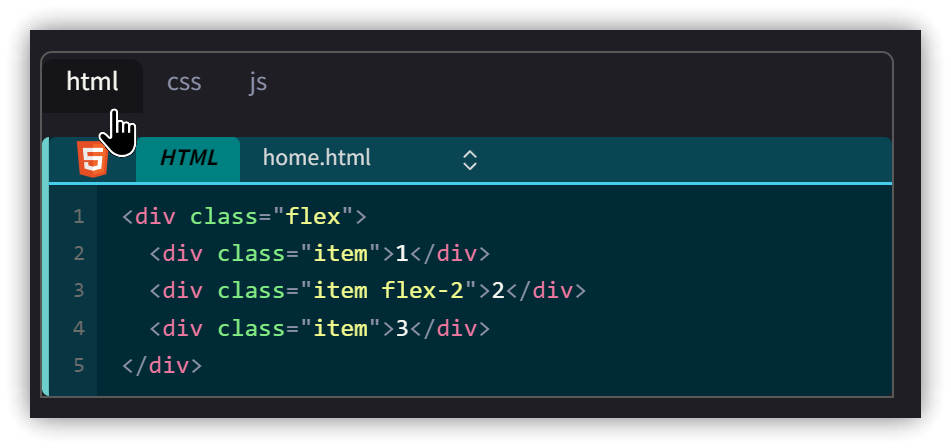
<div class="flex">
  <div class="item">1</div>
  <div class="item flex-2">2</div>
  <div class="item">3</div>
</div>
.flex {
  display: flex;
  height: 300px;
  padding: 15px;
  background-color: #61a0f8;
  /* Try changing the value below: row|row-reverse|column|column-reverse; */
  flex-direction: row;
}

.item {
  flex: 1;
  background-color: #f08bc3;
  margin: 5px;
  display: flex;
  justify-content: center;
  align-items: center;
  color: white;
  font-size: 2rem;
}

.flex-2 {
  flex-grow: 2;
  flex-shrink: 1;
  flex-basis: 0%;
  background-color: #f08bc3;
}
// Traditional ECMAScript/JavaScript function definition syntax
function(parameter_list) {
    return result;
}

// New ES6 syntax, note the arrow => in the middle. Verbally, it can be read as passing the parameters on the left to the code block on the right for processing.
(parameter_list) => {
    return result;
}

// Shorthand rule 1: If there is only one parameter, the () indicating the parameter list can be omitted.
(x) => {}
  // or
x => {}

// Exception to shorthand rule 1: If there are no parameters, the () cannot be omitted.
() => {}

// Shorthand rule 2: If the function body consists of only one statement, the {} indicating the function block can be omitted.
// In this case, the result of that line is automatically returned, and `return` cannot be used.
(x, y) => {
    return x+y;
}
// or
(x, y) => x+y
2. Codeblock Customizer
Codeblock Customizer and Code Styler have similar functions; choose one to use. CodeBlock Customizer will be used as an example below.
Setup steps:
- Select the default theme to use: Obsidian or Solarized.
- Enter a new theme name in "Create your theme" and press the + sign.
- After changing settings, press the save icon to the right of "Theme".
```js file:arrow.js error:7-9 ln:12 hl:15-17
2.1. Select settings page
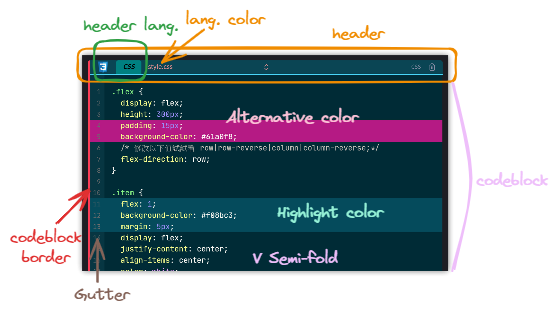
- Clicking the Header collapses the block.
- If no filename is specified and the "Always show Header" setting is enabled, there is no collapse function.
3. CodeBlock Tabs Plugin
Specify the filename at the beginning of the code block using the following format:
````language {title:filename(must include extension)}`
In practice, this wasn't necessary...🤷♂️
4. Keyshots Plugin
Set shortcuts to your preferred IDE keybindings. The default IDEs are:
- JetBrains IDEs: IntelliJ IDEA, WebStorm, PyCharm, ...
- VS Code
- Visual Studio
- Keyshots Defaults
After selecting your preferred set, you can open the hotkeys window and search for "keyshots" to view the keybindings.
- Default Keys: List of Keyshots commands with IDE Mappings (Does not include keys added in newer versions)
4.1. Common JetBrains Keys
| Key | Function Description |
|---|---|
| Double-press <span class='keybs'>Ctrl</span> | Open Command Palette |
| Double-press <span class='keybs'>Shift</span> | Open Quick Switcher |
| <span class='keybs'>Ctrl+W</span> | Extend Selection |
| <span class='keybs'>Ctrl+D</span> | Duplicate Line or Selection |
4.2. Keyshots Keys
| Key | Function Description |
|---|---|
| <span class='keybs'>Alt+Shift+T</span> | Open Insert Table dialog |
| Custom, e.g., <span class='keybs'>Ctrl+Shift+C</span> | Open Insert Callout dialog |
| <span class='keybs'>Ctrl+Shift+`</span> | Open Insert Code Block dialog |
| <span class='keybs'>Ctrl+Alt+H</span> | Open Regex Replace dialog |
| <span class='keybs'>Ctrl+Alt+S</span> | Open Regex Search dialog |
| <span class='keybs'>Ctrl+Alt+F</span> | Enter Fullscreen Focus mode |
| <span class='keybs'>Ctrl+Alt+Shift+J</span> | Select all word instances (Select text, then press keys; multiple cursors appear at instances)<br>(Does not work inside tables) |
| Custom, e.g., <span class='keybs'>Ctrl+Alt+Shift+K</span> | Select multiple word instances (Select text, press keys multiple times; multiple cursors appear at instances) |
Test: keyshots
5. Related Links
✅ Obsidian-CodeBlock-Tabs: https://github.com/JeminMau/Obsidian-CodeBlock-Tabs
✅ Obsidian-Code-Styler: https://github.com/mayurankv/Obsidian-Code-Styler
✅ CodeblockCustomizer: https://github.com/mugiwara85/CodeblockCustomizer
✅ obsidian-keyshots: https://github.com/KrazyManJ/obsidian-keyshots