
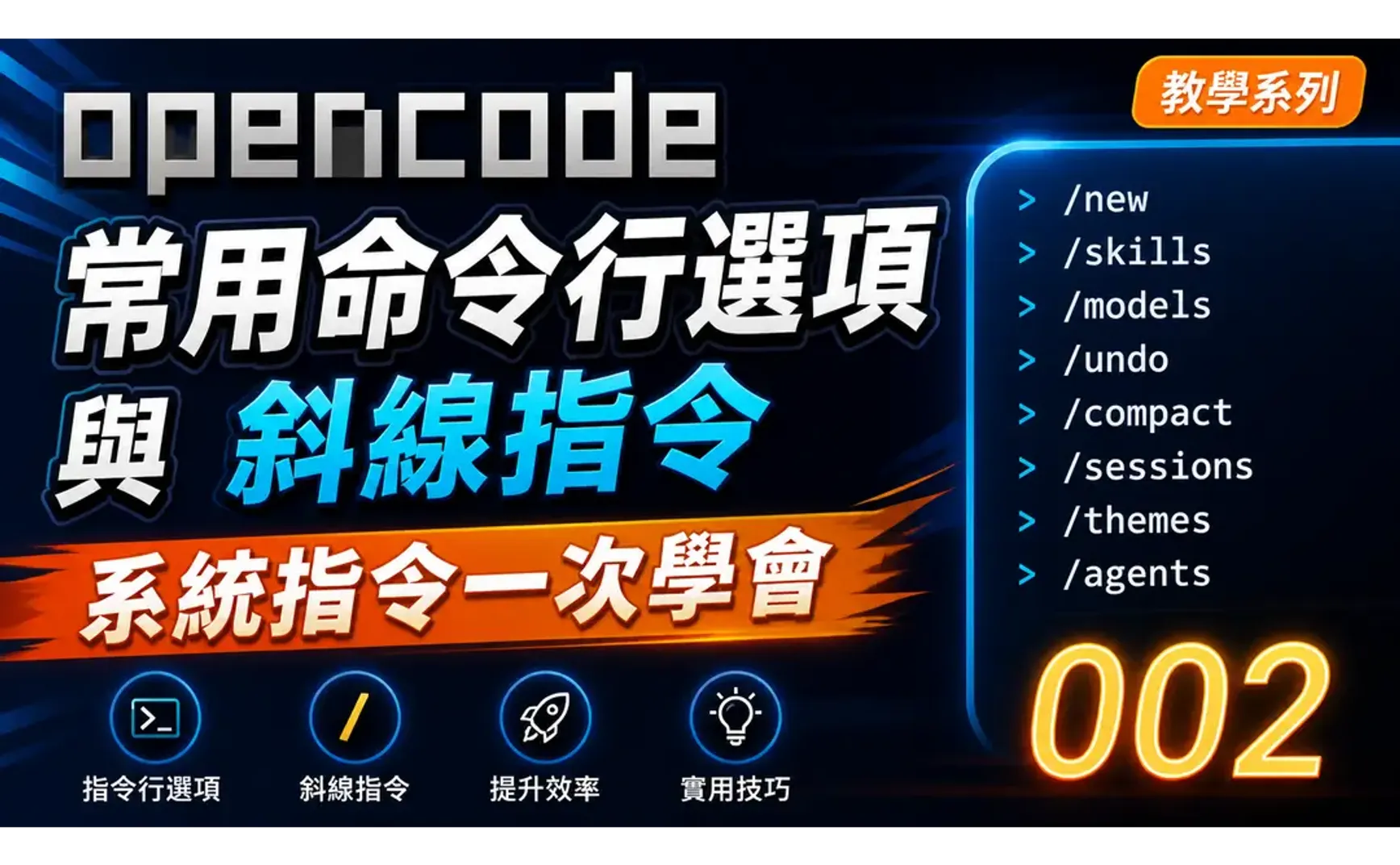
This introduction covers OpenCode’s CLI (command-line interface) options and the slash commands in its TUI (text user interface). Both provide access to many of OpenCode’s system functions.
1 Command-line options
When you start the OpenCode command line without any arguments, it launches TUI mode. If you provide command-line options, however, it performs different functions. The following are commonly used command options:
| Function | Command | Description |
|---|---|---|
| Help | opencode help |
Display the available command-line options |
| Upgrade version | opencode upgrade |
Check whether a new version is available, and upgrade if so |
| Debug | opencode debug |
Display all debug options |
opencode debug config |
Check the configuration file | |
opencode debug paths |
Display configuration paths <br>home data bin log cache config state tmp | |
opencode debug skill |
Display all skills | |
| Providers | opencode providers list |
Display authorized providers |
| Models | opencode models |
Display the large language models of authorized providers |
opencode models nvidia |
Display the models of a specific provider | |
| Manage MCP | opencode mcp list |
Display the MCP server list |
opencode mcp add |
Interactively add an MCP server |
2 Slash commands
2.1 What are slash commands?
In the OpenCode input box, typing / opens the command panel. These slash-prefixed commands let you quickly perform various actions without memorizing complicated keyboard shortcuts. They are the “gateway” to invoking AI agents and automation features.
Think of slash commands as a “quick menu” — just as typing / in Discord or Notion brings up a function menu, OpenCode also provides a complete command system.
2.2 Basic commands: essentials
These are the commands you’ll use every day when you open OpenCode. Memorize these first.
2.2.1 Session management
| Command | Function | Use case |
|---|---|---|
/sessions |
List all sessions | Switch between different projects |
/new |
Create a new session | Start an entirely new conversation topic |
/clear |
Clear the current session | Same as /new, start over |
/timeline |
View the session timeline | Review earlier conversation context |
/export |
Export the session | Save important conversation content |
/compact |
Compress conversation context | Automatically summarize past conversation when token usage is too high |
/exit / /quit / :q / /q |
Exit OpenCode | Quit the program |
Many people discuss several completely unrelated topics in one session, which confuses the AI and also increases token usage, wasting money unnecessarily. It is recommended to use one session for one topic only; when changing topics, use /new.
Sessions are divided by workspace. Different workspaces have different session lists.
2.2.2 Model switching
| Command | Function | Use case |
|---|---|---|
/connect |
Change model provider | Switch to a different provider, for example from OpenAI to Claude |
/models |
Open the model list | Switch between different LLMs, for example from GPT-5 to Opus-4.7 |
After entering /models, choose models marked Free (such as Nemotran 3 Super Free or MiniMax M2.5 Free) to use them for free. They are suitable for testing and light use.
2.2.3 Editing and undo
| Command | Function | Use case |
|---|---|---|
/undo |
Revert the previous change | Emergency rollback when AI breaks the code |
/redo |
Redo | Use when you regret an undo |
/copy |
Copy content to clipboard | Quickly copy AI-generated code or replies |
/undo reverts file changes, not conversation content. If the AI modifies three files for you, entering /undo lets you roll back those changes step by step.
2.3 Advanced commands: double your efficiency
Once you’ve mastered the basics, these commands can make your workflow smoother.
2.3.1 Interface control
| Command | Function | Corresponding shortcut |
|---|---|---|
/editor |
Open the editor | <leader> + e |
/themes |
Switch themes | <leader> + t |
/status |
View status | <leader> + s |
/agents |
Agent list | <leader> + a |
2.3.2 Skills
Skills are OpenCode’s “plugin scripts” that give the AI capabilities in specific domains.
| Command | Function | Example |
|---|---|---|
/skills |
List all available skills | View installed skills |
/<skill-name> |
Invoke a specific skill | /obsidian-cli enables the Obsidian CLI skill |
Recommended common skills:
| Skill name | Purpose |
|---|---|
obsidian-markdown |
Handle Obsidian-specific Markdown syntax |
obsidian-bases |
Create database views (.base files) |
json-canvas |
Create visual canvases (.canvas files) |
ui-ux-pro-max |
Front-end UI/UX design assistance |
2.4 Practical tips: making slash commands easier to use
2.4.1 File mentions with @
Typing @ in the input box opens a list of files in the working directory, and entering part of a filename lets you filter quickly.
Please help me check @index.jsp for SQL injection vulnerabilities.
2.4.2 Multiline input without accidental sending
- New line:
Shift + EnterorCtrl + J(most reliable) - Send:
Enter - Clear:
Ctrl + C
When writing a multiline prompt, it’s easy to press Enter by accident and send the message too early. Make it a habit to use Shift + Enter for new lines.
2.4.3 Command panel
Press Ctrl + P to open the command panel, where you can use the arrow keys to select commands instead of memorizing their names.
2.4.4 Custom commands
You can create your own slash commands and wrap commonly used prompts into one-click calls. There are two ways to define them:
2.4.4.1 Markdown files (recommended)
Create a .md file in the following directory; the filename becomes the command name:
| Directory | Scope |
|---|---|
.opencode/commands/ |
Project-level (available only in that project) |
~/.config/opencode/commands/ |
Global (available in all projects) |
---
description: Code review
agent: plan
model: anthropic/claude-sonnet-4-20250514
---

Please review the current file, focusing on the following:
1. Potential performance issues
2. Security vulnerabilities
3. Code readability
4. Adherence to best practices
description: Command description (shown in the TUI)agent: Specify which agent should execute it (such asbuildorplan)model: Override the default modelsubtask: When set totrue, forces execution by a sub-agent (so the main context is not polluted)
Only the template (prompt content) is required; all other fields are optional.
2.4.4.2 JSON configuration
You can also define commands in opencode.json using JSON:
{
  "command": {
    "review": {
      "template": "Please review the current file, focusing on the following:\n1. Potential performance issues\n2. Security vulnerabilities\n3. Code readability\n4. Adherence to best practices",
      "description": "Code review",
      "agent": "plan",
      "model": "anthropic/claude-sonnet-4-20250514"
    }
  }
}
2.4.5 Passing arguments
Use $ARGUMENTS to pass text after the command into the prompt:
---
description: Create a new component
---

Use TypeScript to create a React component named $ARGUMENTS, including appropriate type definitions and a basic structure.
When you run /component Button, $ARGUMENTS is replaced with Button.
You can also use positional parameters to access individual arguments ($1, $2, $3, …):
---
description: Create a file
---

Create a file named $1 in the $2 directory with the following content: $3
```

```bash
/create-file config.json src "{ \"key\": \"value\" }"
```
$1→config.json$2→src$3→{ "key": "value" }
2.4.6 Shell command injection
Use the !\command`` syntax to embed Bash command output into the prompt:
---
description: Analyze test coverage
---

Here are the current test results:
!\`npm test\`

Based on the results above, suggest how to improve test coverage.
---
description: Review recent changes
---

Recent Git commit history:
!\`git log --oneline -10\`

Review these changes and suggest improvements.
The command runs in the project root, and its output becomes part of the prompt directly.
2.4.7 File references
Use @ to reference files in a command:
---
description: Review component
---

Review the @src/components/Button.tsx component.
Check for performance issues and suggest improvements.
The file contents will be automatically included in the prompt.
If you define a custom command with the same name as a built-in command (for example, a custom /undo), the custom command will override the built-in command. Be sure to confirm that you are not accidentally overriding an important function.
2.5 Quick reference: common slash commands
| Category | Command | Function |
|---|---|---|
| Session | /new, /clear |
New conversation |
/sessions |
Conversation list | |
/timeline |
Timeline | |
/export |
Export | |
/compact |
Compress context | |
/share |
Share session | |
/exit, /quit, :q |
Exit | |
| Models | /models |
Model list |
/context |
Token usage | |
| Editing | /undo |
Undo |
/redo |
Redo | |
/copy |
Copy | |
| Interface | /editor |
Editor |
/themes |
Themes | |
/status |
Status | |
/agents |
Agent list | |
| Advanced | /skills |
Skill list |
/<skill> |
Invoke skill | |
/help |
Show help | |
/init |
Initialize AGENTS.md | |
/start-work |
Start executing a plan | |
/ulw |
Ultrawork mode | |
/refactor |
Smart refactoring | |
/handoff |
Create a handoff document |
3 Related links
- OpenCode Official Documentation (Traditional Chinese)
- OpenCode Official Keyboard Shortcuts Documentation
- Obsidian + OpenCode knowledge management combination
✅ Explanatory article (Traditional Chinese)
✅ Explanation article (English)
✅ Explanatory article (Japanese)
4 Tutorial video
##