
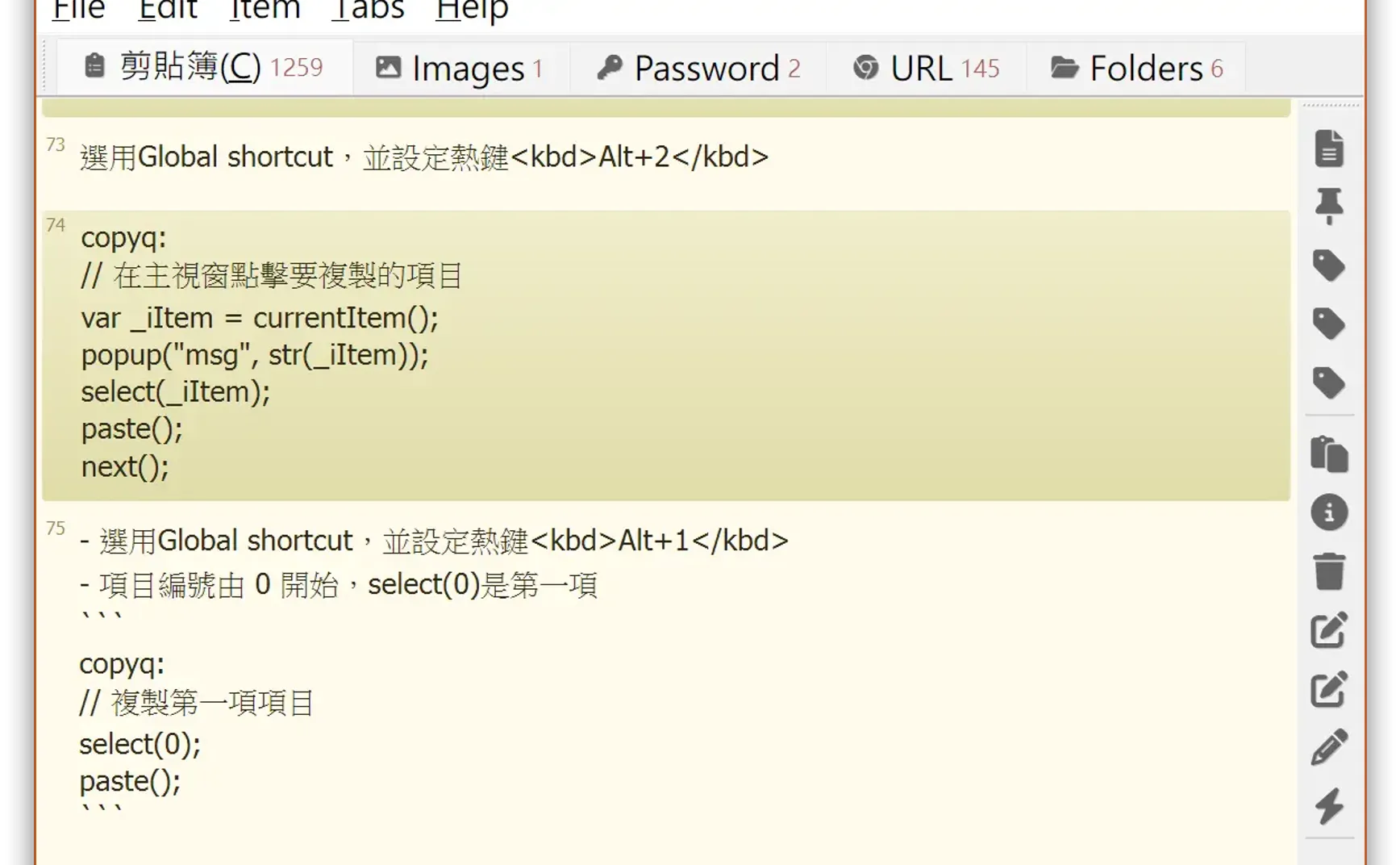
My main clipboard management tool is Ditto. Ditto is lightweight and simple, but it doesn’t offer customization. Recently, I reinstalled CopyQ and experimented with some settings and custom commands, allowing clipboard operations to better suit my needs and improve efficiency. This article introduces several of my custom features, which may inspire new ways of using your clipboard.
CopyQ is written in QT, so it works on Windows, macOS, and Linux, and it is open-source on GitHub.
The copied content is stored step by step in an area called “History.” Each time you press Ctrl+C, the content is saved into the Clipboard tab of History. By clicking any item in History, the content is transferred to the system clipboard and pasted into the active application.
1. My Clipboard Enhancements
1.1. Content Backup
My first enhancement is backing up specific content into added tabs.
The purpose is to easily locate needed data. Although you can press Ctrl+F in the default Clipboard tab to search, automatic categorization makes retrieving frequently reused items much faster.
- When copying an image, automatically store it in the Images tab.
- When copying a URL (content contains
http://orhttps://), automatically store it in the URL tab. - When copying a path beginning with
Letter:\, automatically store it in the Folders tab.
1.2. Direct Copy of Specific Items
The second enhancement is directly using the content of the nth copied item:
- Press Alt+1 to copy the 1st item.
- Press Alt+2 to copy the 2nd item.
- Press Alt+3 to copy the 3rd item.
- Press Alt+V to continuously copy from the selected item.
2. Steps to Add Custom Commands
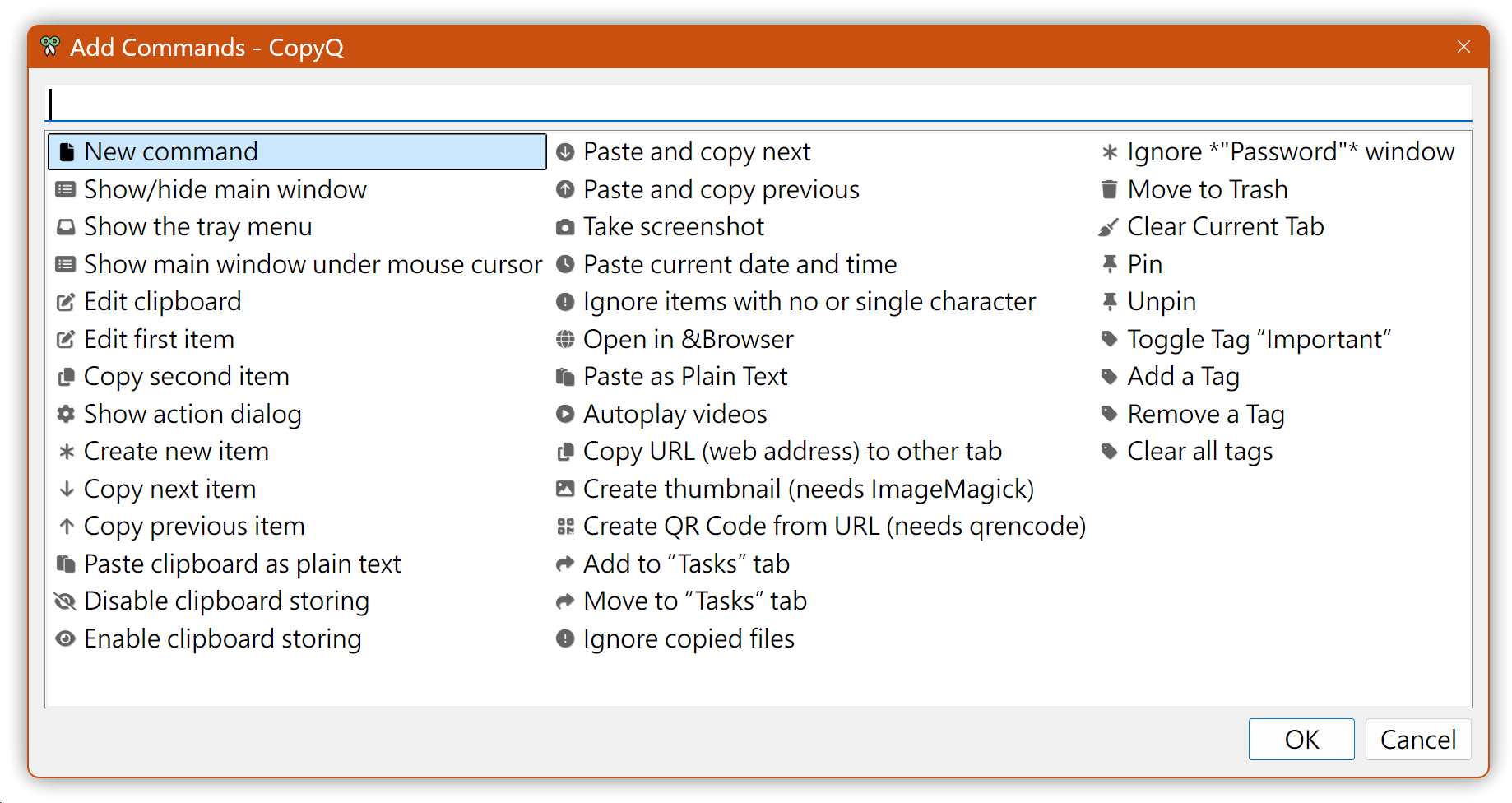
Open the CopyQ main window, press F6, or click File → Commands... to manage custom commands.
2.1. Operation Overview
- Click Add → New command (you may also choose from other presets).
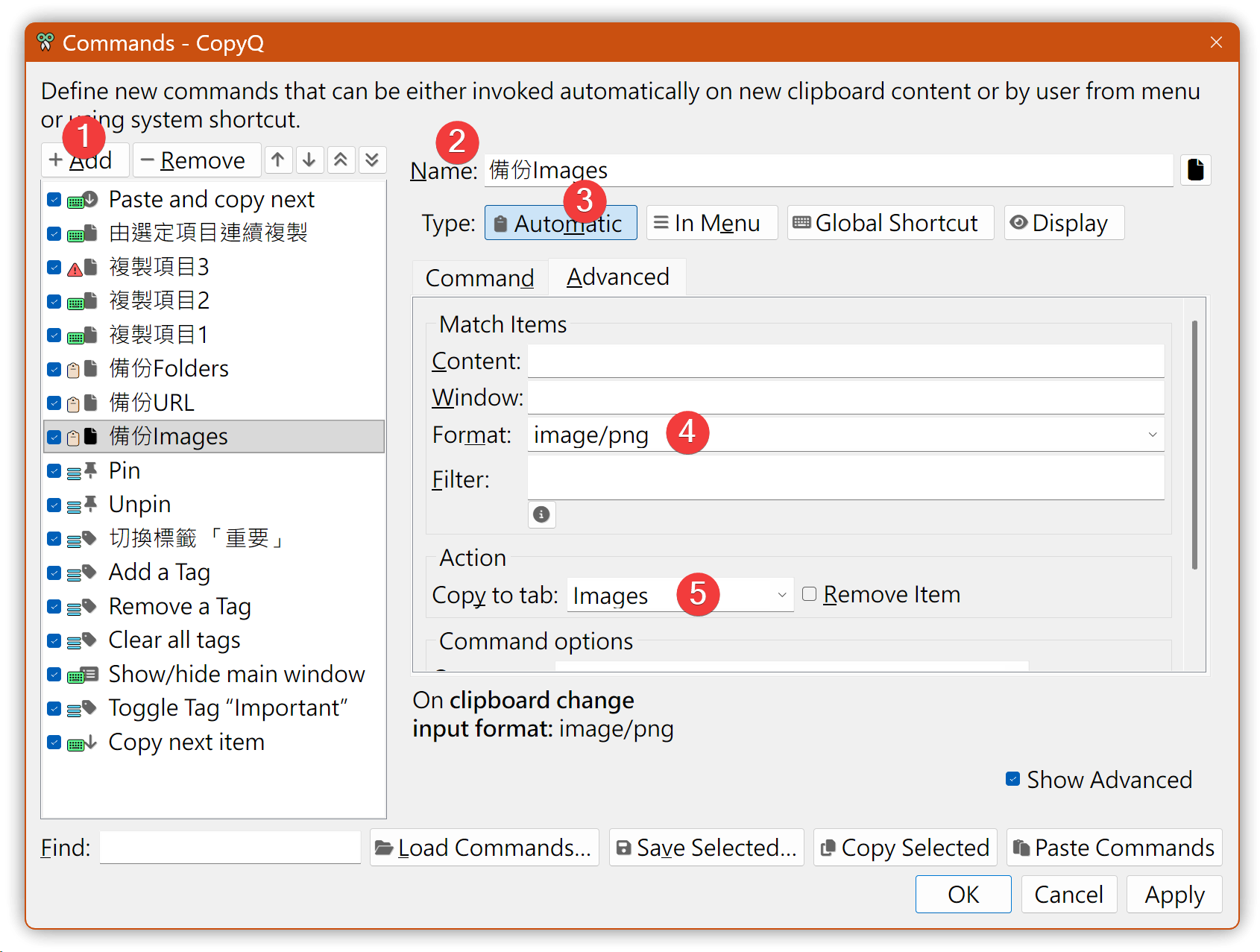
- Enter the command name under Name on the left.
- Check Show Advanced at the bottom right to reveal the Advanced tab for extra options.
- In the Command tab, enter script content. Typically, scripts start with
copyq:to indicate CopyQ syntax, but you can also usepython:,powershell:, or other scripting languages. - Command types (toggle on/off):
- Automatic: whether to run automatically after pressing Ctrl+C.
- In Menu: whether to display in the item context menu.
- Global shortcut: whether to assign a global hotkey.
- Display: whether to alter clipboard content before displaying.
Automatic and Global shortcut are usually not selected at the same time.
2.2. Adding Tabs in History
Click Tabs → New Tab to add new tabs, such as Images, URL, and Folders.
Use popup(title, content) for debugging; the content appears as a notification at the bottom right.
3. Backup Examples
3.1. Store Images
- When the clipboard format is image/png, copy it into the Images tab.
Alternative script method:
copyq:

var currentFormats = dataFormats();

// Check if image format is included
if (currentFormats.indexOf("image/png") !== -1 ||
    currentFormats.indexOf("image/jpeg") !== -1 ||
    currentFormats.indexOf("image/gif") !== -1) {
  //popup("Clipboard Content", "Clipboard contains an image.");
  //tab('Images');
  setData(mimeOutputTab, "Images")
}
3.2. Store URLs
- Enable Automatic
- Only copy the first URL
- You can also use the preset Copy web URL command
copyq:
// Read clipboard plain text
var text = str(clipboard());

// Check if text starts with http: or https:
var _iIndex = -1;
var _iIndex1 = text.indexOf('http://');
var _iIndex2 = text.indexOf('https://');
if (_iIndex1 >= 0) {
  text = text.substring(_iIndex1);
  _iIndex = text.indexOf(')', _iIndex1+1);
  if (_iIndex > 0) {
    text = text.substring(0, _iIndex);
  }
  _iIndex = _iIndex1;
}
if (_iIndex2 >= 0) {
  text = text.substring(_iIndex2);
  _iIndex = text.indexOf(')', _iIndex1+1);
  if (_iIndex > 0) {
    text = text.substring(0, _iIndex);
  }
  _iIndex = _iIndex2;
}
if (_iIndex >= 0) {
  tab('URL');
  add(text);
}
3.3. Store Folders
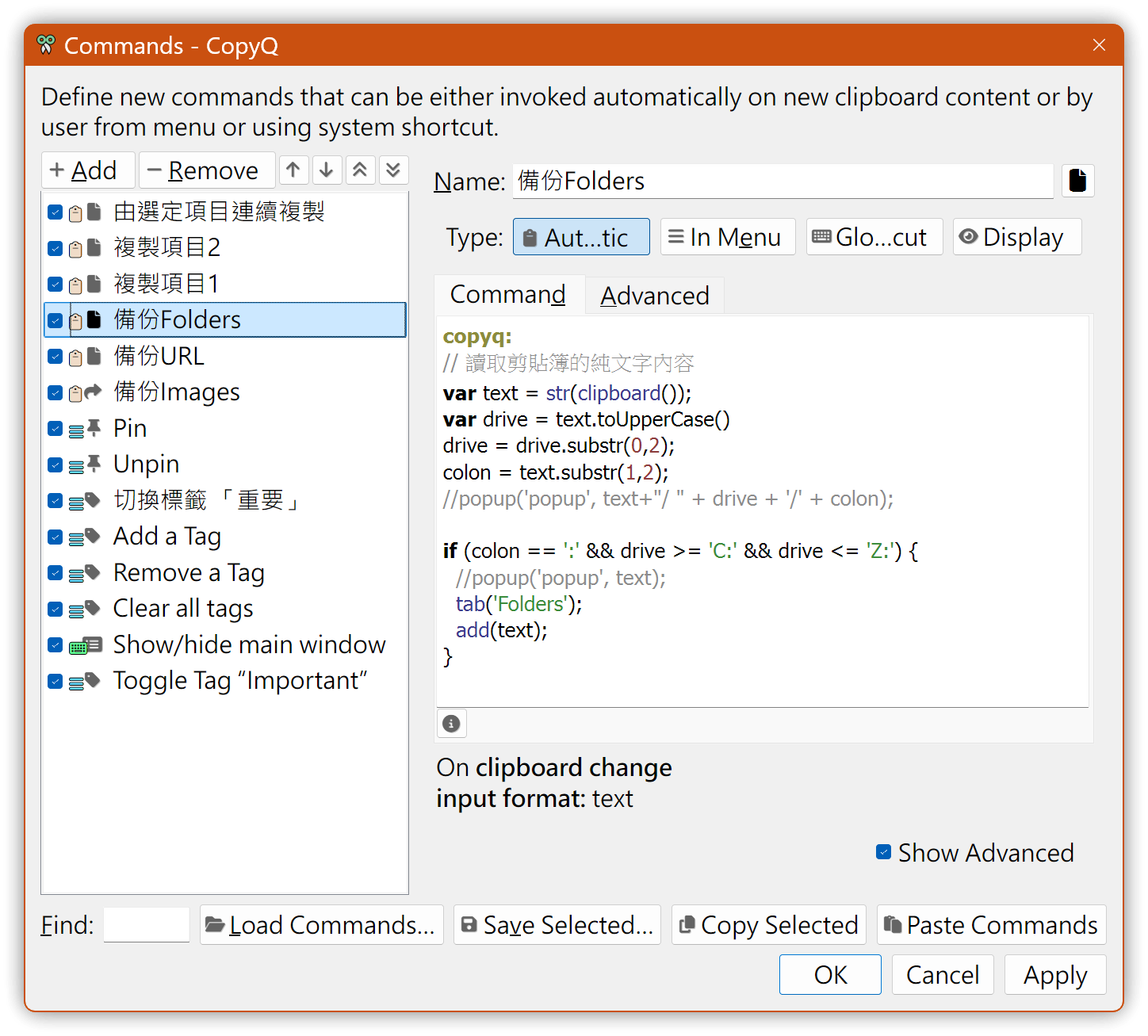
- Enable Automatic
copyq:
// Read clipboard plain text
var text = str(clipboard());
var drive = text.toUpperCase()
drive = drive.substr(0,2);
colon = text.substr(1,2);

if (colon == ':' && drive >= 'C:' && drive <= 'Z:') {
  tab('Folders');
  add(text);
}
4. Direct Copy Examples
4.1. Copy the First Item
- Enable Global shortcut and set Alt+1
- Item index starts at 0, so
select(0)is the first item
copyq:
// Copy the first item
select(0);
paste();
4.2. Copy the Second Item
- Enable Global shortcut and set Alt+2
- Continue similarly...
copyq:
// Copy the second item
select(1);
paste();
4.3. Continuous Paste
- Enable Global shortcut and set Alt+V
- Open the main window and select a starting item. After returning to the active application, press Alt+V each time you need the content.
copyq:
// Copy from the selected item in the main window
var _iItem = currentItem();
popup("msg", str(_iItem));
select(_iItem);
paste();
next();
5. 💡 Related Links
✅ Explanation article (Traditional Chinese): https://jdev.tw/blog/8881/
✅ Explanation article (English)
✅ 解説記事 (Japanese)
✅ Ditto Clipboard Manager
✅ GitHub CopyQ: Clipboard manager with advanced features
✅ CopyQ documentation