
In the article Android Phone Quick Note Capture: Keepsidian App, Google Keep, and Obsidian Integration, it introduced how the Keepsidian App can quickly capture notes and send them to the Obsidian vault on an Android phone. Today, the LINE Notes Sync tool is introduced, which allows you to input messages via LINE friends and sync them into a specific folder within Obsidian. On the mobile side, you only need to add the LINE friend without installing any app, while on Obsidian, the LINE Notes Sync plugin must be installed.
LINE Notes Sync only supports one-way synchronization, meaning it syncs LINE messages to Obsidian but does not sync in the reverse direction.
1. LINE Setup Steps
-
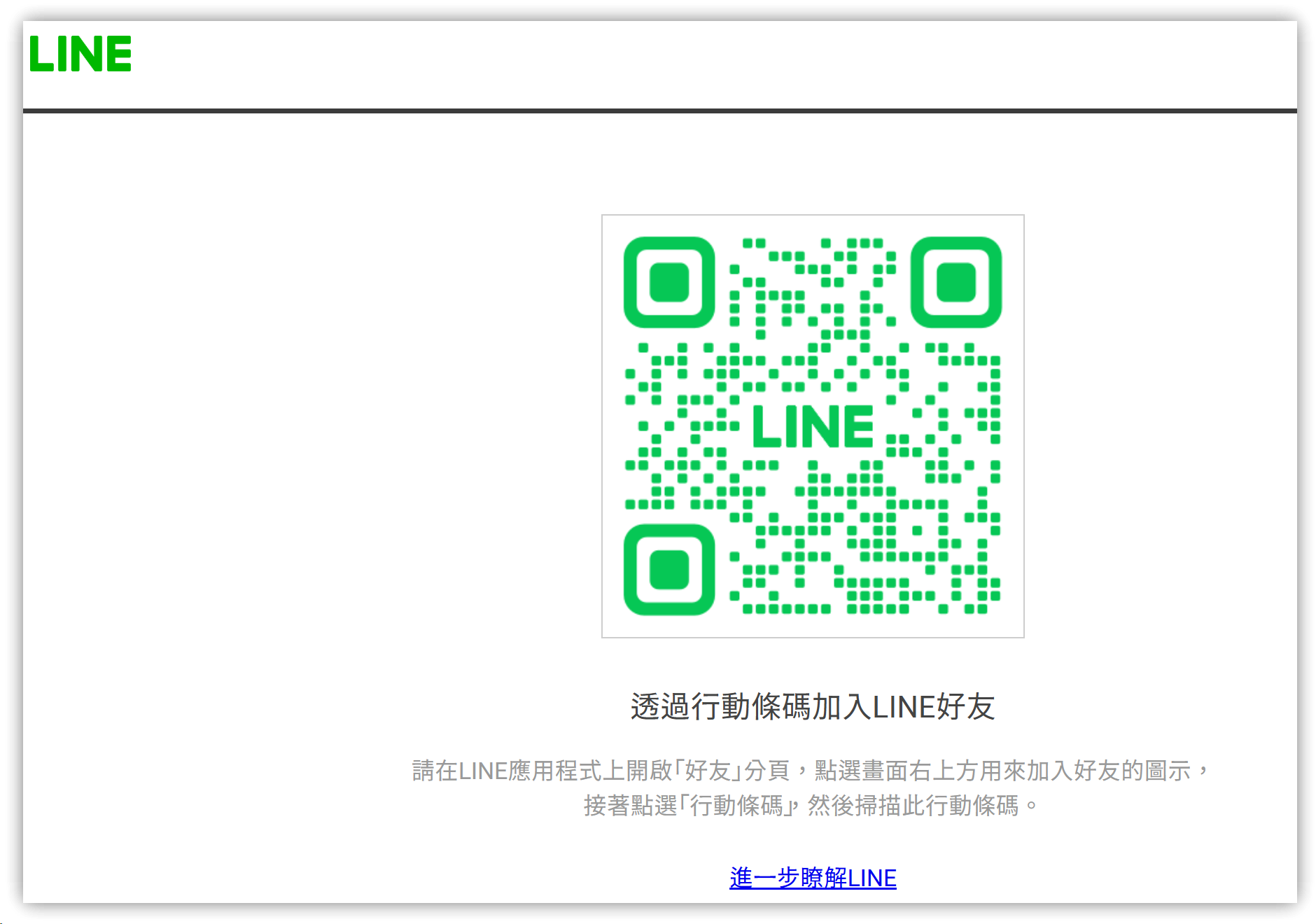
On your computer: Open the friend webpage in your browser as shown below.
-
On your phone: Open the LINE app, tap on the bottom【Home】→ tap the top-right corner to add a friend (the friend’s name is ObsidianMemo) →【QR Code】→ scan the following QR code.
-
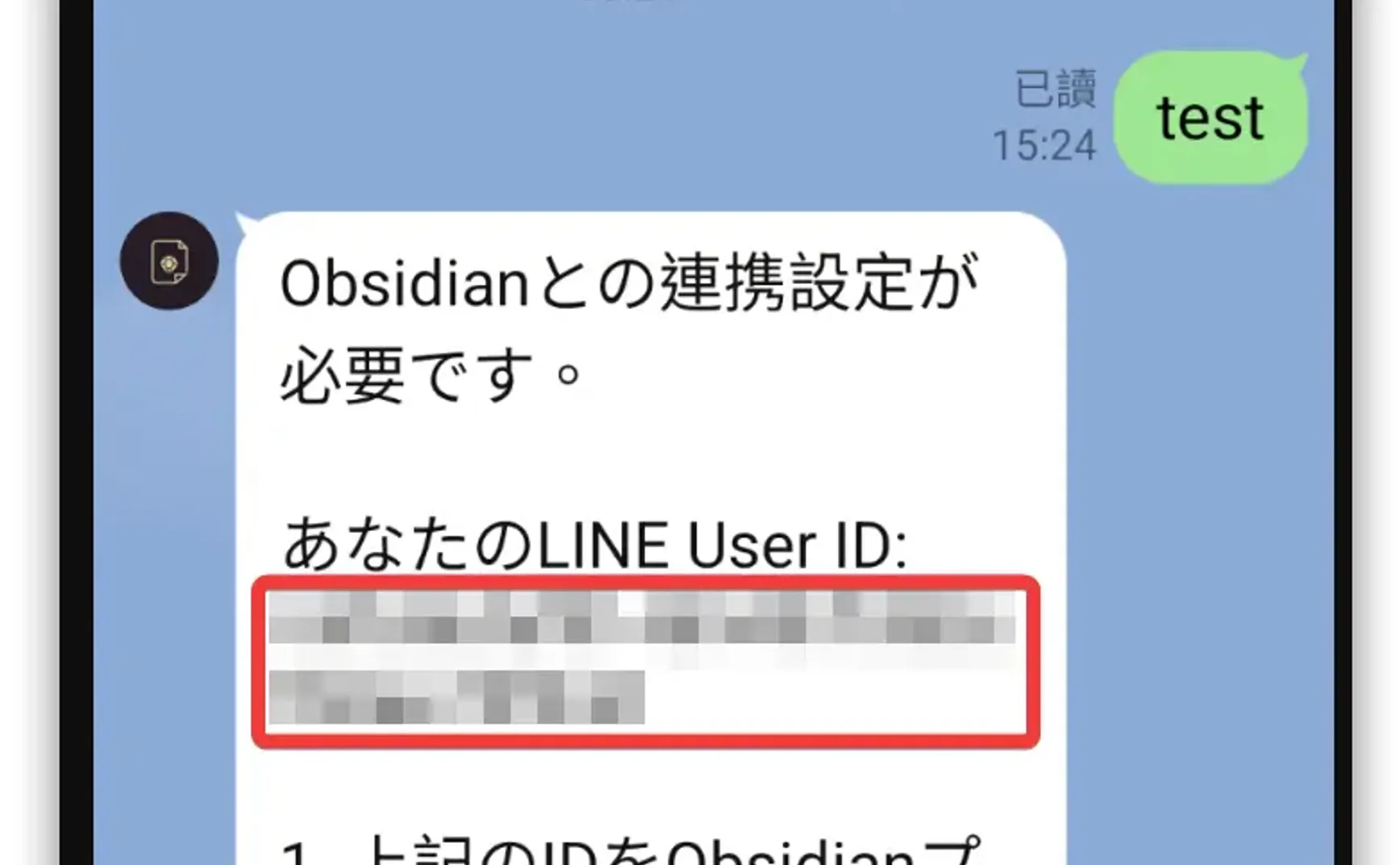
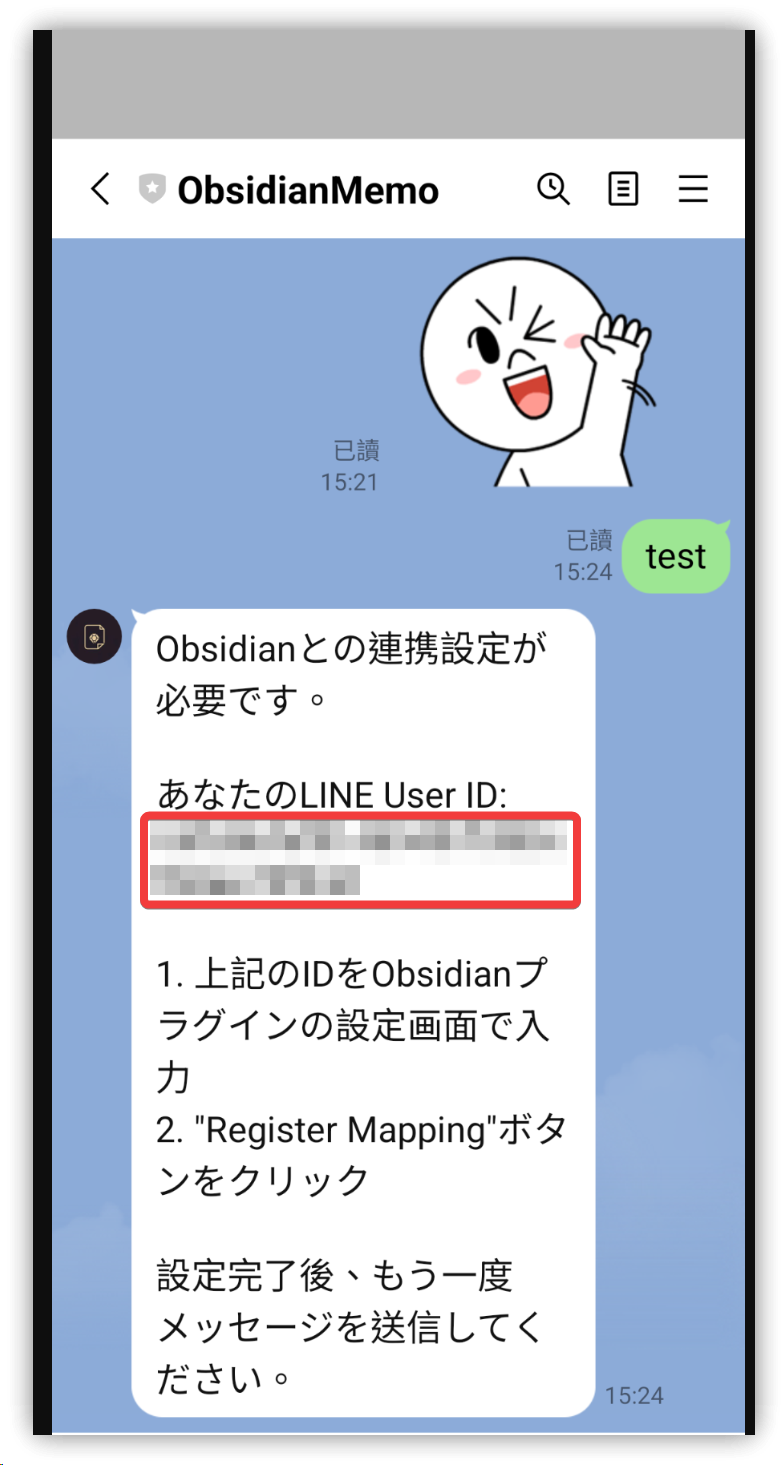
Enter "test" to receive the LINE User ID assigned by the plugin. Copy this ID to make it available for your computer and paste it into the LINE Notes Obsidian plugin settings.
2. Obsidian Plugin Installation and Configuration
-
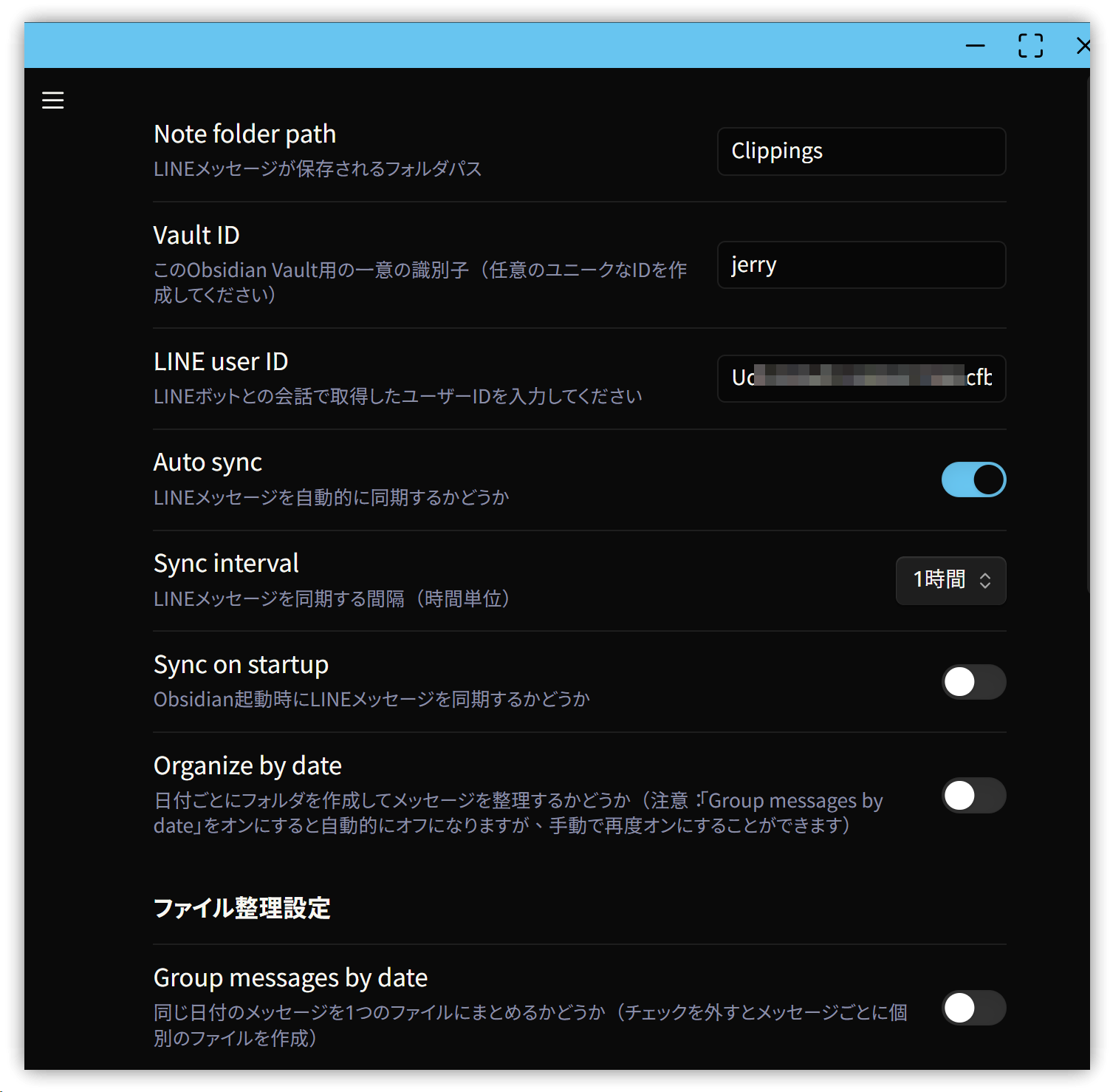
On your computer: Install and enable the LINE Notes Sync plugin in Obsidian, then go into its settings:
- Note folder path: The Obsidian folder where the messages will be synced.
- Sync interval: How often synchronization happens, from 1 hour to 5 hours.
- Organize by date: Whether to create subfolders by date in the storage folder.
-
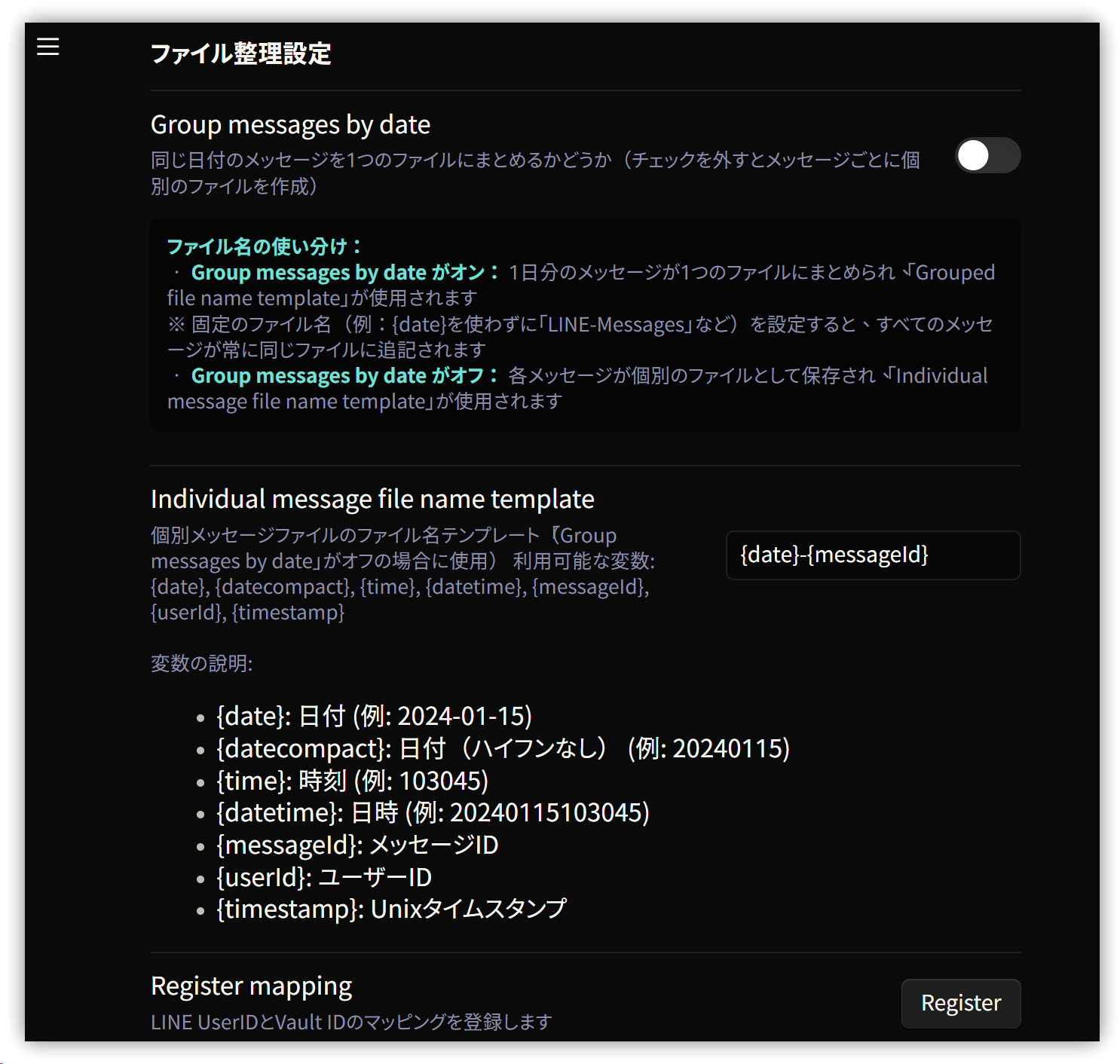
Configure the filename format for storing LINE messages. The default format is
date-messageID, for example,2025-08-25-575921195258478974.md. -
There are multiple variables available below to customize the filename template.
-
After you've finished the settings, click "Register" on the far right.
3. Sync Command
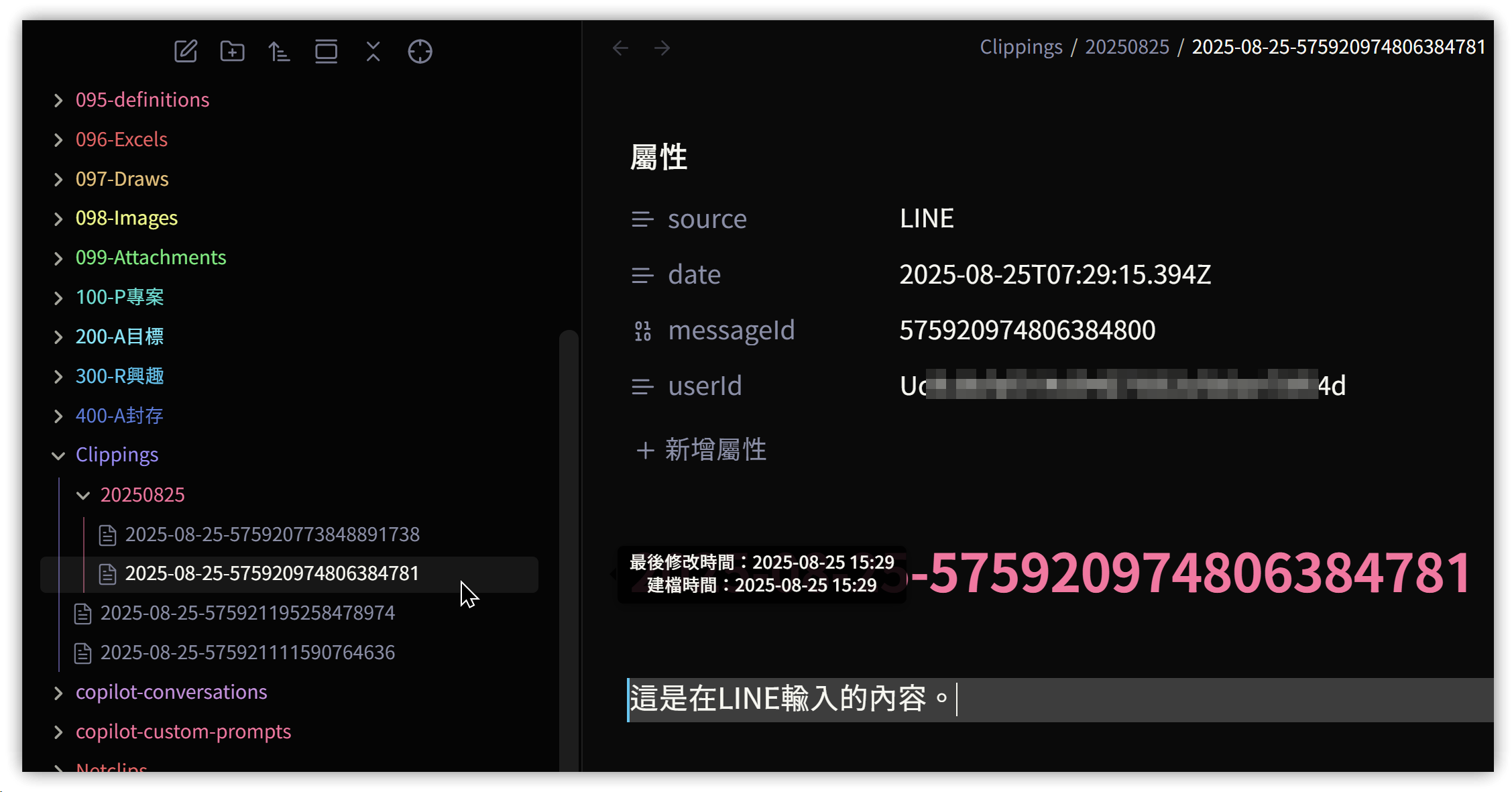
In addition to automatic synchronization, you can also press Ctrl/Cmd+P to execute the "LINE Notes Sync: Sync LINE messages" command. Each message will be stored as a .md file.
4. 💡 Related Links
✅ Explanation Article (Traditional Chinese): https://jdev.tw/blog/8892/
✅ Explanation Article (English)
✅ Explanation Article (Japanese)