
The Copilot plugin provides integration with the following 11 LLMs (Large Language Models):
- GPT-3.5
- GPT-3.5 16K
- GPT-4
- GPT-4 TURBO (Default)
- GPT-4 32K
- Azure OpenAI
- Claude 3
- Gemini Pro
- OpenRouter.AI
- OLLMA (Local)
- LM Studio (Local)
Among these, OLLMA and LM Studio are local model applications that can be installed on your machine, making them well-suited for the locally-focused Obsidian.
Consider this: Notes containing confidential or private information are stored securely locally, inaccessible to others. However, to use AI features like summarization, synthesis, analysis, or learning, you might need to upload them to a cloud-based AI model. Doesn't this contradict the 'local-first' concept?
Fortunately, Copilot integrates two open-source, free-to-use LLMs, allowing us to perform Q&A operations on notes or the entire vault within Obsidian using OLLAMA or LM Studio.
Since the LLM environments and model files are installed locally, their performance is constrained by your computer's hardware. It is recommended that your computer has sufficient processing power, preferably with ample memory and a GPU.
1. Copilot Settings
- The default LM Studio Server URL is
http://localhost:1234/v1. Change the port according to your installation, e.g.,http://localhost:51234/v1. - Ensure
OLLAMA_ORIGINSis set correctly. - The default model used by Ollama is
llama2. If Ollama loads a different model on startup, you must change this setting, for example, tollama2-chinese. - The default Ollama URL is
http://localhost:11434, which usually does not need to be changed.
Be sure to click [Save and Reload] at the top after modifying the settings!
2. Copilot Operation Overview
Copilot has the following 3 interaction modes:
- Chat
- Long Note QA
- Vault QA
For the latter two modes, indexing occurs automatically when switching modes, or you can re-index by clicking the button to the right of the mode menu.
2.1. Chat Mode
- Select a piece of text in a note, press <span class='keybs'> Ctrl+P</span> to open the command palette, type copilot, and then click the command you want to execute, e.g., Translate selection, Summarize selection, etc.
- Enter any text in the Copilot panel and press [Send] to get an answer.
- Typing
[[in the Copilot panel will bring up the note selection menu, allowing you to perform Q&A chat based on the selected note.
2.2. Long Note QA Mode
Q&A operations targeting the current note.
2.3. Vault QA Mode
Q&A operations targeting the entire vault.
3. LM Studio
- In the leftmost folder icon in the sidebar, you can change the storage location for models. If your C drive has limited space, remember to change it to another drive first.
3.1. Download Models
- Search for
llama2orllama2-chinese→ [Go]. Select any model on the right and click [Download].
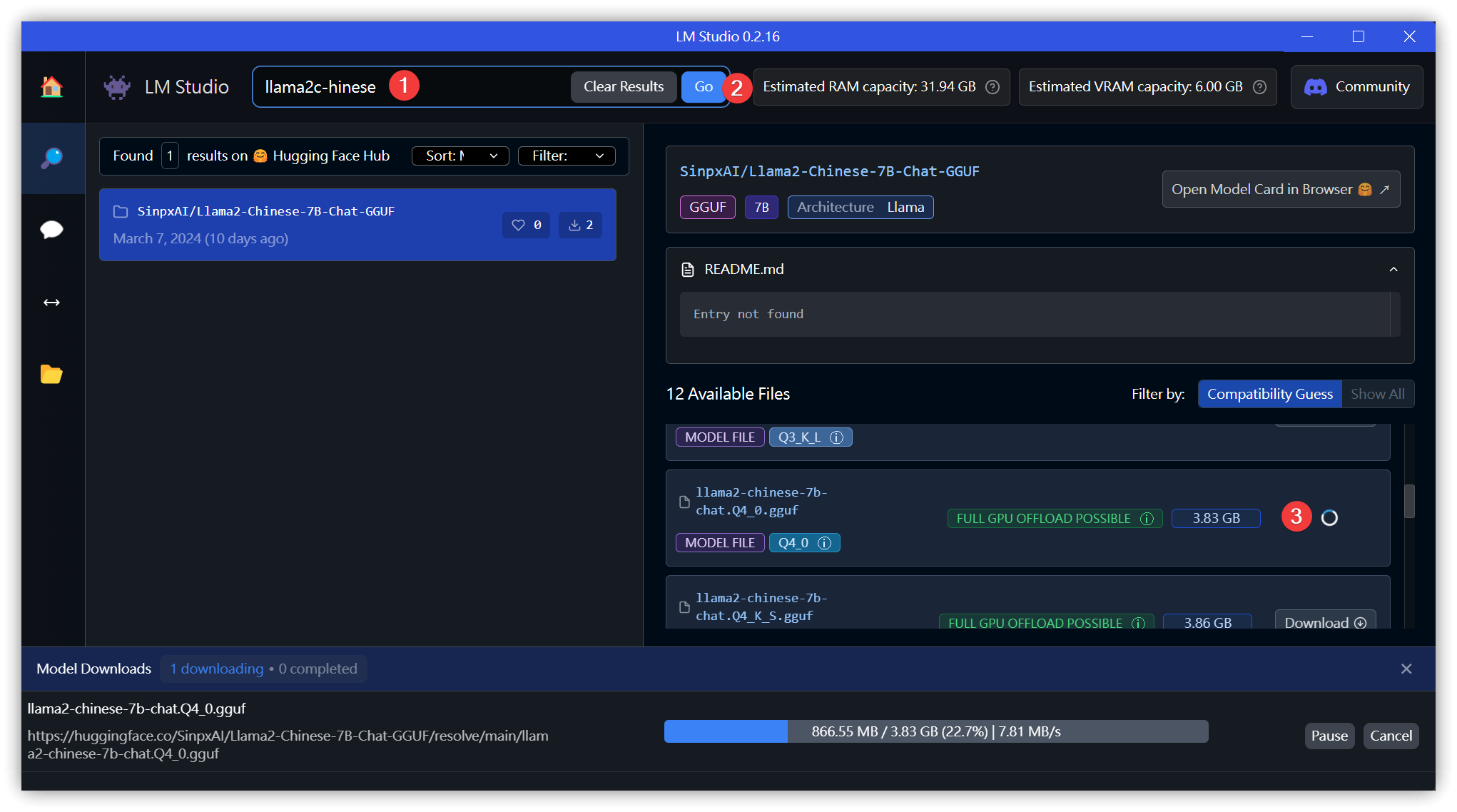
3.2. Chat
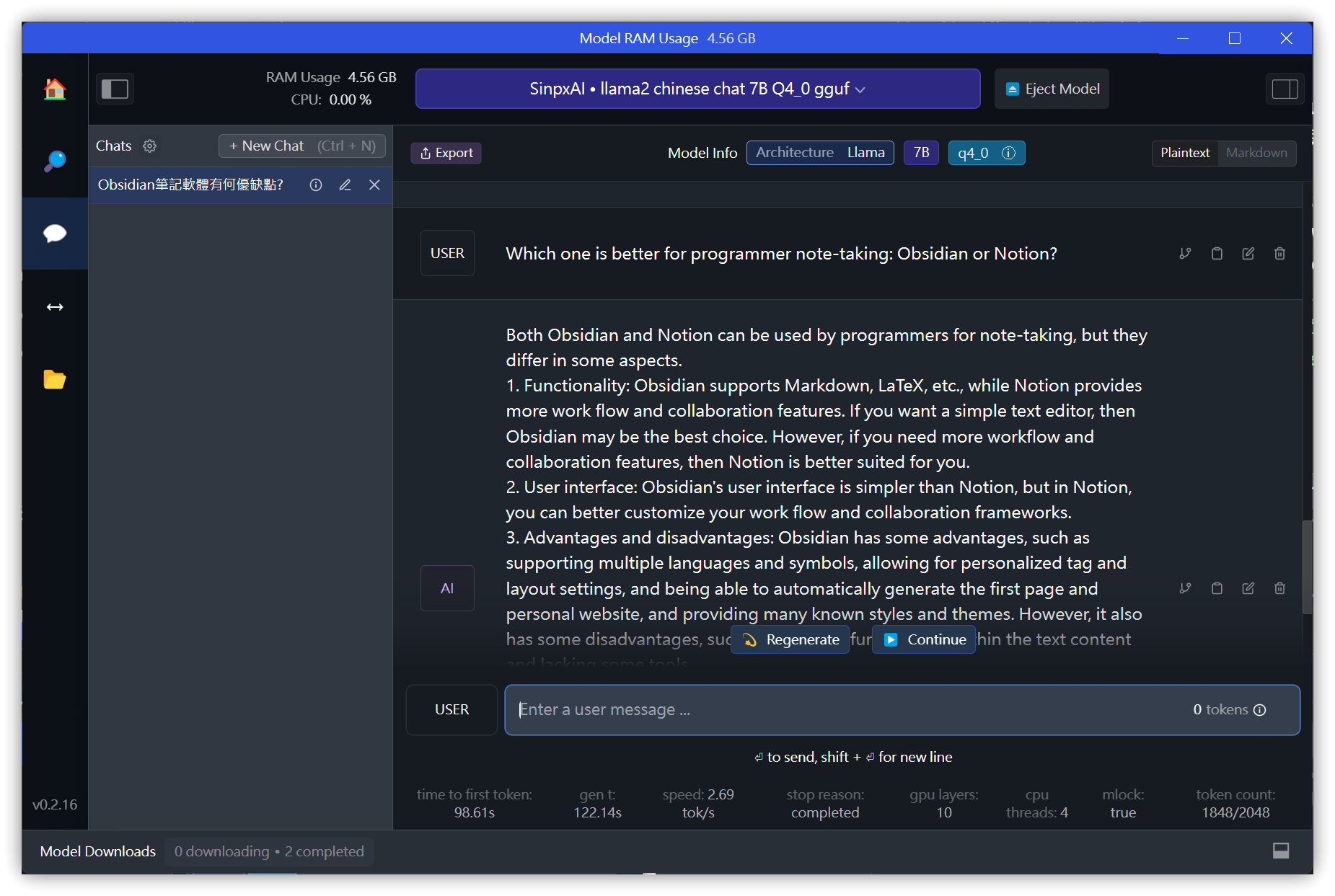
3.3. Start Local Server
- If the default port 1234 fails to start (Error code: -4092), change it to port 51234.
- Cross Origin Resource Sharing (CORS): Must be enabled, otherwise external sources cannot call the API.
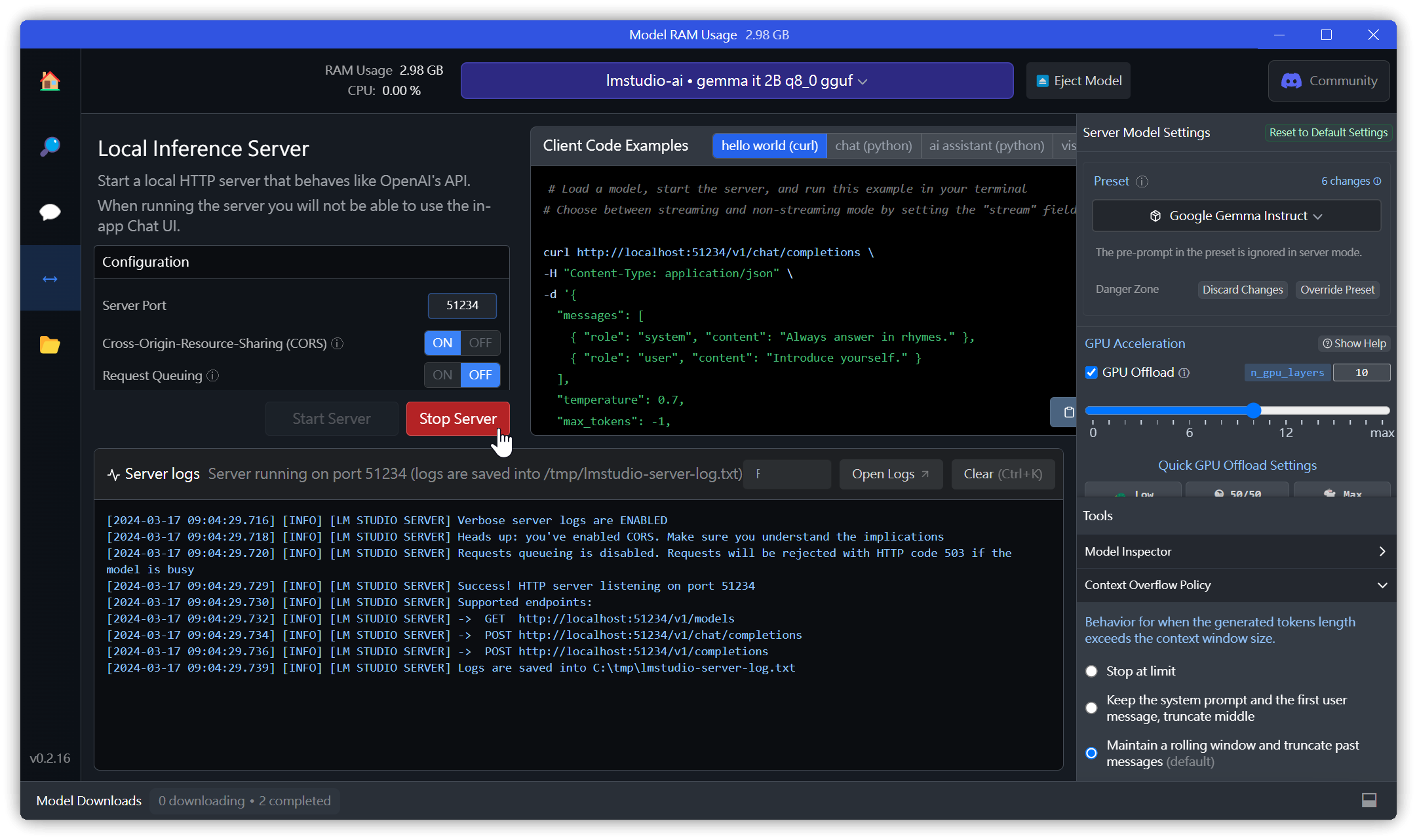
Test:
curl http://localhost:51234/v1/chat/completions ^
-H "Content-Type: application/json" -d^
"{^
  \"messages\": [ ^
    { \"role\": \"system\", \"content\": \"Always answer in rhymes.\" },^
    { \"role\": \"user\", \"content\": \"Introduce yourself.\" }^
  ], ^
  \"temperature\": 0.7, ^
  \"max_tokens\": -1,^
  \"stream\": false^
}"
4. OLLAMA
4.1. Installation
- First, set environment variables: Settings → System → About → Advanced system settings → Environment Variables → System variables (below) → Add the following three environment variables
- Use
OLLAMA_MODELSto change the default model storage folder. OLLAMA_ORIGINSsets the external origins allowed for Cross-Origin Resource Sharing.- If you cannot connect using the default
app://obsidian.md* ollama serve, change it toapp://obsidian.md*.
- If you cannot connect using the default
- Use
set OLLAMA_HOST=127.0.0.1
set OLLAMA_MODELS=d:\ollama\models
rem set OLLAMA_ORIGINS=app://obsidian.md* ollama serve
set OLLAMA_ORIGINS=app://obsidian.md*
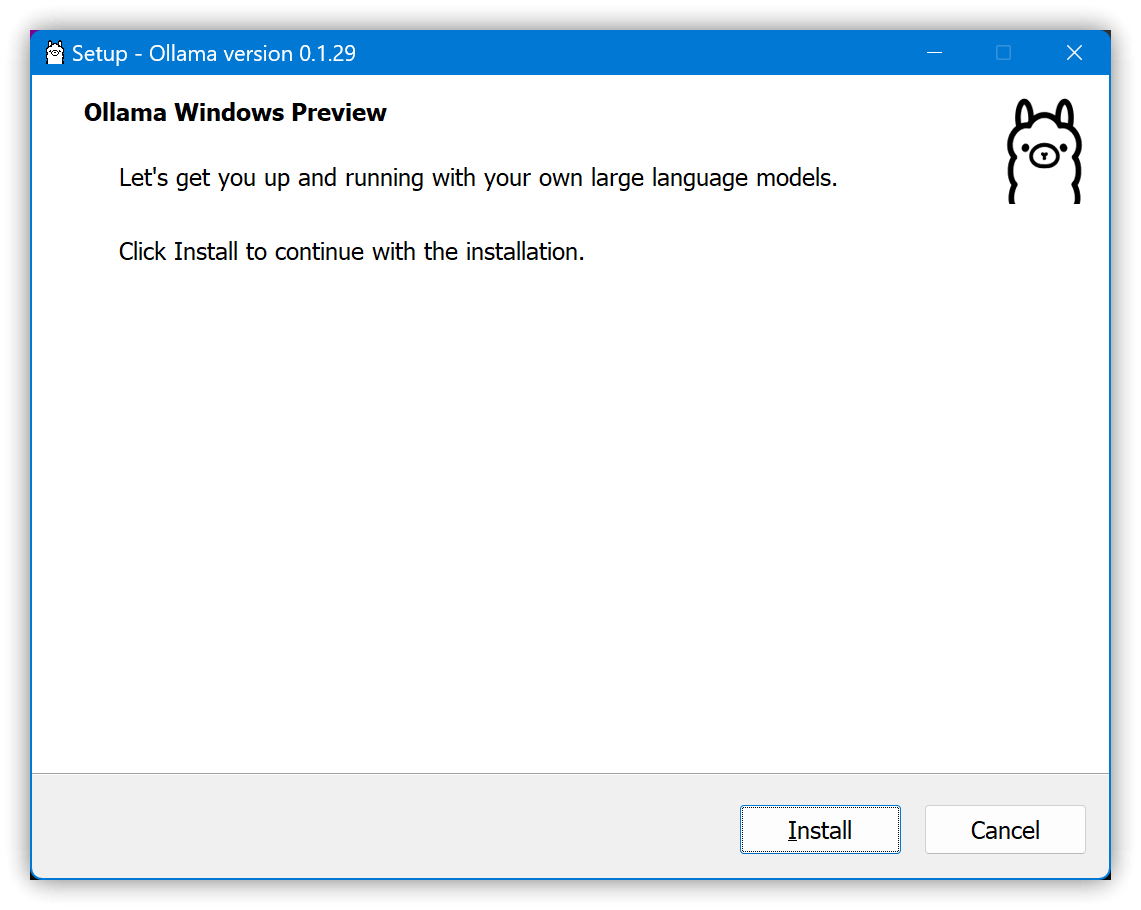
-
Default executable location:
C:\Users\<AccountName>\AppData\Local\Programs\Ollama\
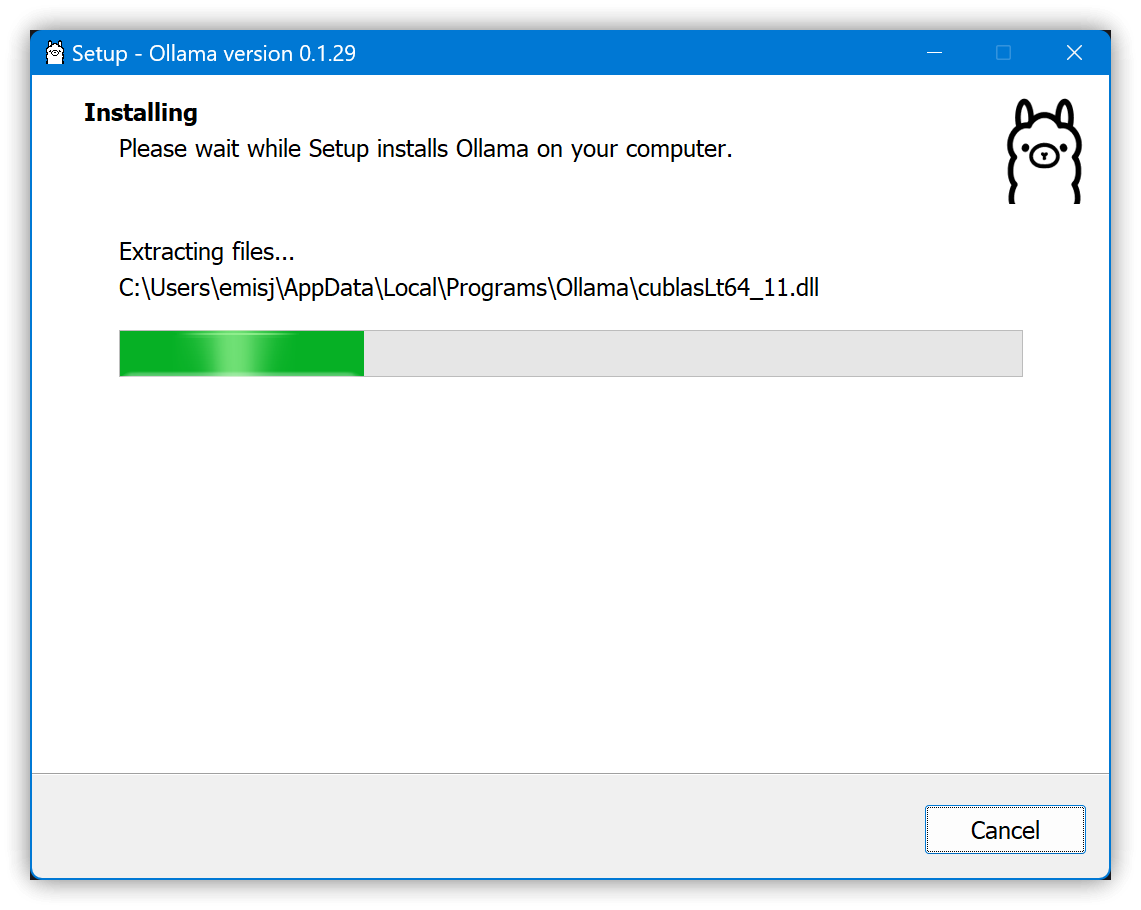
-
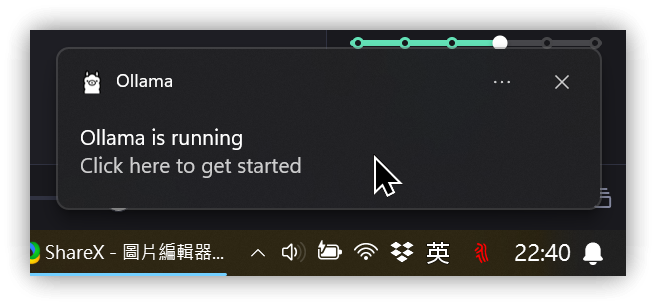
Clicking it will launch PowerShell and execute
ollama run llama2. -
If PowerShell does not pop up, you can open a Terminal yourself and execute the following commands:
ollama pull llama2
ollama run llama2
- The
llama2model can also be replaced withllama2-chinese, which is adjusted for Chinese.
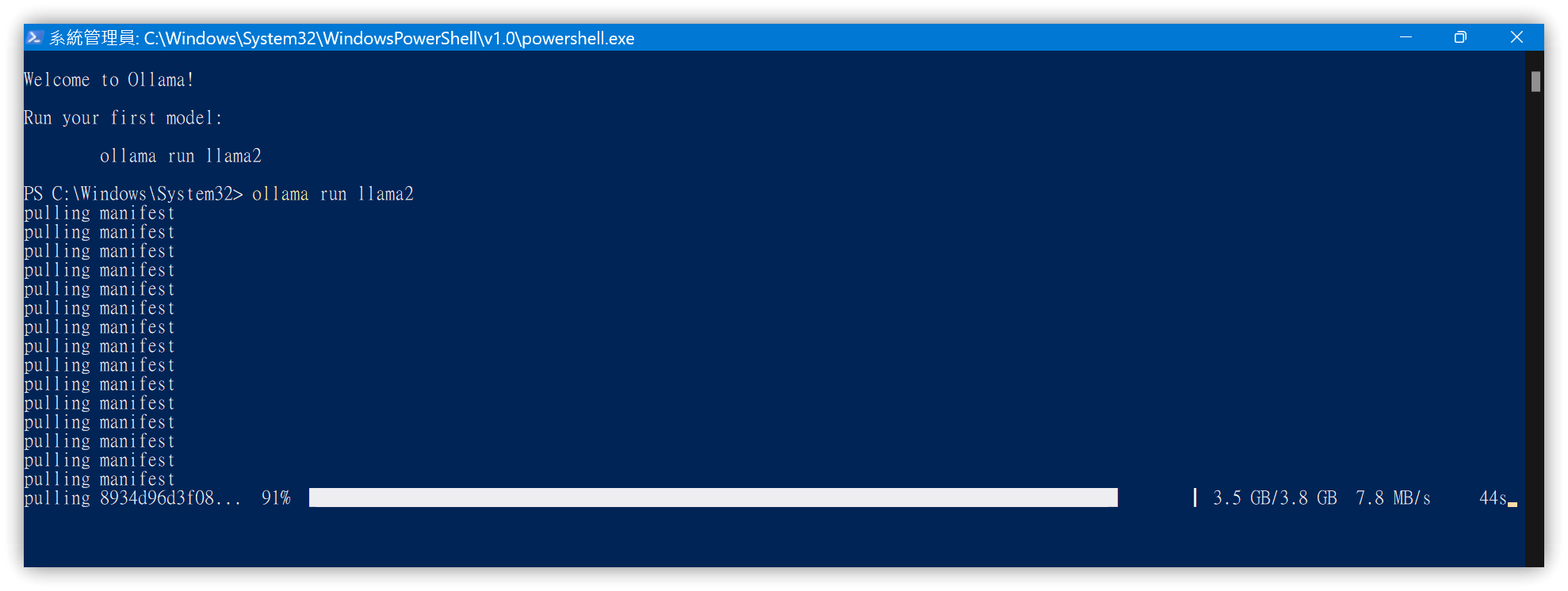
-
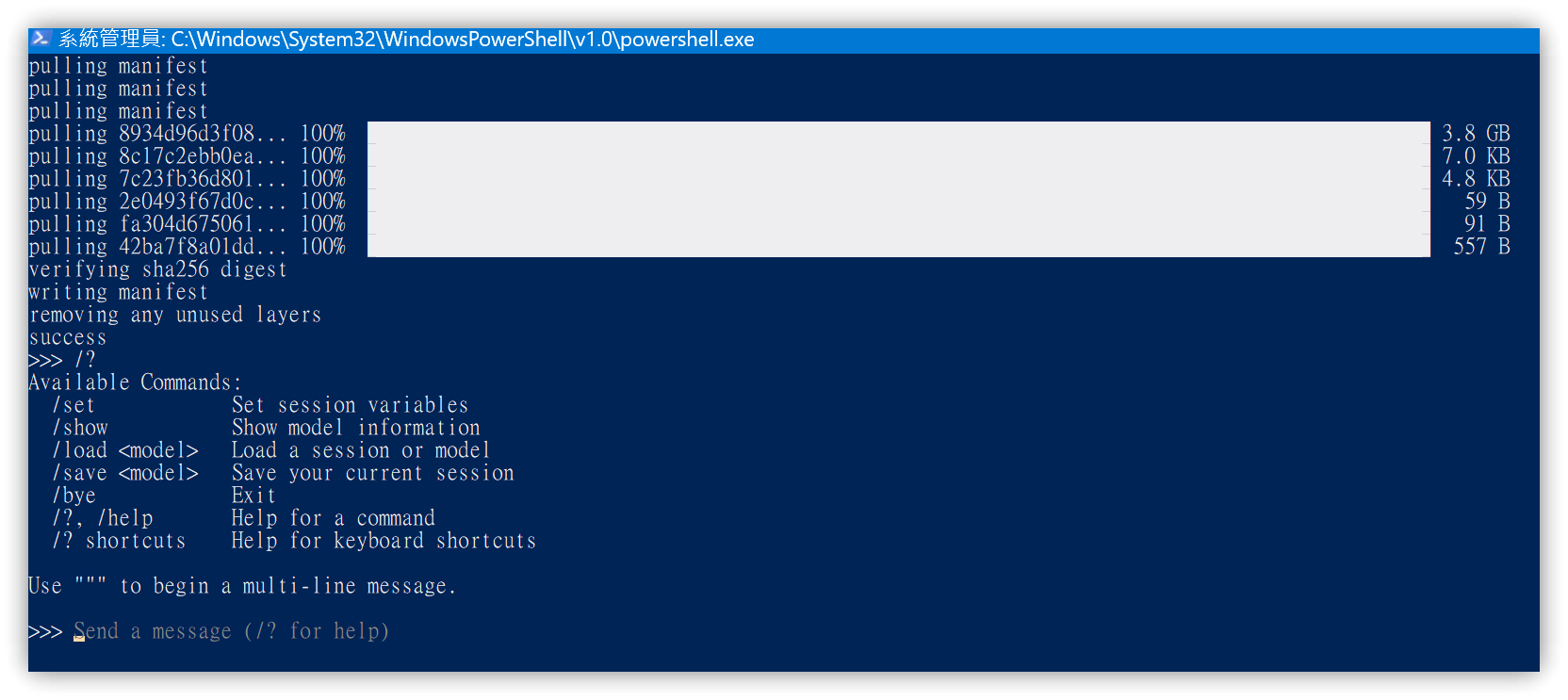
Automatically downloads the llama2 model.
-
Use
/?to display available commands.
4.2. CORS Error
- If
OLLAMA_ORIGINSis not set correctly, a CORS error will occur during Chat.

Use /bye in the Terminal to exit the command-line Ollama. However, the Ollama App.exe might still be running in the system tray; remember to stop it as well.
5. 💡 Related Links
💡 Explanatory Article: https://jdev.tw/blog/8385/
✅ logancyang/obsidian-copilot: A ChatGPT Copilot in Obsidian
✅ Download Ollama: https://ollama.com/download
✅ Ollama library
✅ Ollama GitHub : https://github.com/ollama/ollama
✅ Ollama FAQ: https://github.com/ollama/ollama/blob/main/docs/faq.md#faq
✅ LM Studio: https://lmstudio.ai/
✅ Tutorial Sharing 【LM Studio】The best program interface for running language models. Use language models without special setup | Convenient management and use of multiple models. Quickly set up servers compatible with OpenAI