

Watch Once, Refer Forever: Convert Any Video to Local Markdown Notes with an AI Assistant
🚀 Convert videos to Obsidian notes with HoverNotes
✨ Transform tutorials, lectures, or any video into structured notes and save them instantly to your Obsidian vault. No uploads, no cloud storage—a purely local and private note-taking experience.
✅ Compatible with platforms like YouTube, Udemy, Coursera, etc.
✅ Powered by Google Gemini AI for real-time, accurate automatic note generation. (Runs in the cloud)
📥 Install now and capture knowledge effortlessly!
1. Feature Description
While watching a video, HoverNotes displays a note editing area on the side, allowing you to write notes in Markdown format yourself (similar to Notion). More conveniently, you can take screenshots and use AI to summarize key points (using Google Gemini), outputting them synchronously to a specified folder in Obsidian. This significantly speeds up the process of generating video summaries. Therefore, the future procedure for learning from videos might become: watch the video with HoverNotes to generate key points → review the points for an initial understanding → re-watch the video yourself and revise the points. This should enable more efficient and effective learning.
2. Key Operations
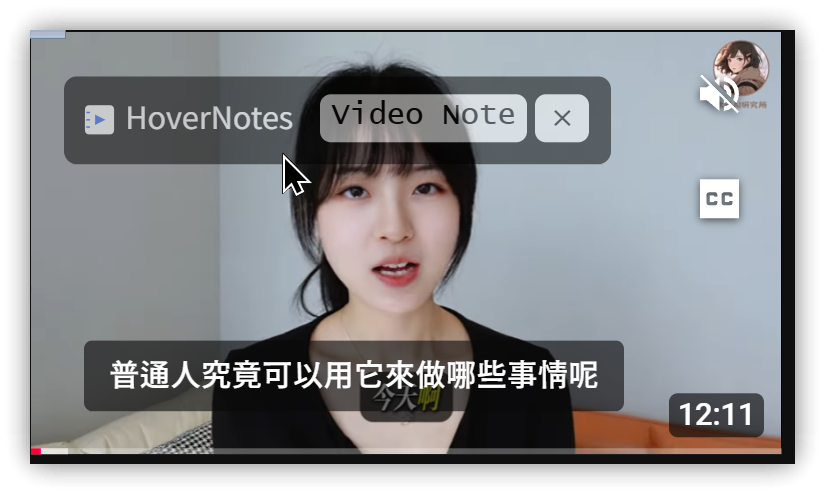
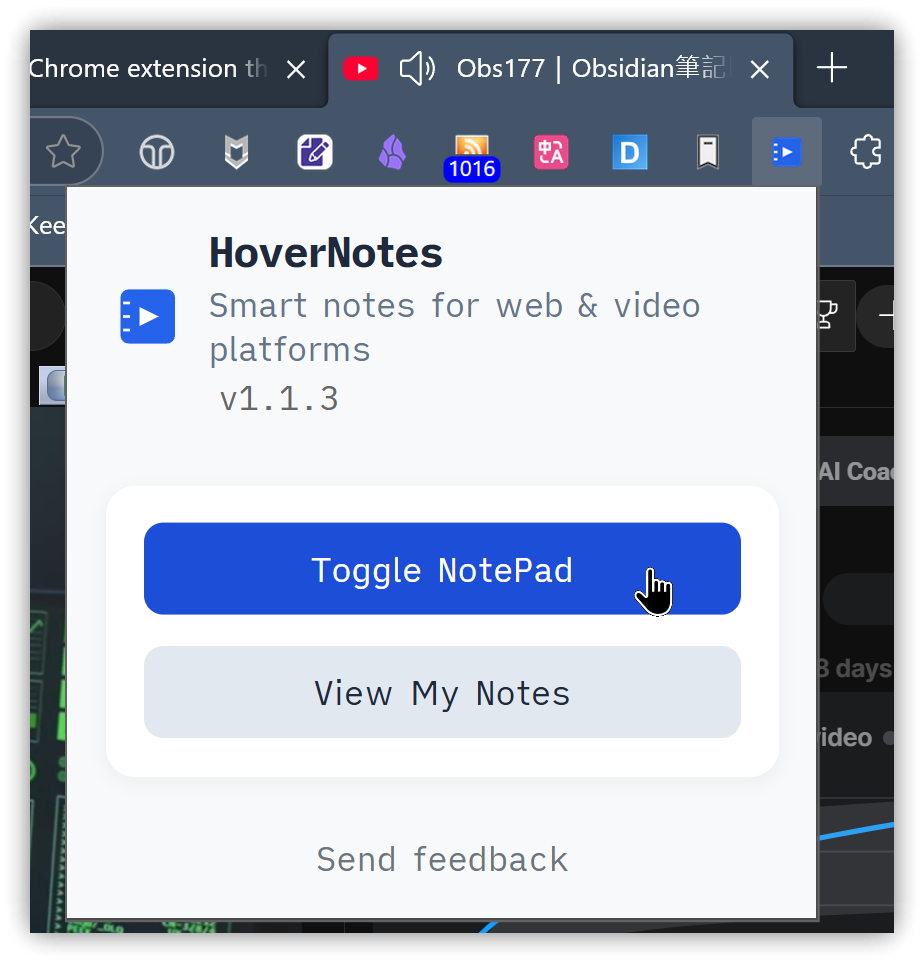
- When browsing a video, click the HoverNotes icon or hover your mouse cursor over the video and then click 【Video Note】.
- Click 【Toggle NotePad】 to enter the note editing panel.
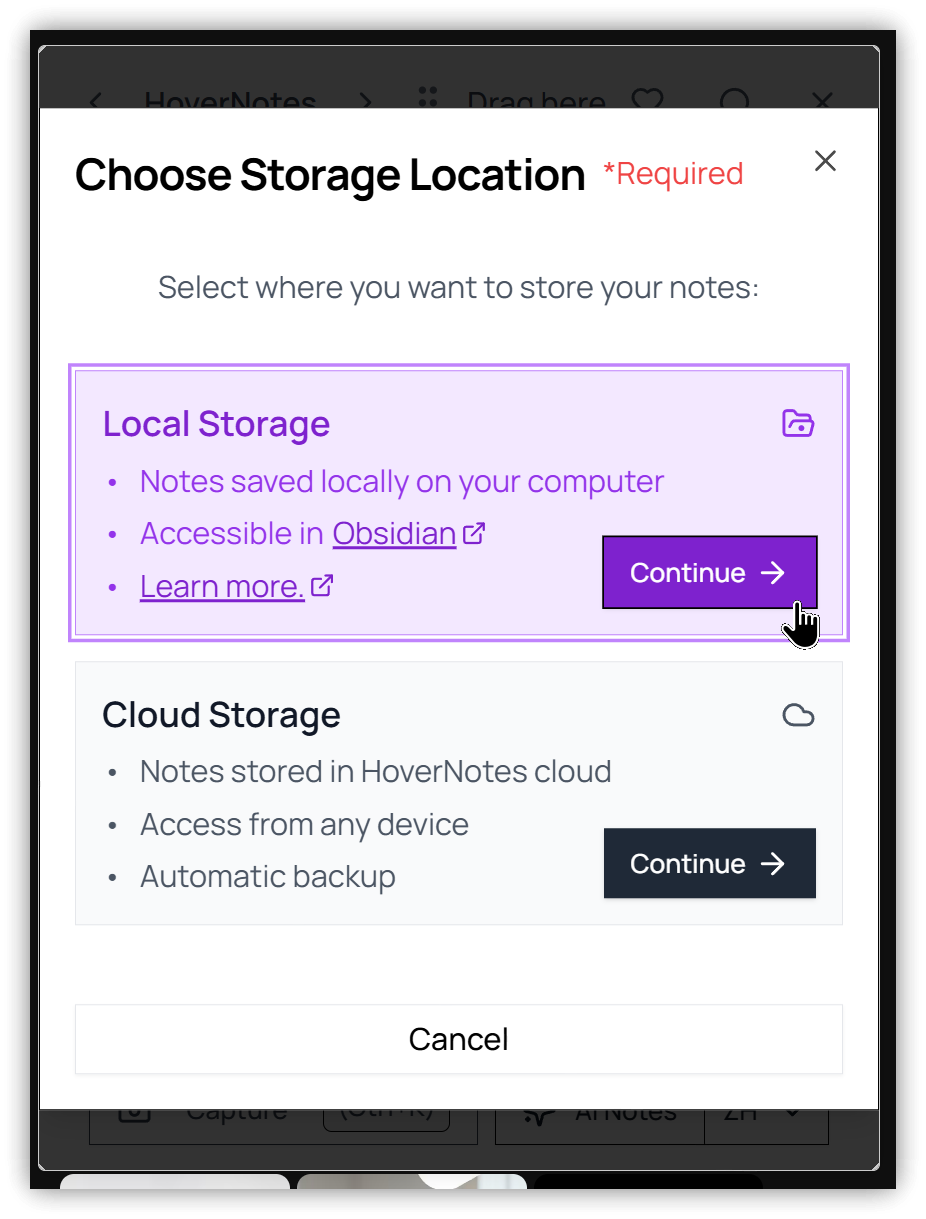
- Specify the Obsidian folder where you want to store your study notes. When taking screenshots, the image files will be saved in the
hover-notes-imagessubdirectory within this folder.
- After connecting to Obsidian, you can name the note. Change "Untitled" (in red) to your desired note title, then start playing the video.
- Click "AI Notes" at the bottom to enable automatic summary generation. Remember to first select the language for the notes to be generated in.
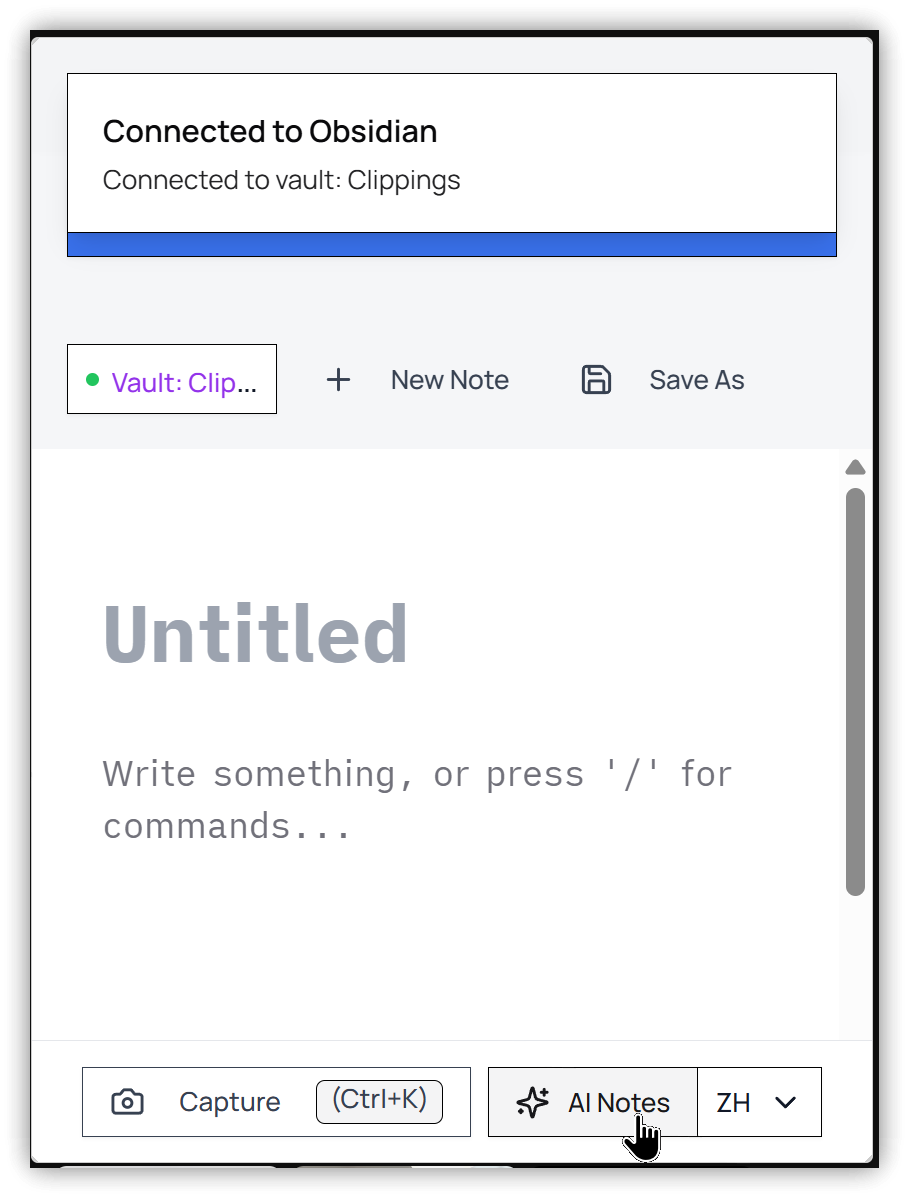
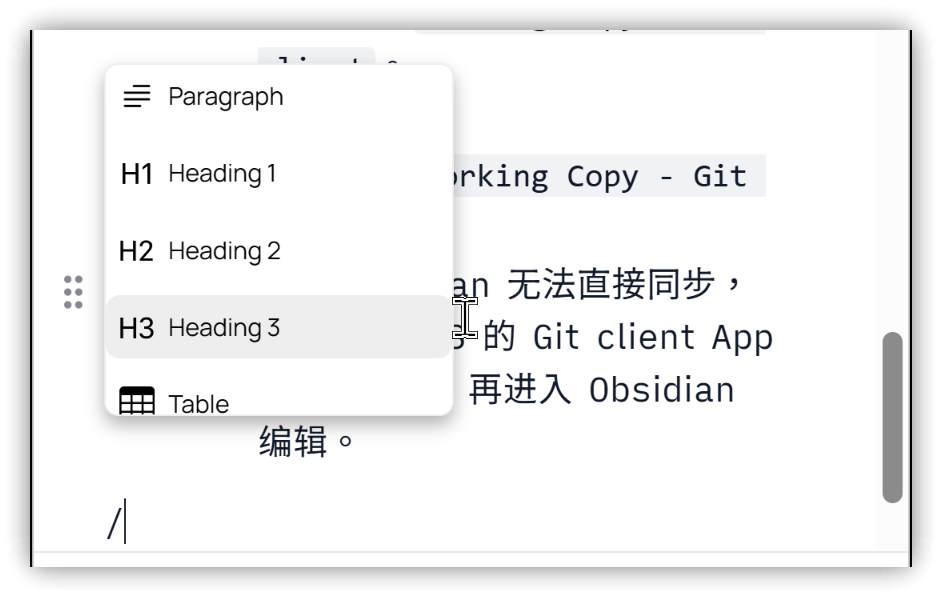
- During video playback, key points will be automatically generated ("Making your notes..."). You can also input points manually. Typing "/" will bring up a small Markdown command window.
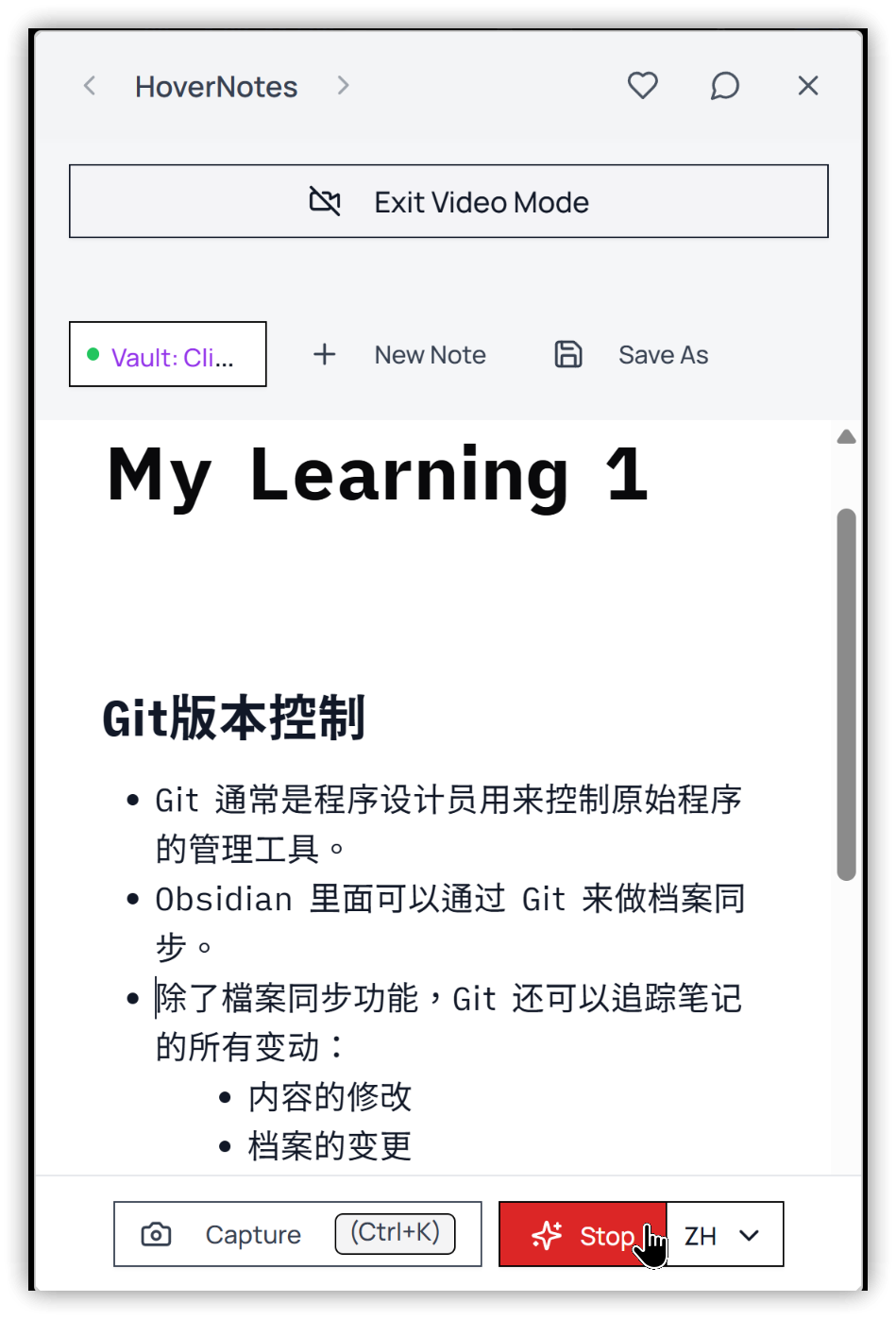 
- Click "Capture" at the bottom to take a screenshot of the current video frame.
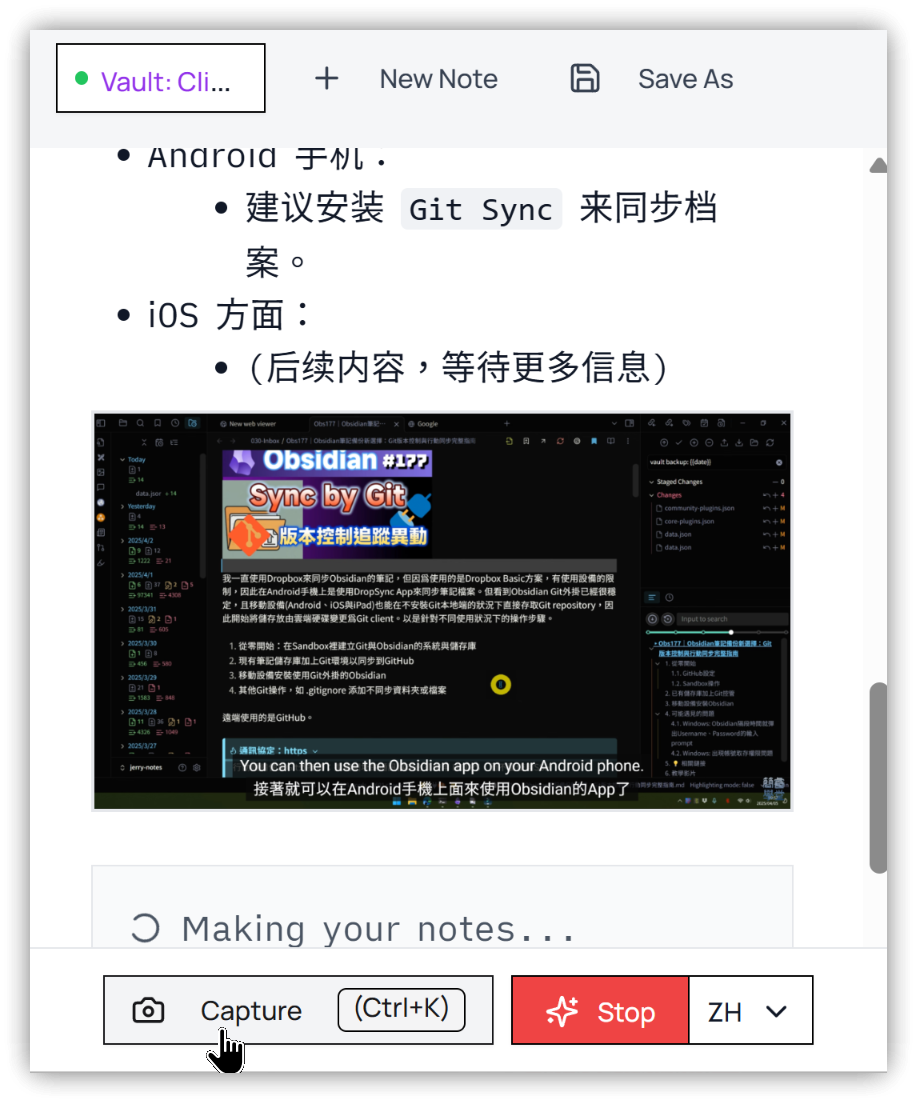
- You can find the video study notes in the output folder within Obsidian.
If you use note-taking software other than Obsidian, that's okay too. You can still use the 【Save As】 button at the top to save the notes to a specified local folder.
3. 💡 Related Links
💡 Explanation article (Traditional Chinese): https://jdev.tw/blog/8752/
💡 Explanation article(English): https://quaily.com/jdevtw-en/p/knowledge-extraction-techniques-hovernotes-ai-video-to-obsidian-notes-markdown-format
💡 解説記事(日本語): https://quaily.com/jdevtw-jp/p/knowledge-extraction-techniques-hovernotes-ai-video-to-obsidian-notes-markdown-format
✅ HoverNotes Extension: Convert videos to Obsidian notes (Supports YouTube, Udemy, Coursera, etc.): https://chromewebstore.google.com/detail/hovernotes%EF%BC%9A%E5%B0%87%E5%BD%B1%E7%89%87%E8%BD%89%E6%8F%9B%E7%82%BA-obsidia/fhdmbhgpabjkadpaafomaabbdckofphm
✅ HoverNotes Official Website: https://hovernotes.io/