
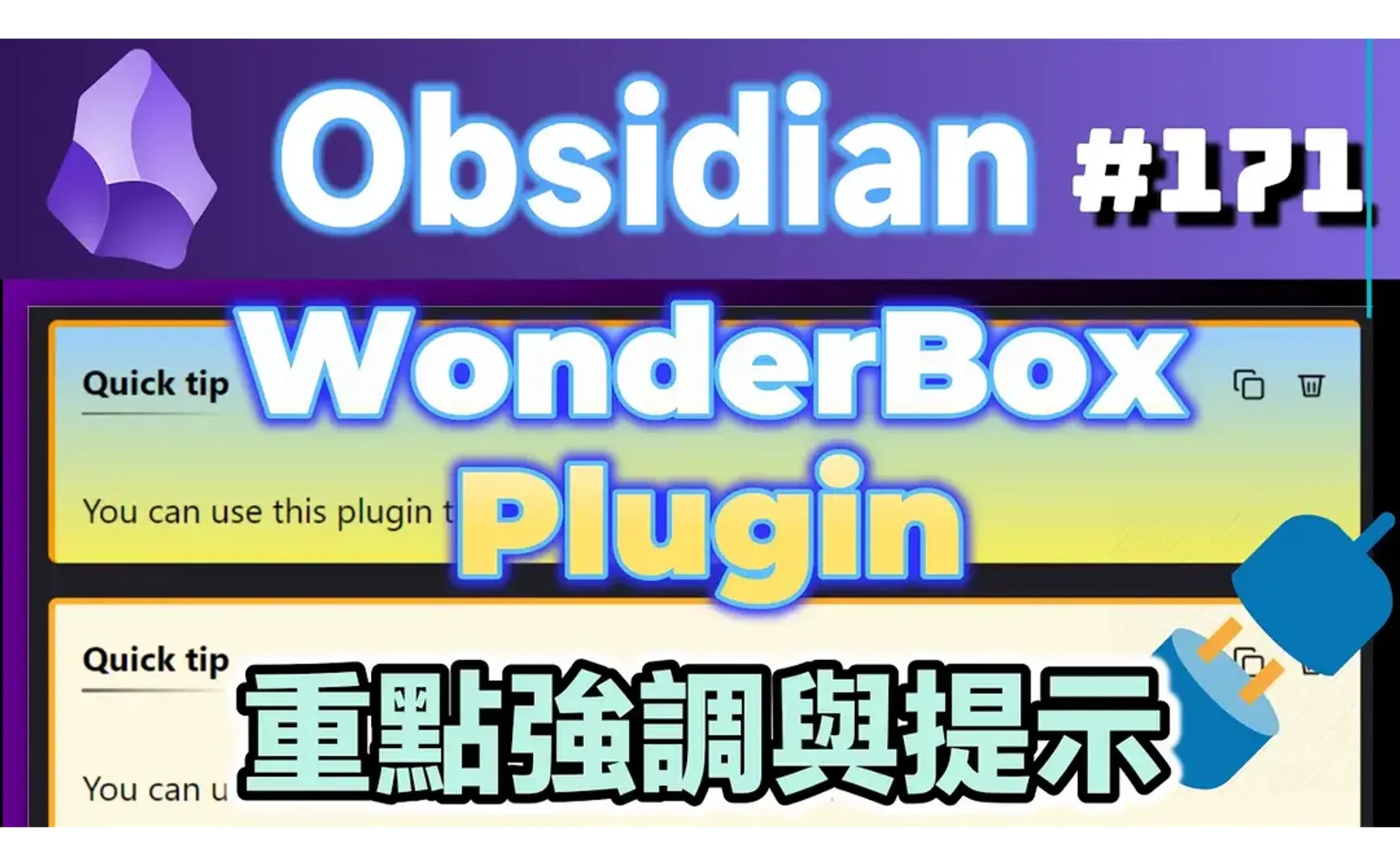

The WonderBox plugin provides stylized blocks similar in appearance to Callouts, offering features for emphasizing content and highlighting key points. Currently, WonderBox only displays correctly in Reading Mode.
- In Reading Mode, WonderBox within code blocks still renders.
- In Preview Mode, WonderBox within Callouts still renders.
The syntax format for WonderBox is similar to Pandoc's fenced divs, but not exactly the same:
::: {.callout data-callout="note" title="Note Title"}
Note content
:::
1. WonderBox Syntax
The block to be displayed begins and ends with three colons (:::). The display format follows the opening colons, and the display title is enclosed in square brackets ([]) that follow.
Content
:::
The following display formats are available:
- tip
- info
- note
- warning
- danger
- success
- error
- critical
- debug
- update
- question
- announcement
- progress
- highlight
2. Examples
:::highlight[Quick tip]
You can use this plugin to organize your notes efficiently!
:::

:::debug[🪲 Debug]
tp.system.**prompt**("Input content:", clip, false, true)
 $$\sum_{i=0}^n i^2 = \frac{(n^2+n)(2n+1)}{6}$$
:::
- Minor rendering issues occur with LaTeX expressions.
You can use this plugin to organize your notes efficiently!
tp.system.prompt("Input content:", clip, false, true)
$$\sum_{i=0}^n i^2 = \frac{(n^2+n)(2n+1)}{6}$$
3. Templater Script + Hotkey for Quick Input
- Create
Cmd-WonderBox.mdin your Templater templates folder:
<%*
let lstWonderBoxes = {
  "🔥 tip" : "tip,Tip",
  "ℹ️ info" : "info,Info",
  "✏️ note" : "note,Note",
  "⚠️ Warning" : "warning,Warning",
  "⚡ Danger" : "danger,Danger",
  "✅ Success" : "success,Success",
  "❌ Error" : "error,Error",
  "⛔ Critical" : "critical,Critical",
  "🪲 Debug" : "debug,Debug",
  "🛠️ Update" : "update,Update",
  "❓ Question" : "question,Question",
  "📋 Announcement" : "announcement,Announcement",
  "📊 Progress" : "progress,Progress",
  "💡 Highlight" : "highlight,Highlight"
 };
let keys = Object.keys(lstWonderBoxes);
// from = await tp.system.suggester(Object.keys(froms), Object.values(froms),false,'Please select')
key = await tp.system.suggester(keys, keys, false, "Please select one");
if (!key) return;
let clip = await navigator.clipboard.readText();
// tp.system.prompt("Input content:", default_value, throw_exception, multi-line)
let body = await tp.system.prompt("Input content:", clip, false, true);

let symbol = key.substring(0,2);
let value = lstWonderBoxes[key];
let index = value.indexOf(",");
let text = value.substring(index+1);
value = value.substring(0, index);
if (key) return `:::${value}[${symbol} ${text}]\n${body}\n:::\n`;
%>
-
In the Templater plugin options, under Template Hotkeys, set a hotkey for
Cmd-WonderBox.md.

-
In the Hotkeys settings, assign a hotkey to
Templater: Insert Cmd-WonderBox.md. The example below sets it to <span class='keybs'>Alt+W</span>.

You can use this plugin to organize your notes efficiently!
4. Pandoc
Note content
> [!NOTE]- Note Title
>
> Note content
Pandoc:
::: {.callout data-callout="note" title="Note Title"}
Note content
:::
- Convert an
.mdfile containing Obsidian Callouts format to Pandoc fenced-div format.mdfile:
pandoc -t markdown --lua-filter obsidian-callouts.lua your_file.md
- obsidian-callouts.lua
local stringify = (require "pandoc.utils").stringify

function BlockQuote (el)
    start = el.content[1]
    if (start.t == "Para" and start.content[1].t == "Str" and
        start.content[1].text:match("^%[!%w+%][-+]?$")) then
        _, _, ctype = start.content[1].text:find("%[!(%w+)%]")
        el.content:remove(1)
        start.content:remove(1)
        div = pandoc.Div(el.content, {class = "callout"})
        div.attributes["data-callout"] = ctype:lower()
        div.attributes["title"] = stringify(start.content):gsub("^ ", "")
        return div
    else
        return el
    end
end
5. 💡 Related Links
💡 Explanation Article: https://jdev.tw/blog/8633/
✅Chrstn67/WonderBox
✅ https://pandoc.org/MANUAL.html#divs-and-spans
✅ Reference: Rendering callouts similarly in Pandoc - Help - Obsidian Forum