

While the visual tables added in Obsidian v1.5 already provide editing capabilities, the Enhanced Tables plugin enhances tables in Reading mode with more control features, such as:
- Data beautification, allowing content to be presented more intuitively.
- Table pagination: Pagination controls eliminate the need for constant scrolling when viewing large datasets.
- Column sorting: Allows sorting specific columns in ascending or descending order.
- Data filtering: Enables specifying filtering conditions for columns.
- Data searching: Input keywords to filter data.
Although the Enhanced Tables plugin was released recently, its functionality is quite complete. While there are still some minor imperfections, its convenience shows great promise.
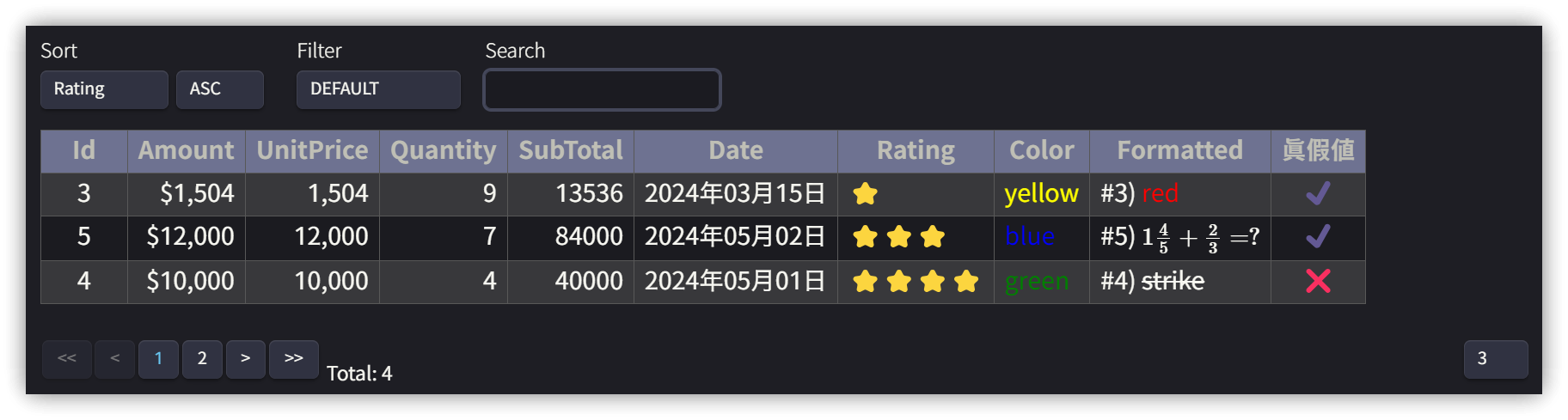
1. Add a Refresh Hotkey using Templater Hotkeys
Currently, after using Enhanced Tables, tables often fail to render correctly after modifying table properties, especially in a split view (e.g., left pane in Editing/Live Preview mode, right pane in Reading mode), where the right pane frequently fails to display correctly.
At this point, you need to refresh (reload) the page. However, Obsidian currently does not provide a command to refresh the page. We must use a Templater script and bind it to a hotkey to solve this (see the related links for another solution using the User Plugins plugin).
- Open the Templater plugin settings window, check the "Template folder location", and create a script file named
Cmd-reload-page.mdwithin that folder. - The content of
Cmd-reload-page.mdis as follows:
<%*
  app.workspace.activeLeaf.rebuildView();
%>
- In the Templater plugin settings window, under the "Template Hotkeys" list, click "Add new hotkey for template" → find
Cmd-reload-page.mdand press <span class='keybs'>Enter</span>. - Go to Settings → Hotkeys → find
Cmd-reload-page.mdand assign a key combination, for example, <span class='keybs'>Ctrl+R</span>. - While you're there, consider assigning a hotkey to the "Reload app without saving" command, for example, <span class='keybs'>Ctrl+Alt+R</span>. In the future, if you need to restart the Obsidian application, you can do it directly with this key combination.
2. Code Block Settings
To use Enhanced Tables, add a code block above the table. There must be a blank line between the code block and the table. The block uses YAML format, and the basic structure is as follows:
2.1. Table Structure
```yaml enhanced-tables
date-format: YYYY-MM-DD
datetime-format: YYYY-MM-DD HH:mm
yes-format: "Y"
no-format: "N"
editable: [true | false] # Whether editable
columns:
  # Table column definitions
filter: # Default filter condition
filters:
  # Filter menu settings
sort: # Default sort column name
pagination:
  page-size: # Entries per page
  page-sizes:
   - # Page size options
style: |
  # Custom styles (multi-line)
hide-controls: [true | false] # Whether to hide the control row
hide-configuration: [true | false] # Whether to hide the code block
```
2.2. Column Settings
Definitions for the column names in the first row of the table:
  ColumnName:
    alias: AliasName
    type: [string | number | date | datetime | time | enum | bool]
    hidden: [true | false]
    nowrap: [true | false]
    editable: [true | false]
    searchable: [true | false]
    number-format: "style:'currency', currency: 'TWD', minimumFractionDigits:0"
    date-format: "YYYY年MM月DD日"
    yes-format: "✅"
    no-format: "❌"
    formatter: "Formatting string, can be a JavaScript expression or Template literal"
    searchable: true
2.3. Expressions
- Variables:
$row,$cell - Column Access:
$row.ColumnName
2.4. Example
```yaml enhanced-tables
date-format: YYYY-MM-DD
yes-format: "Y"
no-format: "N"
# editable: true

columns:
  Amount:
    alias: amount
    type: number
    number-format: "style:'currency', currency: 'TWD', minimumFractionDigits:0"
    searchable: true
  UnitPrice:
    alias: price
    type: number
  Quantity:
    alias: qty
    type: number
  SubTotal:
    alias: subtotal
    type: number
    number-format: "style:'currency', currency: 'TWD', minimumFractionDigits:0"
    formatter: "eval(`${$row.price}*${$row.qty}`)"
  Date:
    type: date
    date-format: YYYY年MM月DD日 # Note: Format kept as original example
  Color:
    formatter: "`<span style='color:${$cell}'>${$cell}</span>`"
    nowrap: true
  Formatted:
    formatter: "`#${$row.Id}) ${$cell}`"
    nowrap: true
  Hidden:
    hidden: true
  Rating:
    type: enum
    enum:
      '1': '⭐️'
      '2': '⭐️⭐️'
      '3': '⭐️⭐️⭐️'
      '4': '⭐️⭐️⭐️⭐️'
      '5': '⭐️⭐️⭐️⭐️⭐️'
    searchable: true
  Boolean: # Translated from 真假值
    type: bool
    yes-format: "✔️"
    no-format: "❌"
filter: $row.amount > 1200
filters:
 Small numbers: $row.amount < 1200
 High rating: Number($row.Rating) > 3
sort: Rating
# sort: -Rating
pagination:
  page-size: 3
  page-sizes:
   - 3
   - 10
style: |
   th {
     background-color: var(--color-base-50) !important;
     color: var(--color-base-70) !important;
   }
# hide-controls: true
hide-configuration: true
```
| Id  | Amount | UnitPrice | Quantity | SubTotal | Date       | Rating | Color  | Formatted                        |       Hidden       |   Boolean  |
| :-: | -----: | --------: | -------: | -------: | ---------- | :----- | ------ | -------------------------------- | :----------------: | :--------: |
|  1  |    500 |       500 |       10 |          | 2024-03-05 | 2      | red    | _**bold**_                       | Text you won't see |            |
|  2  |   1000 |      1000 |       12 |          | 2024-04-10 | 5      | orange |                                  |                    |     N      |
|  3  |   1504 |      1504 |        9 |          | 2024-03-15 | 1      | yellow | <font color="#ff0000">red</font> |                    |     Y      |
|  4  |  10000 |     10000 |        4 |          | 2024-05-01 | 4      | green  | ~~strike~~                       |                    | whatever   |
|  5  |  12000 |     12000 |        7 |          | 2024-05-02 | 3      | blue   | $1\frac {4}{5}+\frac {2}{3}=?$   |                    |     Y      |
|  6  |  13000 |     13000 |       22 |          | 2024-05-03 | 4      | purple | `{js} alert('123');`             |                    |     N      |
2.5. formatter
The formatter uses JavaScript Template literals.
Template literals are string literals allowing embedded expressions. ${variable} extracts the value of the variable.
`Template literals example: string text ${expression} string text`
SubTotal's formatter:
formatter: "eval(`${$row.price}*${$row.qty}`)"
If $row.price is 500 and $row.qty is 10, the literal string becomes `500*10`.
Using eval(\500*10`)` executes this as a JavaScript calculation.
3. Related Links
💡 Explanatory article: https://jdev.tw/blog/8350/
✅ obsidian-enhanced-tables: https://github.com/pistacchio/obsidian-enhanced-tables
✅ NumberFormat: https://developer.mozilla.org/en-US/docs/Web/JavaScript/Reference/Global_Objects/Intl/NumberFormat
✅ Creating command to reload page: https://forum.obsidian.md/t/creating-command-to-reload-page/57906