
Today, I received the email for the Raycast for Windows Beta. After downloading version v0.37.13.0, I started testing it (on 2025/11/21 it auto-updated to version 0.38.0.0). I used to hear macOS friends “boast” about how Raycast significantly improved their computer workflow. Now, I can finally give it a proper try on Windows and pit it against other launchers.
1. Raycast for Windows Features
- App Launcher
- Raycast AI
- Calculator
- Clipboard History
- File Search
- Quicklinks
- Snippets
- Emoji Picker
- Extension Store
- Build Your Own Extensions
- Window Management Commands
- System Commands
2. App Launcher
The launcher is Raycast’s most basic function, and it operates similarly to typical Windows launchers:
- Press the configurable shortcut key Alt+Space.
- Enter the command or alias in the input bar:
- The list below will filter matching items.
- Double-click or press Enter to run the item.
- You can also press Ctrl+K or right-click to open the context menu.
3. Raycast AI
Type your question in the input bar, then press Tab to switch to the AI conversation view.
4. Calculator
4.1. Numeric Calculation
- Simply enter expressions directly in the input bar.
- Example:
3.14 + 2- Press Enter to copy the result to the system clipboard.
- Press Ctrl+Enter to paste it into an application.
- Press Ctrl+Alt+C to copy the problem and answer to the clipboard.
4.2. Unit Conversion
1" → 2.54 cm1 inch → 2.54 cm
4.3. Currency Conversion
1 ntd to krw→ 47 (you can omitto)1 rmb to ntd,1 cny to ntd→ 4.421 ntd to jpy→ 5
4.4. Time Zone Conversion
time sin(Singapore)time tokyo
4.5. Date Calculation
2025/11/21 - 2026/12/31→ 1 year 1 month 1 week 3 days
5. Clipboard History
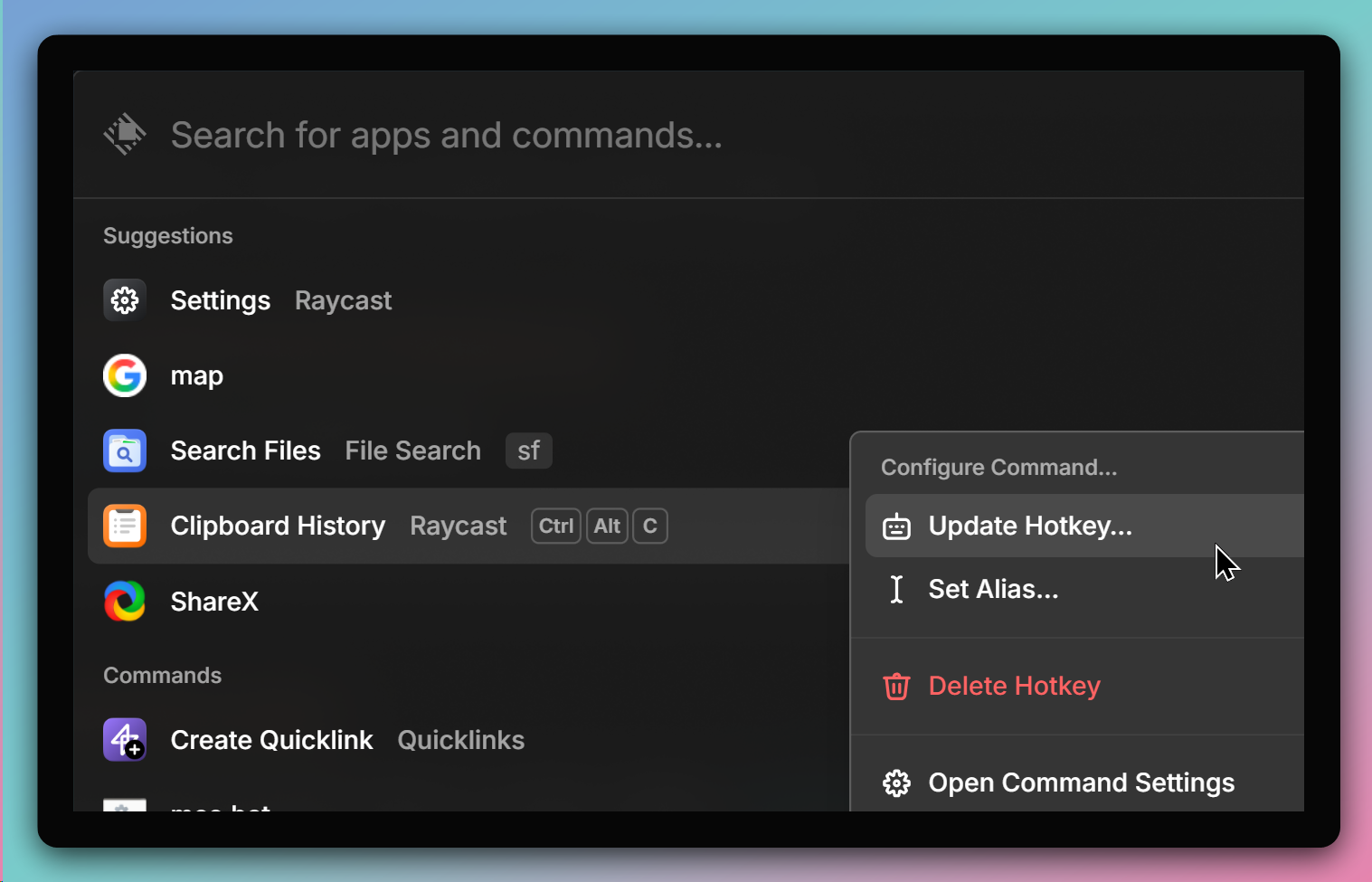
You can assign a global shortcut via Clipboard History → right-click menu → Configure Command... → Set Hotkey..., so you can quickly open it to copy items.
If you already use Ditto or CopyQ, you can skip this feature.
6. File Search
- Go to Settings → File Search → Search Scope to add folders for searching.
- You can set aliases (e.g.,
sf) for quick access. - After locating a file, its context menu offers several operations, such as Alt+Shift+C to copy its path.
7. Quicklinks
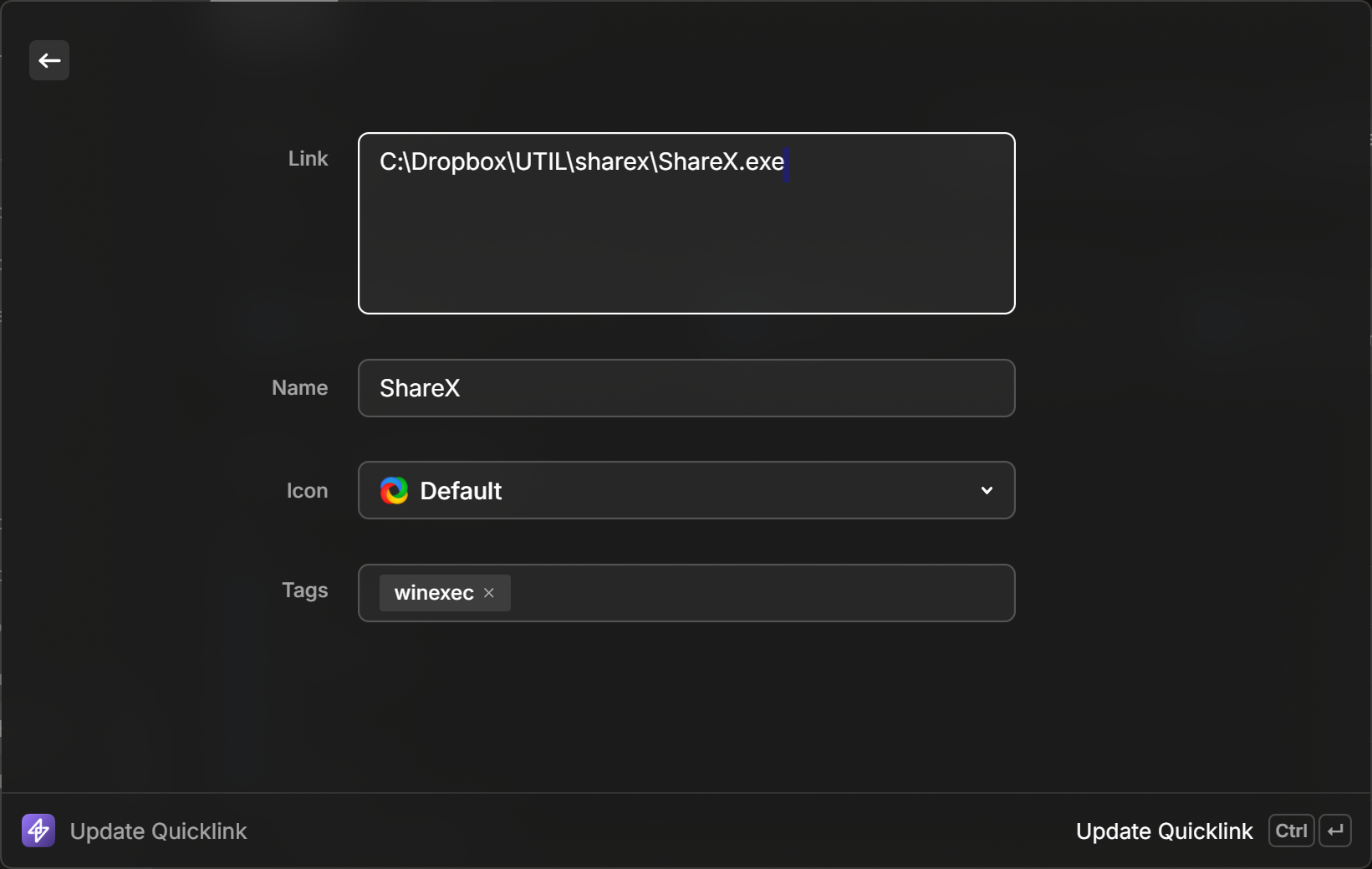
Executable files not in the PATH environment can be added as Quicklinks by typing create quicklink in the input bar. Later, you can fuzzy-search for its name and run it.
Currently, you can’t create Quicklinks by dragging or copying executables directly.
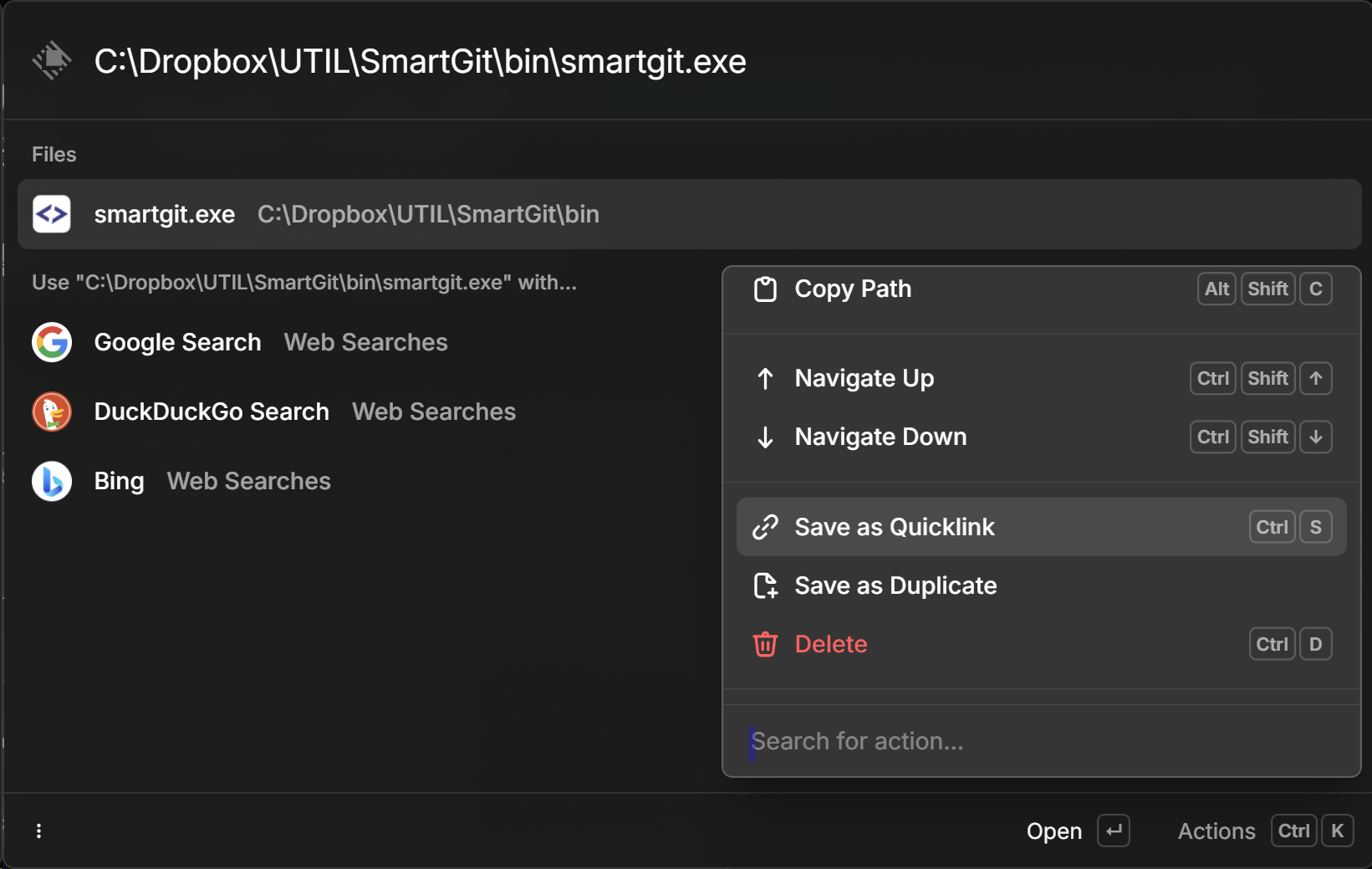
My workflow is to first find the executable using Everything search engine, then paste it into Raycast’s input bar and use the context menu Save as Quicklink.
7.1. Using {...} Parameters
Quicklinks can utilize various parameters in the Link field. Typing a left curly brace in the Link field will bring up a selection menu.
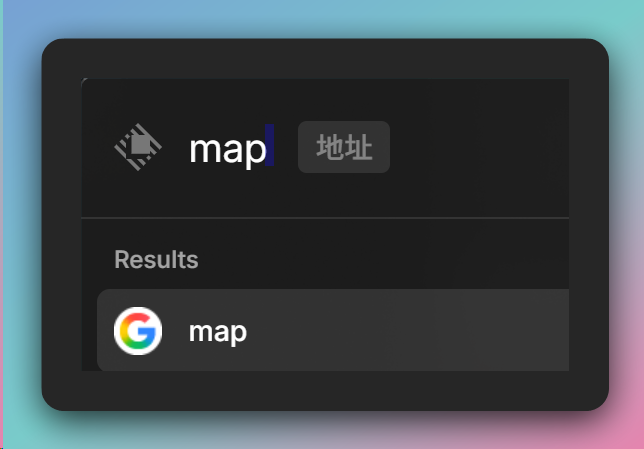
Example link (Name is map):
https://www.google.com/search?q={argument name="Address"}
Type map and press Tab or Enter to move to the address input field.
8. Snippets
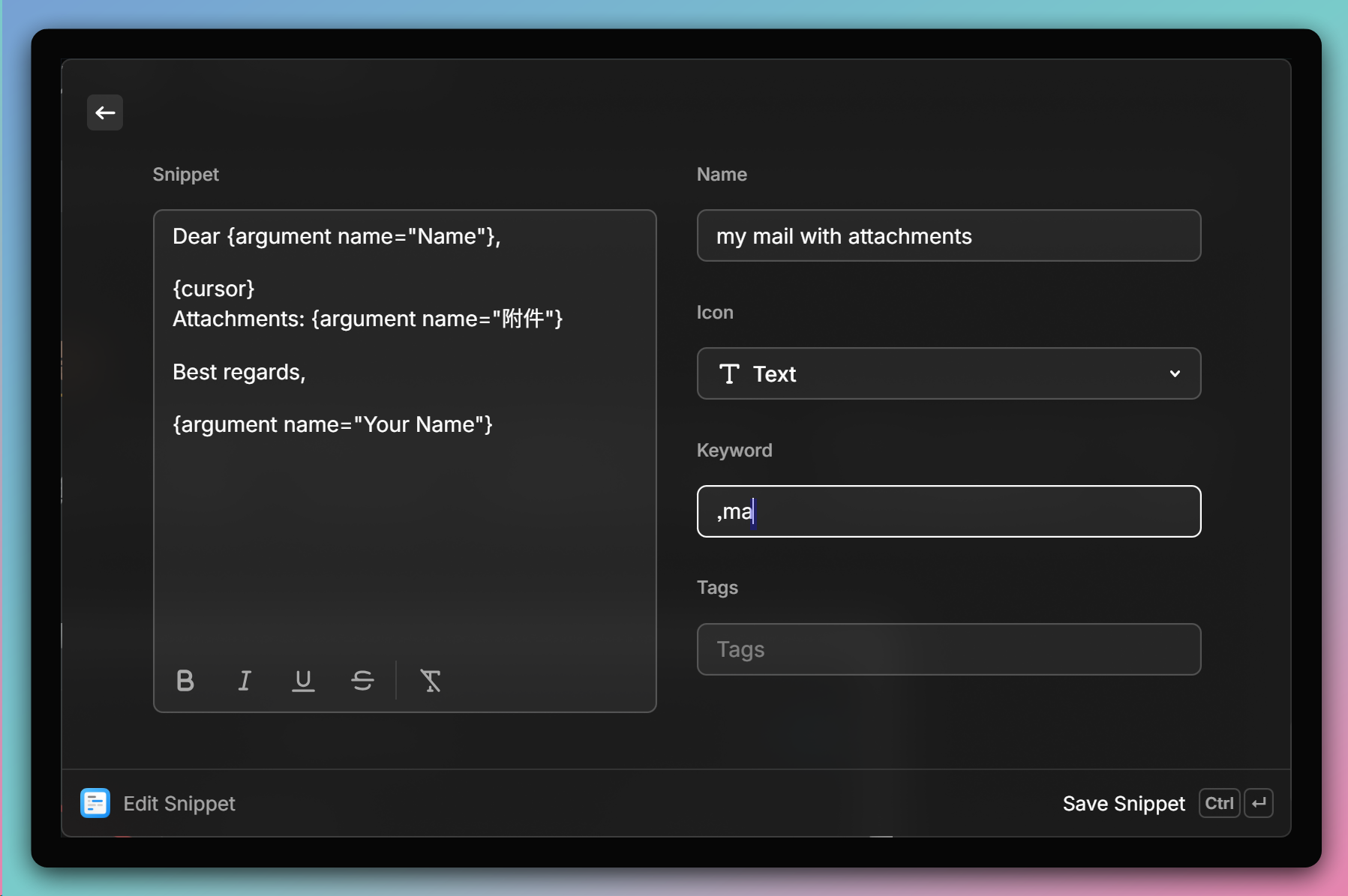
Create frequently used text snippets with keywords. Typing the keyword triggers the snippet to insert into applications. This works like a simplified version of AutoHotkey’s hotstrings.
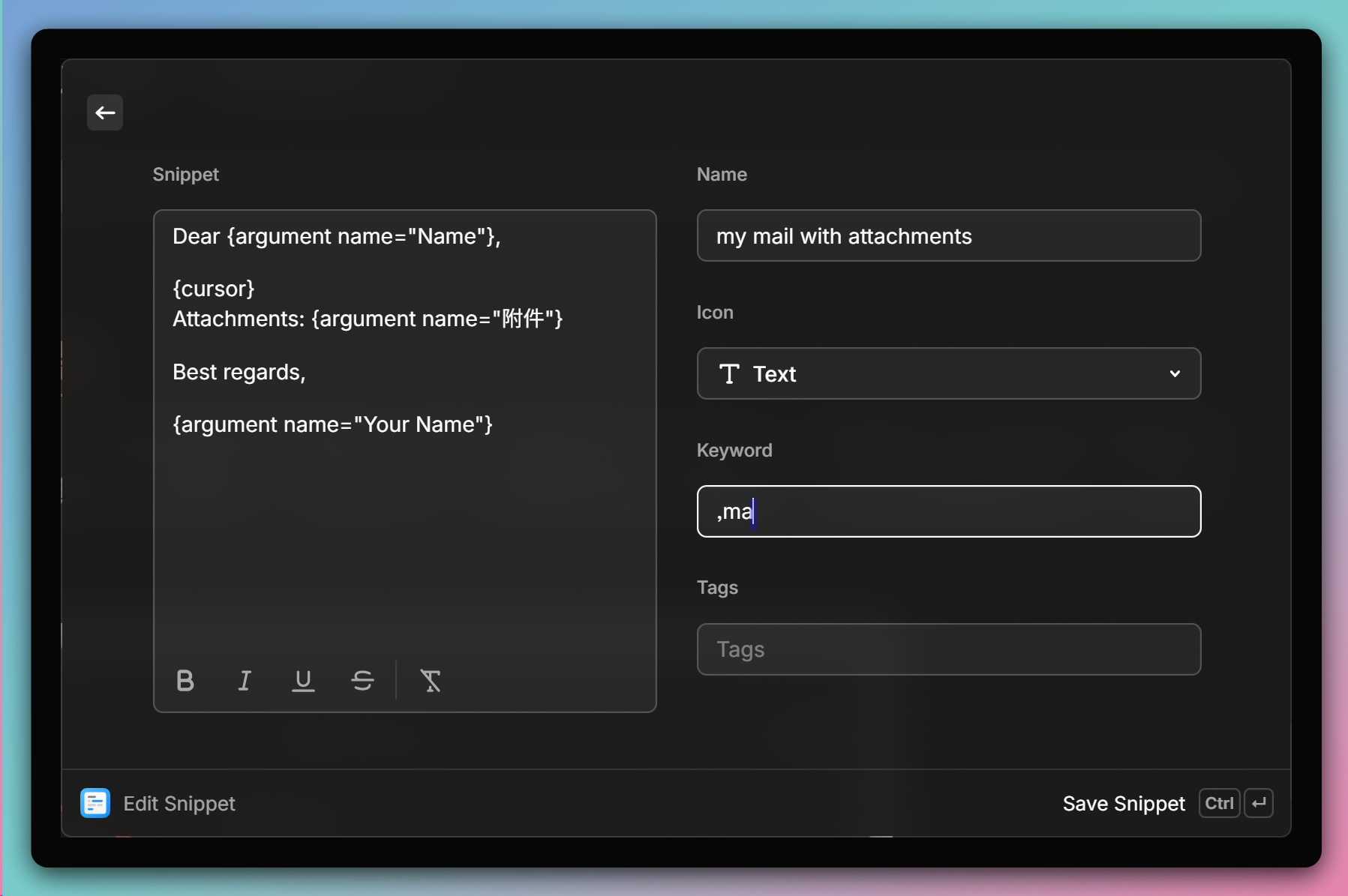
Parameters can be added using left curly braces. In the example, the keyword is ,ma. When typing a, the parameter input window pops up. After entering the parameter, press Ctrl+Enter to paste back the content. Keywords are global and will trigger even inside text editors.
▼ Create snippet
▼ Run snippet
9. Emoji Picker
You can press Win+; to open Windows’ built-in emoji menu. The built-in picker requires searching in Chinese, while Raycast supports English search.
It’s recommended to set an alias (e.g., emoji) for quick access.
10. Extension Store
Type store to quickly locate the extension store. There are already over 1,000 extensions, mostly community-developed. Some may only work on macOS, so check the description before installing.
11. Others
Window Management Commands and System Commands are automatically added to the available list when installing Raycast. You can set aliases or hotkeys for frequently used settings and functions.
12. Issues Encountered
12.1. Window UI Issue
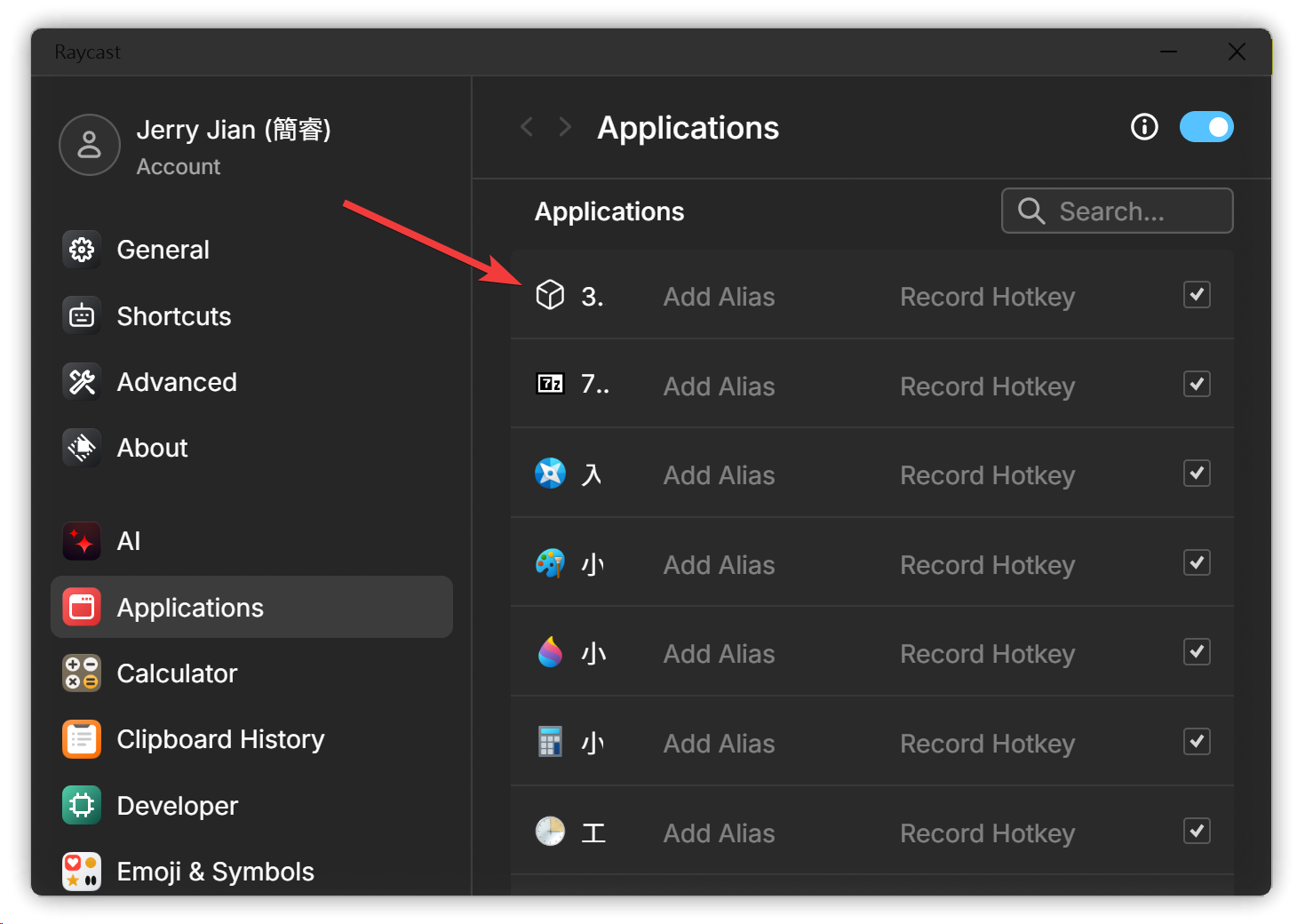
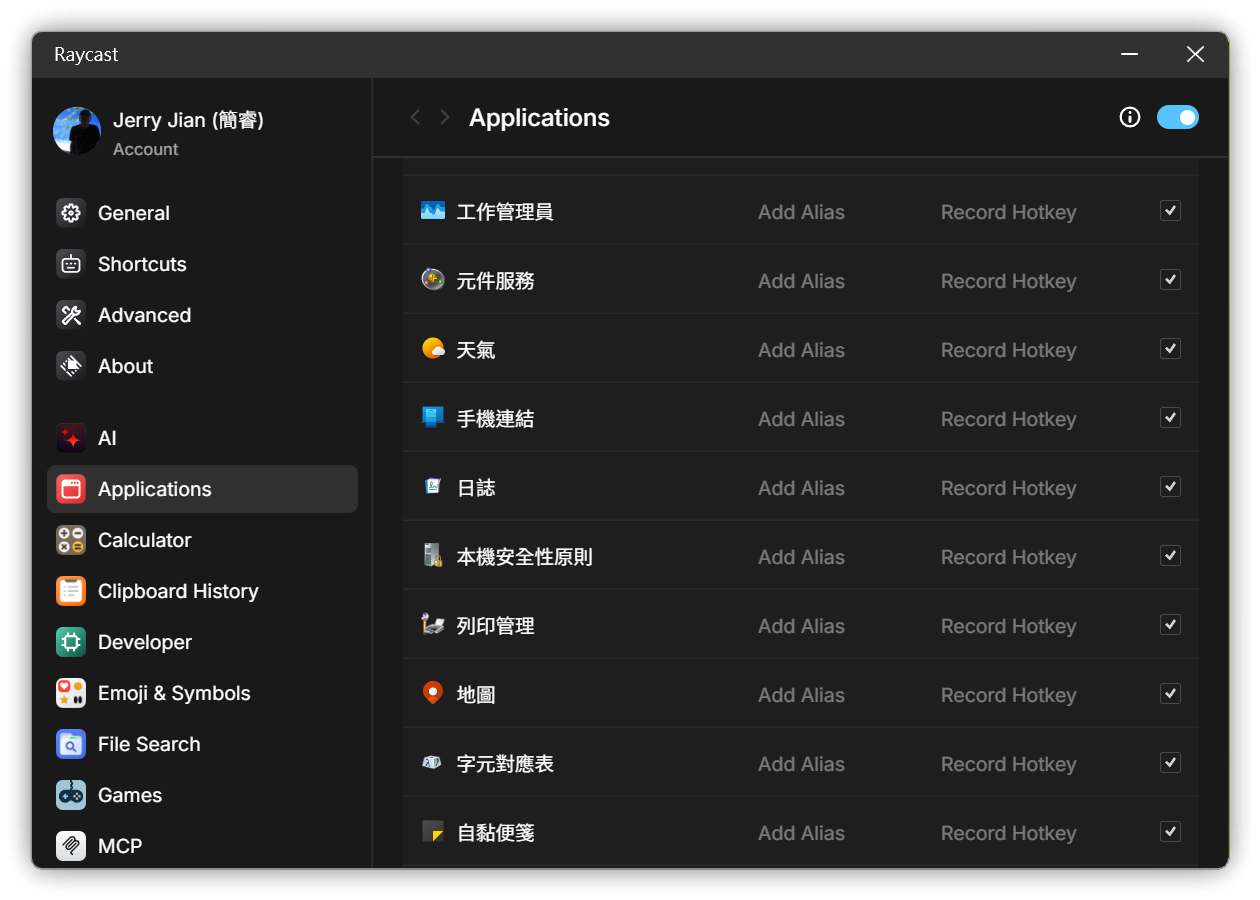
The first problem I encountered was a UI issue: the application name in the settings window shows very few characters, and worse, the window width can’t be adjusted, making names hard to read. Interestingly, it displayed fine on another computer, so it may be related to resolution or font size.
12.2. Hotkey Not Working
Sometimes pressing Alt+Space inside an app won’t bring up Raycast. The cause isn’t clear.
13. Conclusion
I’ve only just started using Raycast, but my first impression is that, even in Beta, it is already quite feature-complete and stable—a very good product overall.
With Raycast coming to Windows, will tools like uTools or Wox still have a chance? We’ll have to wait and see.
14. 💡 Related Links
✅ Explanation article (Traditional Chinese): https://jdev.tw/blog/9097/
✅ Explanation article (English)
✅ Explanation article (Japanese)