

Because image display sizes on quaily.com are inconsistent—articles display the original aspect ratio (16:9), while many lists use square crops—my cover image often gets cropped on the left and right sides, making some text unreadable.
Today, I looked for a way to convert images to a square format while keeping the original content fully visible.
After searching for a while, I found that most websites and tools only offer center cropping, discarding the sides. Eventually, I found the Free Square Your Photo Tool - Create Square Photos. It provides methods like Blur Fill and Color Fill to add padding to the top and bottom of the square image. This is the solution I've found for now.
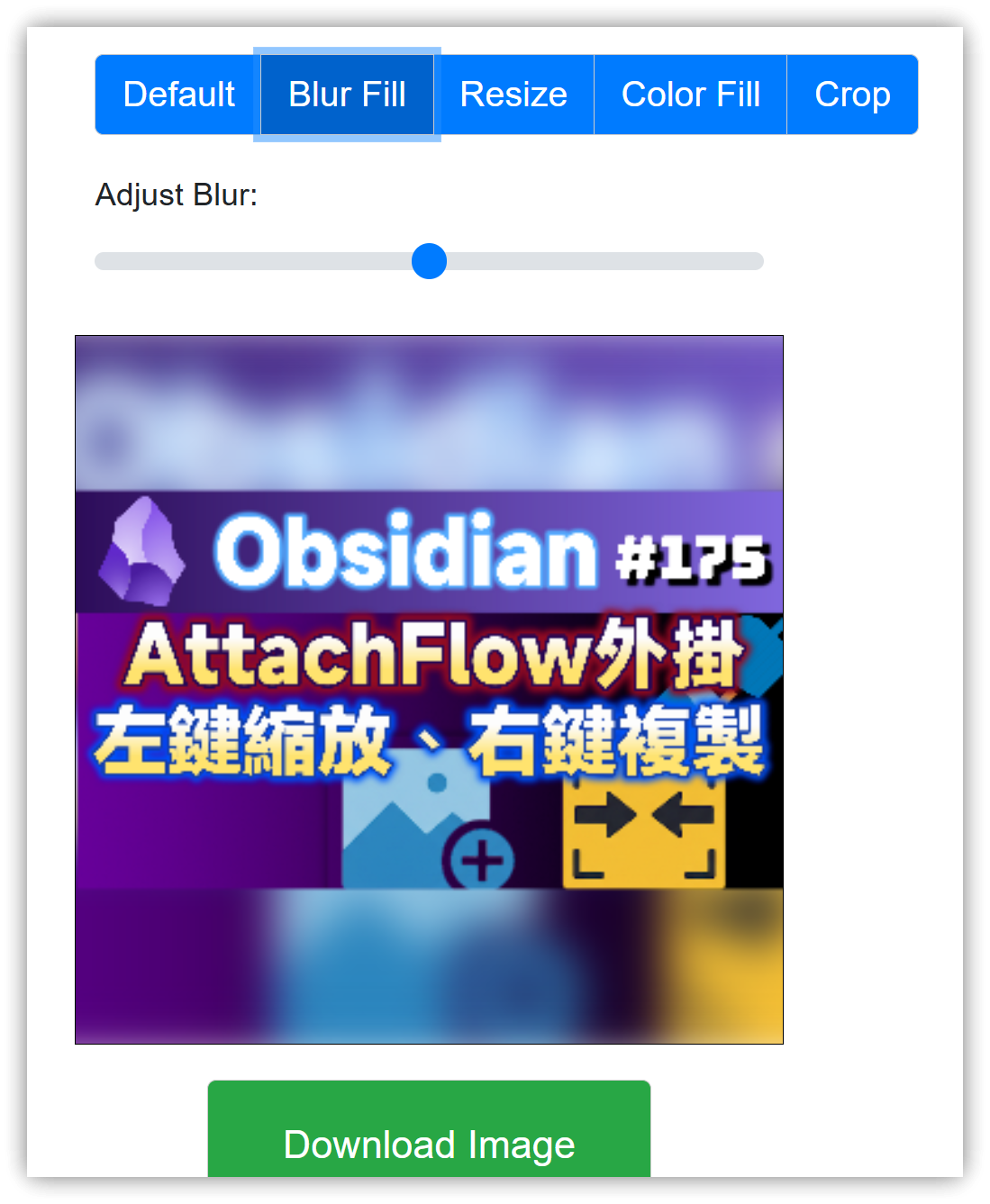
The same square image can also be generated using the ImageMagick command-line tool:
- The first command generates a square image with black padding top and bottom.
- The second command generates a square image with transparent padding top and bottom.
c:\util\imagemagick\convert input.png -resize 1080x1080 -gravity center -background black -extent 1080x1080 output.png
c:\util\imagemagick\convert input.jpg -resize 1080x1080 -gravity center -background none -extent 1080x1080 -alpha set output.png