
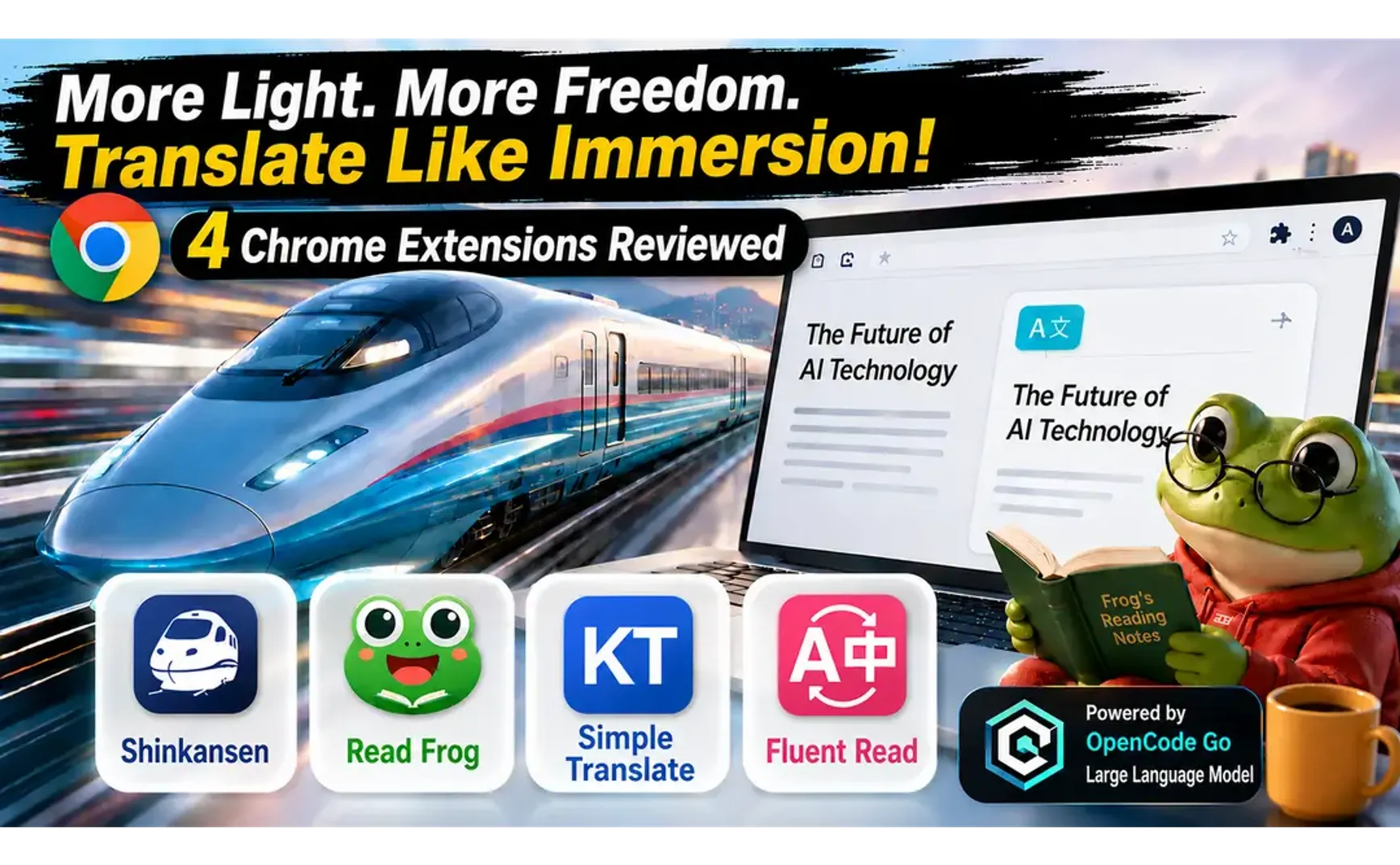
When reading foreign-language content in a browser, the Immersive Translate extension conveniently converts it into Chinese via translation engines, allowing us to understand the content more efficiently.
Immersive Translate is convenient, but as features keep piling up, settings become complex, and advanced features require payment, I found several open-source alternatives on GitHub. Through these free extensions, we can fully leverage the powerful capabilities of AI translation.
If you still want to use the Immersive Translate extension, I've also introduced a method for configuring custom AI models at the end, which can help you avoid using its paid version.
1. Shinkansen | Ultra-Fast, Private, High-Quality Web Translation Experience

1.1. Features
- Full-page translation only
- Uses Gemini by default; supports custom OpenAI-compatible models
- Web pages can be set to display translated content only or bilingual side-by-side content
- Can configure websites for automatic translation upon entry
- The developer is Taiwanese, with more settings tailored to Taiwanese usage habits
- Settings → Gemini → Economy Mode: Check to translate only the beginning of an article; click the floating "Translate Remaining Paragraphs" button in the bottom-right corner when you need to continue
- Three preset translation modes, each can use a different translation engine
- Translate ePUB or PDF files without uploading them
- 💰 Completely free
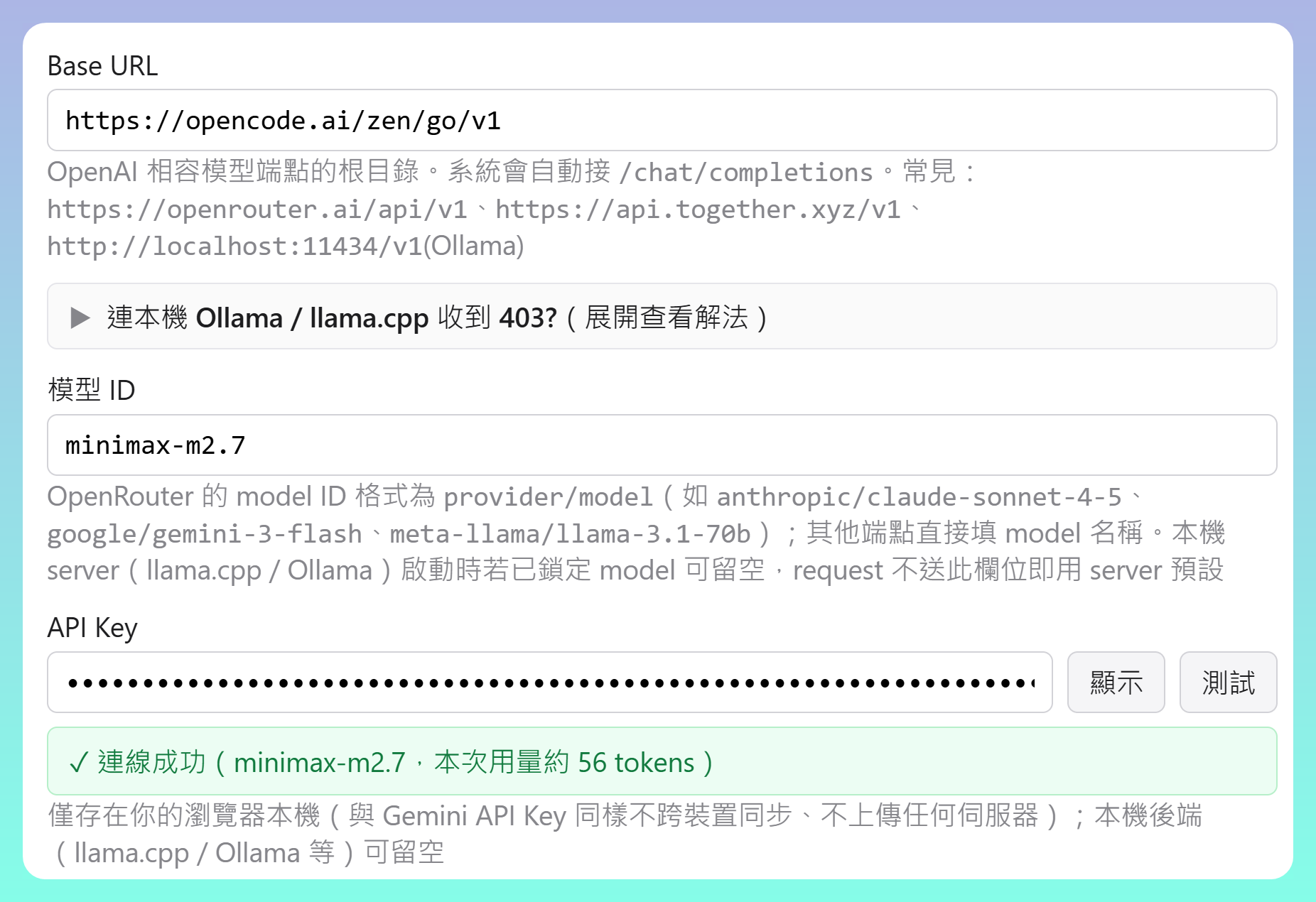
1.2. Custom OpenAI-Compatible API
- OpenCode: Model ID does not need to start with "opencode-go"
2. 🐸 Read Frog - Language Learning & Translation

- 💰 Free / Pro ($2.50/month) / Ultra ($5.83/month)
2.1. Features
- Custom AI instructions: Dictionary
- Web page translation
- Video subtitles
- Input translation: Press space 3 times after typing to instantly translate the input
- Floating toolbar
- Text-to-speech
- Translation Center: Multi-API text translation — translate one passage using multiple engines
2.2. Custom AI Models
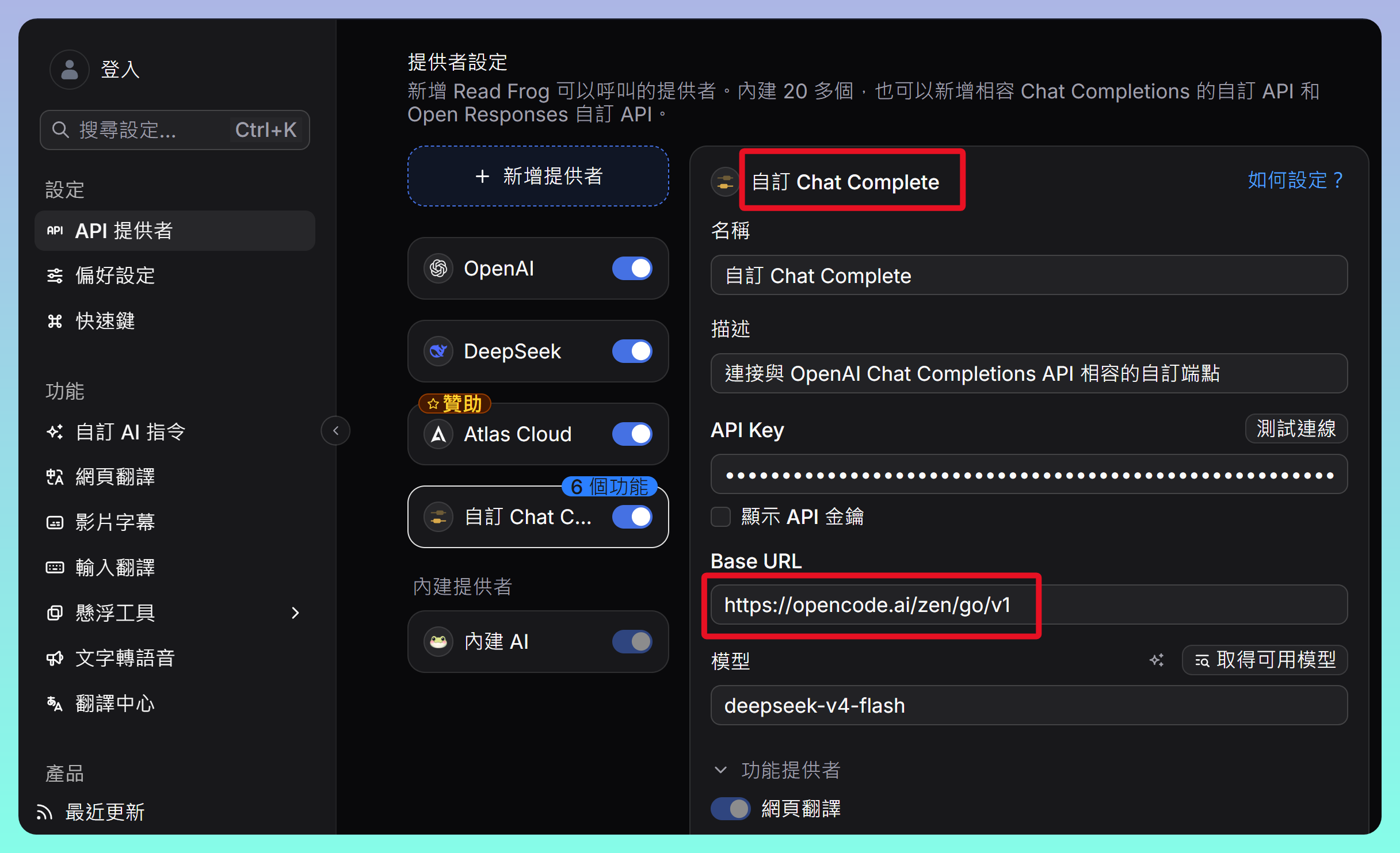
- OpenCode: Use "Add Provider" → "Compatible API Provider" → "Custom Chat Complete" or "Custom Responses"
- Base URL for all: https://opencode.ai/zen/go/v1
2.3. Usage Examples
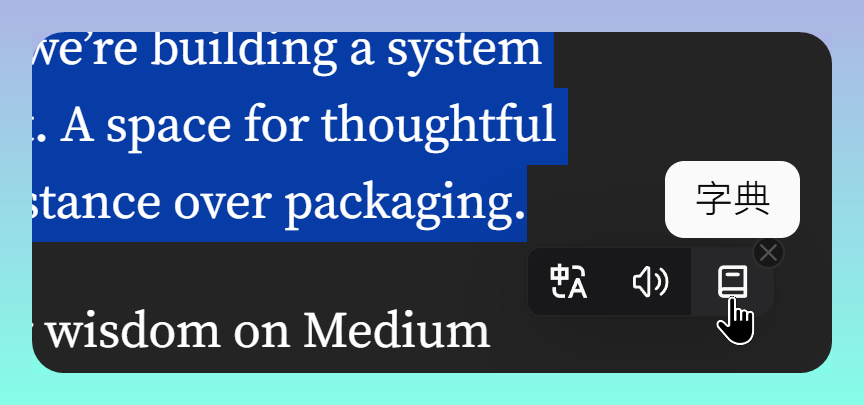
- After selecting text, right-click to access translation, read-aloud, and dictionary functions
- The dictionary function is configured in Settings → Features → "Custom AI Instructions"; select the built-in AI as the model
3. KISS Translator
3.1. Usage
- Click the floating button on the left and enable translation to translate the web page
- Choose different translation text styles to clearly distinguish from the original
- Translation services can use different providers; if using Chrome 138 or later, you can specify the built-in model (Gemini Nano)
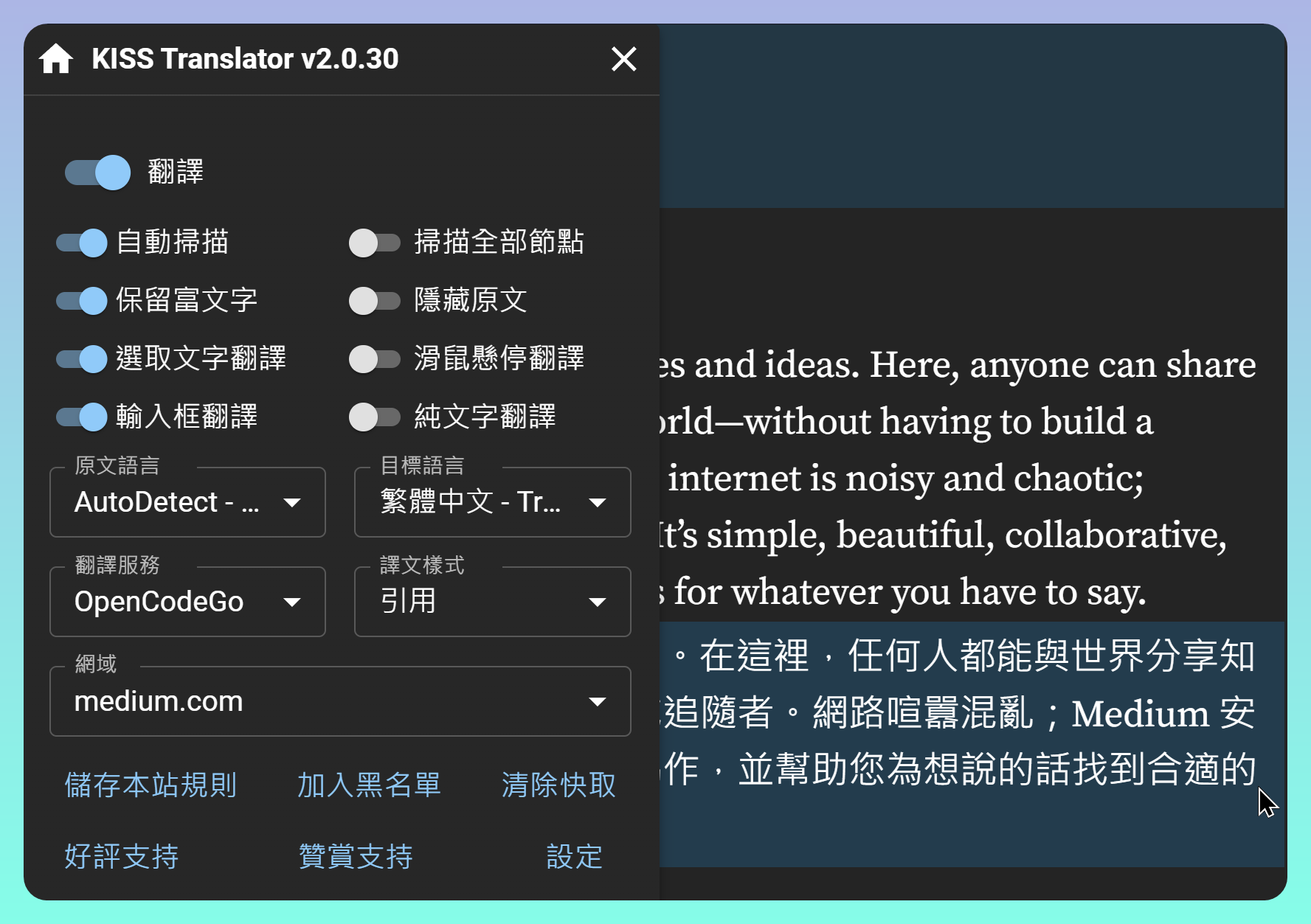
- After selecting text, click the KT icon to pop up a translation dialog
- If a single word is selected, the translation dialog will additionally display default dictionary and AI dictionary options
3.2. API Settings
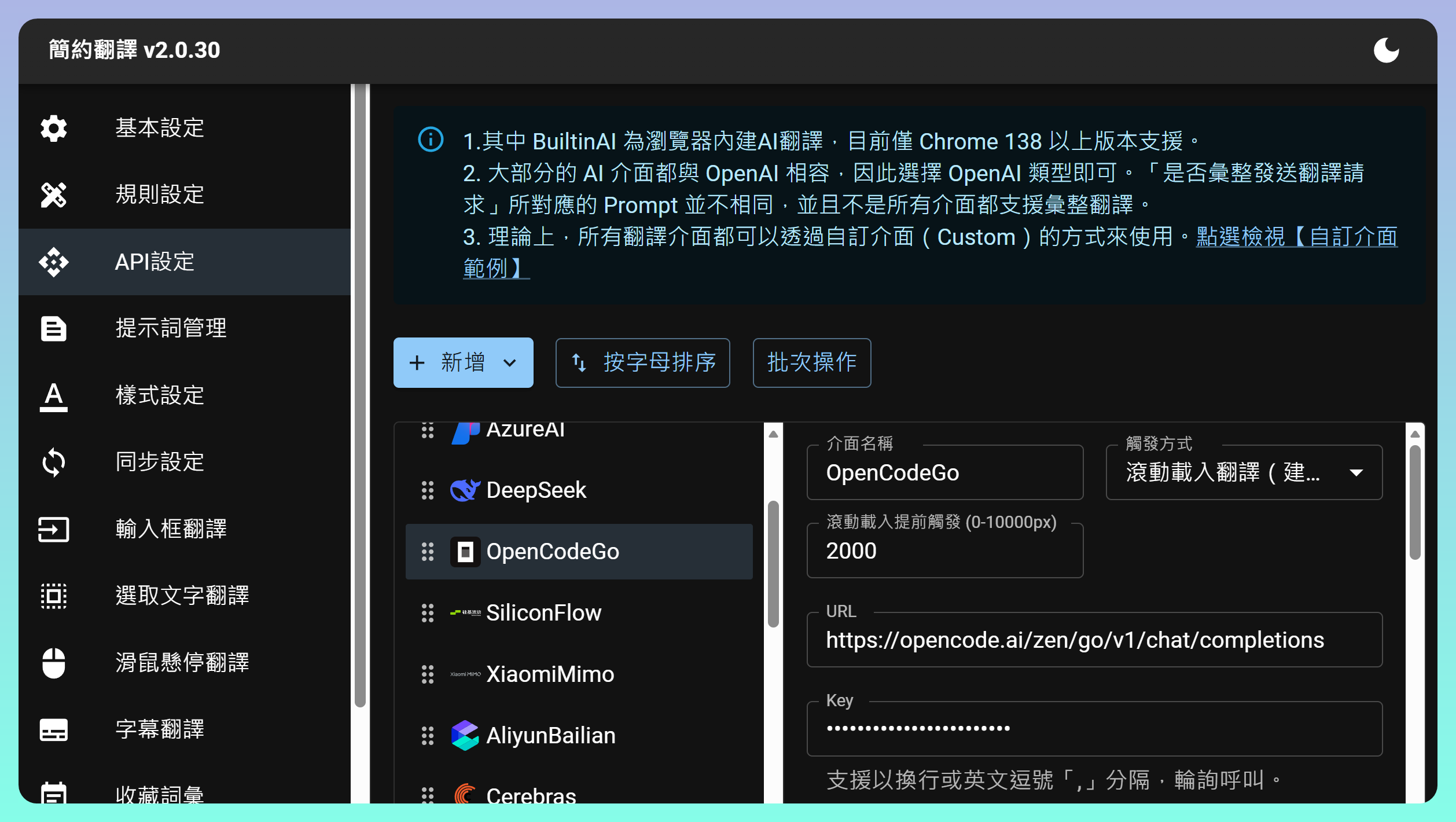
- An OpenCodeGo option is already provided for quick setup
4. Fluent Read
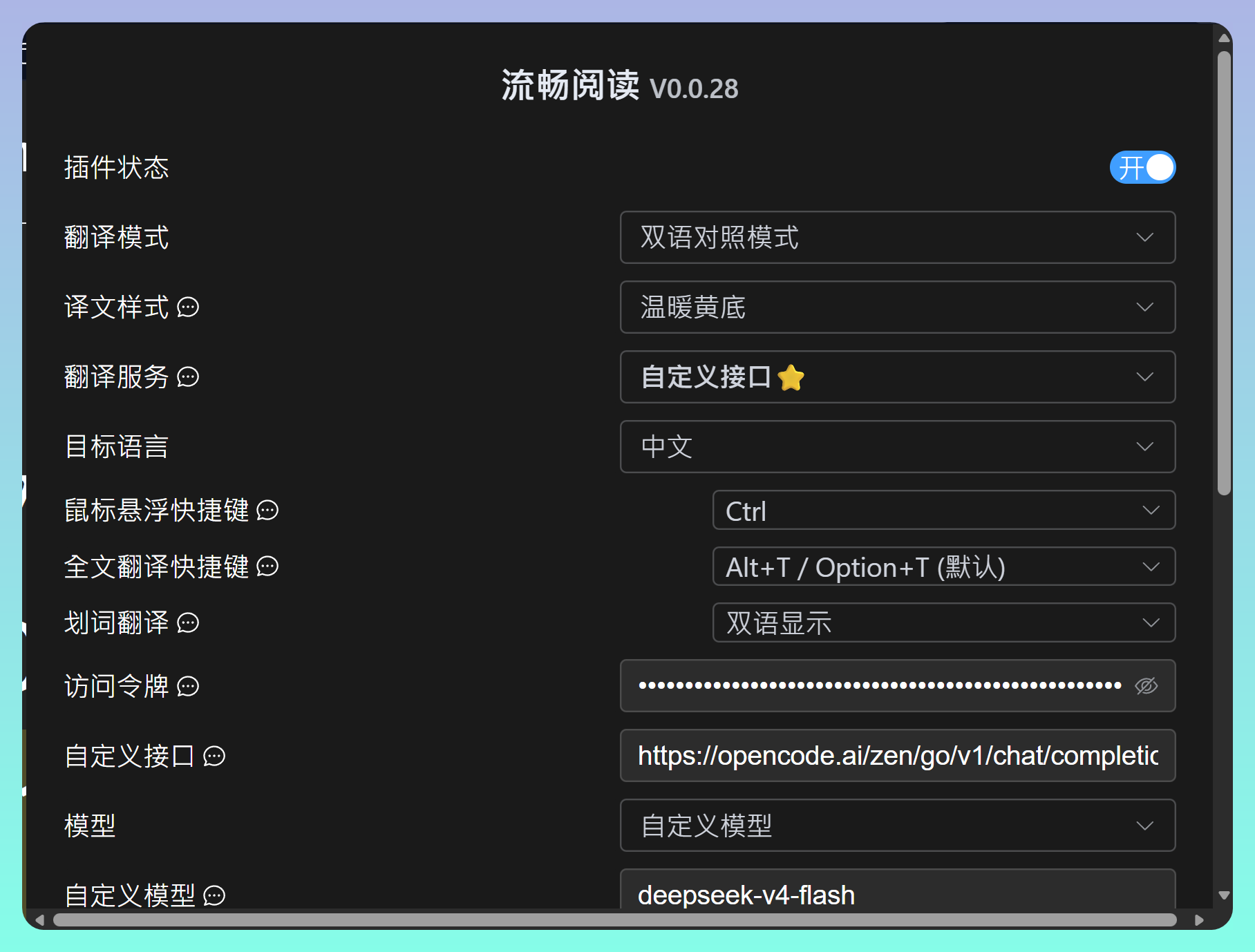
- Simple and easy to use; unfortunately, it can only translate into Simplified Chinese
5. Configuring Custom AI Models in Immersive Translate
-
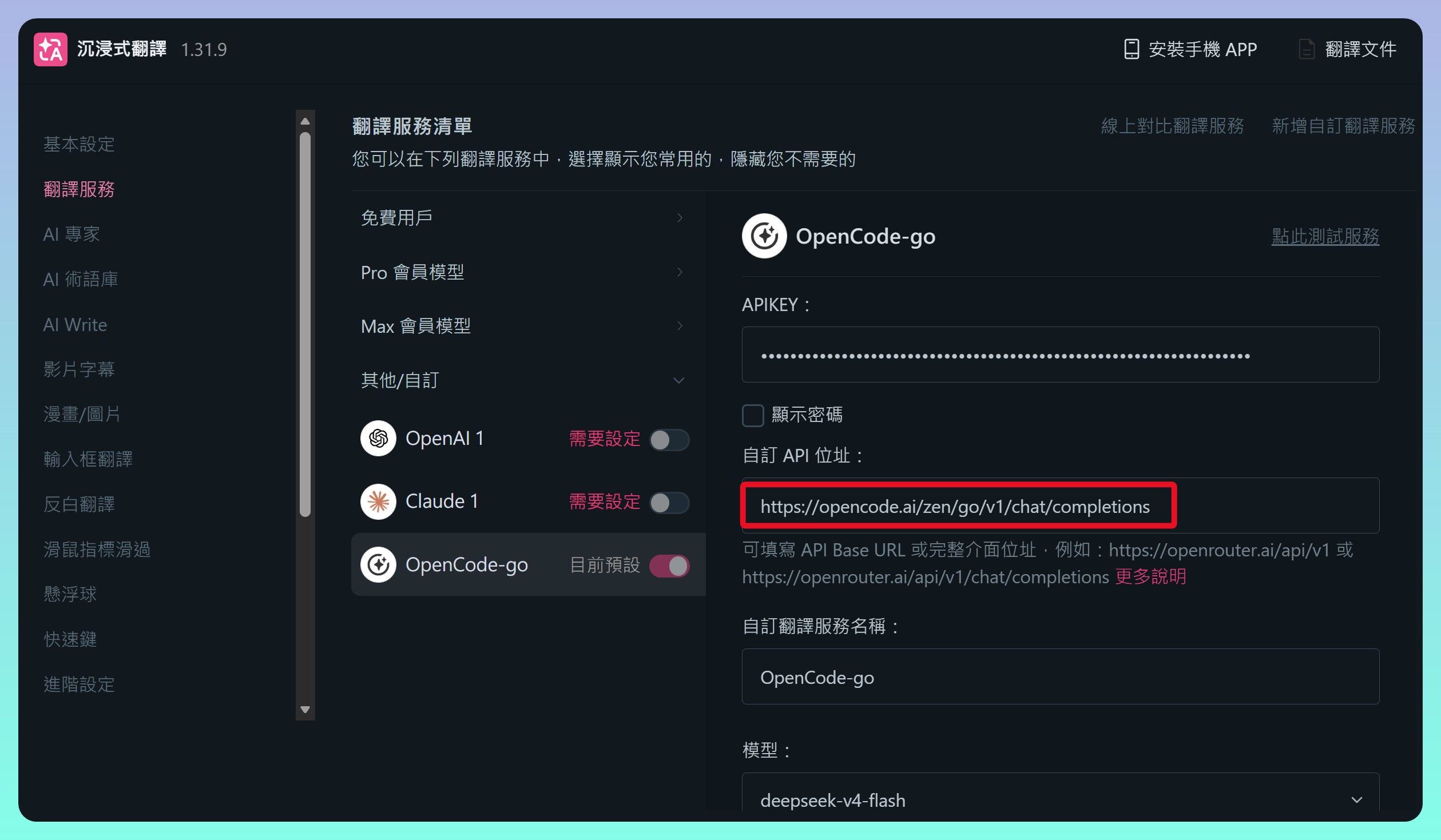
Settings → "Translation Services" → "Add Custom Translation Service" → Select "Custom" and complete the configuration
-
OpenCode custom API URL:
https://opencode.ai/zen/go/v1/chat/completions
6. 💡 Related Links
✅ Explanation article (Traditional Chinese): https://jdev.tw/blog/9238/
✅ Explanation article (English)
✅ Explanation article (Japanese)
✅ Shinkansen: https://jimmysu0309.github.io/shinkansen/
✅ Read Frog: https://github.com/mengxi-ream/read-frog
✅ KISS Translator: https://github.com/fishjar/kiss-translator
✅ Fluent Read: https://github.com/Bistutu/FluentRead
✅ https://github.com/ttop32/MouseTooltipTranslator