
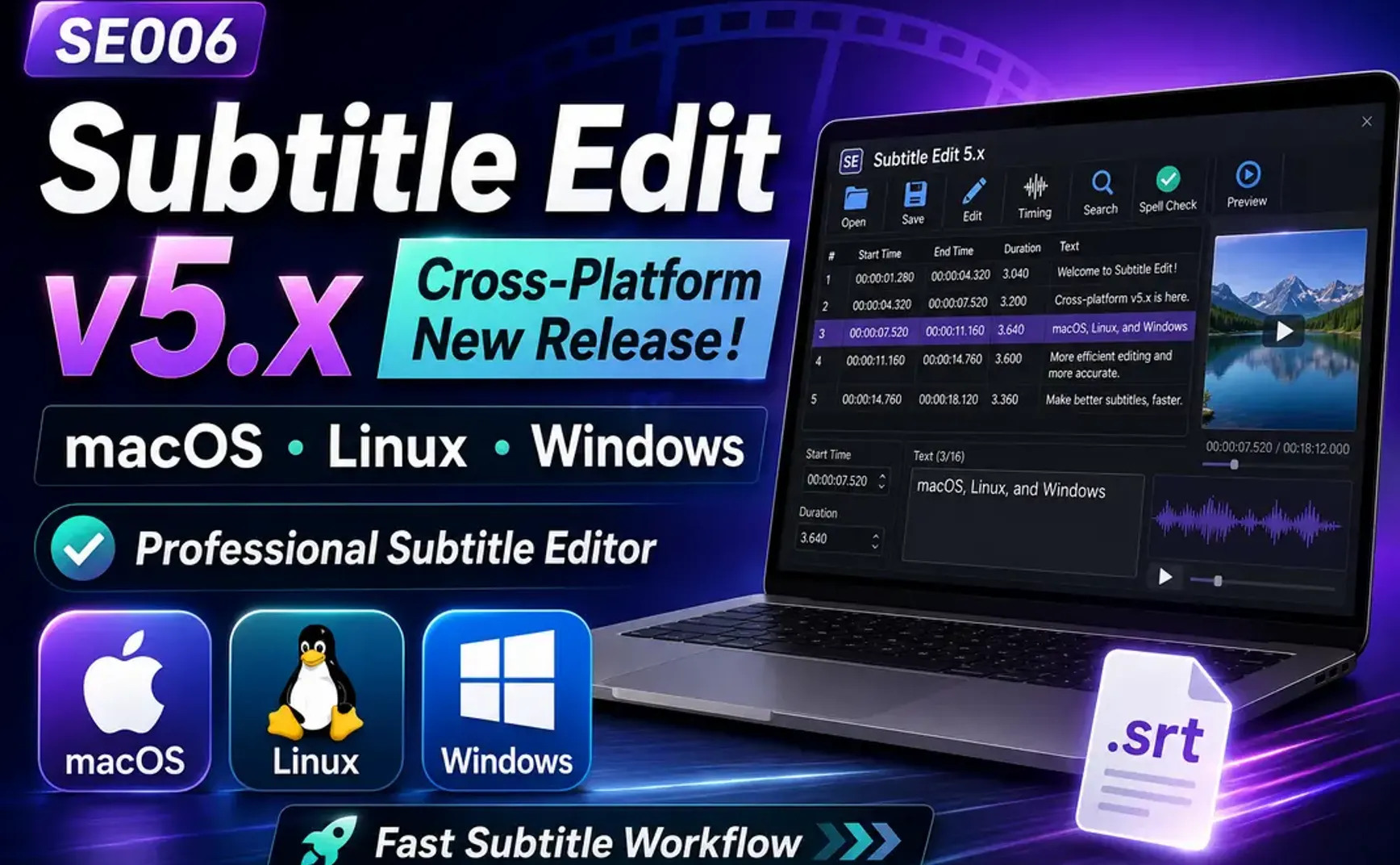
Subtitle Edit is a professional video subtitle editing tool that offers more convenient subtitle editing features than video editing software like Filmora or CapCut.
Version 4.x used the Windows-exclusive .NET environment, but starting from v5.0, it has switched to the cross-platform .NET, so macOS and Linux users can now use Subtitle Edit as well.
This time, I'll use practical examples to demonstrate how to use Subtitle Edit v5, hoping to help newcomers get started quickly.
1. Panel Layout
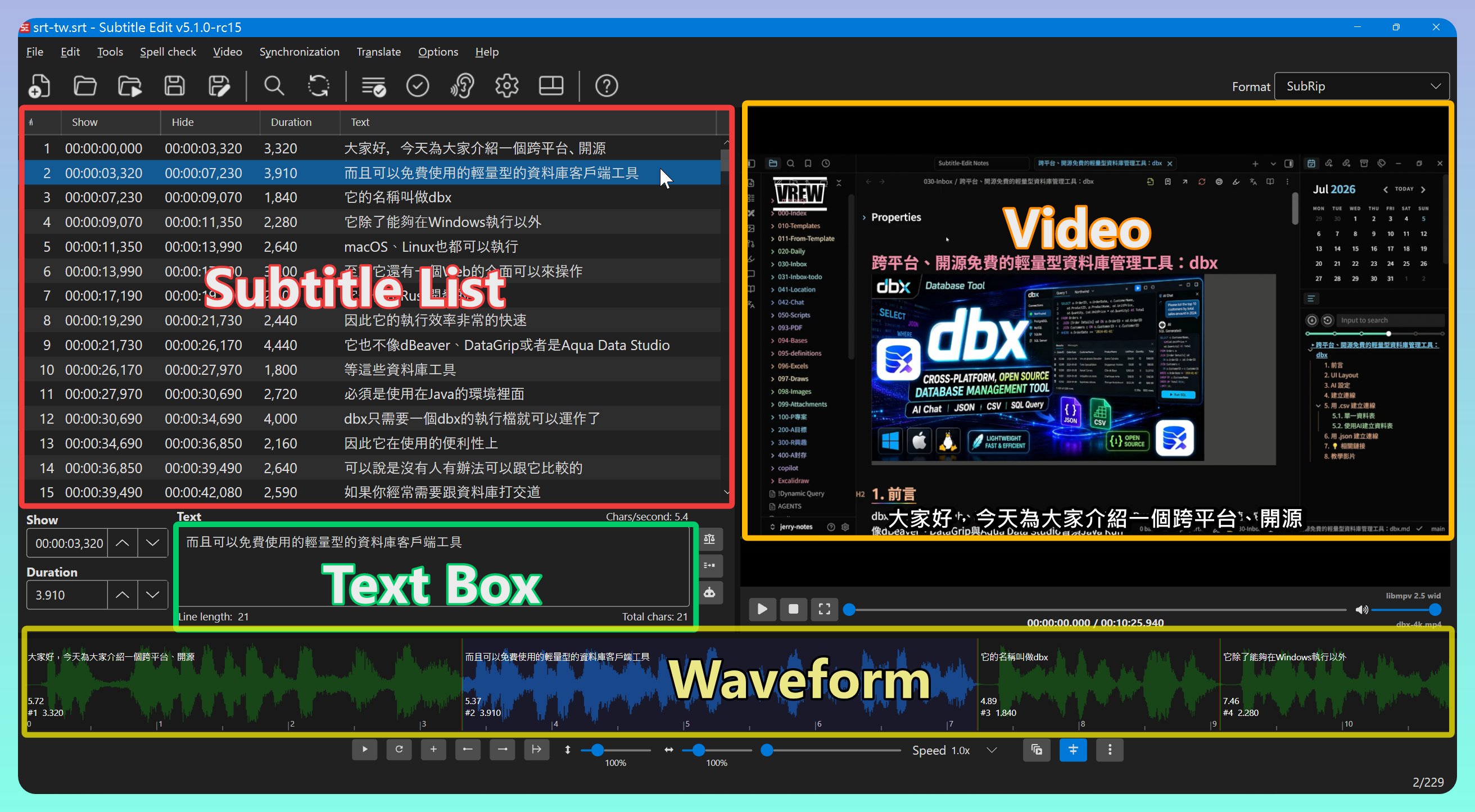
- The default panel layout is shown below and can be customized:
2. Loading an .srt Subtitle File and Video
- Menu【File】→【Open...】to open the .srt subtitle file you want to edit
- Menu【Video】→【Open video...】to open the video file; after loading, an audio waveform will be generated
When the video file has the same name as the subtitle file, opening the subtitle will automatically open the video
3. Key Operations in the Subtitle Area
- Use the Up/Down arrow keys to move to the previous or next subtitle item
- Ctrl+Home to move to the first item, Ctrl+End to move to the last item
- PgUp and PgDn for page up and page down
After moving to an item, you can double-click (or press Enter) the item to sync the waveform position
3.1. Shortcut Key Settings
Below are my commonly used custom subtitle area shortcut keys, for reference:
| Shortcut Key | Function | Setting |
|---|---|---|
| Ctrl+Right | Play current item | Play selected lines and focus waveform |
| Alt+Down | Move to next item and play | Play next (and stop) |
| Alt+Up | Move to previous item | Go to previous subtitle |
| Ctrl+Alt+J | Merge next item into current item | Merge with line after and auto-break |
Splitting one item into two items (Split lines): it's best to do this in the waveform area for better accuracy
3.2. Waveform Position Settings
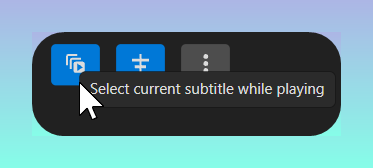
The two buttons on the far right of the waveform panel toolbar control how the waveform moves during playback:
- When the first button is enabled: subtitle items will sync during playback
- Center the waveform position during playback
3.3. Multiple Replace
Replace multiple strings at once with the desired content, such as removing all filler words (ah, oh, um...).
If you've already entered multiple replacements in Subtitle Edit v4.x, you can first use【Export】to export them, then go to【Edit】→【Multiple replace...】and use【Import】to import them.
4. Key Operations in the Audio Waveform Area
- Move to a specific position
- Right-click context menu →【Split line】to split out a new waveform segment
- Shortcut keys can be configured to speed up operations
5. Video Operations
- Speech to text: Download multiple speech recognition models (such as Whisper CPP, Qwen3 ASR, etc.) to generate subtitles from video
- Text to speech: Select a speech engine (such as EdgeTTS, Kokoro TTS, etc.) to generate audio from subtitles
- OCR burned-in subtitle: Extract subtitles embedded in the video
6. Tools
Common subtitle operations are found in the Tools menu.
Below are two methods for generating bilingual subtitles.
6.1. Join Subtitles (Concatenation)
- Menu【Tools】→【Join subtitles...】
- Click the + button to select the first subtitle file
- Click the + button to select the second subtitle file
- Select【Keep time codes】
- Click【Join】to execute the subtitle concatenation
1
00:00:00,000 --> 00:00:03,320
Hi everyone, today I'll introduce a cross-platform, open-source

2
00:00:00,000 --> 00:00:03,320
大家好,今天為大家介紹一個跨平台、開源
6.2. Merge Two Subtitles (Merging)
Merge subtitles with the same timecodes into a single subtitle entry.
- Output format: select .srt
- Load two subtitle files
- Click【Merge】
1
00:00:00,000 --> 00:00:03,320
大家好,今天為大家介紹一個跨平台、開源
Hi everyone, today I'll introduce a cross-platform, open-source

2
00:00:03,320 --> 00:00:07,230
而且可以免費使用的輕量型的資料庫客戶端工具
free, lightweight database client tool
7. Related Links
✅ Chinese article: https://jdev.tw/blog/9234/
✅ Explanation article (English)
✅ 解説記事 (日本語)
✅ Download: https://github.com/SubtitleEdit/subtitleedit/releases
✅ Reference video: WhisperDesktop + GPU — Super Accurate! Super Fast! Making Your Video Production Easier — Using GPU-Accelerated OpenAI Whisper Speech Recognition Tool (ASR) https://youtu.be/xE-tmu0OlGA
8. Tutorial Video
##