
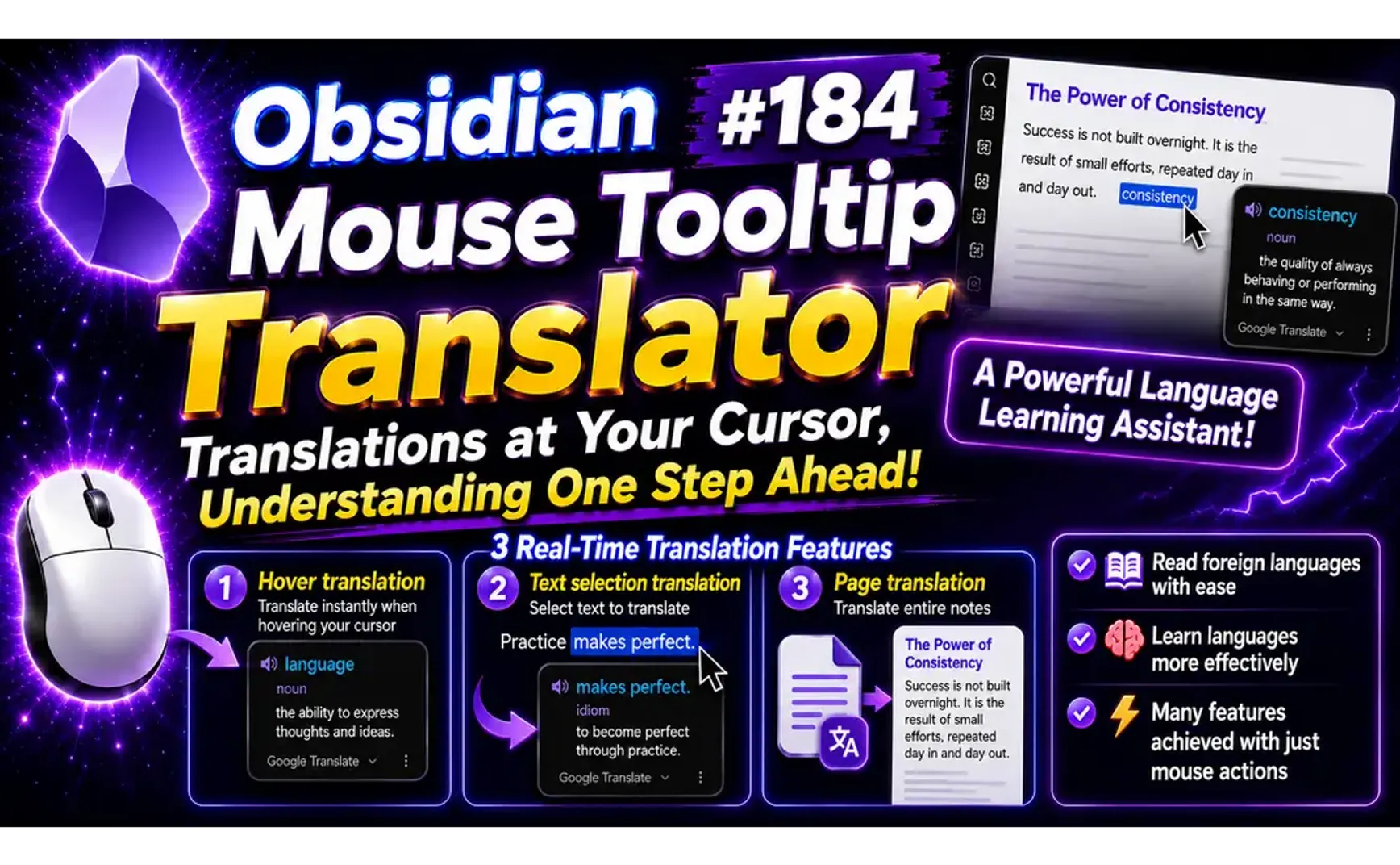
If you read or study foreign languages in Obsidian, the Mouse Tooltip Translator plugin can provide very convenient assistance—most functions are accomplished through the mouse cursor.
The Mouse Tooltip Translator plugin has three main types of instant translation features:
- Hover translation: Instant translation when the mouse cursor hovers
- Text selection translation: Translate selected text
- Page translation: Translate the entire note
1. Usage Example
▼ Steve Jobs' 2005 Stanford University Commencement Speech
Of course it was impossible to connect the dots looking forward when I was in college, but it was very, very clear looking backwards 10 years later.

Again, you can't connect the dots looking forward.

You can only connect them looking backwards, so you have to trust that the dots will somehow connect in your future.

You have to trust in something--your gut, destiny, life, karma, whatever--because believing that the dots will connect down the road will give you the confidence to follow your heart, even when it leads you off the well-worn path, and that will make all the difference.
2. Translation Engines
The translation providers (engines) include the following. Instructions for setting up OpenCode are provided below, allowing you to use free models with an OpenCode Zen subscription:
| Engine | Notes |
|---|---|
| Default. Supports dictionary entries and transliteration | |
| Google GTX | Alternative Google endpoint |
| DeepL | Experimental web endpoint |
| Bing | Experimental web endpoint |
| Yandex | Experimental web endpoint |
| Papago | Experimental web endpoint |
2.1. OpenCode Setup
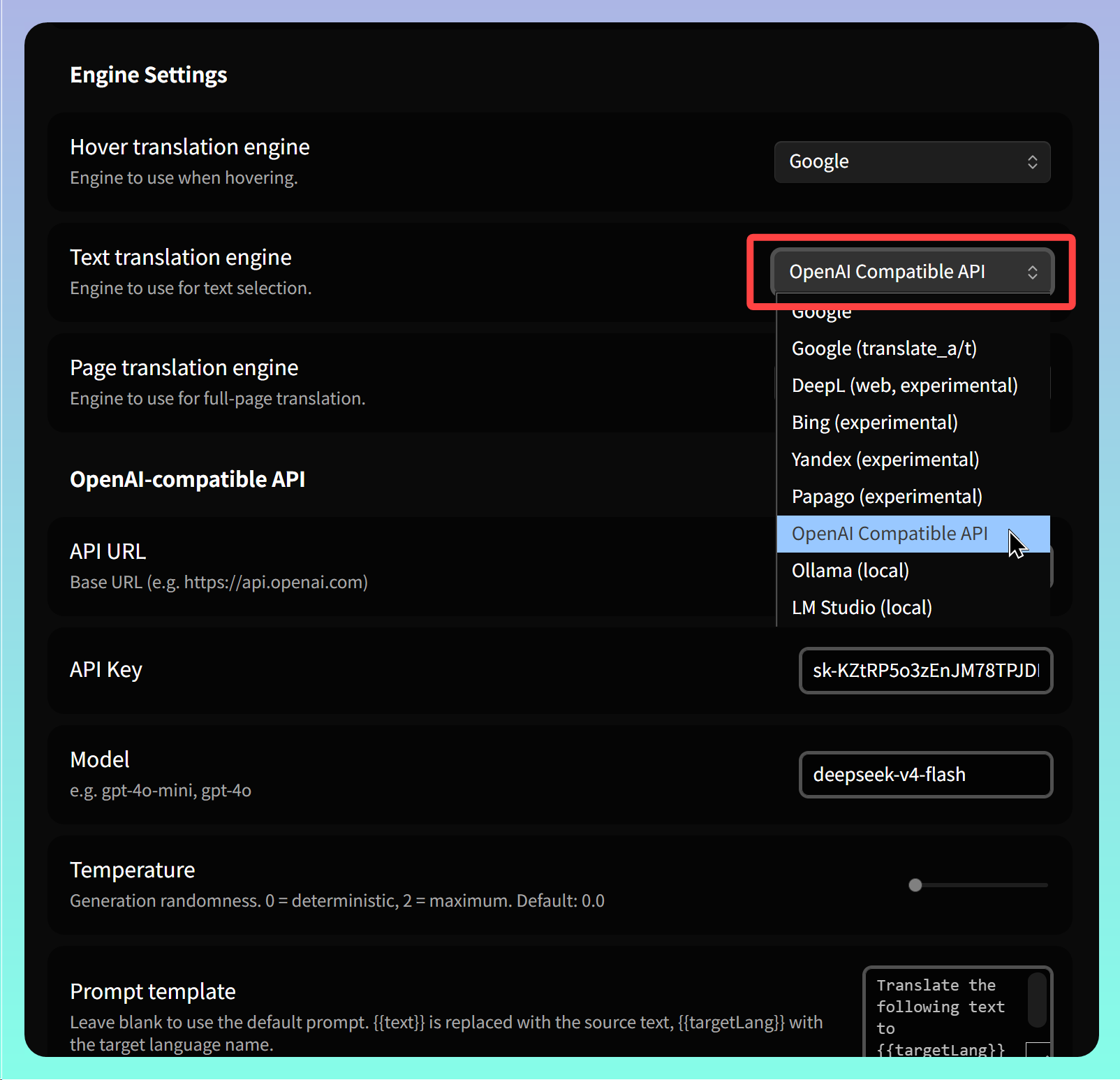
After entering the plugin's settings page, find the【Engine Settings】section and specify the translation engine for each of the three translation features. For OpenAI or OpenCode, select【OpenAI Compatible API】
-
API URL: Enter the API base URL:
-
For OpenCode Zen subscription: https://opencode.ai/zen
-
For OpenCode Go subscription: https://opencode.ai/zen/go
-
-
Model: Enter different models corresponding to your subscription plan. Note: You don't need to enter "opencode-zen/" or "opencode-go/". Example model: deepseek-v4-flash
-
For OpenCode Zen subscription free model: deepseek-v4-flash-free
-
For OpenCode Go subscription: deepseek-v4-flash
-
3. Vocabulary List
Use Ctrl/Cmd+P to open the command palette and execute【Open Vocabulary List】to display the vocabulary list in the sidebar. All words or sentences you've processed, along with their original text and translations, are displayed in list format.
4. Feature Enhancement
Translated text cannot be copied for reuse. Hopefully the author can add this feature.
The current workaround is to directly open .obsidian/plugins/mouse-tooltip-translator/translation-log.json with a text editor, find the content, and copy it to the clipboard.
5. 💡 Related Links
✅ Explanation article (Traditional Chinese): https://jdev.tw/blog/9211/
✅ Explanation article (English)
✅ Explanation article (Japanese)
✅ GitHub: https://github.com/toki1703/mouse-tooltip-translator
✅ Chrome Web Store: https://chrome.google.com/webstore/detail/mouse-tooltip-translator/hmigninkgibhdckiaphhmbgcghochdjc
✅ Chrome extension GitHub: https://github.com/ttop32/MouseTooltipTranslator