
Version: v1.0 2022/04/04
v1.1 2022/10/22
Source: 簡睿隨筆
Tutorial Video: 簡睿學堂 Best enjoyed together 😄
PDF Download: Google Drive

1. What is Markdown?
- Markdown is a lightweight markup language. Compared to the complex and extensive HTML, Markdown is simpler and easier to use.
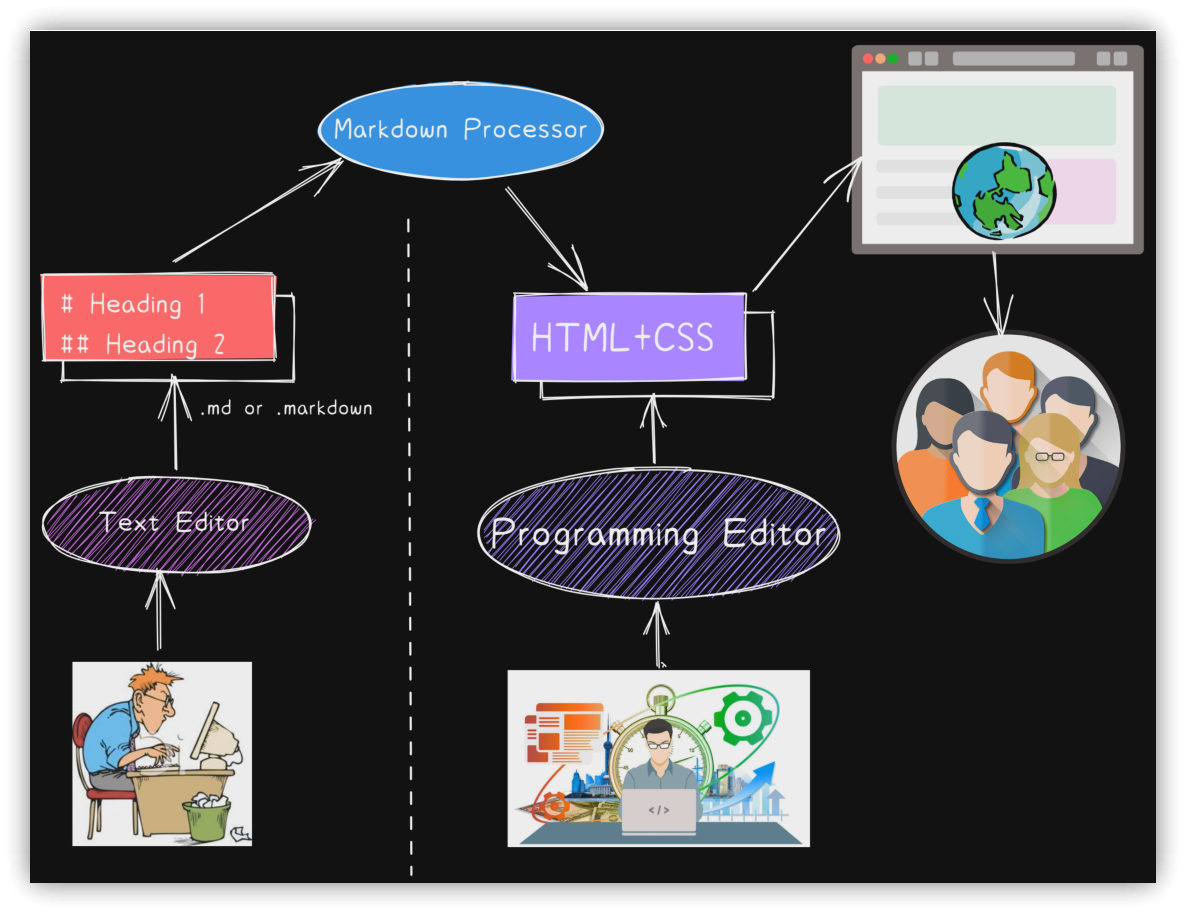
- It adds formatting markup to plain text content, enabling the text to be converted into HTML.
- Markdown provides an easy-to-read and easy-to-write markup format.
- Invented by John Gruber in 2004.
- As technology has progressed, several versions of Markdown have emerged.
2. Why learn Markdown?
- Markdown has a wide range of applications: Used in websites, presentations, notes, documents, books, emails, and instant messaging software.
- Markdown is highly portable.
- Markdown is platform-independent.
2.1. Some Applications of Markdown
Too many to list exhaustively; here are a few examples.
- Online Markdown Editors: StackEdit, HackMD
- Static Site Generators: Hugo, MkDocs, VuePress
- Browser Extensions:
- Email Formatting Conversion: Markdown Here
- Download Websites as Markdown: MarkDownload
- Windows Markdown Editors: Markdown Monster, ghostwriter
- macOS Markdown Editors: iA Writer, MacDown, Bear, Craft, Drafts
- Linux Markdown Editors: ghostwriter, ReText
- Cross-platform Markdown Editors: Typora
- iOS / Android Markdown Editors: iA Writer, Drafts
3. Markdown Processing Steps
4. Covered Syntax
4.1. Block Elements
| Symbol | Purpose |
|---|---|
# |
Heading |
> |
Blockquote |
1. |
Ordered List |
* |
Unordered List |
- [ ] |
Task List |
``` |
Code Block |
--- |
Horizontal Rule |
| --|-- | Table |
4.2. Inline Elements
| Symbol | Purpose |
|---|---|
* |
Italic |
** |
Bold |
*** |
Bold Italic |
~~ |
Strikethrough |
== |
Highlight |
<sup> |
Superscript |
<sub> |
Subscript |
`code` |
Inline Code |
[]() |
Link |
[[]] |
Internal Link |
![]() |
Image |
![[]] |
Embed File |
5. Heading
| Heading | HTML |
|---|---|
| # Heading Level 1 | <h1>Heading Level 1</h1> |
| ## Heading Level 2 | <h2>Heading Level 2</h2> |
| ### Heading Level 3 | <h3>Heading Level 3</h3> |
| #### Heading Level 4 | <h4>Heading Level 4</h4> |
| ##### Heading Level 5 | <h5>Heading Level 5</h5> |
| ###### Heading Level 6 | <h6>Heading Level 6</h6> |
- Add at least one space after the hash symbol.
- A hash symbol immediately followed by text becomes a tag.
- Mnemonic: More hash symbols mean a lower heading level.
My Usage
#: Filename (Note Title)##: Main Heading (Chapter)###: Subheading (Section)
A hash symbol immediately followed by alphanumeric characters forms a tag: #tag
5.1. Alternative Headings
| Heading | HTML |
|---|---|
| Heading Level 1<br>= | <h1>Heading Level 1</h1> |
| Heading Level 2<br>--------------- | <h2>Heading Level 2</h2> |
5.2. Paragraph
Separate paragraphs with a blank line.
Obsidian Settings → Editor → Strict line breaks: Check this to enable strict Markdown line breaks.
- With strict line breaks enabled, a single newline is ignored. Use a blank line (two newlines) to start a new paragraph.
- Ending a line with two spaces creates a line break.
- Do not check 'Strict line breaks'.
- Do not indent paragraphs with spaces.
6. Line break
The 'Strict line breaks' setting affects line break behavior.
- Do not check 'Strict line breaks'.
- Avoid using two spaces at the end of a line for line breaks.
- In special cases, use HTML's
<br>tag to insert a line break (e.g., within table cells).
7. Emphasis
7.1. Italic
Text surrounded by one asterisk (*), one underscore (_), or $ (non-Markdown) becomes italic.
| Italic text | HTML | Display |
|---|---|---|
Text, *part one* |
Text, <em>part one</em> |
Text, part one |
, _part two_ |
, <em>part two</em> |
, part two |
$Math symbols$ |
<mjx-math class="MJX-TEX" aria-hidden="true">... |
$Math symbols$ |
Prefer using *.
7.2. Bold
Text surrounded by two asterisks (**) or two underscores (__) becomes bold.
| Bold text | HTML | Display |
|---|---|---|
Text, **part one** |
Text, <strong>part one</strong> |
Text, part one |
, __part two__ |
, <strong>part two</strong> |
, part two |
Prefer using **.
7.3. Bold Italic
Text surrounded by three asterisks (***) or three underscores (___) becomes bold italic. Combinations like __* or **_ might also work, but are not recommended.
| Bold Italic text | HTML | Display |
|---|---|---|
Text, ***part one*** |
Text, <strong><em>part one</em></strong> |
Text, part one |
, ___part two___ |
, <strong><em>part two</em></strong> |
, part two |
Prefer using ***.
7.4. Strikethrough
Text surrounded by two tildes (~~) becomes strikethrough.
Text surrounded by two tildes (`~~`) becomes ~~strikethrough~~.
Text surrounded by two tildes (~~) becomes strikethrough.
7.5. Highlight
Text surrounded by two equal signs (==) becomes highlighted.
The best way to learn Obsidian is to ==start writing==, ==write seriously==; themes and plugins are just aids.
The best way to learn Obsidian is to start writing, write seriously; themes and plugins are just aids.
Dataview inline expressions use the format `= expression `. Using backticks immediately followed by two equal signs (like `==) can cause Dataview parsing errors. Use = instead when necessary.
7.6. Underline
Non-Markdown: Markdown does not have native underline syntax. You can use the HTML tags <u> and </u> to create underlined text.
Don't spend too much energy on Obsidian plugins; <u>the notes themselves</u> are the most important thing.
Don't spend too much energy on Obsidian plugins; <u>the notes themselves</u> are the most important thing.
7.7. Overline / Emphasis Marks
Non-Markdown: Use HTML tags like <ruby> or CSS styles.
<ruby style="ruby-position: under">漢字<rt>ㄏㄢˋ ㄗˋ</rt></ruby>
 <ruby style="ruby-position:under">電腦<rt>dian nao</ruby>
 <span style="-webkit-text-emphasis: filled red">Important content!</span>
 <span style="border-top: 1px solid red">Important content!</span>
<ruby style="ruby-position: under">漢字<rt>ㄏㄢˋ ㄗˋ</rt></ruby>
<ruby style="ruby-position:under">電腦<rt>dian nao</ruby>
<span style="-webkit-text-emphasis: filled red">Important content!</span> <span style="border-top: 1px solid red">Important content!</span>
7.8. Superscript and Subscript
Non-Markdown: Obsidian does not directly support superscript and subscript syntax. There are two ways to achieve this.
7.8.1. Method 1: MathJax
Use MathJax (JavaScript display engine for LaTeX, MathML, and AsciiMath notation) syntax (this document uses the Quick Latex for Obsidian plugin).
$Text^Superscript$
$Text_Subscript$
It will render as italics.
* $E=MC^2$
* $CO_2$
- $E=MC^2$
- $CO_2$
7.8.2. Method 2: Using HTML tags
Text<sup>Superscript</sup>
Text<sub>Subscript</sub>
* E=MC<sup>2</sup>
* CO<sub>2</sub>
- E=MC<sup>2</sup>
- CO<sub>2</sub>
7.9. Inline Code
`Inline code` (text surrounded by single backticks) can also change the text's appearance and can be used when needed.
8. Blockquotes
- Start each line with
>(greater-than sign followed by a space) to create a blockquote. - Start each line with
>>(two greater-than signs followed by a space) to create a nested blockquote. - Some Markdown syntax can be used within blockquotes; the specific supported syntax depends on the application's implementation.
> 111
>> 222 **Bold**
>>> AAA *Italic*
>>> BBB ***Bold Italic***
>> 333
> 444
111
222 Bold
AAA Italic
BBB Bold Italic
333
444
- It's best to insert a blank line before and after the blockquote.
- You can use Obsidian's Callouts feature as an alternative.
Callouts Syntax
> [!Type] Title
> Content
9. Lists
9.1. Ordered Lists
- Start with
number.(number, period, space) ornumber). - The numbers do not need to be sequential.
- The list will start with the number of the first item and increment sequentially.
- If list items are separated by blank lines, they will be rendered with paragraph spacing. A blank line followed by non-list content ends the list; a subsequent ordered list will restart numbering.
- Automatic renumbering: Press <span class="keybs">Tab</span> then <span class="keybs">Shift+Tab</span>.
- Indent with four spaces or a <span class="keybs">Tab</span> to create a nested list.
Prefer using the number. format.
9.2. Unordered Lists
- Start with
*,-, or+(asterisk, hyphen, or plus sign followed by a space). - If list items are separated by blank lines, they will be rendered with paragraph spacing.
- Indent with four spaces or a <span class="keybs">Tab</span> to create a nested list.
- If a list item starts with
number.(e.g.,1.), it might be misinterpreted; escape the period with a backslash (1\.).
Use the same symbol consistently; prefer using *.
10. Code
10.1. Inline Code
- Surround the code with single
`backticks`. - Use double backticks (
10.2. Code Blocks
- Start the block with three backticks (```) and end it with a line of three backticks.
- Three tildes (
~~~) can also be used instead of backticks. - Alternatively, indent each line of the code block with at least four spaces or one <span class="keybs">Tab</span>.
To display a code block containing triple backticks: wrap the entire content with four backticks.
```
<kbd>Ctrl+Enter</kbd>
```
10.3. Syntax Highlighting
Specify the programming language after the opening triple backticks for syntax highlighting.
```html
<kbd>Ctrl+Enter</kbd>
```
11. Horizontal Rule
Three or more asterisks, hyphens, or underscores on a line by themselves.
---
It's best to insert a blank line above and below the horizontal rule.
12. Links
The title text is optional.
[Display Text](URL "Title Text")
<URL>
<Email@your_Email_Address>
[Display Text][Reference ID]
[Reference ID]: URL
'Square brackets first, parentheses second'
If the URL contains spaces:
- Replace spaces with
%20. - Enclose the URL in angle brackets:
<URL>. - Obsidian automatically turns text starting with
http://orhttps://into clickable links.
[[Local Note Path]]
[[Local Note Path|Specific Display Text]]
[[Local Note Path#Heading]]
[[Local Note Path^Block ID]]
13. Images


![Alt Text][Reference ID]
[Reference ID]: URL
![[Local Image Path]]
![[Local Image Path|Display Width]]
![[Local Image Path|Display WidthxHeight]]
Embedding Internal Links (Transclusion)
![[Internal Link]]
![[Internal Link|Specific Display Text]]
![[Internal Link#Heading]]
![[Internal Link^Block ID]]
[](Target URL)
14. Tables
14.1. Table with Alignment
| Header 1 | Header 2 | Header 3 |
|:---------|:--------:|---------:|
| 111      | 222      | 333      |
| 444      | 555      | 666      |
| Header 1 | Header 2 | Header 3 |
|---|---|---|
| 111 | 222 | 333 |
| 444 | 555 | 666 |
14.2. Simple Table
Header 1 | Header 2 | Header 3
---|---|---
111 | 222 | 333
444 | 555 | 666
Line breaks within cells: Use <br>.
To use a pipe character (|) within a cell: Escape it with a backslash (\|).
15. Block Reference ID
Insert ^blockID at the end of a block (like a paragraph) to allow internal links to reference it.
16. Footnotes
[^footnoteID]: Marks the footnote reference point; automatically rendered as sequential numbers.[^footnoteID]: Footnote description text: Defines the footnote content.
The Markdown markup language1 was invented by John Gruber.
The author of Dream of the Red Chamber is Cao Xueqin2, and the novel is also known as The Story of the Stone3
17. Task Lists
After typing the task description, press <span class="keybs">Ctrl+Enter</span> (in some editors) to quickly format it as a task list item. The starting character can be -, +, or *.
- [ ] Uncompleted task description
- [x] Completed task description
18. Comments
Content that is not rendered in the output is a comment.
Start with <!-- and end with --> (HTML comment syntax).
Content surrounded by %% is also treated as a comment (Obsidian specific).
19. Embedding Webpages
<iframe src="URL"></iframe>
20. Third-party Integrations
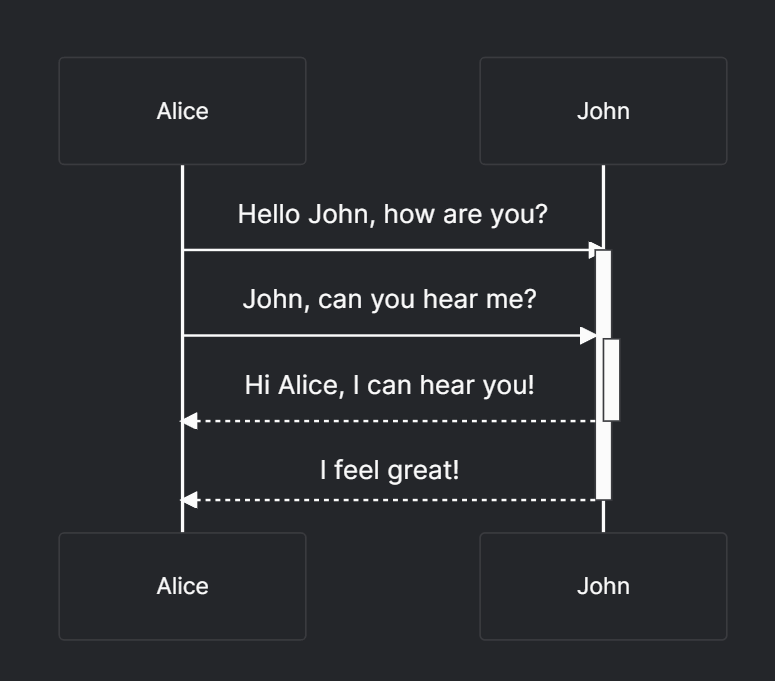
20.1. Mermaid: Flowcharts, etc.
Core support (in Obsidian).
```mermaid
sequenceDiagram
    Alice->>+John: Hello John, how are you?
    Alice->>+John: John, can you hear me?
    John-->>-Alice: Hi Alice, I can hear you!
    John-->>-Alice: I feel great!
```
sequenceDiagram
    Alice->>+John: Hello John, how are you?
    Alice->>+John: John, can you hear me?
    John-->>-Alice: Hi Alice, I can hear you!
    John-->>-Alice: I feel great!
```mermaid
pie title This Week's Pomodoros
	"Monday": 5
	"Tuesday": 11
	"Wednesday": 12
	"Thursday": 22
	"Friday": 10
	"Saturday": 7
	"Sunday": 6
```
pie title This Week's Pomodoros
	"Monday": 5
	"Tuesday": 11
	"Wednesday": 12
	"Thursday": 22
	"Friday": 10
	"Saturday": 7
	"Sunday": 6
20.2. Excalidraw
20.3. Diagrams
20.4. Emoji
21. YAML Front Matter
Default Keywords:
21.1. tags
- Cannot contain spaces.
- Can use underscores (
_) or hyphens (-) as separators. - Cannot be entirely numeric:
#3cis usable, but#2022is not (as a tag, thoughtag: 2022might be valid YAML). - Can use forward slashes (
/) to create nested tags:tech/software
The syntax for tags is flexible; all of the following are valid:
tags: test1, test2, test3/test3-1
tags: [ test1, test2, test3/test3-1 ]
tags:
  - test1
  - test2
  - test3/test3-1
tags:
  - test1 test2 test3/test3-1 # This might be interpreted differently depending on parser
21.2. aliases
Aliases for the note's filename, allowing a note to have multiple names or ways to link to it.
---
aliases: [MarkdownUsage, MarkdownSyntaxSummary]
---
21.3. cssClasses
Both cssClass or cssClasses can be used. Applies specific CSS classes to this note for custom styling.
21.4. publish
publish: true publishes the note to Obsidian Publish, publish: false prevents publishing.
22. Related Links
💡 解說文章(繁體中文): https://jdev.tw/blog/7066/
💡 Explanation article(English): https://quaily.com/jdevtw-en/p/obs-use-obsidian-learn-markdown
💡 解説記事(日本語): https://quaily.com/jdevtw-jp/p/obs-use-obsidian-learn-markdown
- Markdown Syntax Description (markdown.tw)
- Tutorial - MarkDown (markdown.cn)
- Format your notes - Obsidian Help
23. Tutorial Videos
▼ YouTube
▼ Bilibili
-
Footnote description ↩︎
-
Cao Xueqin, personal name Zhan, courtesy name Mengruan, style names Xueqin, Qinpu, and Qīn Xī, was a Qing dynasty novelist, poet, and painter, author of the Chinese classic novel Dream of the Red Chamber. Born in Jiangning Prefecture, Qing dynasty, with ancestral roots in Liaoyang, he came from a bondservant family of the Plain White Banner under the Qing Imperial Household Department. He is verified to be a descendant of Cao Cao, the Han dynasty chancellor during the Three Kingdoms period. ↩︎
-
The story begins with a stone left over from when the goddess Nüwa mended the heavens, hence it is also known as The Story of the Stone (Shitou Ji). The Jiaxu (1754) manuscript preface by Meng Jue Zhu Ren titles it Dream of the Red Chamber (Honglou Meng). After the first movable type printing in 1791, Dream of the Red Chamber replaced The Story of the Stone as the commonly used title. ↩︎