
All files managed by Obsidian must be placed within a designated folder (Vault). However, in practice, we often need to reference files outside the Vault, such as PDFs we want to consult or Word documents we need to edit. In these cases, the cross-boundary plugins introduced today can help us handle files more conveniently.
I tested four plugins for working with external files:
- External File Embed and Link: Embed or link
- Better File Link: Link
- Synaptic Bridge: Synchronize and edit external Markdown files
- PDF++ dummy file for external PDF: Create a PDF++ shortcut file
Finally, I will suggest a recommended combination for the best user experience.
1. External File Embed and Link
1.1. Steps
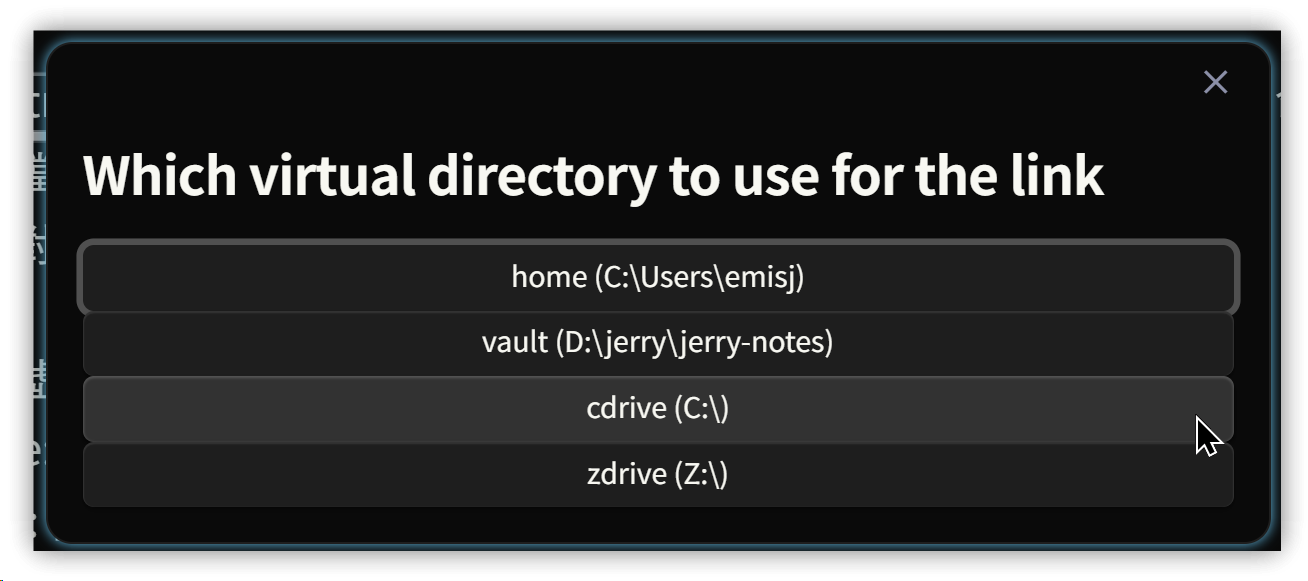
- Press <span class='keybs'>Ctrl/Cmd+P</span> and execute the
Add external **Embedded/Inline** linkcommand from the Command Palette. - A file selection dialog will appear—choose the file.
- Insert the corresponding code block for the external file.
Default virtual folders:
- home: User account’s home directory, i.e., the environment variable
HOMEDRIVE+HOMEPATH→ e.g.,C:\Users\<account>\ - vault: Your Obsidian Vault folder
In settings, you can add commonly used external folders, assigning a virtual folder name and mapping it to a physical directory.
1.2. Embedding
- Relative path starting from the home directory (Windows:
C:\Users\<account>)
- Absolute path starting from a defined virtual directory
- Embed from a custom virtual directory
1.3. Linking
1.3.1. Manually enter the code block for an inline link
Although not mentioned in the docs, this still works in v1.5.6.
▼ Click to open. Works in both Preview and Reading modes:
1.3.2. Use the command to insert an inline link
This generates an HTML <a>...</a> tag. Not functional in Preview mode; works in Reading mode.
<a href="#cdrive://Syncthing/t/math-8A2.pdf" class="LinkRelativeTo">math-8A2.pdf</a>
▼ Clickable in Reading mode:
<a href="#cdrive://Syncthing/t/math-8A2.pdf" class="LinkRelativeTo">math-8A2.pdf</a>
2. Better File Link
- Run the Add File Link command, then browse to the desired file.
- Embed external files in standard Markdown format, e.g.:
 - Link folder instead file: if checked, links to a folder instead of the chosen file.
External PDFs cannot be embedded, only linked.

Example – embed external image


External image link
gql.png

PDF link – Clickable in both Preview and Reading modes
math-8A2.pdf
[math-8A2.pdf](<file:///C:\Drolpbox\temp\math-8A2.pdf>)
2.1. Supported file extensions
Embeddable
- Documents: MD
- Images: PNG, JPG, JPEG, GIF, BMP, SVG
- Audio: MP3, WebM, WAV, M4A, OGG, 3GP, FLAC
- Video: MP4, WebM, OGV
- Documents: PDF
Not embeddable in testing
- Audio: MP3
- Video: MP4, WebM
- Documents: PDF
3. Synaptic Bridge
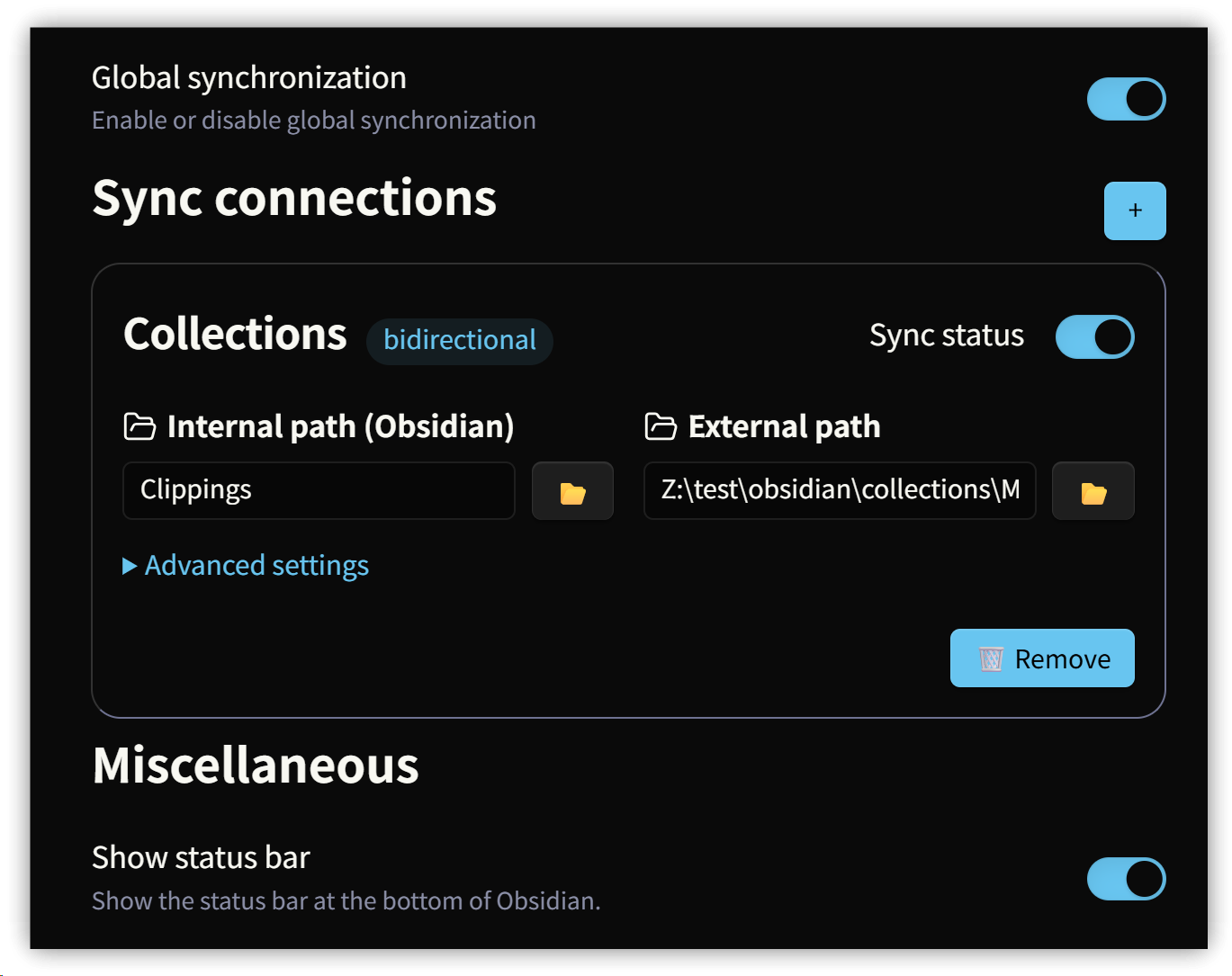
Synaptic Bridge is a powerful Obsidian plugin designed to automatically synchronize your Vault with external folders. It supports not only Markdown files but also any file type you configure.
Specify your Obsidian Vault folder, then select an external folder to sync. The external folder path must point to where .md files are stored—subdirectories are not scanned. To exclude files, use Advanced settings.
When Sync status and Global synchronization are enabled, external files are automatically copied into the Vault, and edits made in Obsidian will sync back to the external file.
4. PDF++ Dummy File
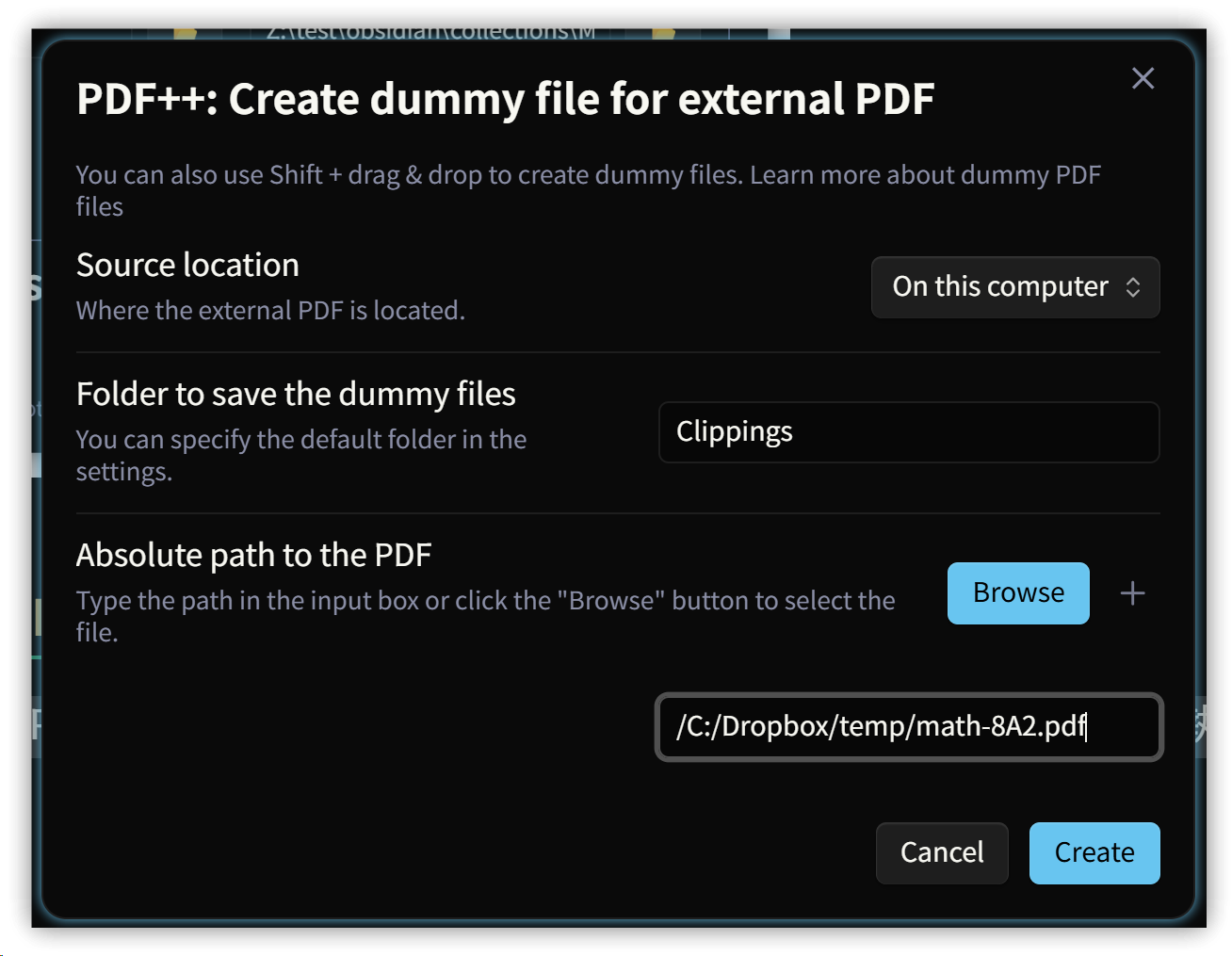
PDF++ provides a command create dummy file for external PDF. This creates a same-named PDF in the dummy file folder, but although it has a .PDF extension, it’s actually a text file. Example:
file:///C:/Dropbox/temp/math-8A2.pdf
It contains the actual file path, allowing PDF++ to open and use annotation functions.
5. Recommendations
- Need embedded PDFs: External File Embed and Link
- Need links: Better File Link
- Need to edit external Markdown files in Obsidian: Synaptic Bridge
- Need embedded PDFs with highlighting: PDF++
6. 💡 Related Links
💡 Traditional Chinese article: https://jdev.tw/blog/8918/
💡 Explanation article (English)
💡 解説記事(日本語)
✅ GitHub – oylbin/obsidian-external-file-embed-and-link
✅ External File Link plugin: GitHub – Kay607/obsidian-pathlinker
✅ patsh90/mpv-obsidian-plugin
✅ Folder mapping – especialkim/synaptic-bridge