

Obsidian Importer is an official plugin developed by Obsidian, mainly used to import notes from other note-taking applications into Obsidian. Currently, it supports the following formats, and the latest version 1.7.0 (released on November 12, 2025) adds support for importing CSV files, making it easy to import data from .csv files:
- Apple Notes
- Bear
- CSV files
- Evernote
- Google Keep
- Microsoft OneNote
- Notion
- Roam Research
- HTML files
- Markdown files
The following explains how to use the CSV import feature in Obsidian Importer, along with a demonstration of the data grouping feature in Bases.
1. CSV Import Steps
1.1. Prepare the .csv file
- For this example, we will use the CSV file provided by Taiwan Box Office Statistics. Search for “電影 2025 csv” to find the download link.
- Download the file “票房資料匯出週票房 2025-11-03 到 2025-11-09.csv” and save it in a specific folder.
1.2. Run the Import Command
-
Press Ctrl/Cmd+P, type
importin the command palette, find Importer: Open importer, and execute it. -
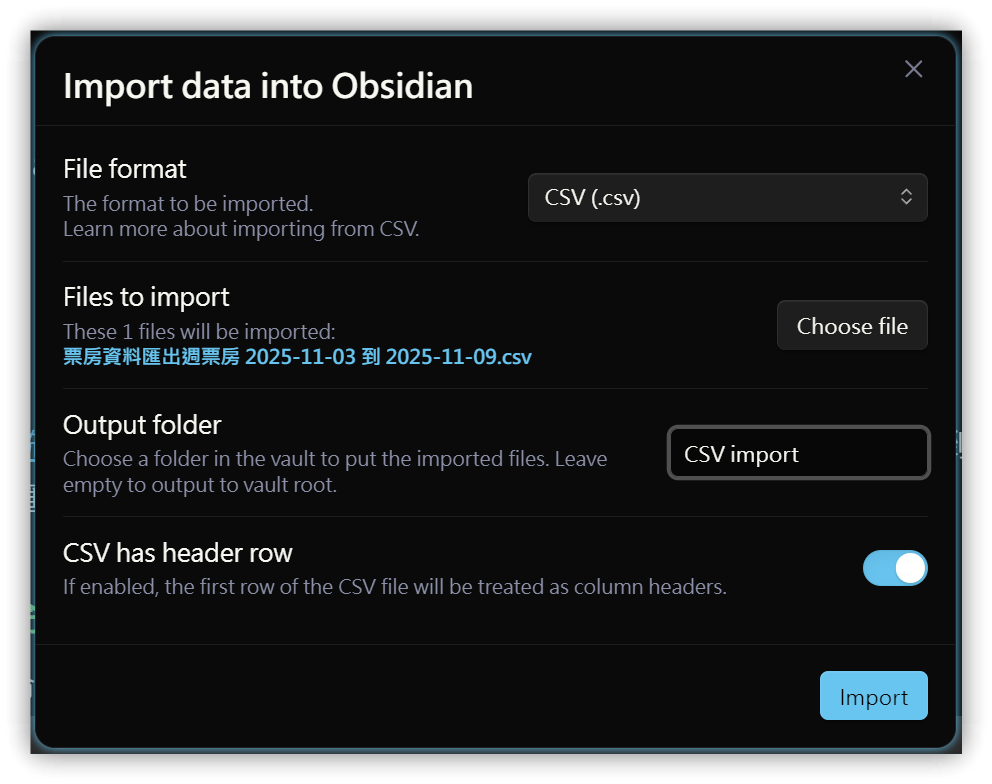
In File format, select CSV, click Choose file to select your file, and then click Import.
-
Fill in the required fields and click Continue to begin importing:
- Note title: Enter
{{片名}}to set the note file name to the value in the “片名” column. - Property name: Enter the property name you want to use.
- Click the delete button to remove columns you don’t want to import.
- Note content: Enter the content you want to appear in the note.
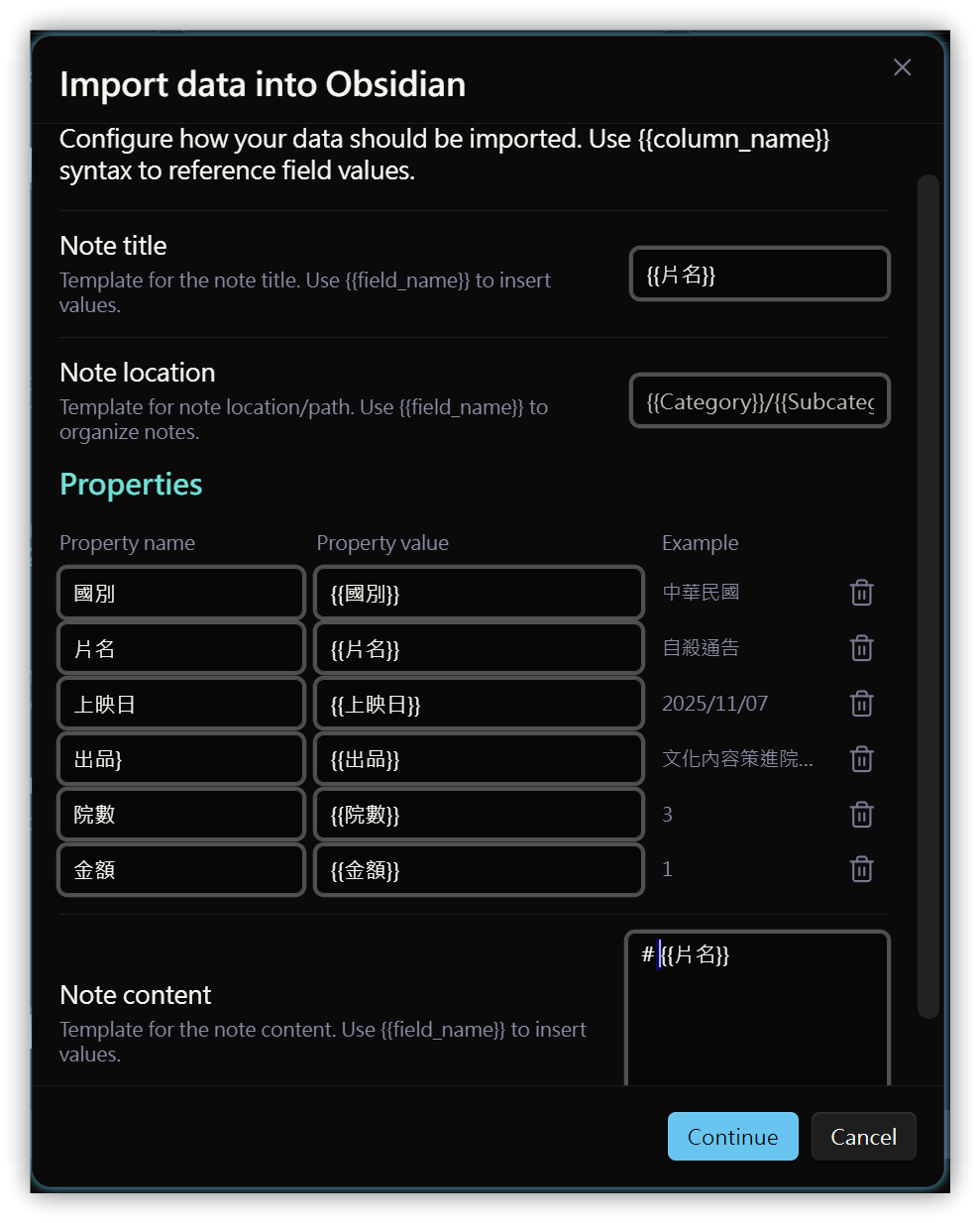
- Note title: Enter
2. Import Results
After importing, the notes will be generated in the CSV Import folder. Each row in the CSV file will create one .md note, and each column will populate a property in the YAML section.
3. 💡 Related Links
✅ Explanation article (Traditional Chinese): https://jdev.tw/blog/9028/
✅ Explanation article (English)
✅ Explanation article (Japanese)